
Command palette
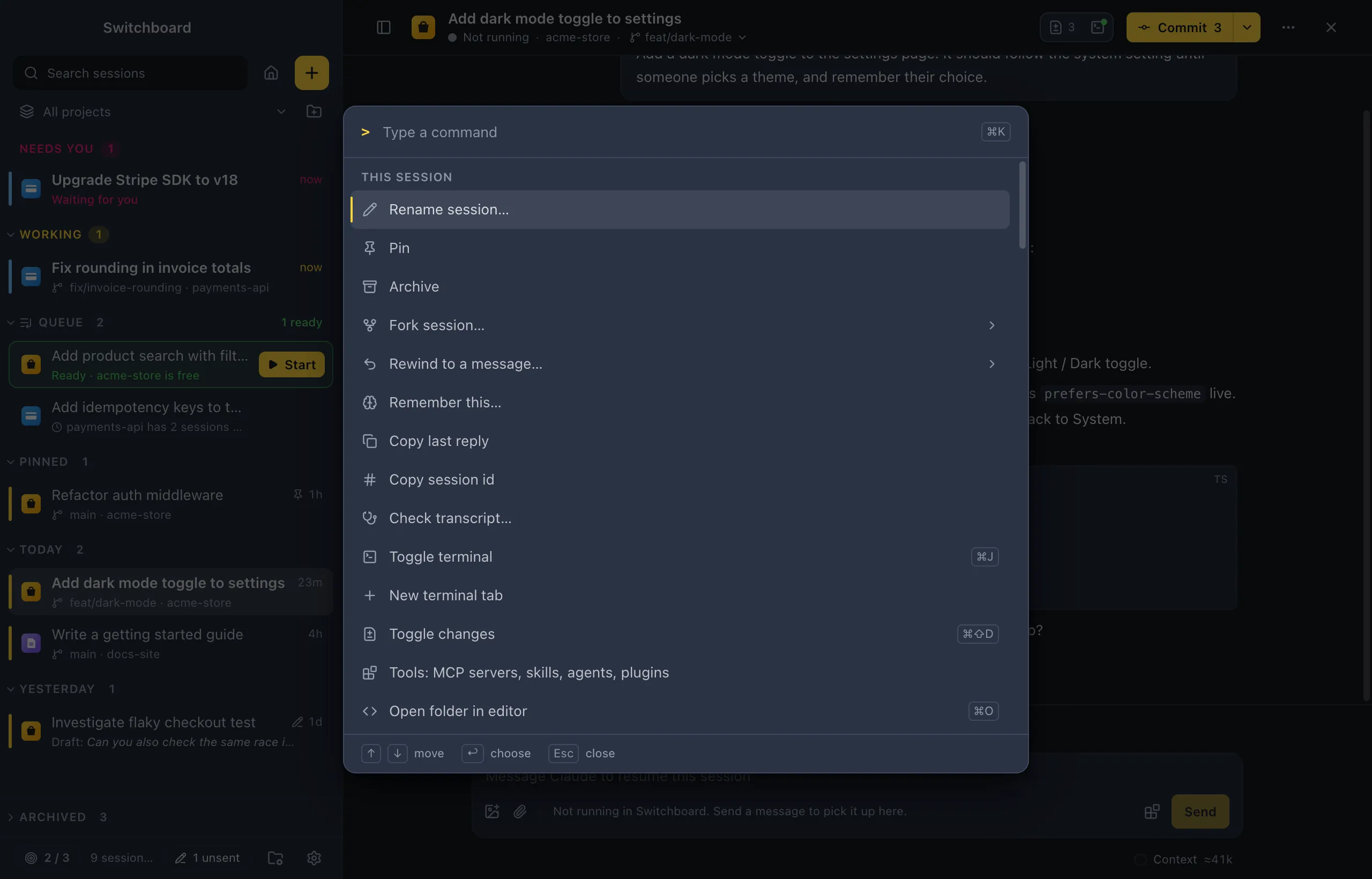
The command palette puts everything Switchboard can do one search away. It lists the commands that fit where you are, jumps to any session or project, and starts a new session without leaving the keyboard.
Open it
Section titled “Open it”| Press | What opens |
|---|---|
| Command, K or Command, Shift, PControl, K or Control, Shift, P | The commands |
| Command, PControl, P | Go to a session or project |
In the terminal, Command, KControl, K clears the terminal, so use Command, Shift, PControl, Shift, P there. Pressing the other shortcut while the palette is open switches it in place. Escape closes it.
Prefixes
Section titled “Prefixes”What you type first decides what the palette lists, as in VS Code:
| Type | Lists |
|---|---|
| (nothing) | Go to a session or project (Command, PControl, P) |
> |
Commands (Command, KControl, K) |
+ |
New session in a project: goes straight to picking a project |
! |
The project actions of the session you have open, to run one |
? |
Help: these prefixes, and the keyboard shortcuts sheet |
DeleteBackspace in an empty field leaves a prefix and goes back to Go to.
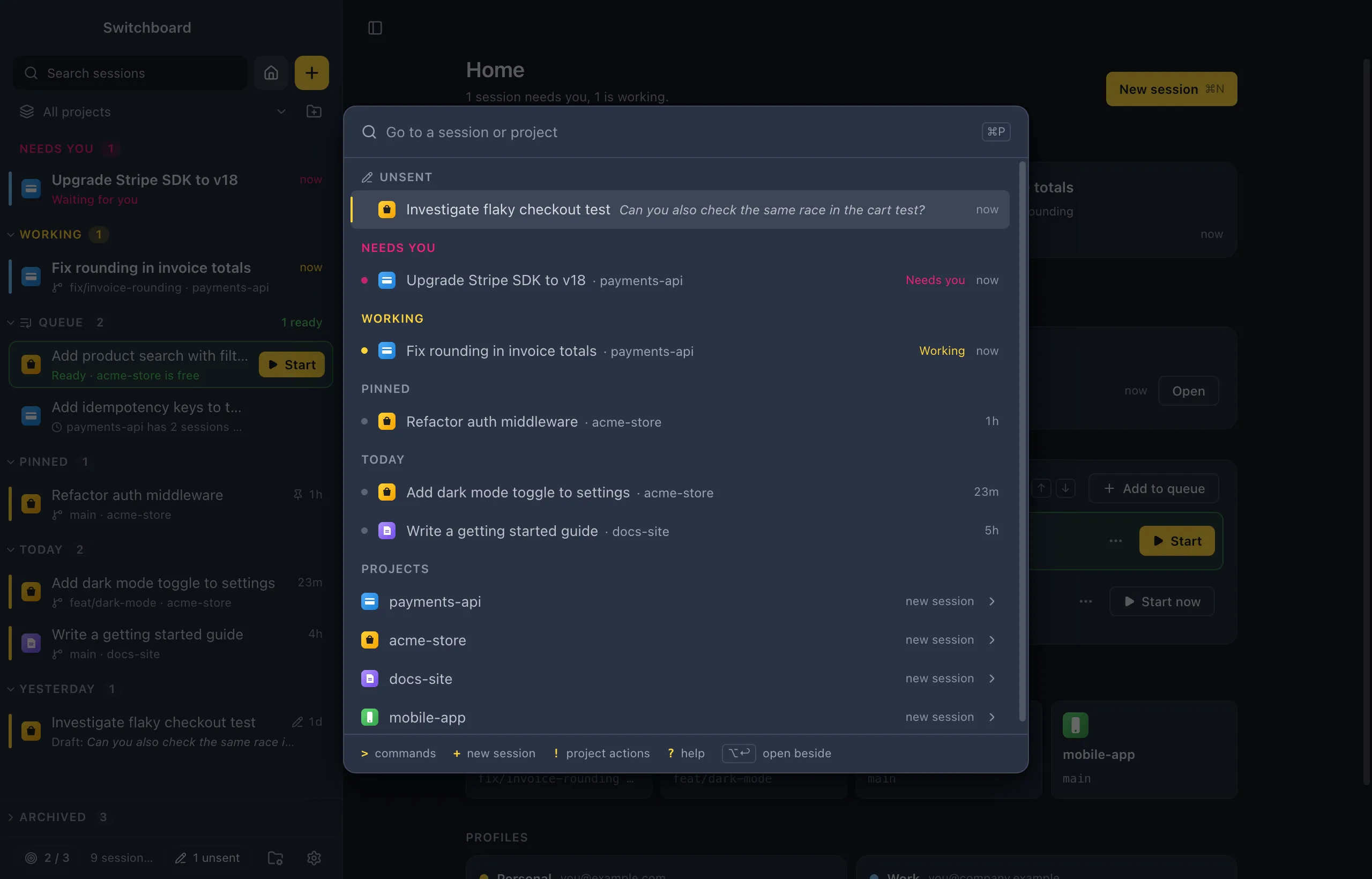
Go to a session or project
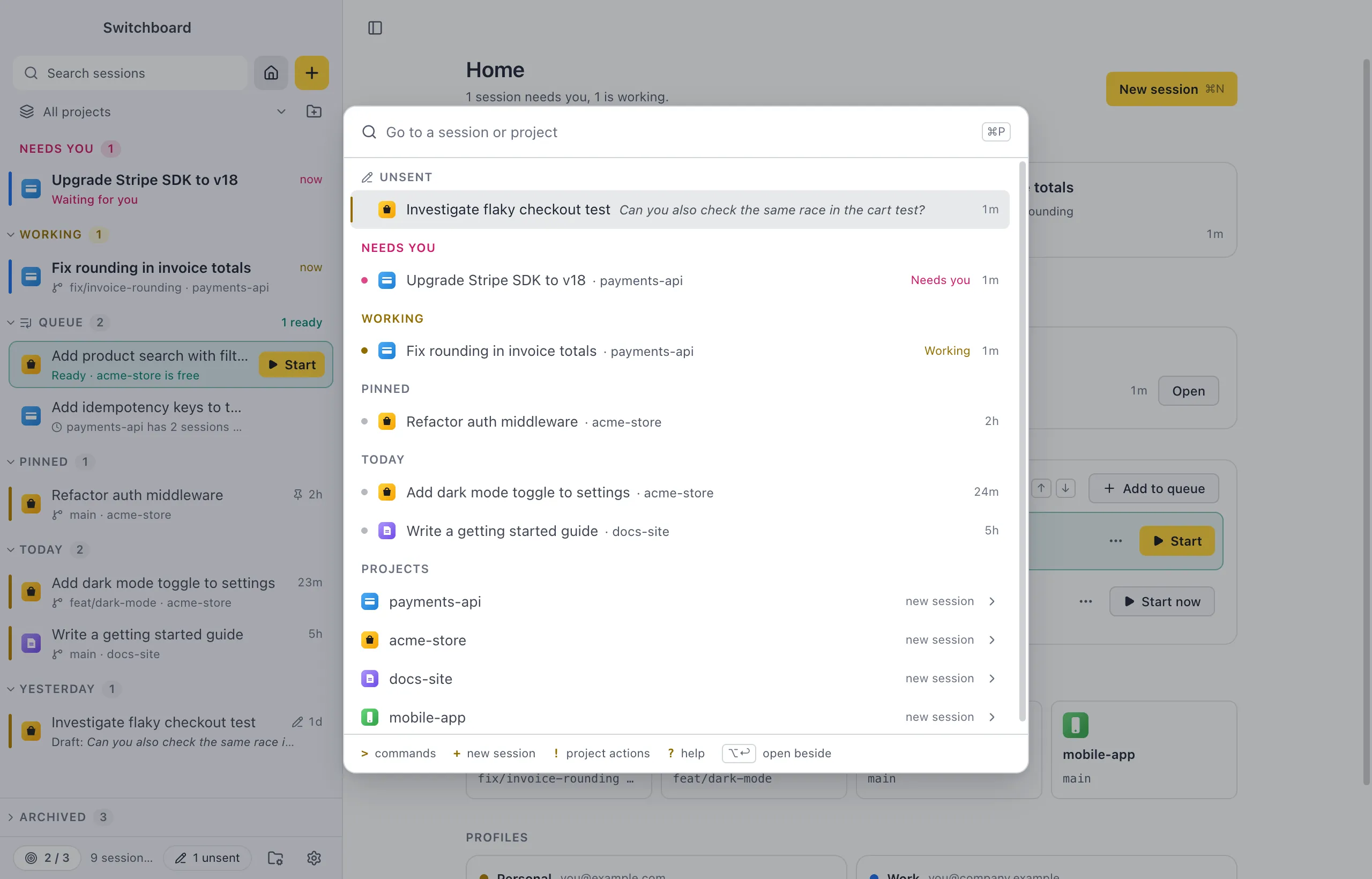
Section titled “Go to a session or project”With nothing typed, Go to lists your sessions under the sidebar’s own headings, in its order: Needs you, Working, Pinned, Today, Yesterday, Earlier. Unsent messages come first. It can stand in for the sidebar while that is closed. Type a few letters to match session titles and project names; projects follow under Projects.
- ReturnEnter opens the session. On a project, it starts a new session there.
- Option, ReturnAlt, Enter opens the session beside the current one, in split view.
Commands
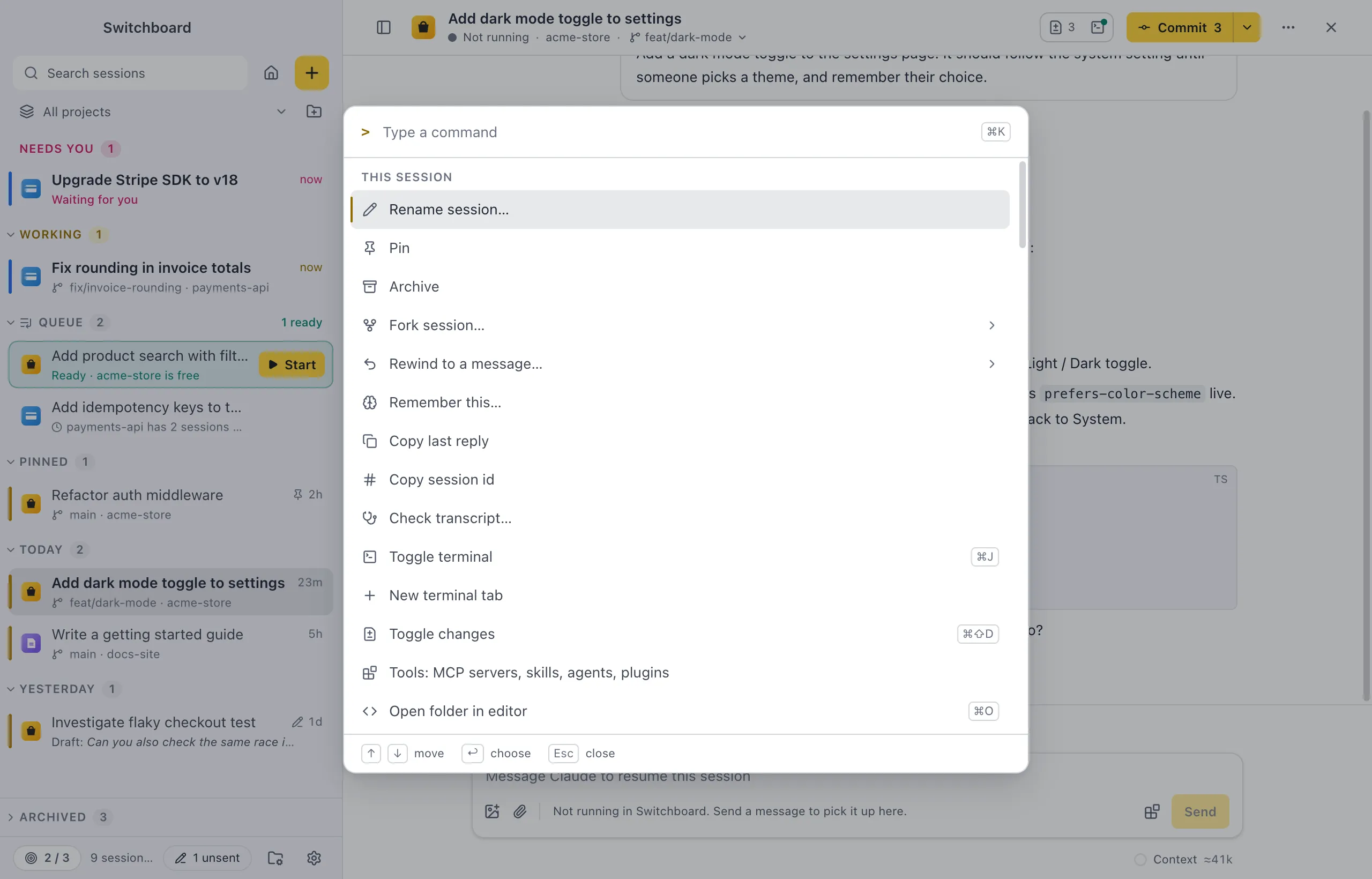
Section titled “Commands”With nothing typed, the commands for where you are come first, in groups:
- This session: the session you have open.
- Git: when its folder is a git repository.
- Project actions: the session’s project actions, as Run: <action>.
- Terminal: while the terminal panel is open.
- Split view: with two sessions side by side.
- New session: while New session is open.
- Settings: while Settings is open, to go to a section.
Then Recently used (the last five commands you ran in this window), then the rest under Commands. Type to search: the palette matches titles, and a few other words each command answers to (Archive also answers to “done”, Change model… to “opus”). A command only shows when it can run; nothing is ever listed greyed out.
Each row shows the command’s shortcut, when it has one, so the palette also teaches you the keys.
A command whose title ends in … asks for more: picking it shows its next step, and the command becomes a chip in the field. Change model… lists the models, Fork session… the messages to fork from, Focus limit: set limit… the numbers. In a list, Command, 1 to Command, 9Control, 1 to Control, 9 picks a row by its number.
DeleteBackspace in an empty field goes back one step, with what you had typed there.
Start a new session
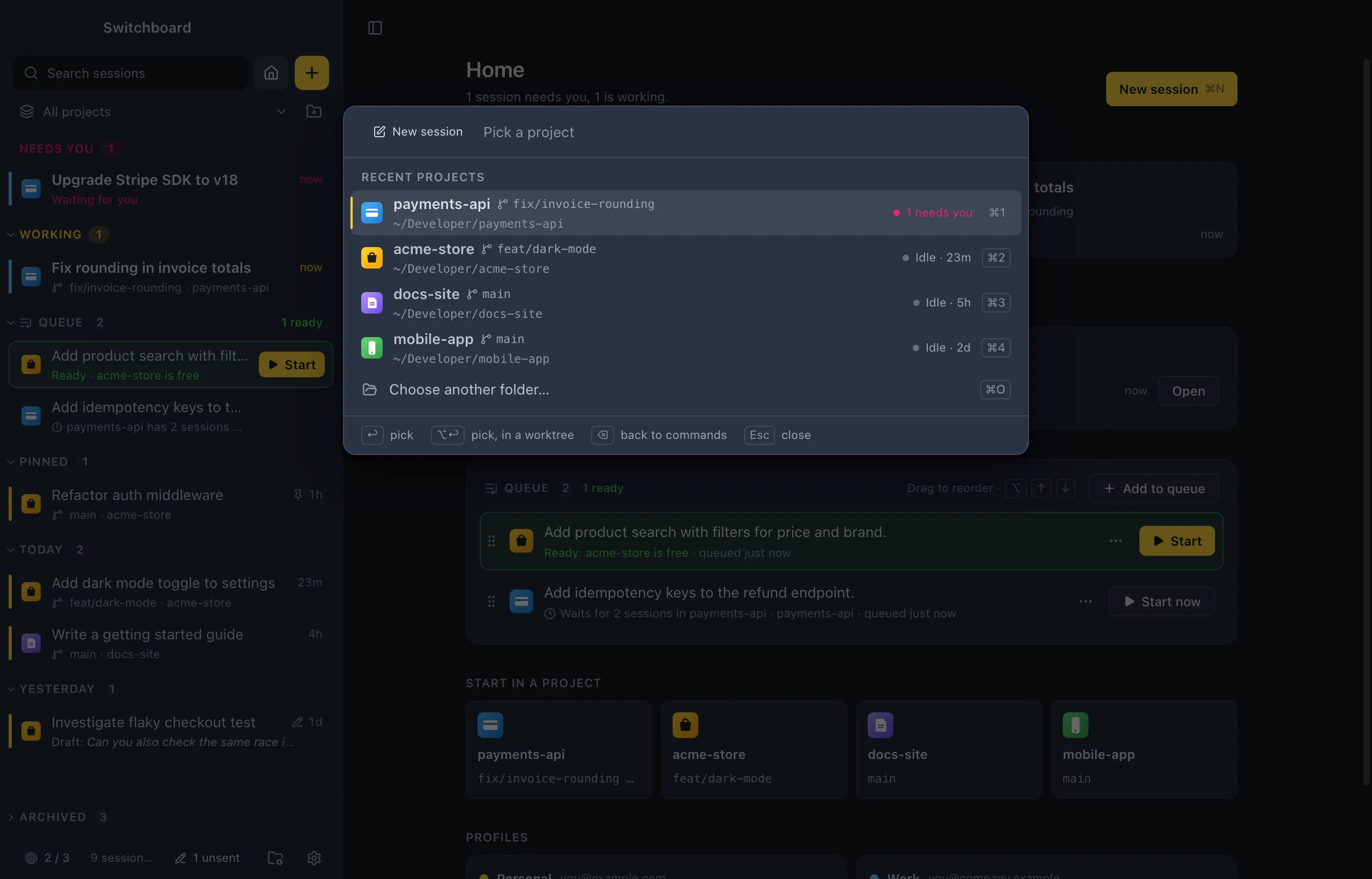
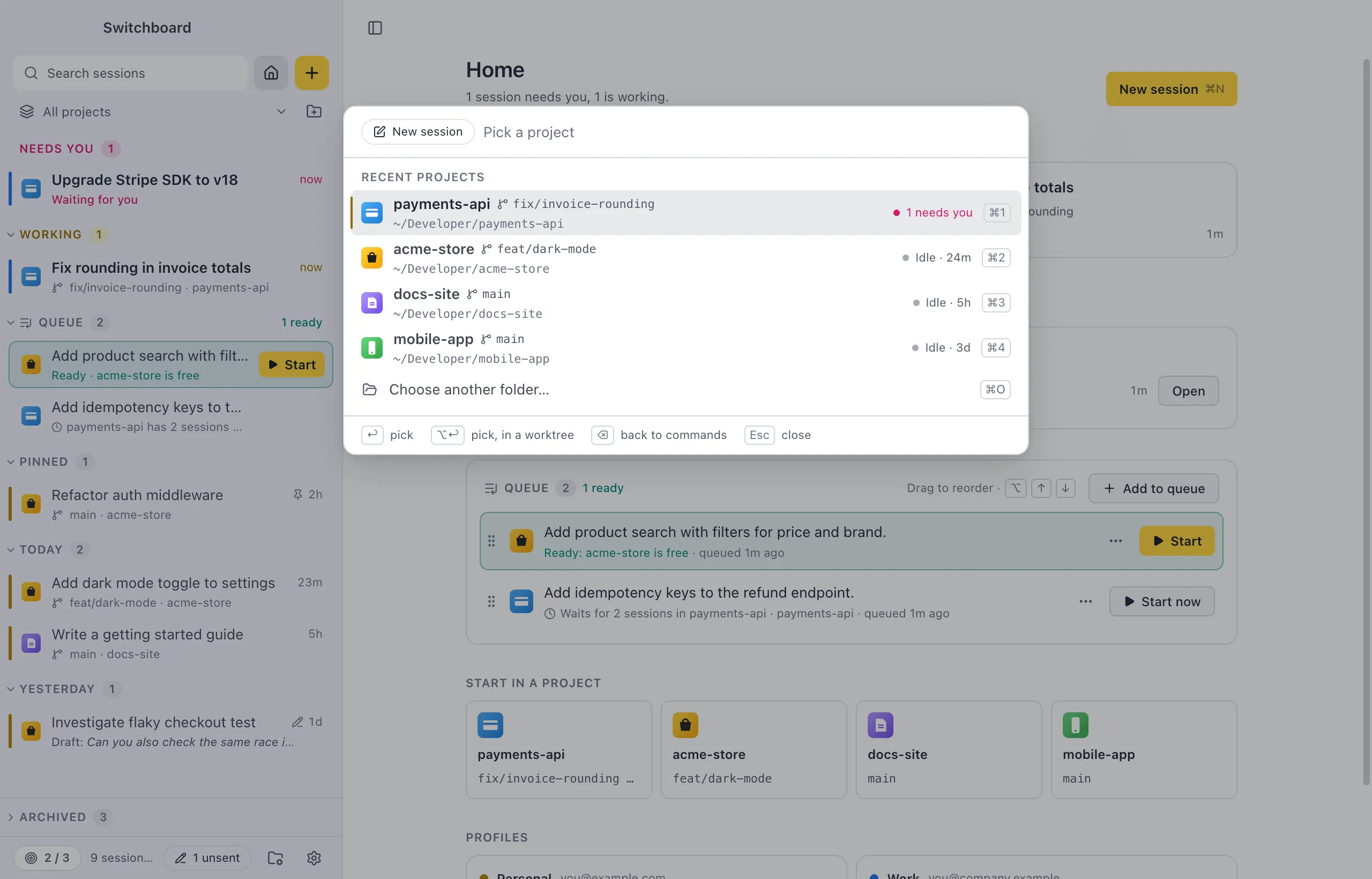
Section titled “Start a new session”New session… (or +) ends in a small New session form:
- Pick a project. Type to filter, or press Command, 1 to Command, 9Control, 1 to Control, 9. Option, ReturnAlt, Enter picks it in a new worktree, and Command, OControl, O chooses any folder.
- Write the prompt. The form has the route (current checkout and branch, or a new worktree) and the profile, model, effort and mode chips, starting from the project’s defaults. Click the project to pick another one; the prompt comes along.
- Press Command, ReturnControl, Enter to start.
| Key | In the prompt step |
|---|---|
| Command, ReturnControl, Enter | Start the session |
| Command, Shift, ReturnControl, Shift, Enter | Add the prompt to the queue |
| Command, EControl, E | More options: move the prompt and choices to the full New session view |
| DeleteBackspace | Back to the project list |
| Escape | Close; the prompt is kept as the project’s unsent prompt |
Every command
Section titled “Every command”Titles in angle brackets show the name of the current project, action or theme. The current project is the project page on screen, the open session’s project, or else the project the sidebar is filtered to. “Session open” means the session view shows a session.
General
Section titled “General”| Command | Shows | Shortcut |
|---|---|---|
| New session… | Always | Command, NControl, N |
| New session in <project> | A project’s page or a session is open, or the sidebar is filtered to a project | |
| Quick question… | Connected to the engine | Command, Shift, NControl, Shift, N |
| New session in a worktree… | Always | |
| Go to session… | Always | Command, PControl, P |
| Next session | Always | Control, TabControl, Tab |
| Previous session | Always | Control, Shift, TabControl, Shift, Tab |
| Go to next session that needs you | Always | Command, Shift, UControl, Shift, U |
| Toggle sidebar | Always | Command, BControl, B |
| Open sidebar | The sidebar isn’t open | |
| Minimize sidebar | The sidebar isn’t the minimal rail | |
| Close sidebar | The sidebar isn’t closed | |
| Home | You are not on Home | Command, Shift, HControl, Shift, H |
| Search conversations | Always | Command, Shift, FControl, Shift, F |
| Search memory… | Connected to the engine | |
| Settings | Settings isn’t open | Command, CommaControl, Comma |
| Sidebar: Compact, Sidebar: Standard, Sidebar: Large icons | Each one except the style in use | |
| Appearance: Match System, Appearance: Light, Appearance: Dark | Each one except the appearance in use | |
| Theme: <name> | Each theme except the one in use | |
| Import theme… | Always | |
| Export current theme… | Always | |
| Manage projects | The Projects view isn’t open | |
| Add project… | Always | |
| Project: <name> | Each project except the page already open | |
| Worktrees in <project> | The current project is one of your projects | |
| Worktrees… | You have projects | |
| Branches in <project> | The current project is one of your projects | |
| Branches… | You have projects | |
| Clean up worktrees in <project>… | The current project is one of your projects | |
| Rename project… | You have projects | |
| Memory… | Always: the current project’s Memory tab, else Settings › Memory | |
| Memory settings… | Always | |
| Import memory from Claude export… | Connected to the engine | |
| Paste memory from Claude app… | Connected to the engine | |
| Copy memory for Claude app… | Connected to the engine | |
| Share memory with the team… | The current project is one of your projects | |
| Check for Claude Code updates… | Always | |
| Reload skills | Connected to the engine | |
| Export settings… | Always | |
| Import settings… | Always | |
| VS Code extension | Always | |
| Engine diagnostics | Always | |
| Keyboard shortcuts | Always | Command, SlashControl, Slash |
| Focus limit: turn on | The focus limit is off | |
| Focus limit: turn off | The focus limit is on | |
| Focus limit: set limit… | Always | |
| Unsent messages… | You have unsent messages | |
| Start next in queue | A queued item is ready | |
| Queue: pick one to start… | Something is queued | |
| Add to queue (in New session with a prompt) or Add to queue… (elsewhere, opens New session) | Connected to the engine | Command, Shift, ReturnControl, Shift, Enter |
Commands that need the engine (Switchboard’s background process) hide while it isn’t connected.
This session
Section titled “This session”| Command | Shows | Shortcut |
|---|---|---|
| Rename session… | Session open | |
| Pin or Unpin | Session open | |
| Archive or Unarchive | Session open | |
| Fork session… | The session has a prompt or a reply | |
| Rewind to a message… | The session has a prompt | |
| Compact context | The session runs in Switchboard and its context isn’t empty | |
| Change model… | The session runs in Switchboard | |
| Change effort… | The session runs in Switchboard on a model with effort | |
| Change permission mode… | The session runs in Switchboard | Shift, TabShift, Tab |
| Copy last reply | Claude has replied | |
| Remember this… | Claude has replied | |
| Copy session id | Session open | |
| Check transcript… | Session open | |
| Toggle terminal | Session open | Command, J or Control, BacktickControl, J or Control, Backtick |
| New terminal tab | The session has a folder | |
| Toggle changes | The session has a folder | Command, Shift, DControl, Shift, D |
| Tools: MCP servers, skills, agents, plugins | The session has a folder | |
| Open folder in editor | The session has a folder | Command, OControl, O |
| Reveal folder in FinderFile Explorer | The session has a folder | |
| Add context… | A message box is on screen | Command, Shift, AControl, Shift, A |
| Continue in VS Code | VS Code is installed and the session isn’t working | |
| Close session | Session open | |
| Delete session… | Session open | |
| Stop Claude | Claude is working in Switchboard | Escape |
| Go to the permission or Go to the question | The session needs you |
| Command | Shows |
|---|---|
| Commit… | There are changed files |
| Create pull request… | The branch can have a pull request |
| Sync with remote | The repository has a remote |
| Switch branch… | Not a worktree, and Claude isn’t working |
| Stage all | There are unstaged changes |
| Revert all changes… | There are changed files |
| Finish worktree… | The session runs in a worktree |
Project actions
Section titled “Project actions”| Command | Shows | Shortcut |
|---|---|---|
| Run: <action> | Session open, one per action | The action’s own shortcut |
| Edit actions… | The project has actions you can edit | |
| New action… | You can edit the project’s actions |
Terminal
Section titled “Terminal”| Command | Shows | Shortcut |
|---|---|---|
| Hide terminal | The terminal is open | Command, J or Control, BacktickControl, J or Control, Backtick |
| Maximize terminal or Restore terminal | The terminal is open | Command, Shift, JControl, Shift, J |
| Dock terminal right | The terminal is docked below | |
| Dock terminal below | The terminal is docked on the right | |
| Stop action | An action runs in the terminal | Control, CControl, C |
| Restart action | The terminal shows an action |
Split view
Section titled “Split view”| Command | Shows |
|---|---|
| Focus other pane | Two sessions side by side |
| Close this pane | Two sessions side by side |
New session
Section titled “New session”| Command | Shows |
|---|---|
| Toggle worktree | The picked folder is a git repository |
| Save as project default | The choices on screen differ from the project’s defaults |
| Update from remote | The picked project has a remote |
Settings
Section titled “Settings”Settings: General, Settings: Theme, Settings: Sidebar, Settings: Conversation, Settings: Focus, Settings: Claude profiles, Settings: Memory, Settings: VS Code, Settings: Backup, Settings: Diagnostics and Settings: About show while Settings is open, each except the section you are on.
Settings
Section titled “Settings”Project order in Settings → General sets how the palette lists your projects: most recent first, or in your order.