The sidebar
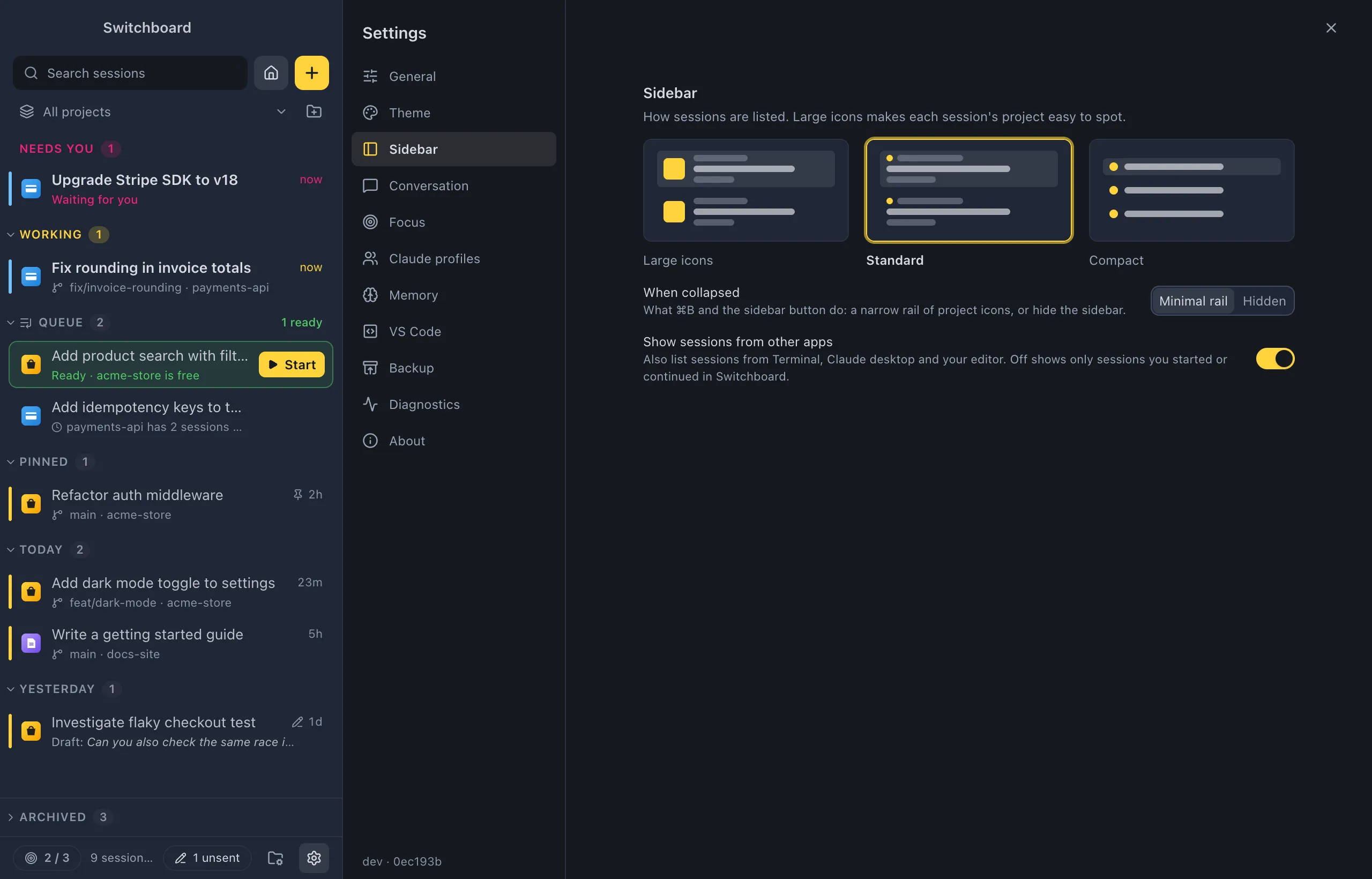
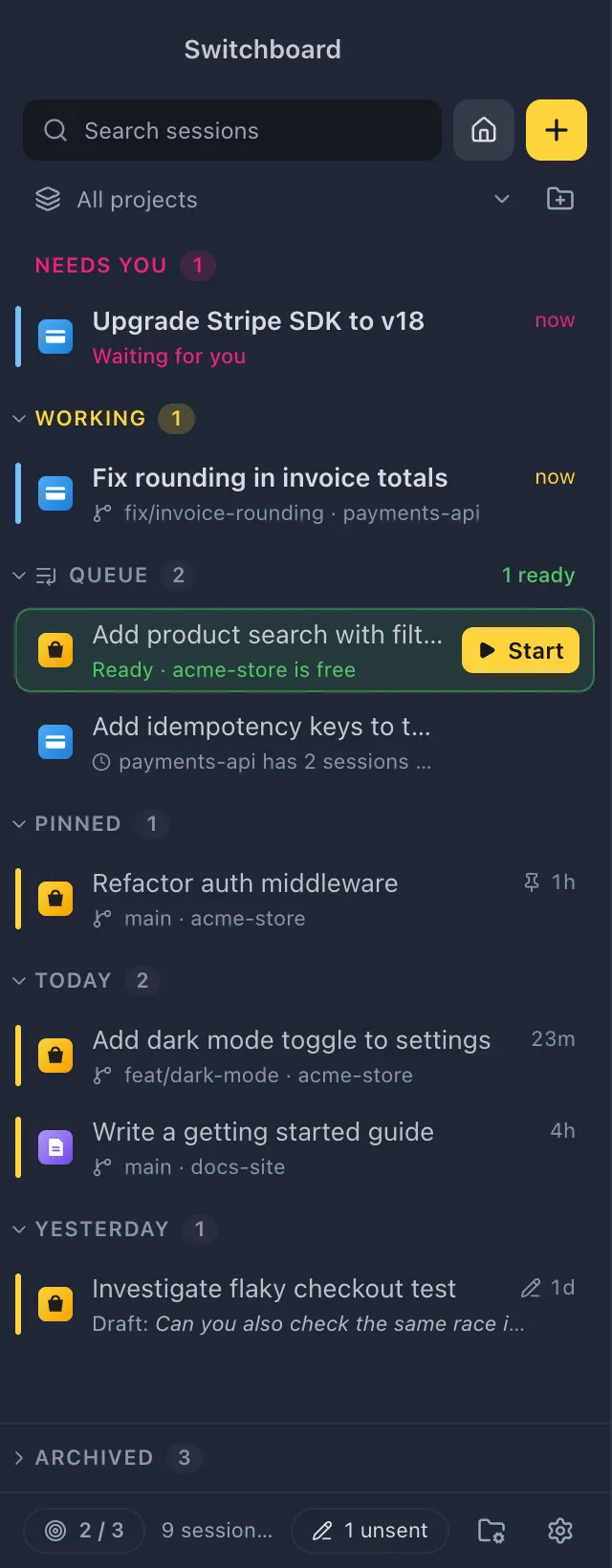
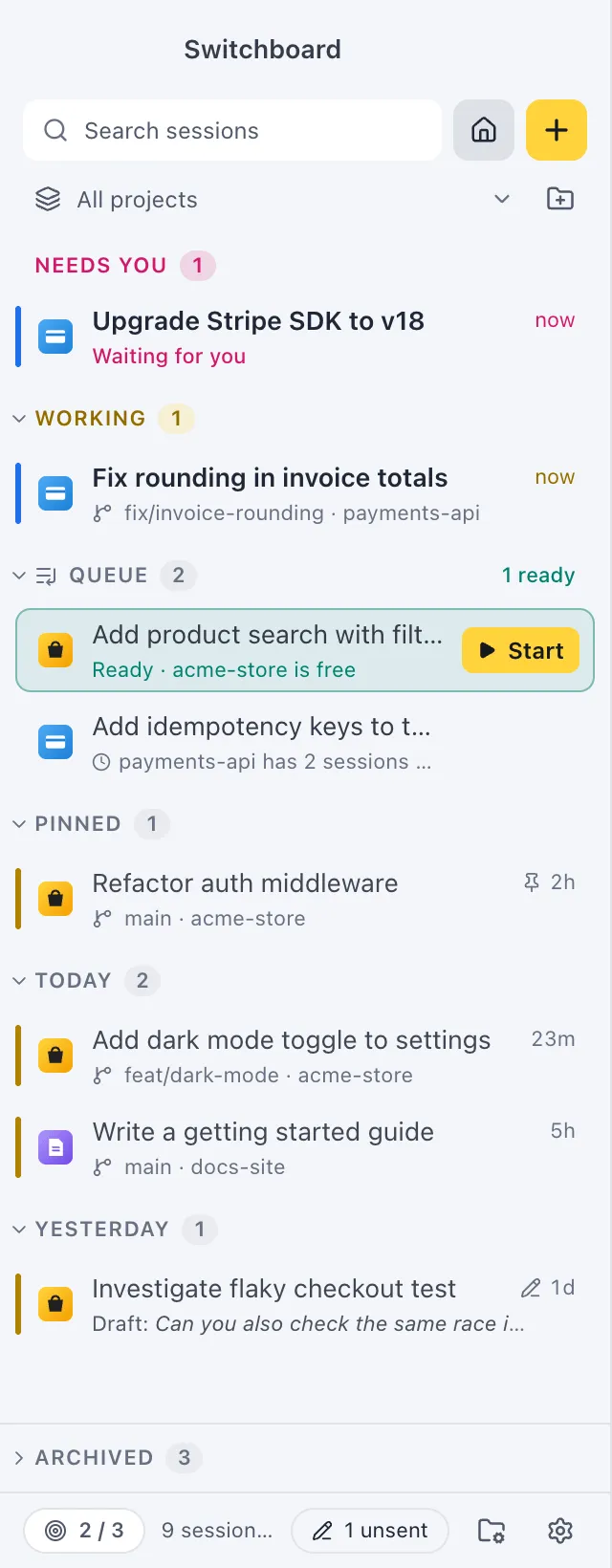
The sidebar lists your sessions across every project, grouped by what needs attention first and then by time. It is where you see at a glance which sessions are working, which wait for you, and which finished.
Open it
Section titled “Open it”The sidebar is always on the left of the window. Press Command, BControl, B or click the sidebar button at the left of a view’s header to collapse it or open it again. The command palette has Toggle sidebar, Open sidebar, Minimize sidebar and Close sidebar.
What’s in it
Section titled “What’s in it”At the top:
- Search sessions filters the list by title, project or branch. To search inside conversations, use Search (Command, Shift, FControl, Shift, F).
- The Home button opens Home (Command, Shift, HControl, Shift, H).
- The yellow + button starts a new session (Command, NControl, N).
- All projects filters the list to one project. Its menu lists your projects with their session count, plus Add project… and Manage projects…. The ⋯ next to a project (or → on it) opens its options: icon, rename, open the project’s page, Worktrees, Branches and more.
At the bottom, the footer counts your sessions (“12 sessions · 2 open · 1 queued · 1 waiting”), shows the focus limit counter when it is on and the unsent messages count, and has the Projects and Settings buttons.
Sections
Section titled “Sections”The list is split into sections. Empty sections don’t show.
| Section | What’s in it |
|---|---|
| Needs you | Sessions waiting for a permission, an answer or a plan review. The second line says what it asks for, such as “Permission: Bash” or “Question”. |
| Working | Sessions Claude is working on, the one you last sent a message to at the top. |
| Queue | Prompts waiting to start, right under Working. See Queue. |
| Pinned | Sessions you pinned. See Pinned sessions. |
| Today, Yesterday, Earlier | Everything else, newest first, by the day it was last active. |
| Archived | Sessions that were quiet for 48 hours, or that you archived. See Archived sessions. |
A pinned session that needs you or is working shows in Needs you or Working, and goes back to Pinned when it is done.
Quick questions are sessions like any other: they sit in the same sections, with their own icon and Questions where a project name would be.
Each row shows the project’s icon, the title, its age, and a second line with the branch and project. The state shows as a coloured rail on the left edge, the colour of the age and a status icon. A pin marks a pinned session and a pen an unsent message.
Close a section
Section titled “Close a section”Every section but Needs you closes from its header: click it, or press Left Arrow or Right Arrow on it. Option, clickAlt, click on a header closes or opens every section at once. Earlier starts closed. The chevron in each header points right while the section is closed and down while it is open.
A closed section keeps its count and says what matters inside, such as “2 unread” or, for the Queue, “1 ready”. The session you have open stays visible under its closed section, with “+N hidden” under it. Going to a session in a closed section opens it again. While you search or filter by project, every section shows.
Archived sits docked at the bottom of the sidebar while it is closed. Click it to open it: it slides up right under your other sessions.
Work with sessions
Section titled “Work with sessions”- Open a session: click it. Up Arrow or Down Arrow moves through the list.
- Open it beside the current one: Option, clickAlt, click. See Split view.
- Move between sessions from anywhere: Control, TabControl, Tab and Control, Shift, TabControl, Shift, Tab go to the next and previous session in the sidebar’s order, and Command, Shift, UControl, Shift, U to the next one that needs you.
- Rename: press F2, or choose Rename… in the session’s menu.
- Archive a finished session: middle-click it (middle click). Sessions that are working, need you or failed stay where they are.
- Delete: press Command, DeleteControl, Backspace, or choose Delete session…. After you confirm with Move to TrashRecycle Bin, the conversation and any subagent transcripts go to the TrashRecycle Bin, so you can get them back.
The session menu
Section titled “The session menu”Right-click a session, or press Shift, F10Shift, F10 on it, for:
- Rename…
- Pin or Unpin
- Archive (until new activity) or Unarchive
- Open beside
- Open folder in editor
- Copy session ID
- Delete session…
Select several sessions
Section titled “Select several sessions”Command, click or Shift, click or Shift, Up Arrow or Shift, Down ArrowControl, click or Shift, click or Shift, Up Arrow or Shift, Down Arrow selects several sessions. Every row then shows a round checkbox, and a bar at the bottom of the sidebar holds the actions for the selection: Archive (or Unarchive), Pin (or Unpin) and Delete….
- Command, AControl, A or Select all on a section header selects every session in that section.
- Space ticks the focused row.
- Escape or Clear ends the selection.
- Right-click one of the selected sessions for the same actions.
Resize and collapse
Section titled “Resize and collapse”The sidebar has three states: open, a minimal rail of project icons, and closed.
- Drag the sidebar’s right edge to make it wider or narrower. Double-click the edge to reset the width.
- Drag it further in and it snaps to the rail; further still, it hides. Drag the edge out again to open it at the width you had.
- With the edge focused, ← and → step through the same states.
- Command, BControl, B switches between open and collapsed. Settings decides whether collapsed means the rail or hidden.
Switchboard remembers the width and the state.
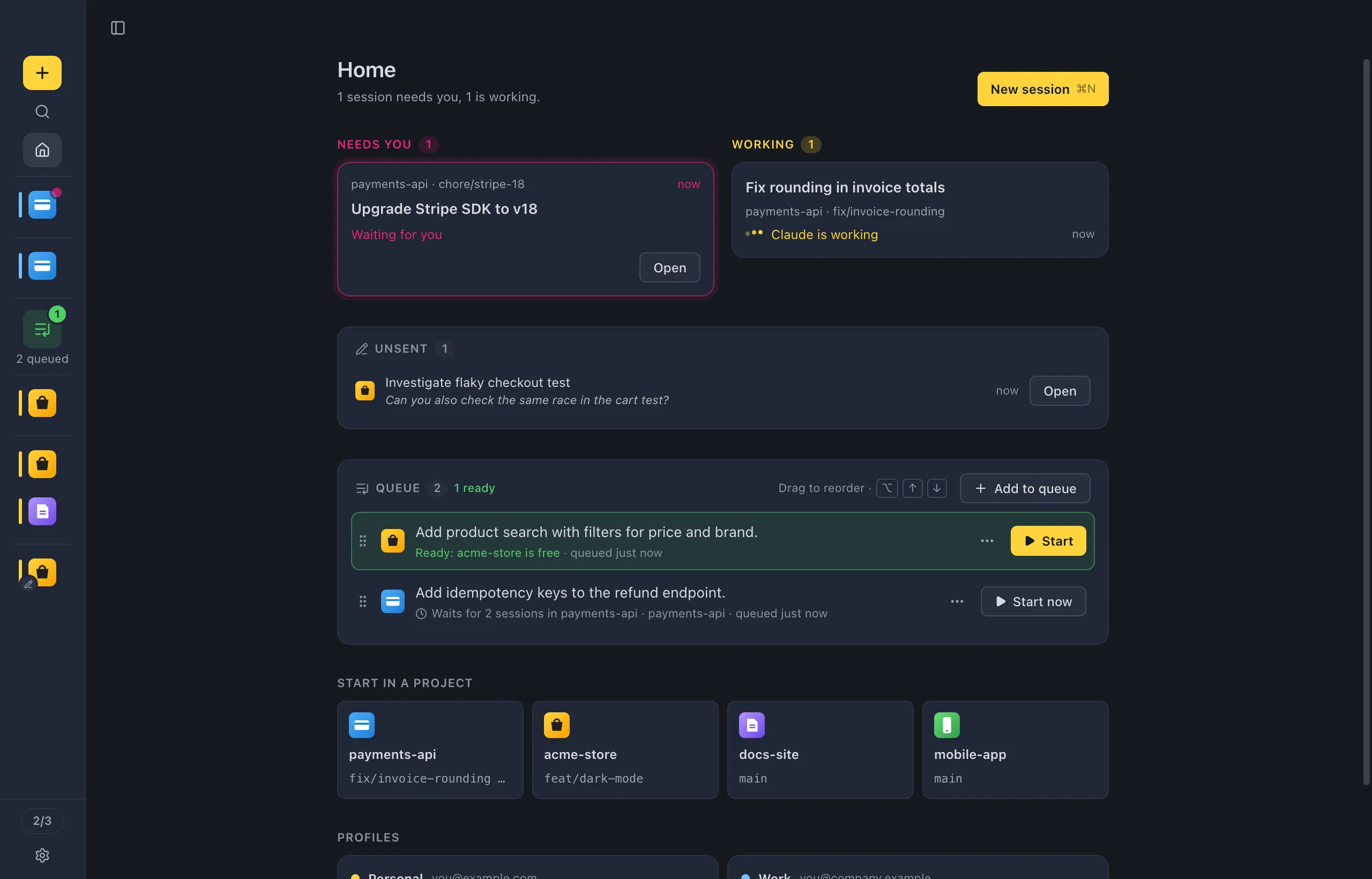
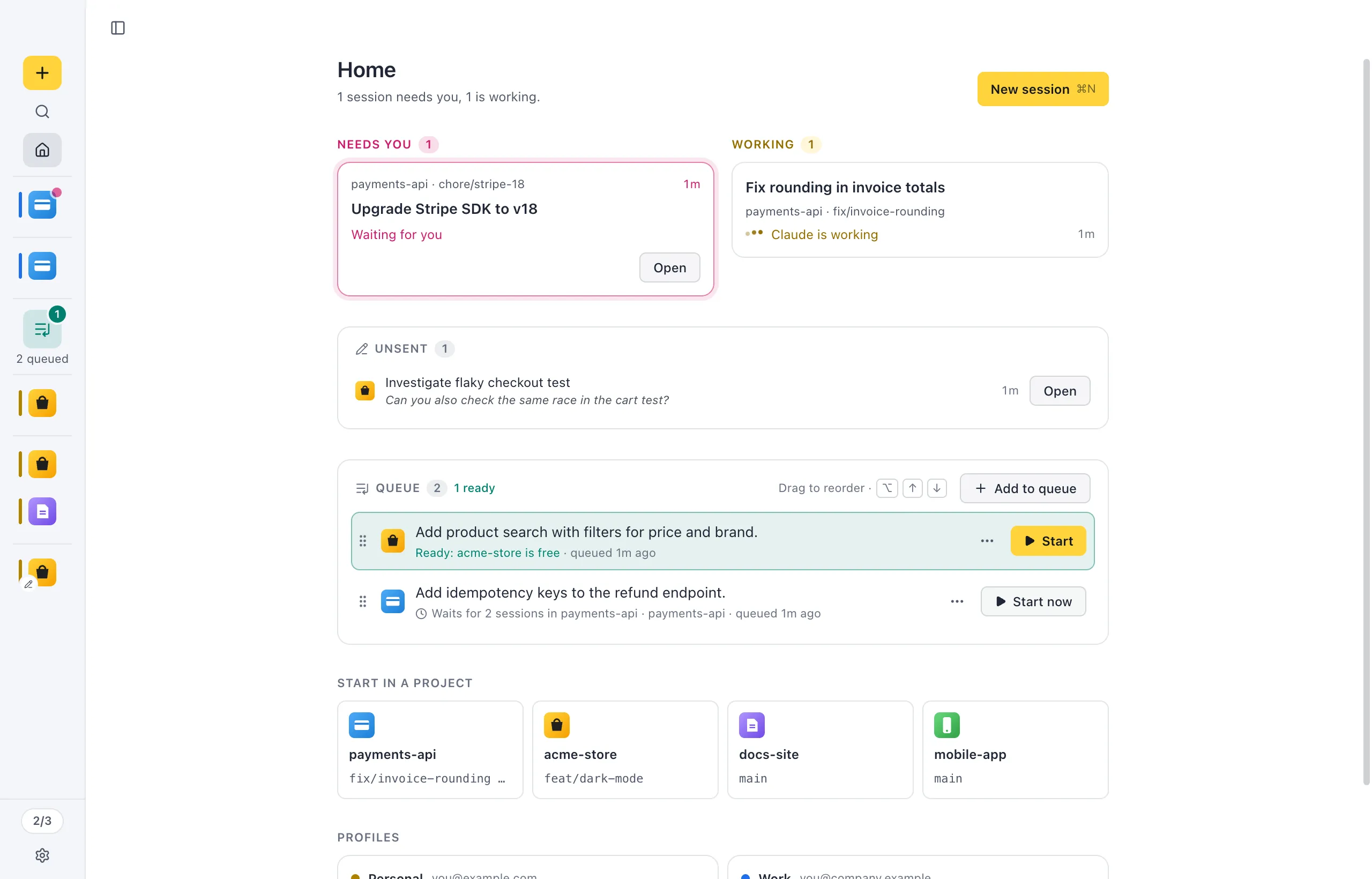
The minimal rail is 80px wide: one project icon per session, in the same groups and order as the open sidebar, with the same coloured rails. Hover an icon to see the session’s title, project, branch and state. Click a group’s letter to open the sidebar there.
With the sidebar hidden, the conversation takes the whole window. A needs you pill in the header says when sessions wait for you; click it to open the one waiting longest. After a jump with Control, TabControl, Tab or Command, Shift, UControl, Shift, U, a short label at the top of the window says where you landed.
Settings
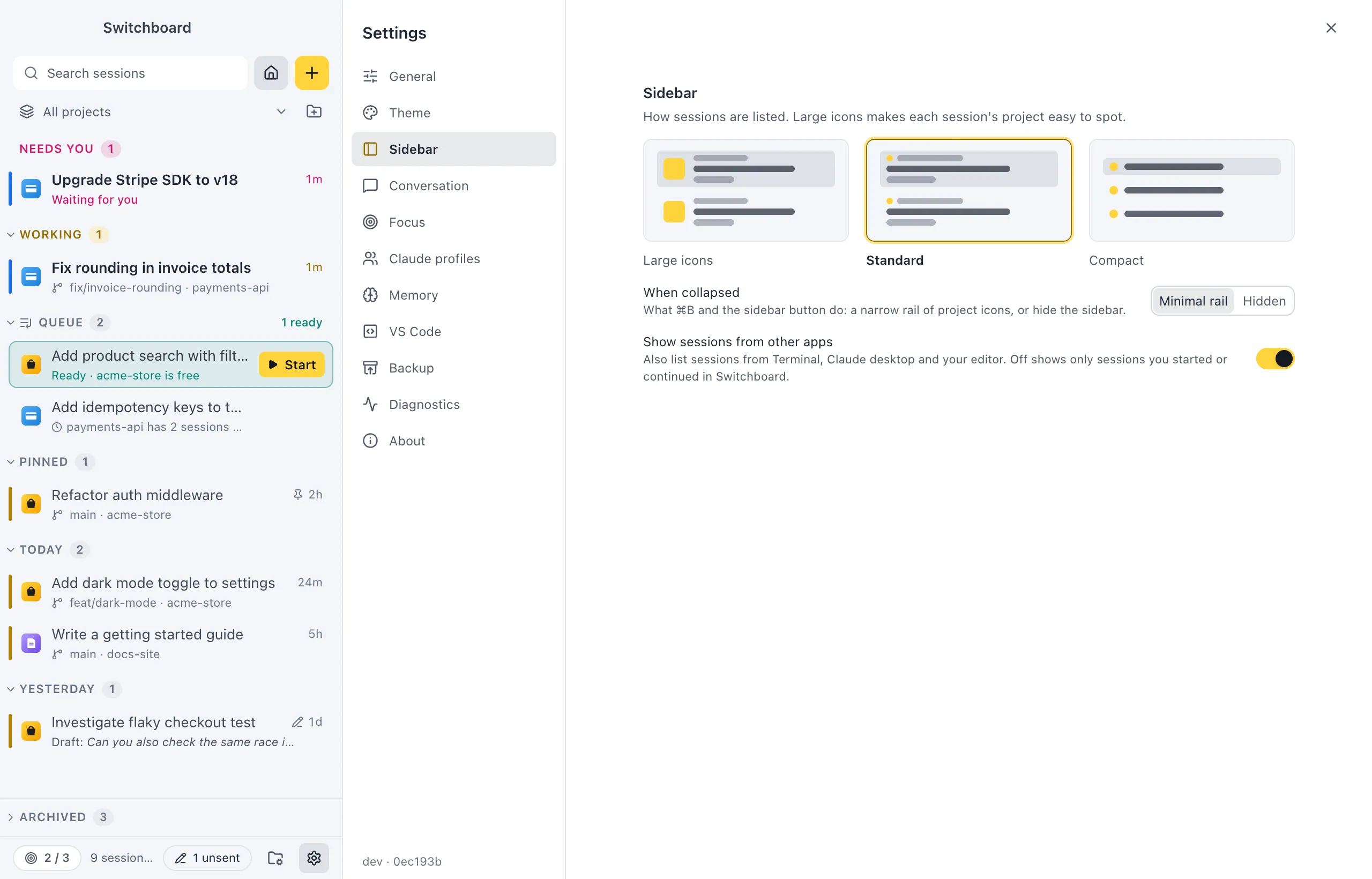
Section titled “Settings”- Sidebar style: Large icons (each project easy to spot), Standard (the default) or Compact (one line per session). The command palette has Sidebar: Large icons, Sidebar: Standard and Sidebar: Compact.
- When collapsed: what Command, BControl, B and the sidebar button do: Minimal rail (the default) or Hidden.
- Show sessions from other apps: also list sessions from your terminal, Claude desktop and your editor. Off (the default) shows only sessions you started or continued in Switchboard.