
Changes
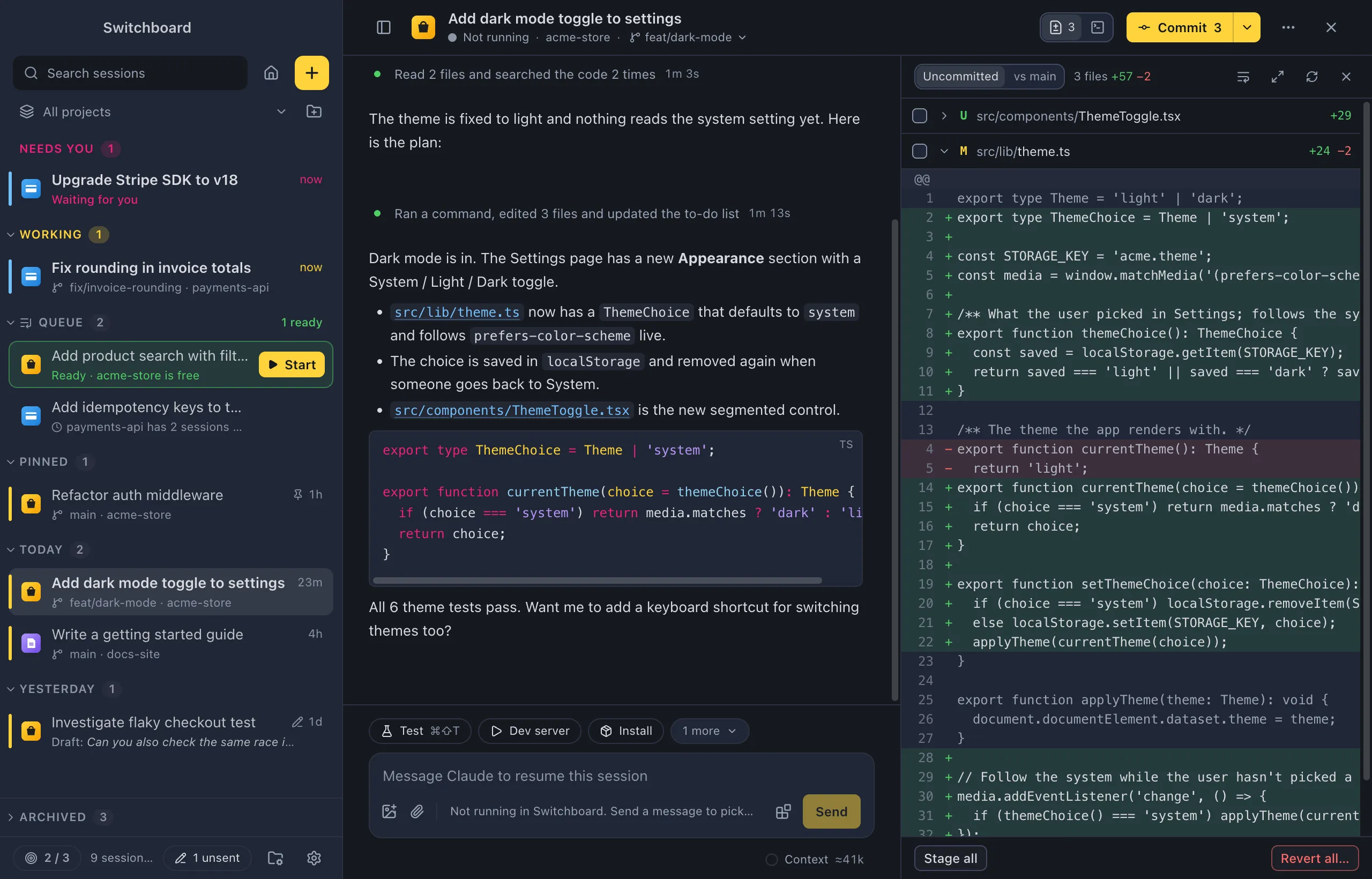
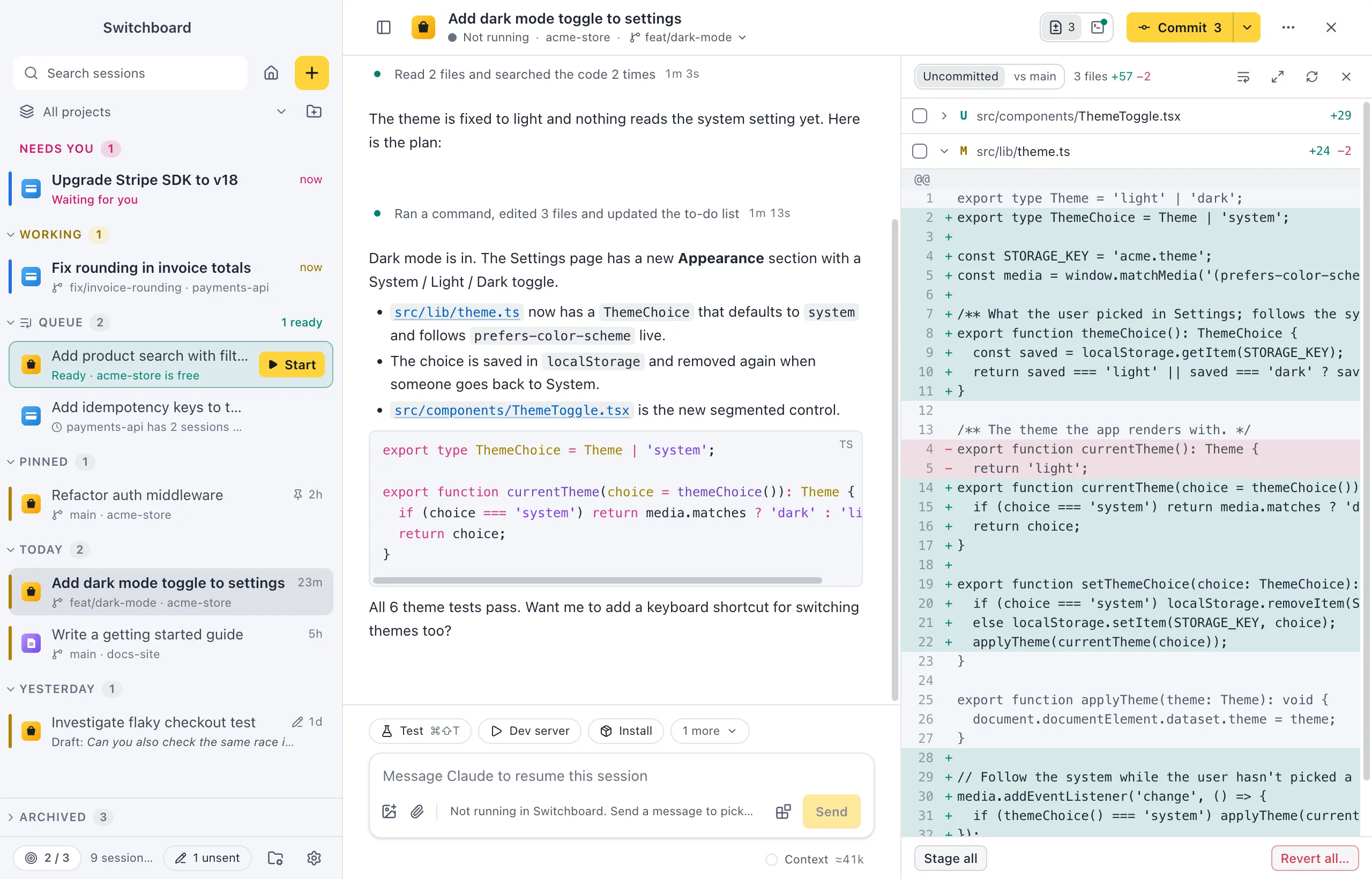
The Changes panel shows what changed in the session’s folder: what isn’t committed yet, or everything on the branch compared with its base branch. Open any file’s diff inline, stage or unstage files, or revert them.
Open it
Section titled “Open it”- Press Command, Shift, DControl, Shift, D to show or hide it.
- Click Changes in the session header, next to Terminal. Its badge shows how many files have changed.
- Run Toggle changes in the command palette (Command, KControl, K).
The panel is there for sessions whose folder is in a git repository. On Windows it needs Git for Windows, and it lists files with paths over 260 characters too.
How to use it
Section titled “How to use it”What it compares
Section titled “What it compares”At the top of the panel, choose what to show:
- Uncommitted: changes that aren’t committed yet.
- vs <base> (for example vs main): everything since this branch left its base branch, committed or not.
Next to it, the panel counts the files and the lines added and removed.
The file list
Section titled “The file list”Each file shows its status, its path and how many lines were added and removed:
| Letter | Meaning |
|---|---|
| A | Added |
| U | New, not tracked yet |
| M | Modified |
| R | Renamed |
| D | Deleted |
| ! | Conflict |
Click a file to open its diff inline, and again to close it. Hover a file, or focus it with the keyboard, for Open in editor and, in Uncommitted, Revert this file….
Stage and unstage
Section titled “Stage and unstage”In Uncommitted, each file has a checkbox. Tick it to stage the file, untick it to unstage it. Stage all at the bottom stages every file; when everything is staged it says Unstage all. Stage all is in the command palette too.
What you stage is what Commit… in the git menu commits.
Revert
Section titled “Revert”- Click Revert this file… on a file, or Revert all… at the bottom of the panel. Revert all changes… in the command palette does the same.
- Confirm with Revert.
The uncommitted changes of those files are lost. New files go to the TrashRecycle Bin, so you can get them back from there.
Staging and reverting are only offered in Uncommitted. In vs <base> the panel is for reading.
Layout
Section titled “Layout”- Drag the panel’s left edge to make it wider or narrower. With the edge focused, Left Arrow or Right Arrow resizes it. Switchboard remembers the width.
- The expand button lets the panel fill the session view; click it again to go back to a side panel.
- The wrap button wraps long lines, or lets them scroll sideways.
- The refresh button checks git for changes again. The panel also follows along while Claude works.
The Changes panel lives on the right. While it is open, the terminal docks below.
Settings
Section titled “Settings”The Changes panel has no settings. Diff colours come from the theme: see Themes.