
Working in a session
A session shows its conversation with Claude, with the message box at the bottom. You chat as you would in the terminal, with streaming replies, / commands, @ mentions and images, and you can follow every step Claude takes without the noise.
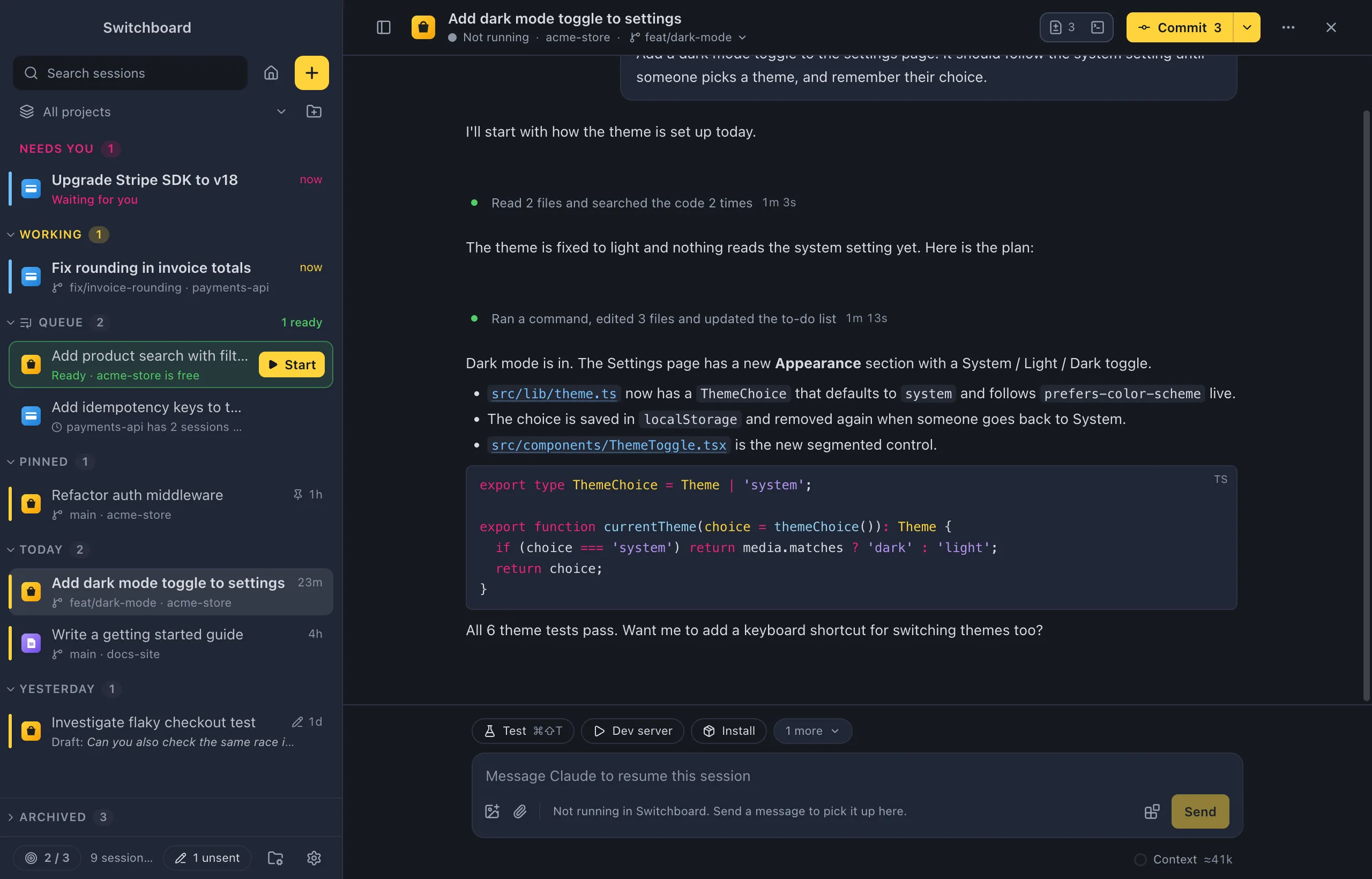
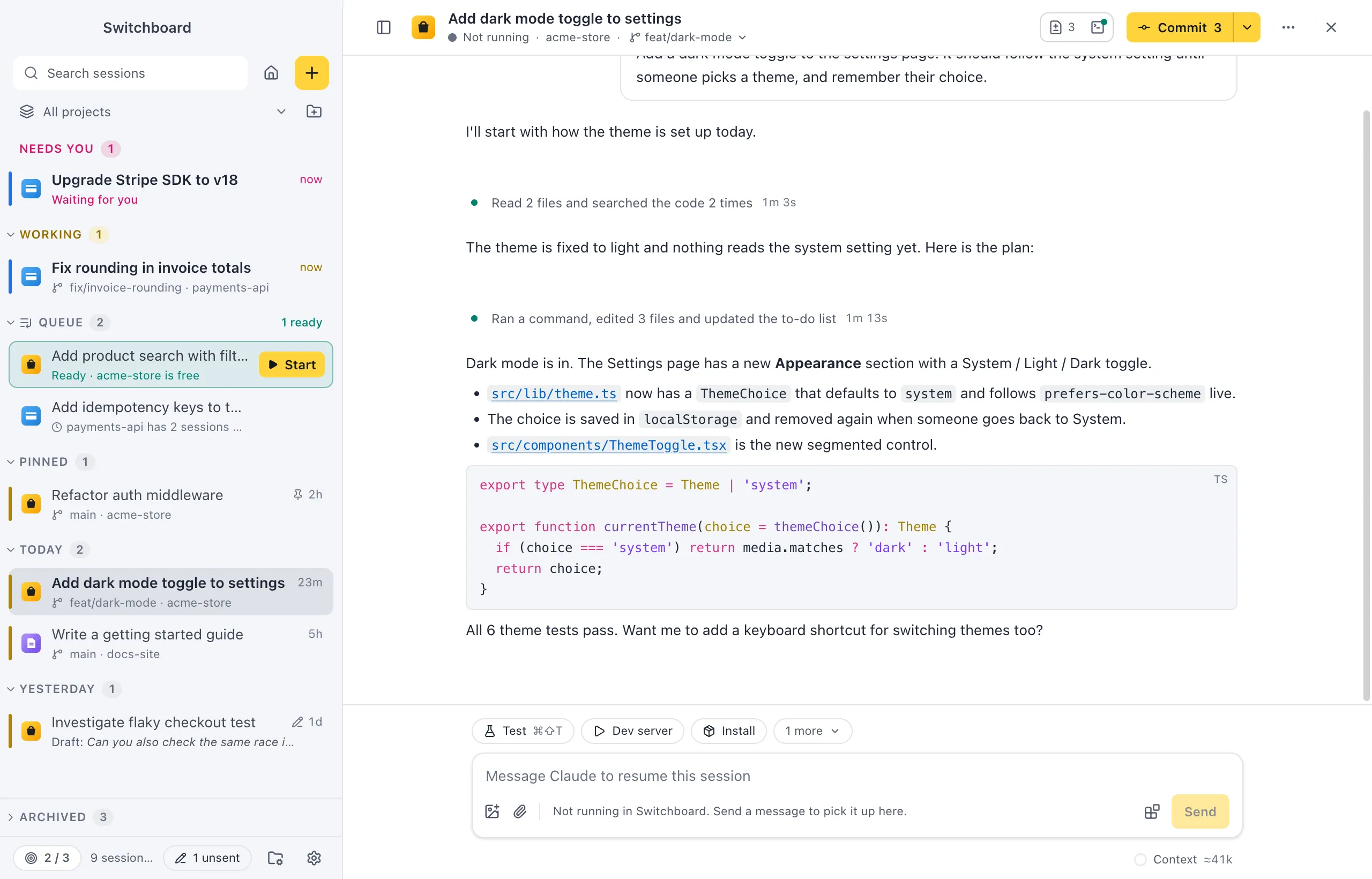
Open it
Section titled “Open it”Click a session in the sidebar, on Home, or find it with Command, PControl, P. Any past session works: type below it to continue it.
The header shows the title, the state, the project and the branch. On the right are the Changes and Terminal toggles, the git button, ⋯ and the × that closes the session.
Send a message
Section titled “Send a message”Type in the message box and press Return or Command, ReturnEnter or Control, Enter. Shift, ReturnShift, Enter starts a new line.
- Commands and skills: type Slash at the start of the message for your commands and skills, your own included.
- Mention a file: type At and pick a file from the list.
- Earlier messages: Up Arrow or Down Arrow from the first line brings back what you sent before. Esc goes back to what you were typing.
- Images: paste them, drop them on the session, or click the image button under the message box. Images Claude reads or you attach show in the conversation.
Context
Section titled “Context”Files you add as context show as chips above the message, each with a × to remove it. Claude gets them as references and reads them itself, so a large file stays small.
- Pick a file from the
@list. - Drop files and folders anywhere on the session. While you drag, the message box shows what a drop does: images are attached, other files and folders become context.
- Choose Add context (Command, Shift, AControl, Shift, A, the paperclip, or Add context… in the command palette) to pick several files at once: Space picks, ReturnEnter adds.
With the VS Code companion you can send the lines you have selected in VS Code, problems and terminal output as chips too.
While Claude works
Section titled “While Claude works”Replies stream in as Claude writes them. You can keep typing while it works:
- Queue: a message you send waits until Claude finishes, then goes. The send button says Queue while Claude is busy.
- Send now: Command, Shift, ReturnControl, Shift, Enter, or Send now in the ▾ next to Queue, stops what Claude is doing and sends your message right away.
- Stop: press Escape or click Stop to stop Claude. Esc doesn’t stop Claude while a dialog, menu or list is open.
Follow what Claude does
Section titled “Follow what Claude does”Each run of tool calls is one line, like Claude Code: what Claude is doing right now (“Reading src/app.ts…”), or what it did when the run ends (“Ran 3 commands and edited 2 files”), with how long it took. Click the line to see every step, and a step to see its details: diffs, command output, to-do lists and subagent runs.
- A Tasks pill above the message box shows Claude’s to-do list (“Tasks 2 of 5”); click it to open the list.
- A green pill above the message box lists what runs in the background, such as a long command or an agent, with a way to stop each one.
- A file Claude names in a reply, such as
src/search/suggestions.ts:69, is a link. Click it to open the file in your editor at that line. - Images in your messages show above the text, so Show more never hides them: one image at its own shape, two to four as thumbnails, and five or more as tiles with +N for the rest. Hover one for its type, size and pixel size.
- Images open full size with a click. Left Arrow or Right Arrow (or the filmstrip at the bottom) step through all of a message’s images.
Prefer to see each tool call as its own card? Choose Every step in Settings, Conversation.
Code blocks
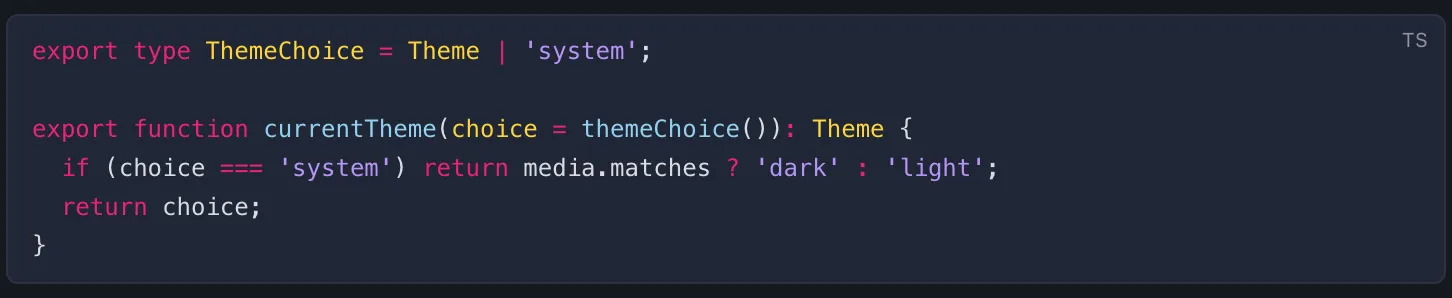
Section titled “Code blocks”Hover a code block in Claude’s reply for its buttons:
- Copy copies the code.
- Run in terminal (on shell code blocks) types the command into a terminal tab of the session and runs it. For a block that shows a terminal session (
$lines with their output), only the$lines run. - A markdown block (a README, a pull request description) opens rendered, with a Preview | Source switch above it. Copy still copies the markdown.
Save an image
Section titled “Save an image”Use the save button on an image, right-click it and choose Save image…, or press Command, SControl, S while it is open full size.
Change the model, mode and effort
Section titled “Change the model, mode and effort”The chips under the message box show the session’s settings. Click one to change it while the session runs:
- Profile: the Claude profile the session uses, with more than one.
- Model: the model for the next messages. Also Change model… in the command palette.
- Effort: how hard Claude thinks, from Low to Max, or Default. Only for models that support it. Also Change effort….
- Mode: the permission mode: Ask before edits, Accept edits, Plan mode or Auto mode. Shift, TabShift, Tab switches between Ask before edits, Accept edits and Plan mode, like Claude Code. Also Change permission mode….
In a narrow pane the chips get shorter (effort and mode show only their icon) instead of cutting words off.
Context window and usage
Section titled “Context window and usage”Under the message box, a line shows your plan usage (your 5-hour and weekly limits; hover for when they reset) and a ring for how full the context window is. Click the ring to see what fills it, like /context, and Compact now to compact the conversation. Compact context in the command palette does the same.
After a compaction the whole conversation stays: a Conversation compacted line marks each place it was compacted, and you can scroll back past it.
The hover toolbar
Section titled “The hover toolbar”Hover over a message for its toolbar:
- On your prompts:
- Undo file changes since this message. You see which files would change first, then confirm with Undo changes. Files go back to how they were before this message; the conversation stays as it is.
- Edit and resend. Opens a new session with the conversation up to just before this prompt, and your prompt in its message box to change and send. The original session stays as it is.
- Copy message, as you typed it.
- On Claude’s replies:
- Fork from here. A new session with the conversation up to this message.
- Copy as Markdown.
- On both: Remember this… (the brain button) saves the message as a memory. See Remember this.
You can also select text in any message and press Command, CControl, C. The command palette has Fork session… and Rewind to a message… to pick a message from a list, and Copy last reply.
To save part of a message as a memory, select it and click Remember this, or right-click it and choose Remember this….
Continue a past session
Section titled “Continue a past session”Open any session and type below it. If it isn’t running, the message box says “Not running in Switchboard. Send a message to pick it up here.” Sending picks the session up in Switchboard.
If the session is still open somewhere else, such as a terminal, Switchboard says so above the message box. Sending then starts a fork: a new session that continues from this conversation, leaving the original untouched. The send button says Fork and send.
Agents and tools
Section titled “Agents and tools”- Agents: the agents Claude starts, background ones included, are under ⋯ in the header, with how many run (“2 running”). A dot on ⋯ says some are running. Choose Agents to see what each one is doing.
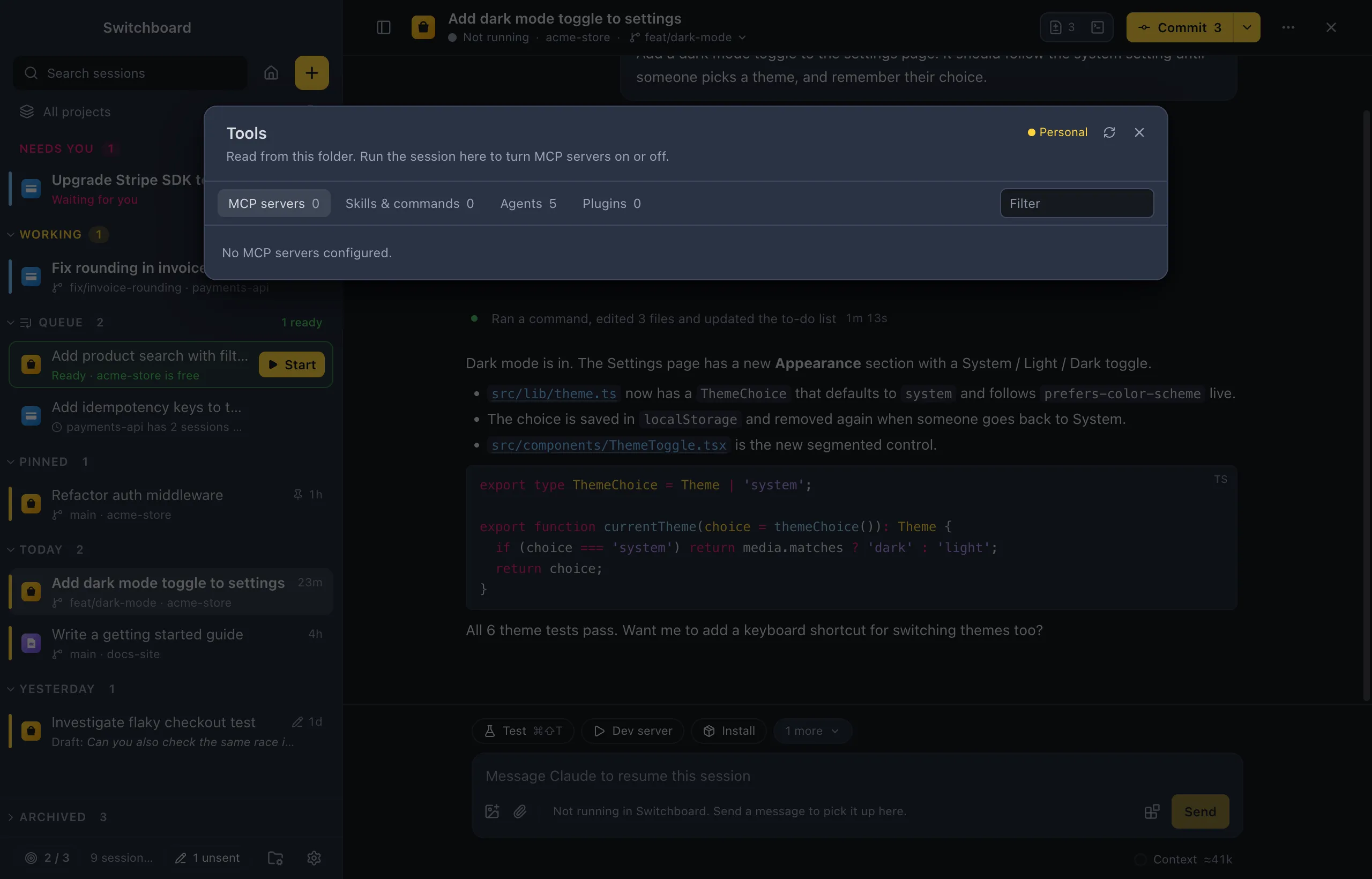
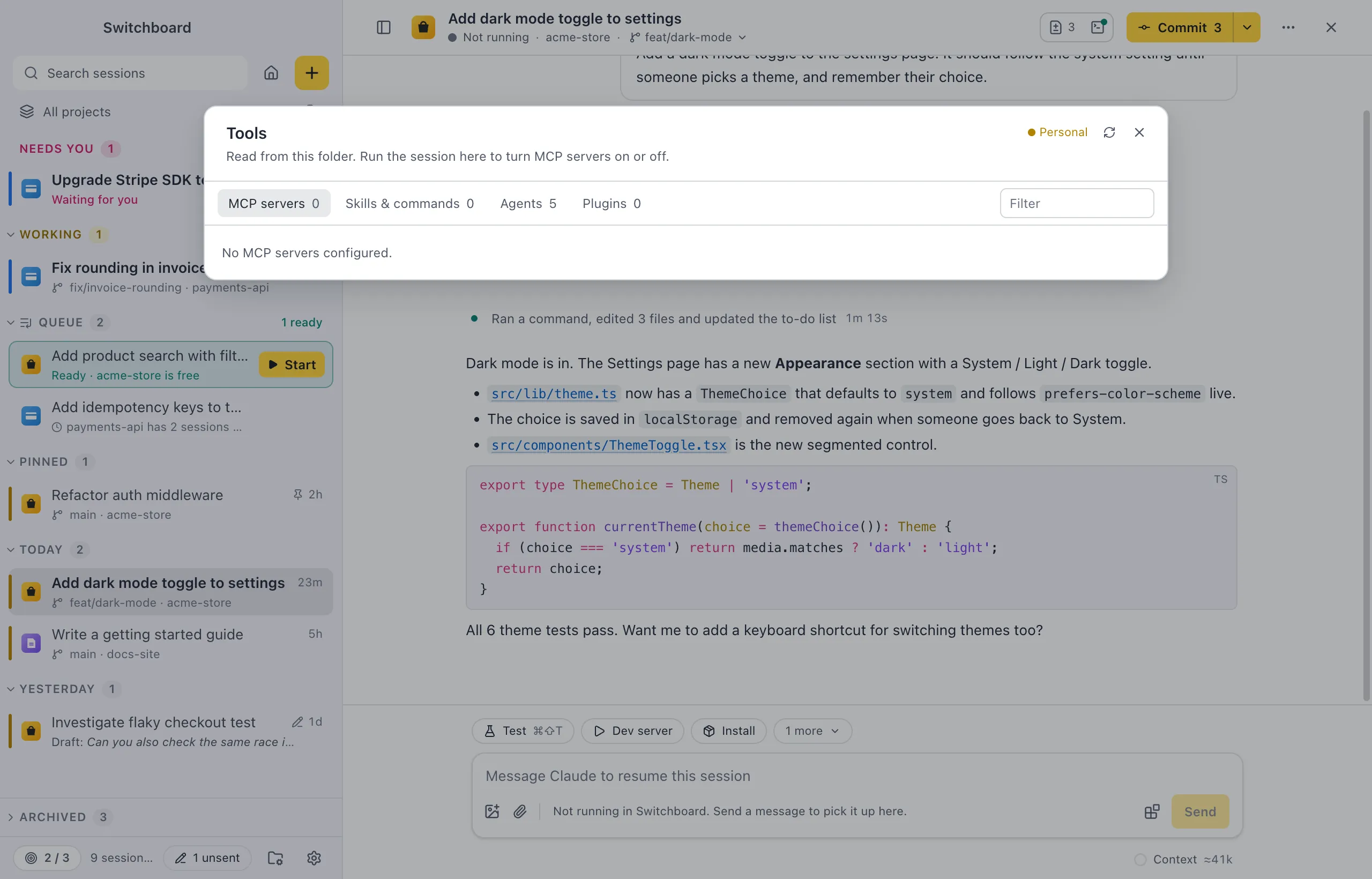
- Tools: the blocks button under the message box (or Tools: MCP servers, skills, agents, plugins in the command palette) opens the session’s MCP servers, Skills & commands, Agents and Plugins. MCP servers show their status and tools; while the session runs in Switchboard, you can turn a server on or off, or reconnect it.
The ⋯ menu
Section titled “The ⋯ menu”The ⋯ button in the header holds:
- Open in your editor, terminal or FinderFile Explorer (Command, OControl, O opens the folder in your editor), and Claude Code, which opens the session in Claude Code’s own terminal interface, in the terminal panel.
- Continue in VS Code: stops the session in Switchboard and opens it in Claude Code’s VS Code extension, in the window for its folder. It shows when VS Code is installed, and waits until Claude is done. Also Continue in VS Code in the command palette.
- The project’s actions.
- Profile (with more than one Claude profile), Rename…, Agents, and Check transcript…, which explains why a conversation looks empty or short.
- Memories from this session, when Claude saved memories during it. Click one to open it in the editor.
- Stop session: ends the Claude Code process for this session. The conversation is kept, and sending a message starts it again.
On Windows, Open in lists the editors whose command it finds (VS Code, VS Code Insiders, Cursor, Windsurf, Zed, Sublime Text, WebStorm and IntelliJ IDEA), Windows Terminal when it is installed, and File Explorer.
With a session open, the command palette (Command, KControl, K) also has Rename session…, Stop Claude, Copy session id, Reveal folder in FinderFile Explorer and Delete session….
Close a session
Section titled “Close a session”Click the × in the header (or Close session in the command palette) to go back to Home. A session that is working keeps running: pick it in the sidebar to open it again.
Settings
Section titled “Settings”- Settings, Conversation: Summarised (the default) shows each run of tool calls as one line; Every step shows each tool call as its own card.
- Each project’s defaults for model, effort and mode are on its Settings tab.