
Queue
The queue holds prompts you want to start later, with their project and choices. It never starts anything by itself: it tells you when an item is ready, and you start it.
Where to find it
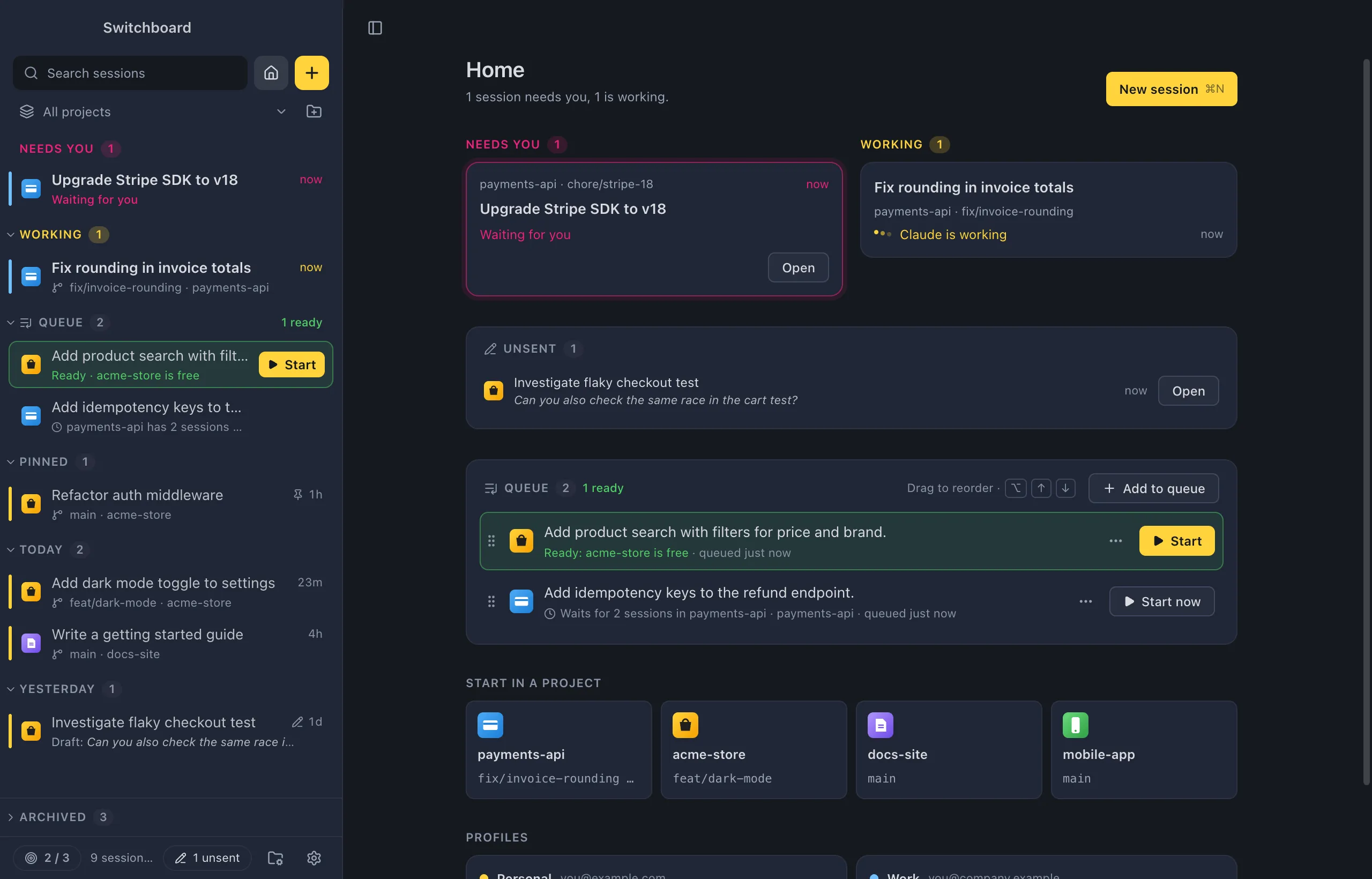
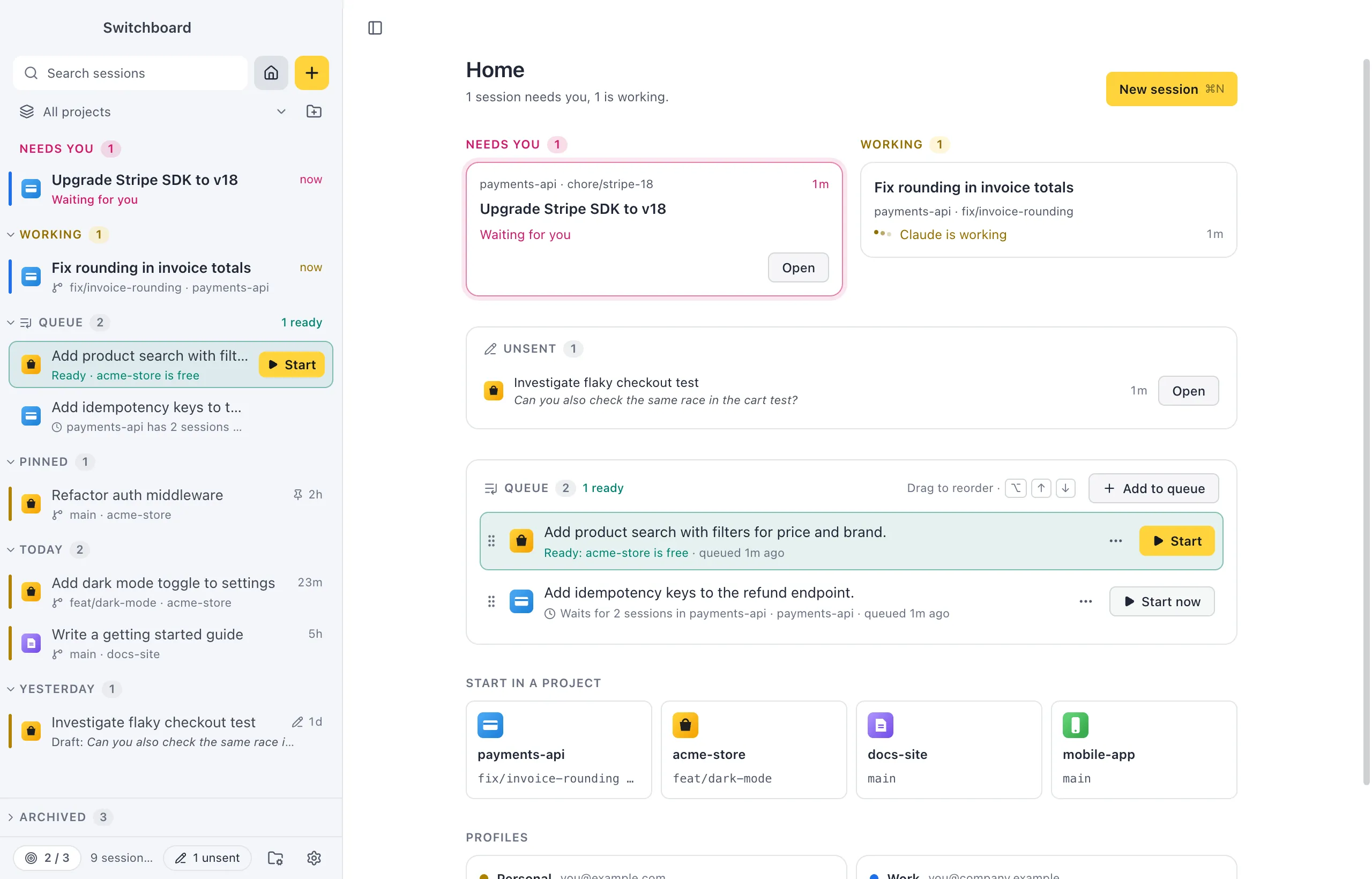
Section titled “Where to find it”- The Queue section in the sidebar, right under Working. While it is closed, its header keeps the count and how many are ready (“1 ready”, in green).
- The Queue card on Home, with every item.
- Queued in <project> in New session, under the message box, for the project you picked.
- A project’s Sessions tab and its Overview.
- In the command palette: Start next in queue, Queue: pick one to start… and Add to queue.
Add a prompt
Section titled “Add a prompt”- In New session, pick the project and write the prompt.
- Set the choices it should start with: model, effort, mode, branch or worktree, profile.
- Choose Add to queue in Start’s ▾ menu, or press Command, Shift, ReturnControl, Shift, Enter.
The prompt is kept with its project, choices and images. The box empties and you stay in New session to write the next one. A message in the corner says “Added to the queue”, with Undo, which takes it off again and puts the prompt back in the box.
The palette’s New session step has the same menu and key. Add to queue in the palette queues the prompt you are writing in New session; anywhere else it says Add to queue… and opens New session to write one.
At the focus limit, the note in New session and the question before starting both offer Add to queue, so an idea can wait instead of starting a session you can’t follow.
When an item is ready
Section titled “When an item is ready”Each item waits for something. Choose it with Wait for…:
| Wait for | Ready when |
|---|---|
| Any session in this project (the default) | Nothing is working or waiting for you in its project, its worktrees included. |
| A session | That session finishes or is closed. |
| The item above it | That item has been started and its session has finished. |
| Nothing (start it myself) | Never: it stays queued until you start it. |
When the project you picked in New session has a session working, a line under the message box says what the prompt would wait for, such as “acme-store has a session working. Queued, this waits for “Fix login” to finish.” Its Wait for… changes it before you queue. For an item already in the queue, Wait for… is in its menu.
A ready item has a light green tint and a Start button. The others show a clock and what they wait for (“after “Fix login””), with Start on hover.
When something finishes
Section titled “When something finishes”When an item turns ready because a session finished, a message in the bottom right corner says so, such as “acme-store is free”, with what finished and what’s next. Start it starts the item; Review first opens the session that finished. With several items ready at once, one message names them all, with Show queue. The “Claude finished” notification also names what’s next in the queue for that project.
Start an item
Section titled “Start an item”- Click Start on the item, or press Command, ReturnControl, Enter on it. It starts straight away, through the focus limit.
- Click the item to open it in New session, filled in, to check or change it first. A line says “Queued prompt. Changes stay in the queue; starting it takes it off.” Your edits are saved to the item; Close goes back to New session’s own prompt. Command, EControl, E does the same from the keyboard.
- In the command palette, Start next in queue starts the first ready item (it shows its prompt in green), and Queue: pick one to start… lists every item with its state.
Starting an item takes it off the queue. Items that waited for it follow the session it became.
Reorder and remove
Section titled “Reorder and remove”| What | How |
|---|---|
| Move up or down | Drag the item by its grip, or Option, Up Arrow or Option, Down ArrowAlt, Up Arrow or Alt, Down Arrow |
| Move to the top | Option, Shift, Up ArrowAlt, Shift, Up Arrow, or Move to top in its menu |
| Remove | DeleteBackspace, or Remove in its menu |
| Open its menu | Right-click, Shift, F10Shift, F10, or ⋯ on Home |
Removing doesn’t ask: the message “Removed from the queue” has Undo, which puts the item back in its place.
The item’s menu holds Start now, Edit in New session…, Wait for…, Move to top, Move up, Move down and Remove. The keys work on a focused item in the sidebar and on Home.
Settings
Section titled “Settings”The queue has no settings of its own. Starting an item goes through the focus limit like any other start.