
Sessions
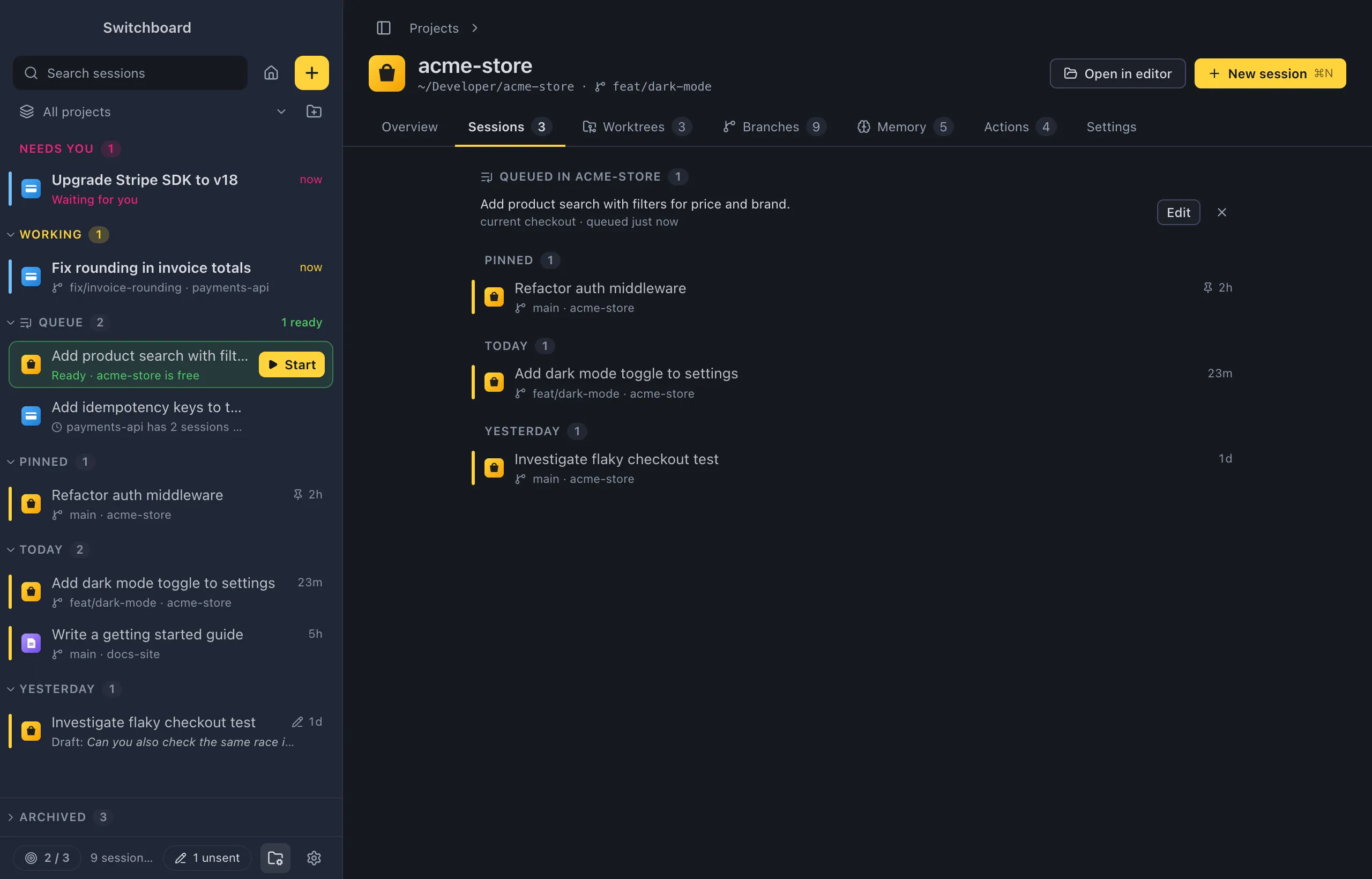
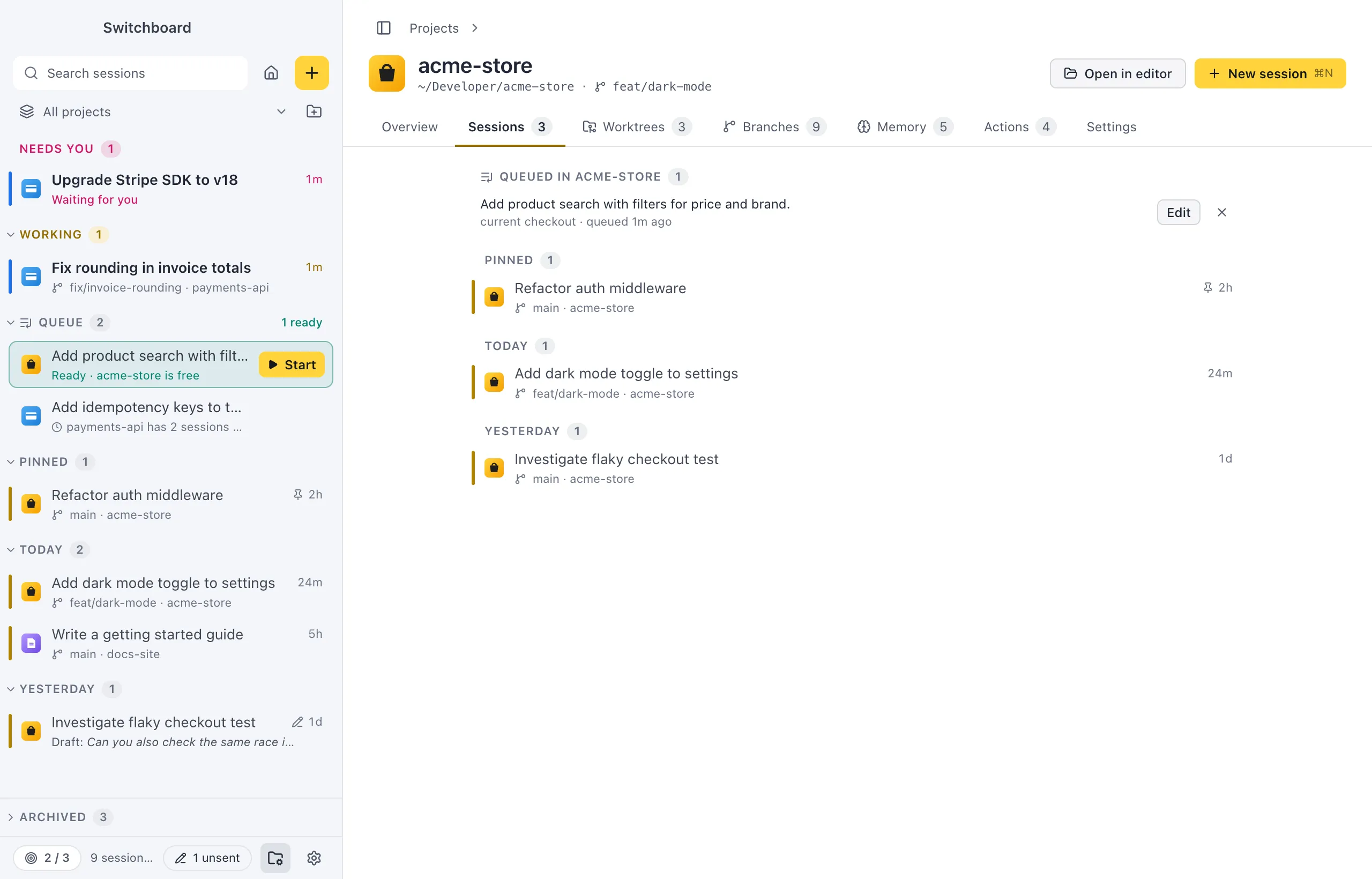
The Sessions tab of a project’s page lists every session in that project, grouped the same way as the sidebar. Prompts queued for the project are at the top, and archived sessions are at the end.
Open it
Section titled “Open it”- Click Sessions on a project’s page. The tab shows how many sessions the project has.
- Click the Sessions or Queue card on the Overview tab.
See Open a project’s page for the ways to get to the page.
How to use it
Section titled “How to use it”Queued prompts
Section titled “Queued prompts”When prompts are queued for this project, they are listed first, under Queued in <project>. Each shows its prompt and the choices it starts with (“Opus · worktree · queued 25m ago”). Click Edit to open it in New session, or × to remove it from the queue.
Sessions
Section titled “Sessions”The project’s sessions are in the same groups as the sidebar: Needs you first, then Working, Pinned, and Today, Yesterday and Earlier. Each row looks and works like a sidebar row:
- Click a session to open it.
- Option, clickAlt, click opens it beside the current session, in split view.
- Right-click a row, or press Shift, F10Shift, F10, for the session’s menu (rename, pin, archive, delete and more).
- Middle-click a finished session to archive it.
A row that needs you says what it waits for, such as a permission or a question.
Archived sessions
Section titled “Archived sessions”Sessions that have been quiet for 48 hours, or that you archived, are under Archived at the end. Click its header to open or close it. It starts closed, unless the project has no other sessions. An archived session comes back when there is something new. See Archived.
No sessions yet
Section titled “No sessions yet”A project without sessions says so, with a New session button. You can also click New session in the page’s header, or press Command, NControl, N while the page is open, to start one in this project.
Settings
Section titled “Settings”The groups follow the sidebar. Settings → Sidebar changes how rows look. See Settings.