
Split view
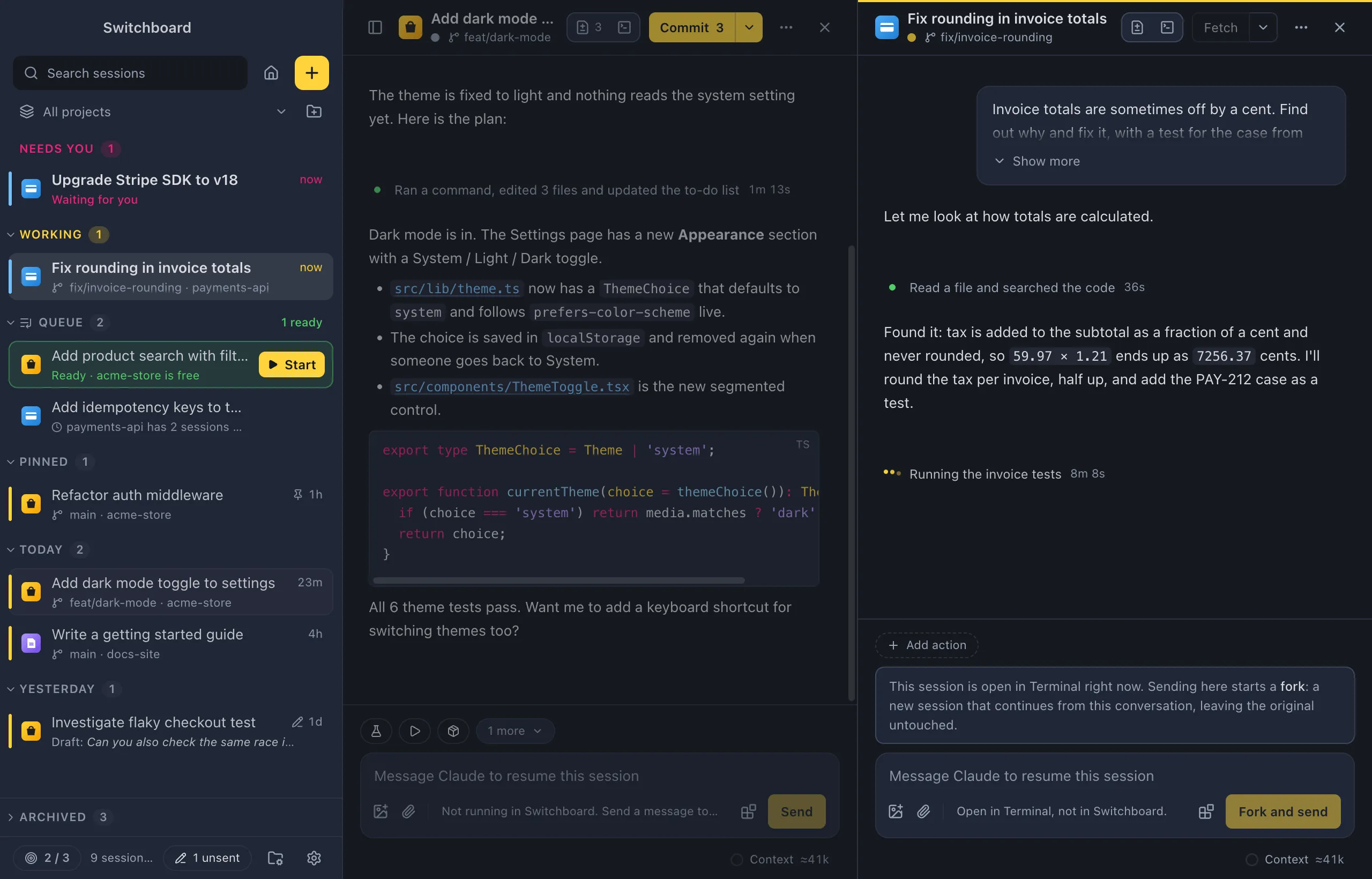
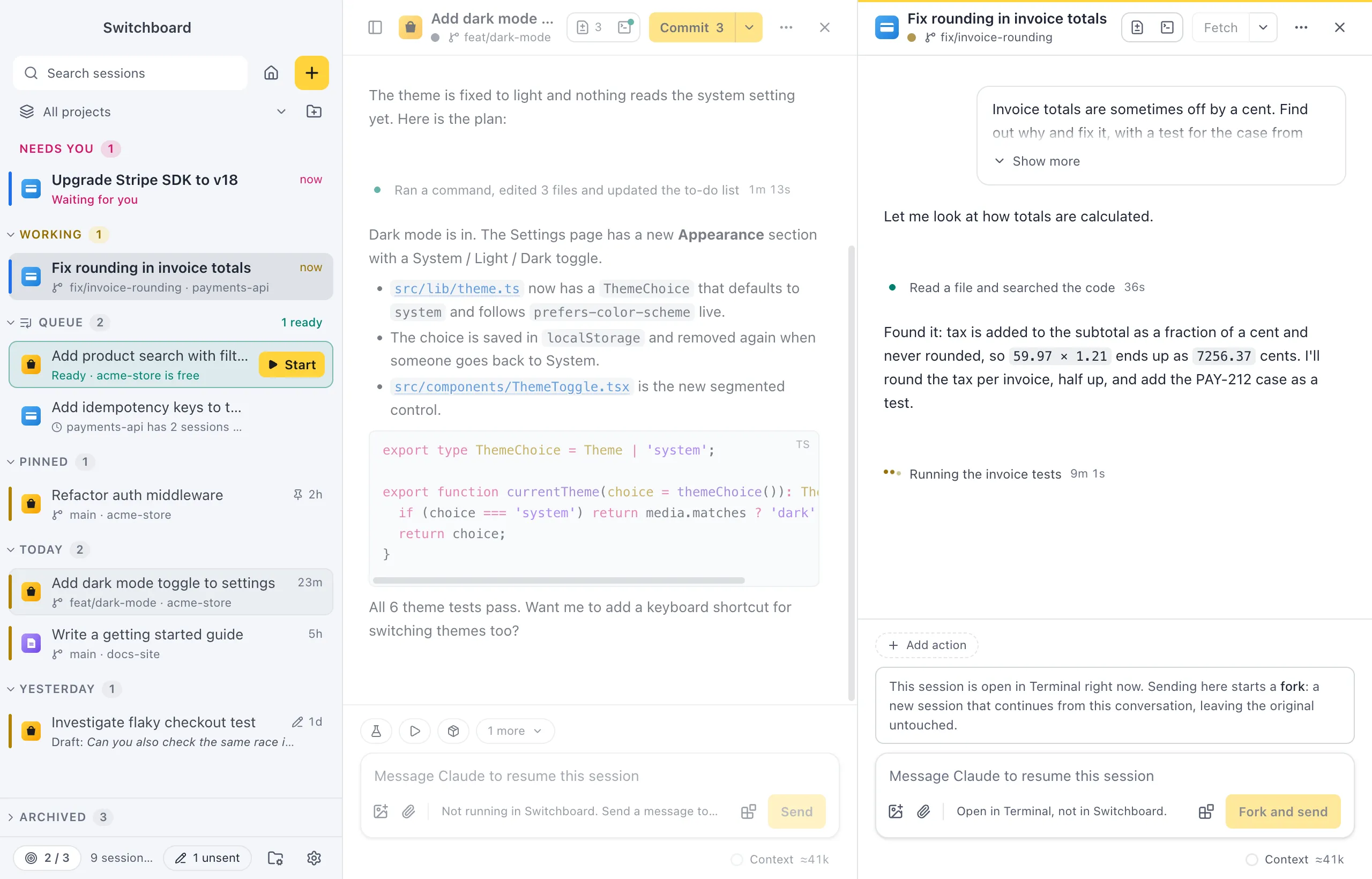
Split view shows two sessions next to each other, so you can follow one while you work in the other, or compare what two sessions did. Each pane is a full session view, with its own message box, Changes and terminal.
Open it
Section titled “Open it”With a session open, open a second one beside it:
- Option, clickAlt, click a session in the sidebar.
- Right-click a session in the sidebar and choose Open beside.
- In Command, PControl, P, pick a session with Option, ReturnAlt, Enter.
How to use it
Section titled “How to use it”- The active pane has a yellow line along the top of its header; the other one is a little faded. Click in a pane to make it active. Keyboard shortcuts, such as Command, JControl, J or Command, FControl, F, work on the active pane.
- Picking a session in the sidebar opens it in the active pane. Opening another session beside replaces the pane that isn’t active.
- In the sidebar, the session in the other pane has a light outline, and the active one the usual selection.
- Only the left pane has the sidebar button in its header.
- In a narrow pane, headers and bars get more compact: the message box chips show fewer words, and project actions show only their icon.
Close a pane
Section titled “Close a pane”- The × in a pane’s header (Close this pane) closes that pane. The other session then takes the full width.
- Command, BackslashControl, Backslash closes the pane that isn’t active.
- The command palette has Close this pane and Focus other pane.
Closing a pane only closes the view: a session that is working keeps running. Archiving a session that is open in a pane closes that pane too.
Settings
Section titled “Settings”Split view has no settings.