
Archived sessions
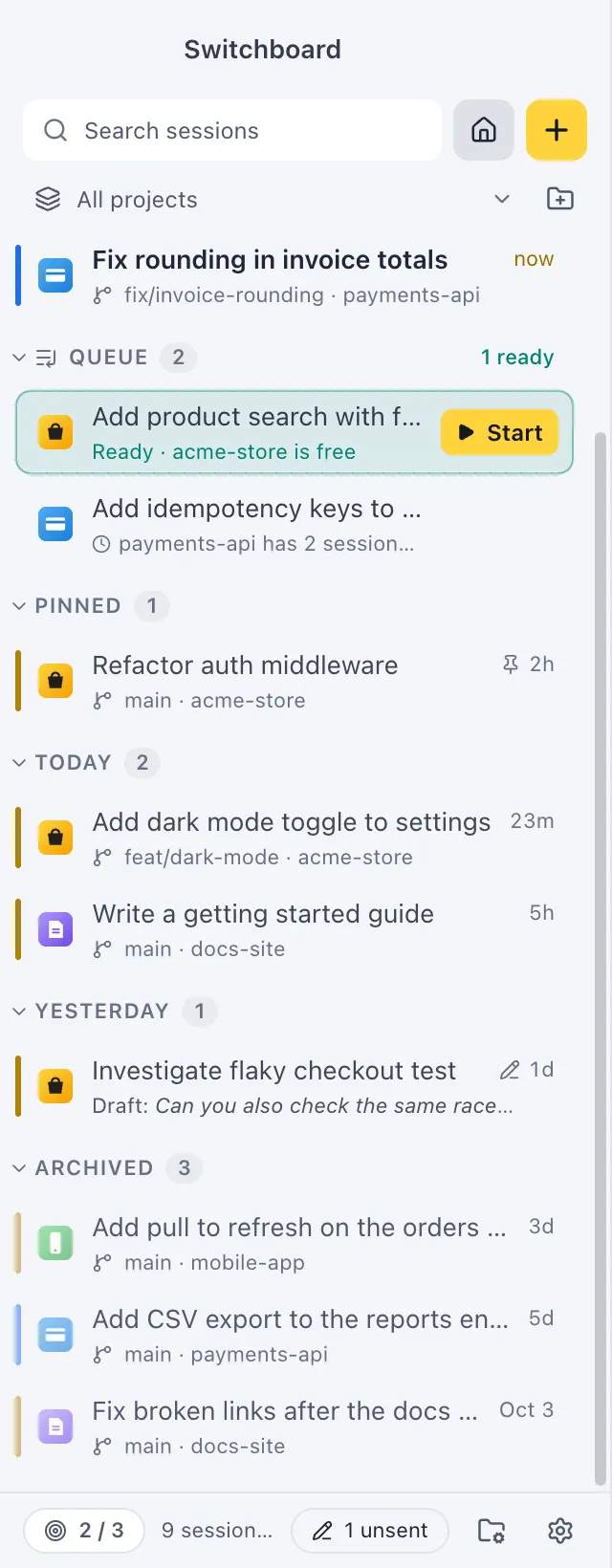
Sessions you haven’t touched for a while move to Archived, out of the way, so the sidebar shows what matters now. Nothing is deleted: an archived session comes back as soon as there is something new, and you can open, continue or unarchive it at any time.

Open it
Section titled “Open it”While it is closed, Archived is docked at the bottom of the sidebar with its count. Click it to open it: it slides up right under your other sessions. Click its header again to close it. With the header focused, → opens it and ← closes it.
While you type in Search sessions, archived sessions that match show under the rest, even with Archived closed.
What gets archived
Section titled “What gets archived”On its own. A session moves to Archived after 48 hours without activity. It stays in the main list while it is:
- working, or waiting for you;
- failed;
- finished and unread;
- open in Switchboard;
- pinned.
By you. Archive a session yourself to put it away now:
- Right-click it and choose Archive (until new activity).
- Middle-click a finished session (middle click). Sessions that are working, waiting for you or failed stay where they are.
- With the session open, choose Archive in the command palette.
- Select several sessions with Command, clickControl, click and choose Archive in the bar at the bottom of the sidebar, or right-click one of them.
You can archive a session even while Claude is working on it. It stays archived while it works, and comes back when it has finished, so you see the result. A session that needs you or failed always shows in the main list.
Archiving a session unpins it. Archiving the session you have open closes it; with two sessions side by side, the other one takes the full width.
Bring a session back
Section titled “Bring a session back”- New activity brings it back by itself: when you send it a message, or it finishes something new.
- Unarchive it from its menu, from the command palette, or with several selected (Unarchive in the bar at the bottom).
- Select all on the Archived header (while selecting) picks every archived session at once.
Delete a session
Section titled “Delete a session”To remove a session for good, delete it:
- Right-click it and choose Delete session…, or press Command, DeleteControl, Backspace in the sidebar.
- With several selected, choose Delete… in the bar at the bottom.
- With the session open, choose Delete session… in the command palette.
After you confirm with Move to TrashRecycle Bin, the conversation and any subagent transcripts go to the TrashRecycle Bin, so you can still get them back from there.
Settings
Section titled “Settings”The 48 hours can’t be changed. Settings, Backup can include your archived sessions in an export when you tick them.