
Session states
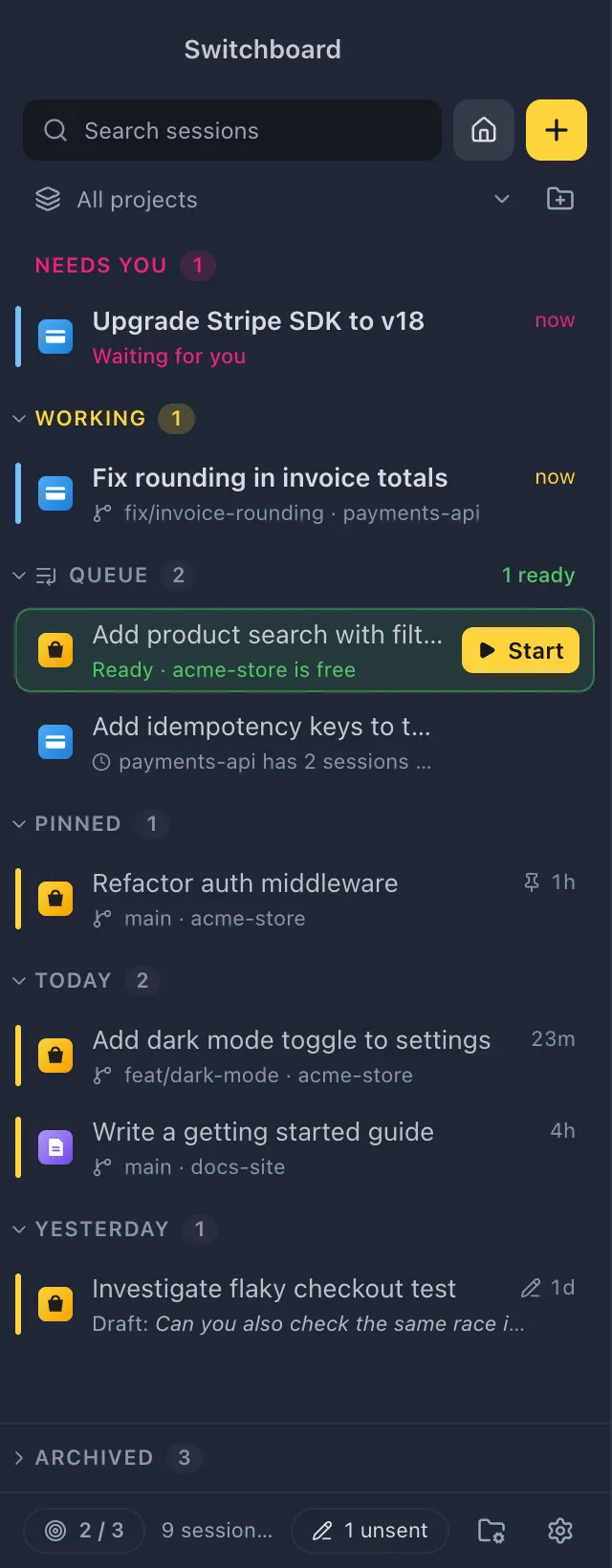
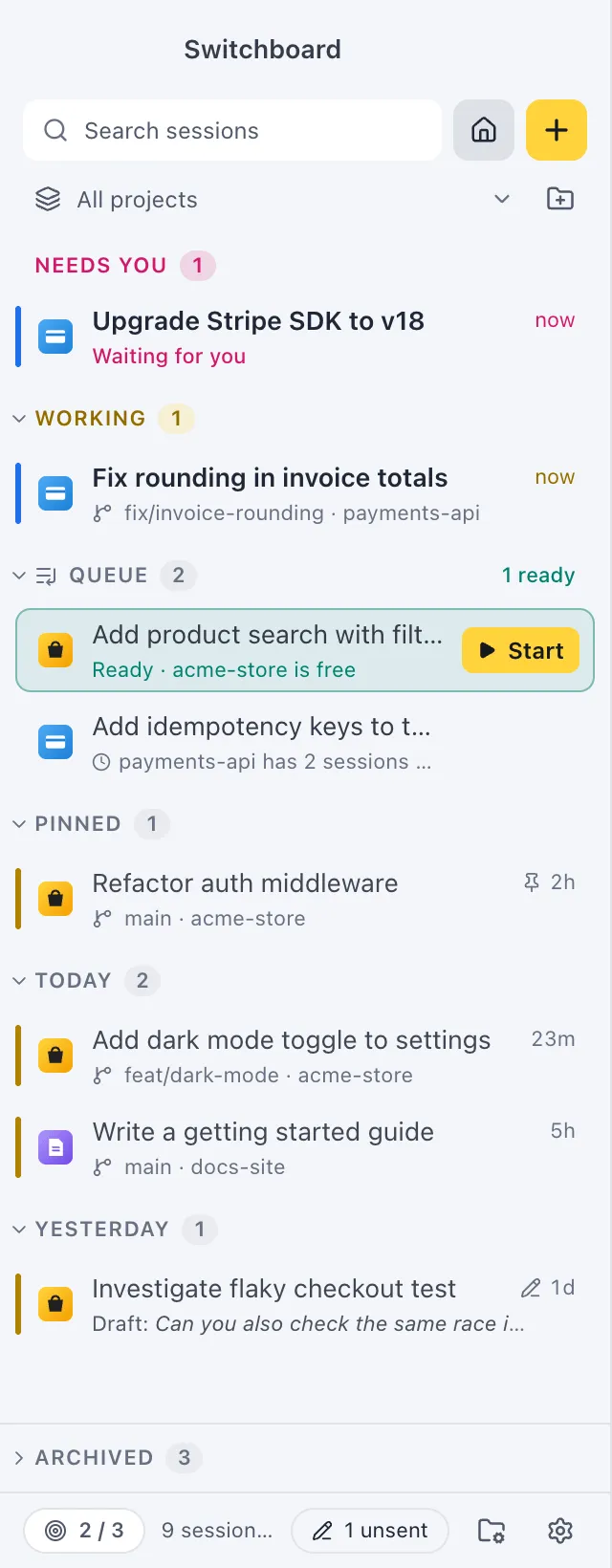
Every session is in one state, and each state has its own colour everywhere: in the sidebar, the minimal rail, the session’s header, Home and notifications. A glance at the sidebar tells you which sessions need you, which are working, and which have something new to read.
Where to find it
Section titled “Where to find it”- The sidebar: a 3px rail on the row’s left edge, the colour of the age, and a status icon. Needs you and Working also have their own sections at the top. See The sidebar.
- The session’s header: a dot and a word under the title, such as “Claude is working” or “Waiting for you”.
- Home: cards for what needs you and what is working. See Home.
- Hover a status icon for what it means.
The states
Section titled “The states”| State | What it means | How it shows |
|---|---|---|
| Needs you | Claude waits for you: a permission, a question or a plan to review. | Pink rail, pulsing pink dot, pink age. The row’s second line says what it asks for (“Permission: Bash”, “Question”, “Plan to review”). The session sits under Needs you. |
| Working | Claude is working on it. | Yellow rail, spinning yellow ring, yellow age. The session sits under Working. |
| Running in the background | Claude finished its turn, but a background command or agent is still running. | A slow green spinner. The header says how many background tasks run, and a green pill above the message box lists them. |
| Finished, unread | It finished and you haven’t looked since. | Blue rail, blue dot, bold title, and “Finished, unread” on the second line. |
| Failed | The last run stopped with an error. | A red ! badge. The message box says what went wrong. |
| Idle | Open in Switchboard and ready for your next message. | A small green ring, no rail. |
A session that isn’t open anywhere has no status icon at all, only its age.
Yellow always means working, never unread. Sessions that need you or failed always stay in the main list, even when you archived them.
Several Claude profiles
Section titled “Several Claude profiles”With more than one Claude profile, the rail on every row shows the profile’s colour instead, so you see at a glance which account a session uses. The state then shows through the colour of the age, the bold title, the status icon and the section the session is in. Hover a row to see its profile.
Notifications and the badge
Section titled “Notifications and the badge”Switchboard tells you when something changes while you are elsewhere:
- A notification when a session needs you (“Claude wants to use Bash”, “Claude has a question”, “Claude has a plan for you”), when Claude finishes (“Claude finished”), and when a run fails (“Claude Code stopped with an error”). Click it to open the session. You don’t get one for the session you are looking at in a focused window.
- The Dock badge counts the sessions that wait for you. When one starts waiting while Switchboard is in the background, the Dock icon bounces once.A pink dot on Switchboard's taskbar button says sessions wait for you (hover the button for how many; Windows has no badge count). When one starts waiting while Switchboard is in the background, the taskbar button flashes until you switch to the window.
- With Show sessions from other apps on, a Claude Code session in your terminal that waits for you gets a notification too (“Claude is waiting for you in Terminal”).
The notifications and badge work as long as Switchboard runs, also with the window closed.
On Windows, closing the window quits Switchboard and stops its sessions, so it asks first (unless you turned off Ask before quitting in Settings, General). Minimise the window instead to keep getting notifications. Windows’ own notification settings (Settings › System › Notifications) decide whether they show as banners, and Do not disturb holds them back.
Settings
Section titled “Settings”The states can’t be changed. Two settings change what you see:
- Show sessions from other apps in Settings, Sidebar adds sessions from the terminal, Claude desktop and your editor, with their states.
- Claude profiles: with more than one, rows show the profile’s colour.