
Updates
Switchboard checks for new versions of itself and of the Claude Code it runs. It tells you when one is out, and nothing downloads or installs until you click.
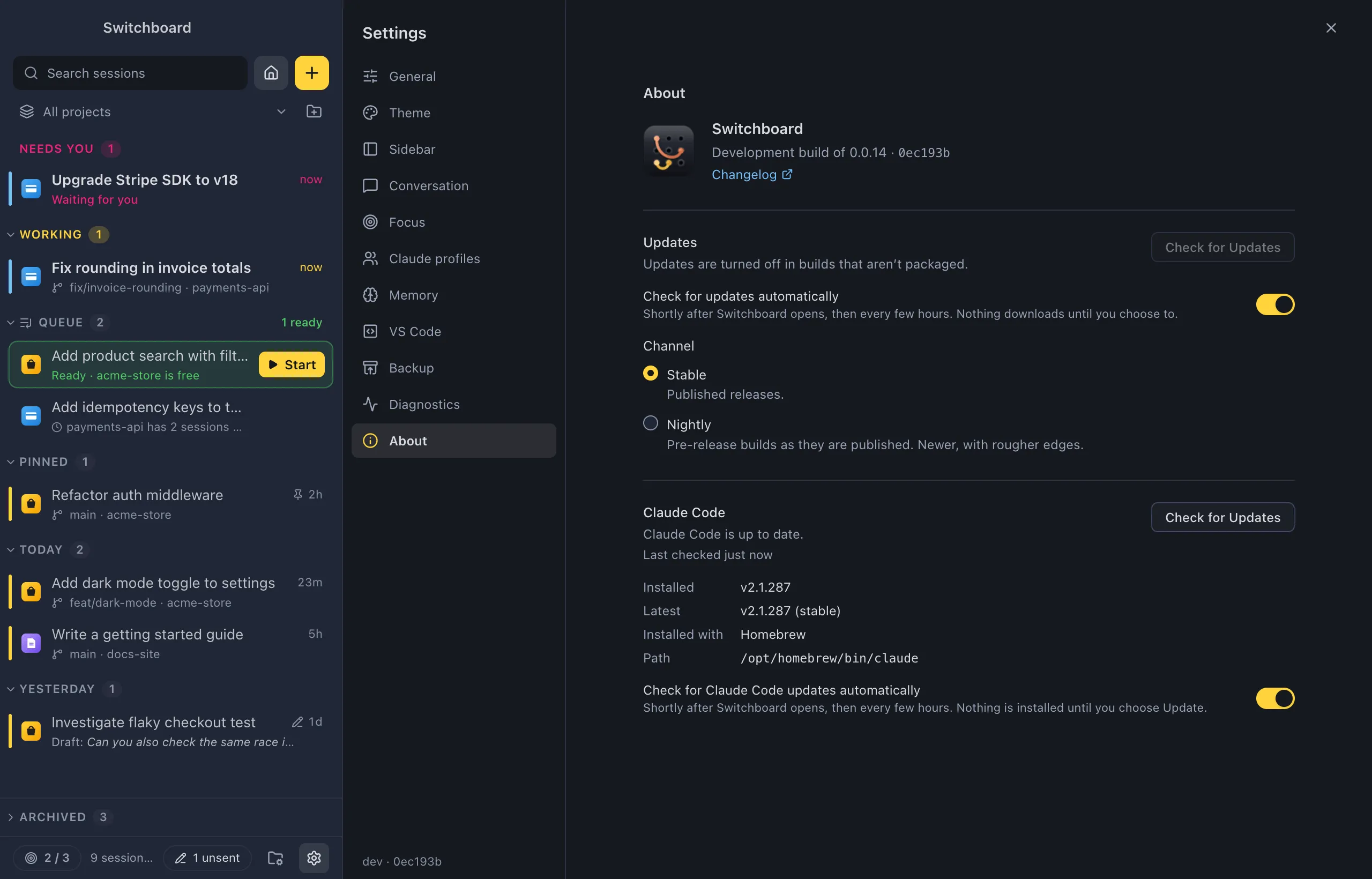
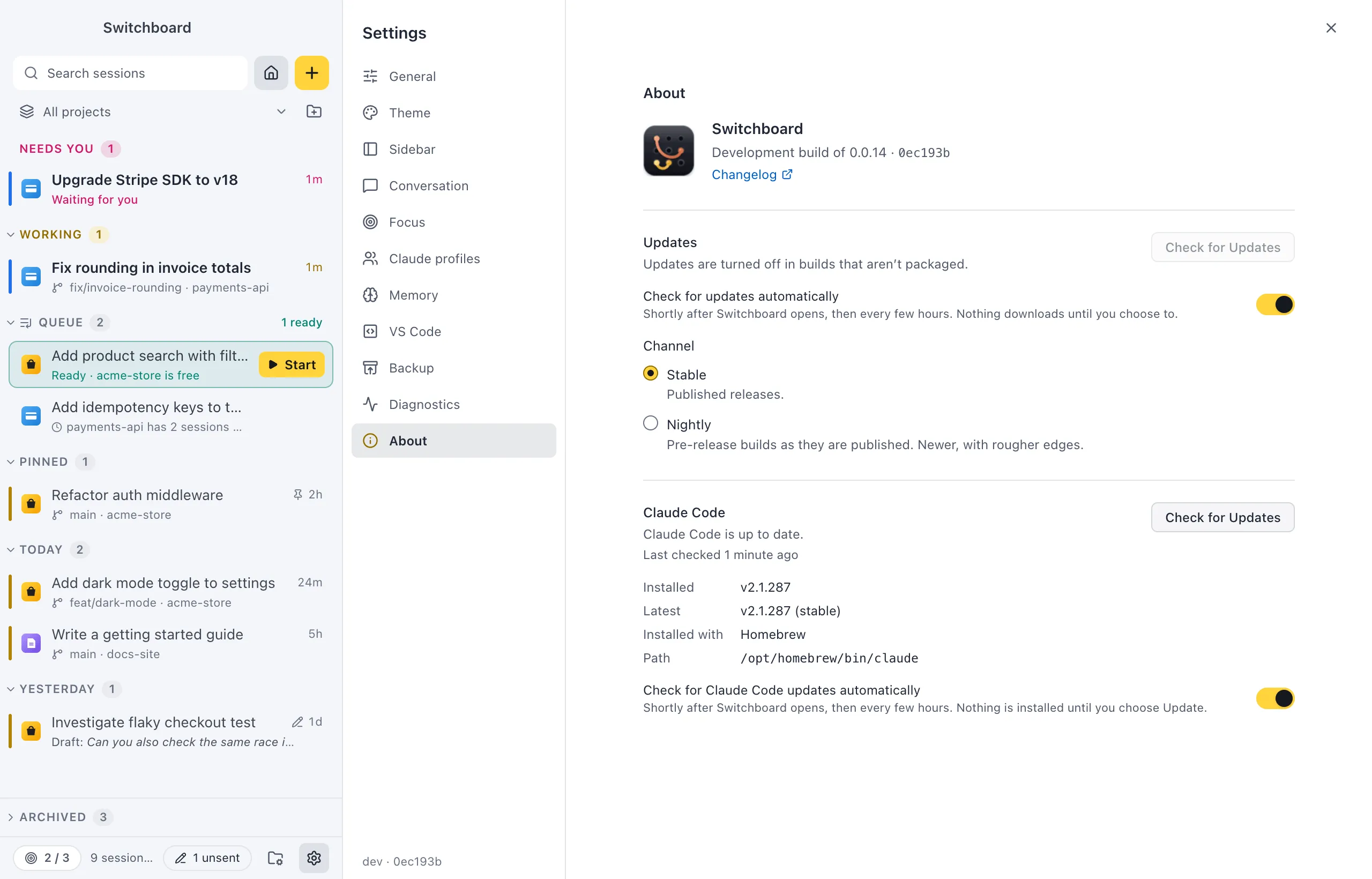
Open it
Section titled “Open it”- Press Command, CommaControl, Comma and choose About.
- Choose Switchboard → Check for Updates…Help → Check for Updates… in the menu bar (on Windows, press Alt to show it). It checks and opens Settings → About, where the result shows.
- Run Check for Claude Code updates… in the command palette (Command, K or Command, Shift, PControl, K or Control, Shift, P).
Update Switchboard
Section titled “Update Switchboard”Switchboard checks for a new release shortly after it opens and every few hours. When there is one, a message in the bottom right corner of the window says so:
- Click Download. What’s new shows the release notes.
- When the download is done, click Restart to update. If sessions are running, Switchboard asks first.
On Windows, Restart to update closes Switchboard and runs the installer: its progress window shows for a few seconds, then Switchboard opens again on the new version. The update installs for you only, like the first install, so it doesn’t ask for admin rights.
Close the message to decide later. It comes back for the next step, or the next time you open Switchboard. Settings → About has the same buttons, and Check for Updates checks right away.
After the update, a message says which version you now run, with its release notes.
Channel
Section titled “Channel”In Settings → About, Channel picks which builds you get:
- Stable (the default): published releases.
- Nightly: pre-release builds as they are published, when there are any. Newer, with rougher edges.
Switching the channel checks the new channel at once.
Turn automatic checks off
Section titled “Turn automatic checks off”Turn off Check for updates automatically in Settings → About. Check for Updates still works when you click it.
Builds you make yourself with npm run dist update like a release; development builds don’t update.
Update Claude Code
Section titled “Update Claude Code”Switchboard also checks whether the Claude Code it runs is up to date: shortly after it opens, every few hours, and when you click Check for Updates under Claude Code in Settings → About.
Which version it compares with
Section titled “Which version it compares with”Switchboard compares your version with the newest one on the channel you follow:
- For the native installer and npm, the
autoUpdatesChannelin your Claude Code settings: latest or stable. - For Homebrew (on a Mac), the cask you installed:
claude-codeis stable,claude-code@latestis latest.
Settings → About shows the Claude Code you have: Installed, Latest (with its channel), Installed with and Path.
Run the update
Section titled “Run the update”When a newer version is out, a message in the bottom right corner of the window says so. Click Update, or close it to skip that version until the next one. In Settings → About, click Update to v….
Switchboard runs the update the way you installed Claude Code:
| Installed with | Switchboard runs |
|---|---|
| Native installer | claude update |
| Homebrew (Mac) | brew upgrade --cask claude-code (or the cask you have) |
| npm | npm install -g … (on Windows with --prefix and the folder npm installed it in, so the same npm updates it) |
| WinGet (Windows) | Nothing: it shows winget upgrade Anthropic.ClaudeCode for you to run, as WinGet may ask for permission |
Local install (~/.claude/local) |
claude update |
On Windows, an update through npm can’t replace claude.exe while a session uses it. If the update fails, Switchboard says so: stop your running sessions and try again.
The output shows in Settings → About while it runs (Show output in the message takes you there). New sessions use the new version straight away; sessions already running keep theirs until they restart.
If Switchboard can’t tell how Claude Code was installed, it shows the command to run in a terminal instead (Show how in the message), with a copy button.
Turn the checks off
Section titled “Turn the checks off”Turn off Check for Claude Code updates automatically in Settings → About.
If you turned off Claude Code’s own updater (DISABLE_AUTOUPDATER in your environment or in the env of Claude Code’s settings, or "autoUpdates": false), Switchboard doesn’t show the message for it. Settings → About still says when a newer version is out.
Settings
Section titled “Settings”Both updaters are in Settings → About: the automatic checks, the channel and the Claude Code details.