
Keyboard shortcuts
Switchboard is made to be used from the keyboard. Every main action has a shortcut, and buttons show theirs. This page is built from the same list the app uses, so it is always up to date.
The keys below are shown for a MacWindows; switch with Mac or Windows at the top of the page. On Windows, ⌘ is Ctrl, ⌥ is Alt and ⇧ is Shift, and the app writes keys as words (Ctrl+Shift+P). In the terminal panel on Windows, Ctrl keys belong to the shell (Ctrl+C, Ctrl+R) and Ctrl+Shift keys to Switchboard.
The shortcuts sheet
Press Command, SlashControl, Slash (or choose Help › Keyboard Shortcuts, or Keyboard shortcuts in the command palette) to see every shortcut in the app. The ones that work where you are stand out; the rest are faded. Your project actions' shortcuts are listed too. Type in its field to filter by name or by keys, for example "terminal" or "⌘JCtrl+J".
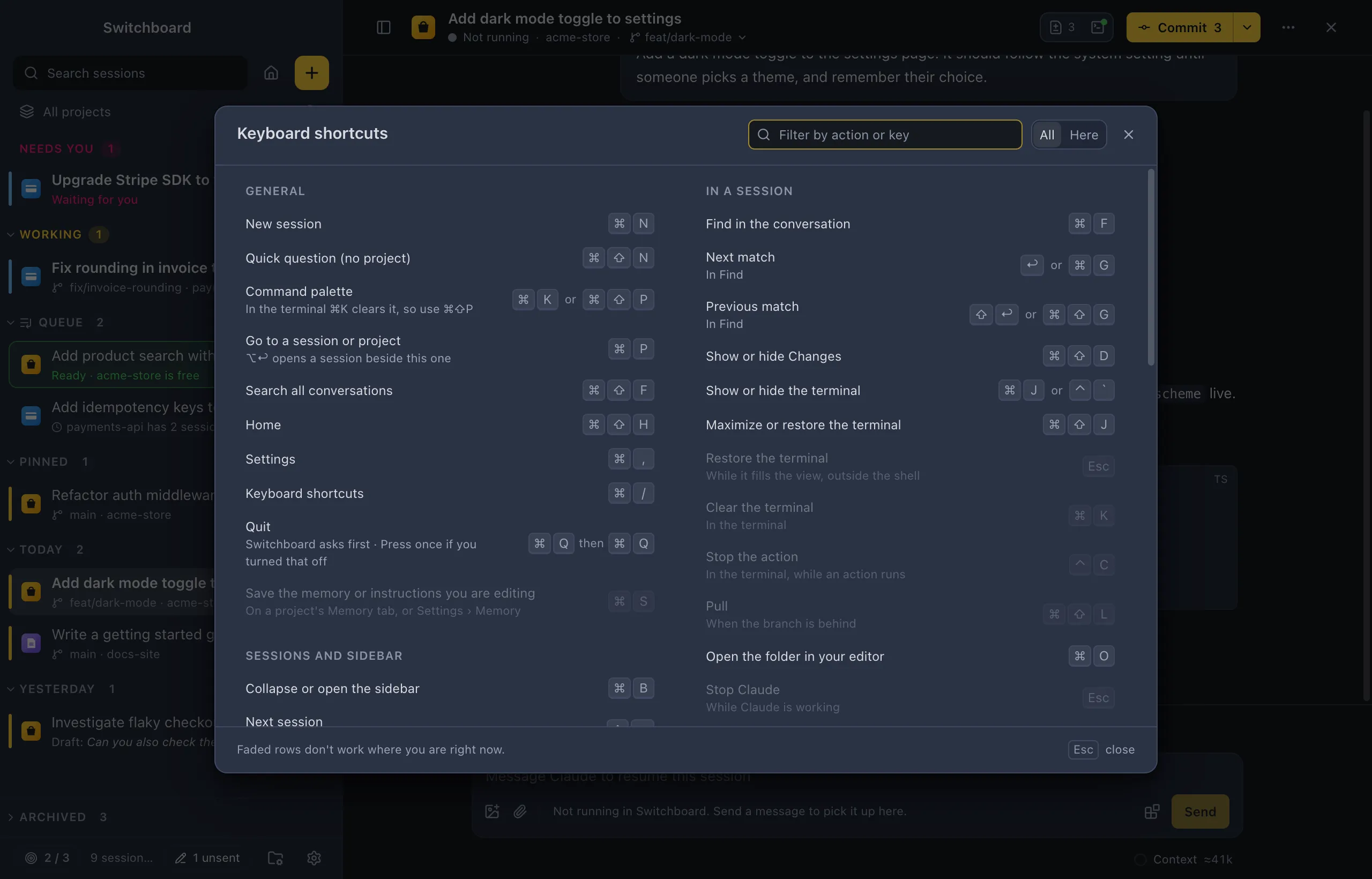
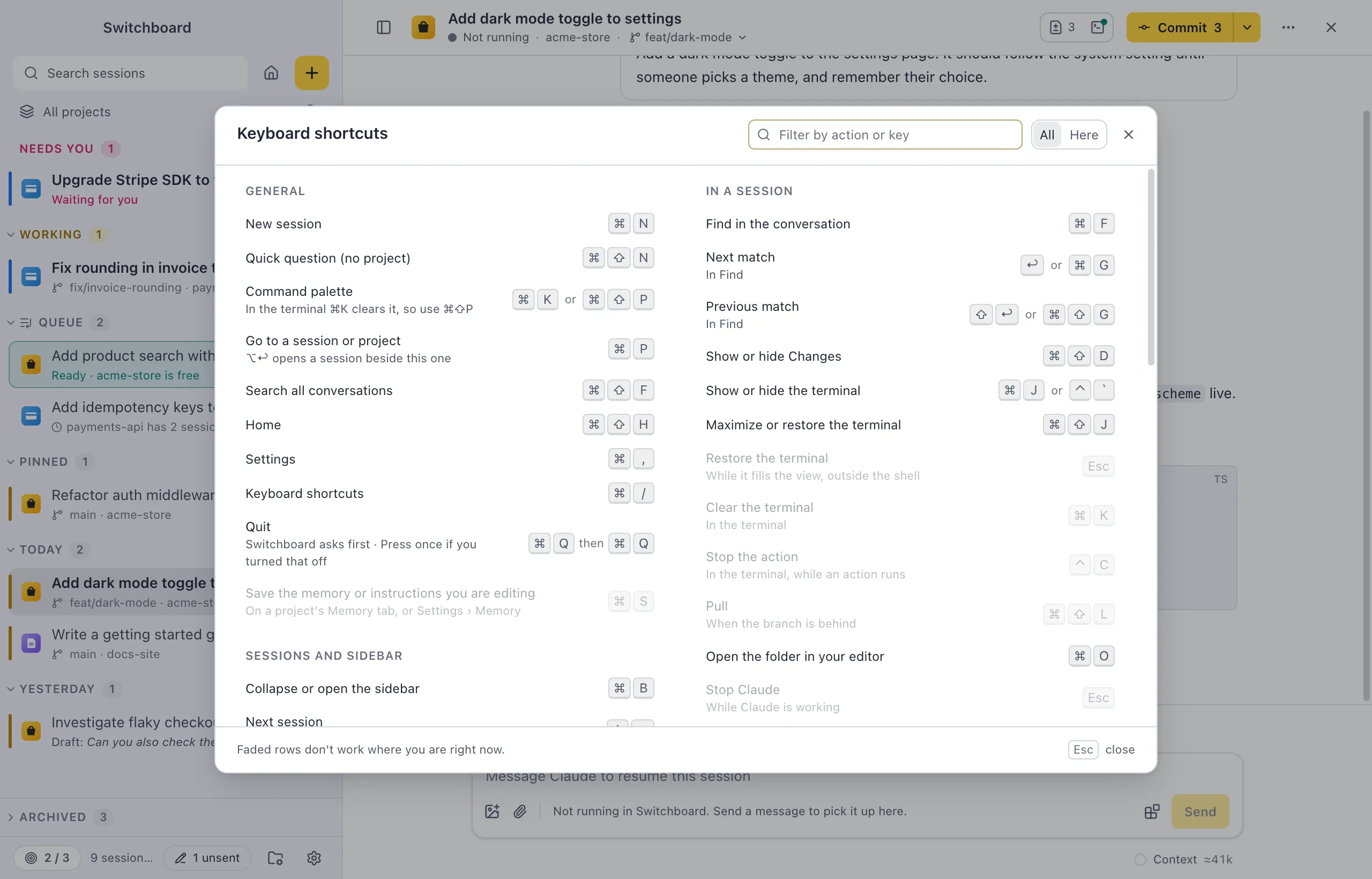
General
| Keys | What it does | When |
|---|---|---|
| Command, NControl, N | New session | |
| Command, Shift, NControl, Shift, N | Quick question (no project) | |
| Command, K or Command, Shift, PControl, K or Control, Shift, P | Command palette | In the terminal ⌘K clears it, so use ⌘⇧PIn the terminal Ctrl+K clears it, so use Ctrl+Shift+P |
| Command, PControl, P | Go to a session or project | ⌥↩ opens a session beside this oneAlt+Enter opens a session beside this one |
| Command, Shift, FControl, Shift, F | Search all conversations | |
| Command, Shift, HControl, Shift, H | Home | |
| Command, CommaControl, Comma | Settings | |
| Command, SlashControl, Slash | Keyboard shortcuts | |
| Command, Q then Command, QControl, Q then Control, Q | Quit | Switchboard asks first. Press once if you turned that offSwitchboard asks first. Press once if you turned that off |
| Command, SControl, S | Save the memory or instructions you are editing | On a project's Memory tab, or Settings › MemoryOn a project's Memory tab, or Settings › Memory |
Sessions and sidebar
| Keys | What it does | When |
|---|---|---|
| Command, BControl, B | Collapse or open the sidebar | |
| Control, TabControl, Tab | Next session | In the sidebar's orderIn the sidebar's order |
| Control, Shift, TabControl, Shift, Tab | Previous session | In the sidebar's orderIn the sidebar's order |
| Command, Shift, UControl, Shift, U | Next session that needs you | |
| Up Arrow or Down Arrow | Move through sessions | In the sidebarIn the sidebar |
| Command, click or Shift, click or Shift, Up Arrow or Shift, Down ArrowControl, click or Shift, click or Shift, Up Arrow or Shift, Down Arrow | Select several sessions | In the sidebarIn the sidebar |
| Command, AControl, A | Select every session in the group | In the sidebarIn the sidebar |
| Escape | Clear the selection | While sessions are selectedWhile sessions are selected |
| F2 | Rename the session | In the sidebarIn the sidebar |
| Command, DeleteControl, Backspace | Delete the session | In the sidebar, to the TrashIn the sidebar, to the Trash |
| Option, clickAlt, click | Open beside the current session | In the sidebarIn the sidebar |
| middle click | Archive a finished session | In the sidebarIn the sidebar |
| Left Arrow or Right Arrow | Close or open a section | On a section header in the sidebarOn a section header in the sidebar |
| Option, clickAlt, click | Close or open every section | On a section header in the sidebarOn a section header in the sidebar |
| Command, ReturnControl, Enter | Start a queued item now | On a queued item, in the sidebar or HomeOn a queued item, in the sidebar or Home |
| Command, EControl, E | Edit a queued item in New session | On a queued item, in the sidebar or HomeOn a queued item, in the sidebar or Home |
| Option, Up Arrow or Option, Down ArrowAlt, Up Arrow or Alt, Down Arrow | Move a queued item up or down | On a queued item, in the sidebar or HomeOn a queued item, in the sidebar or Home |
| Option, Shift, Up ArrowAlt, Shift, Up Arrow | Move a queued item to the top | On a queued item, in the sidebar or HomeOn a queued item, in the sidebar or Home |
| DeleteBackspace | Remove a queued item | On a queued item, in the sidebar or Home. Undo puts it backOn a queued item, in the sidebar or Home. Undo puts it back |
| Shift, F10Shift, F10 | Open the context menu | On a session, project or file; or right-clickOn a session, project or file; or right-click |
| Command, BackslashControl, Backslash | Close the other pane | With two panes openWith two panes open |
In a session
| Keys | What it does | When |
|---|---|---|
| Command, FControl, F | Find in the conversation | |
| Return or Command, GEnter or Control, G | Next match | In FindIn Find |
| Shift, Return or Command, Shift, GShift, Enter or Control, Shift, G | Previous match | In FindIn Find |
| Command, Shift, DControl, Shift, D | Show or hide Changes | |
| Command, J or Control, BacktickControl, J or Control, Backtick | Show or hide the terminal | |
| Command, Shift, JControl, Shift, J | Maximize or restore the terminal | |
| Escape | Restore the terminal | While it fills the view, outside the shellWhile it fills the view, outside the shell |
| Command, KControl, K | Clear the terminal | In the terminalIn the terminal |
| Control, CControl, C | Stop the action | In the terminal, while an action runsIn the terminal, while an action runs |
| Command, Shift, LControl, Shift, L | Pull | When the branch is behindWhen the branch is behind |
| Command, OControl, O | Open the folder in your editor | |
| Escape | Stop Claude | While Claude is workingWhile Claude is working |
| Command, Shift, ReturnControl, Shift, Enter | Send now | While Claude is working. Stops what Claude is doing so your message runs right awayWhile Claude is working. Stops what Claude is doing so your message runs right away |
| Shift, TabShift, Tab | Switch permission mode | In the message boxIn the message box |
Message box
| Keys | What it does | When |
|---|---|---|
| Return or Command, ReturnEnter or Control, Enter | Send | |
| Shift, ReturnShift, Enter | New line | |
| Slash | Commands and skills | At the start of the messageAt the start of the message |
| At | Mention a file | |
| Command, Shift, AControl, Shift, A | Add files as context | Several at once; they show as chipsSeveral at once; they show as chips |
| Up Arrow or Down Arrow | Bring back an earlier message | From the first line. Esc goes back to what you were typingFrom the first line. Esc goes back to what you were typing |
Permissions and questions
| Keys | What it does | When |
|---|---|---|
| Command, Return or Control, ReturnControl, Enter or Control, Enter | Allow, or send your answers | When a card is waitingWhen a card is waiting |
| Escape | Deny, or skip the question | When a card is waitingWhen a card is waiting |
| 1 to 9 | Pick an answer | When a question is waitingWhen a question is waiting |
New session
| Keys | What it does | When |
|---|---|---|
| Command, 1 to Command, 9Control, 1 to Control, 9 | Pick a recent project | |
| Command, ReturnControl, Enter | Start the session | |
| Command, Shift, ReturnControl, Shift, Enter | Add the prompt to the queue | Starts when you say soStarts when you say so |
Settings
| Keys | What it does | When |
|---|---|---|
| Escape | Close Settings |
Project actions
A project action can have a shortcut of its own. It can't use keys that Switchboard already uses with a modifier (⌘, ⌃ or ⌥), or the keys of the menu bar. The shortcuts sheet lists the actions of the project you are in.