
Links and search
Memories can point at each other with [[name]] links, so related facts stay connected. Search finds memories by name, description and text, in the same window as your conversations.
Open it
Section titled “Open it”- Links work in the memory editor, on a project’s Memory tab and in Settings › Memory.
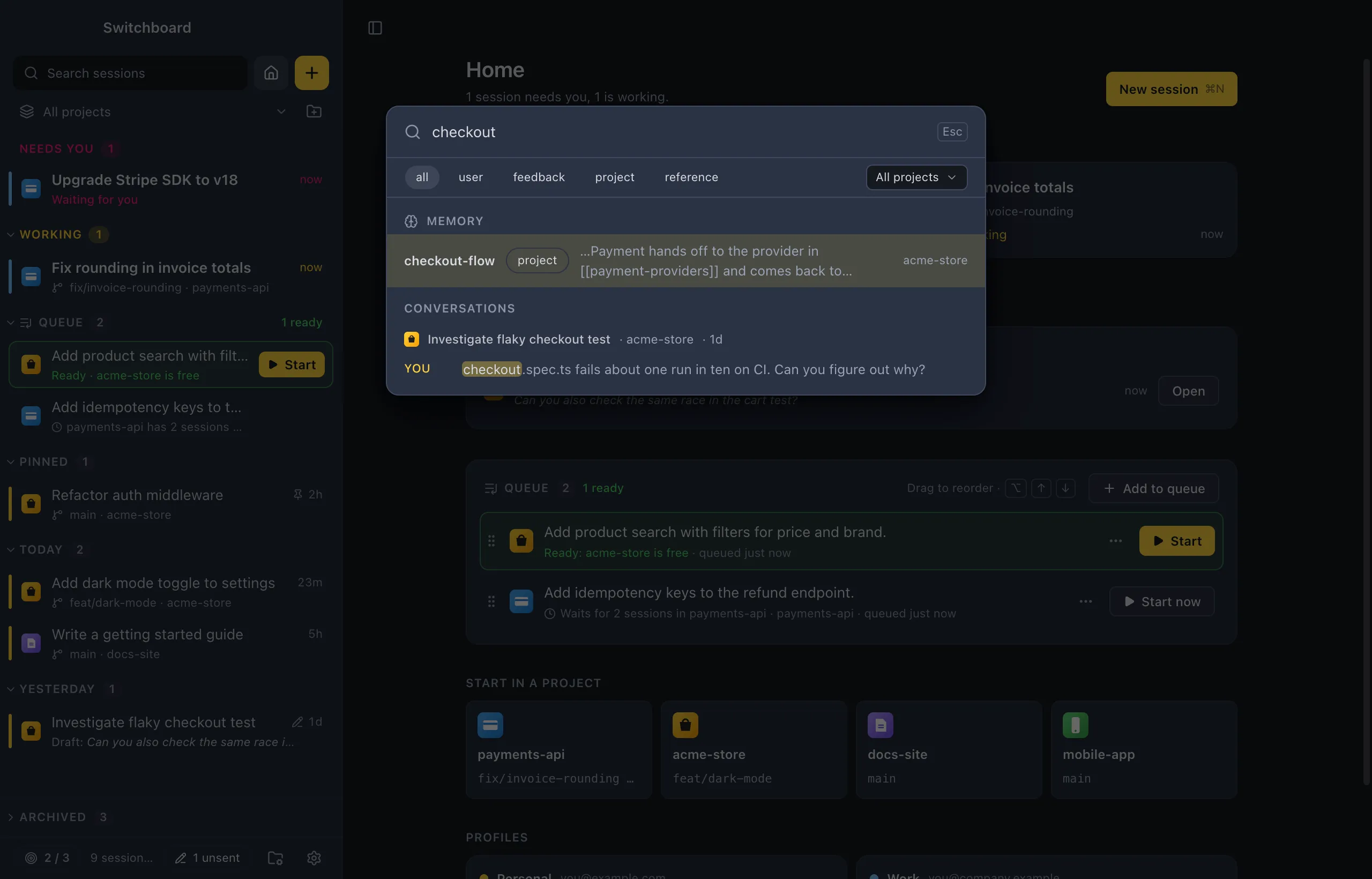
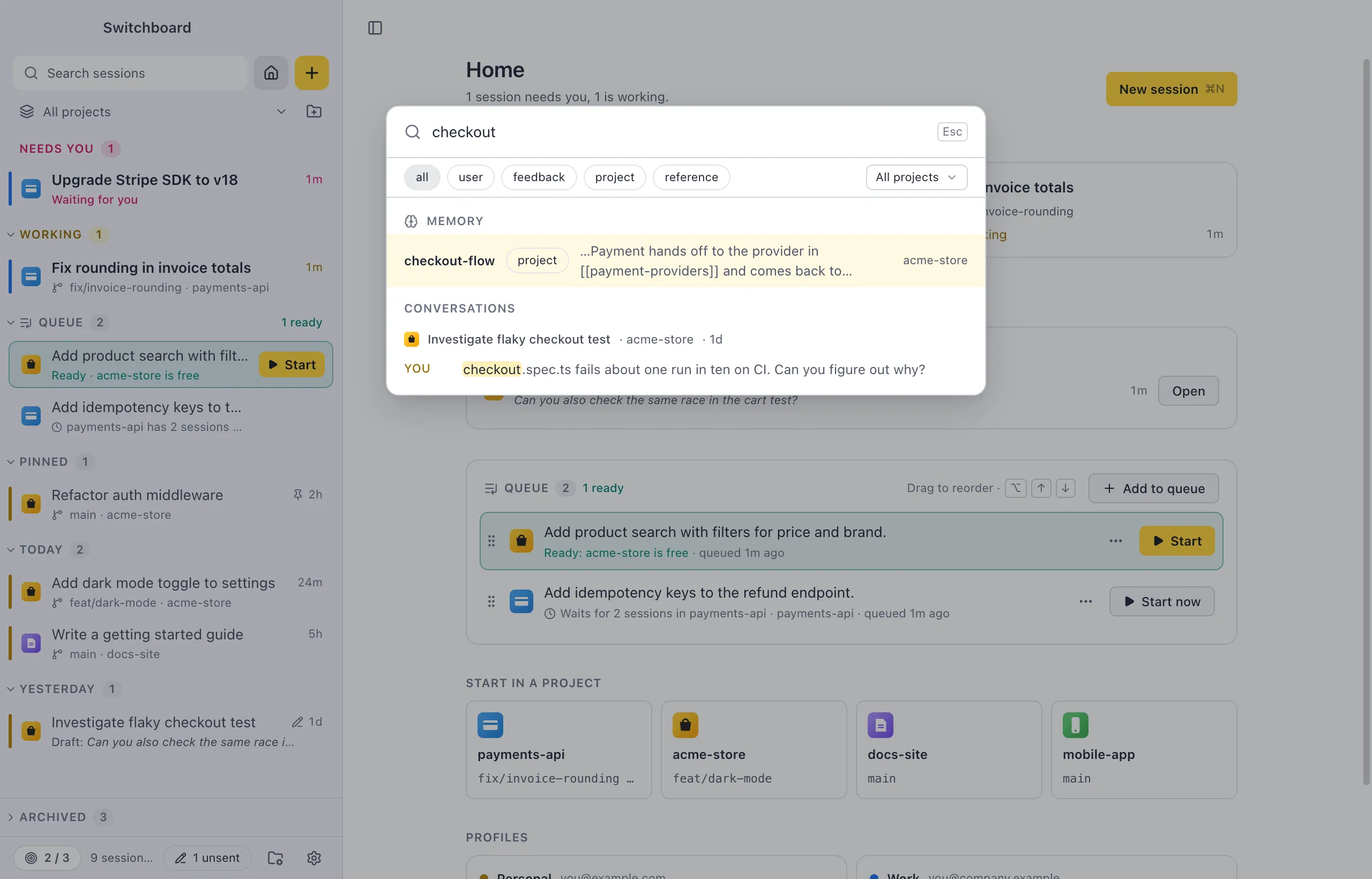
- Press Command, Shift, FControl, Shift, F (or Search conversations in the command palette) to search memory and conversations.
- Run Search memory… in the command palette (Command, KControl, K) to search memory only.
Link memories
Section titled “Link memories”Write [[name]] in a memory’s text to link to another memory by its name. Use [[name|label]] to show other words. Links inside code are left alone.
In the editor:
- A link in the link colour opens that memory.
- A link in orange points at a memory that isn’t written yet. Click it to write it: New memory opens with the name filled in.
A name is looked up in the memory’s own folder first, then in your personal memory.
Linked from and Not written yet
Section titled “Linked from and Not written yet”Under the text, two lists show how the memory connects:
- Linked from: the memories that link here. Click one to open it.
- Not written yet: the names this memory links to that nothing answers to, each with Write it….
In a list, a N links not written yet chip shows only the memories with such links. Click it again to show them all.
Suggestions
Section titled “Suggestions”While you edit, type [[ and Switchboard suggests the names of your memories. Use Up Arrow or Down Arrow to move, Return or TabEnter or Tab to pick one, and Escape to close the list.
Rename a memory
Section titled “Rename a memory”Rename… in a memory’s menu changes its name, its file and its line in MEMORY.md together. When other memories link to it, tick Also update N links to it: only the [[name]] links to this memory change, nothing else in those files.
Search memory
Section titled “Search memory”Command, Shift, FControl, Shift, F searches memory and every conversation. Matching memories come first, in a Memory group above the conversations, each with its type and its project (or Personal).
- Chips under the field (all, user, feedback, project, reference) narrow the memories to one type.
- The Memory from menu narrows them to one project, or Personal.
- Up Arrow or Down Arrow moves through the results, and ReturnEnter opens a memory in its editor.
Search memory… opens the same window for memory only. See Search for searching conversations.
Settings
Section titled “Settings”Links and search have no settings.