
Back up and move your settings
Backup saves your Switchboard setup to one .json file: preferences, themes, projects and project actions. Use it to move to a new computer, from a Mac to a Windows PC or the other way round, restore your setup after a reset, or share a set of actions with someone. Your sessions stay in Claude Code’s folder (~/.claude) and are never in the file.
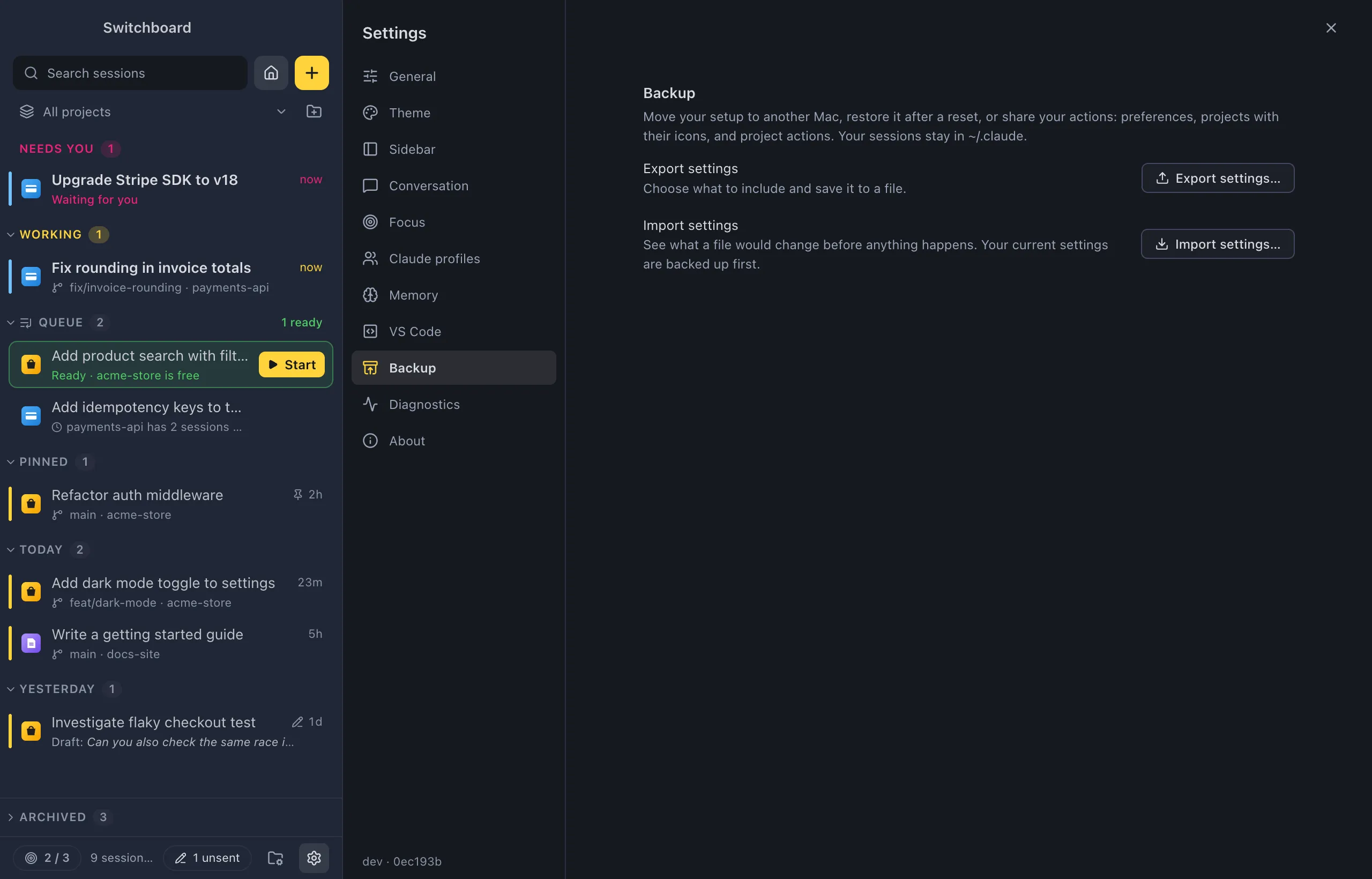
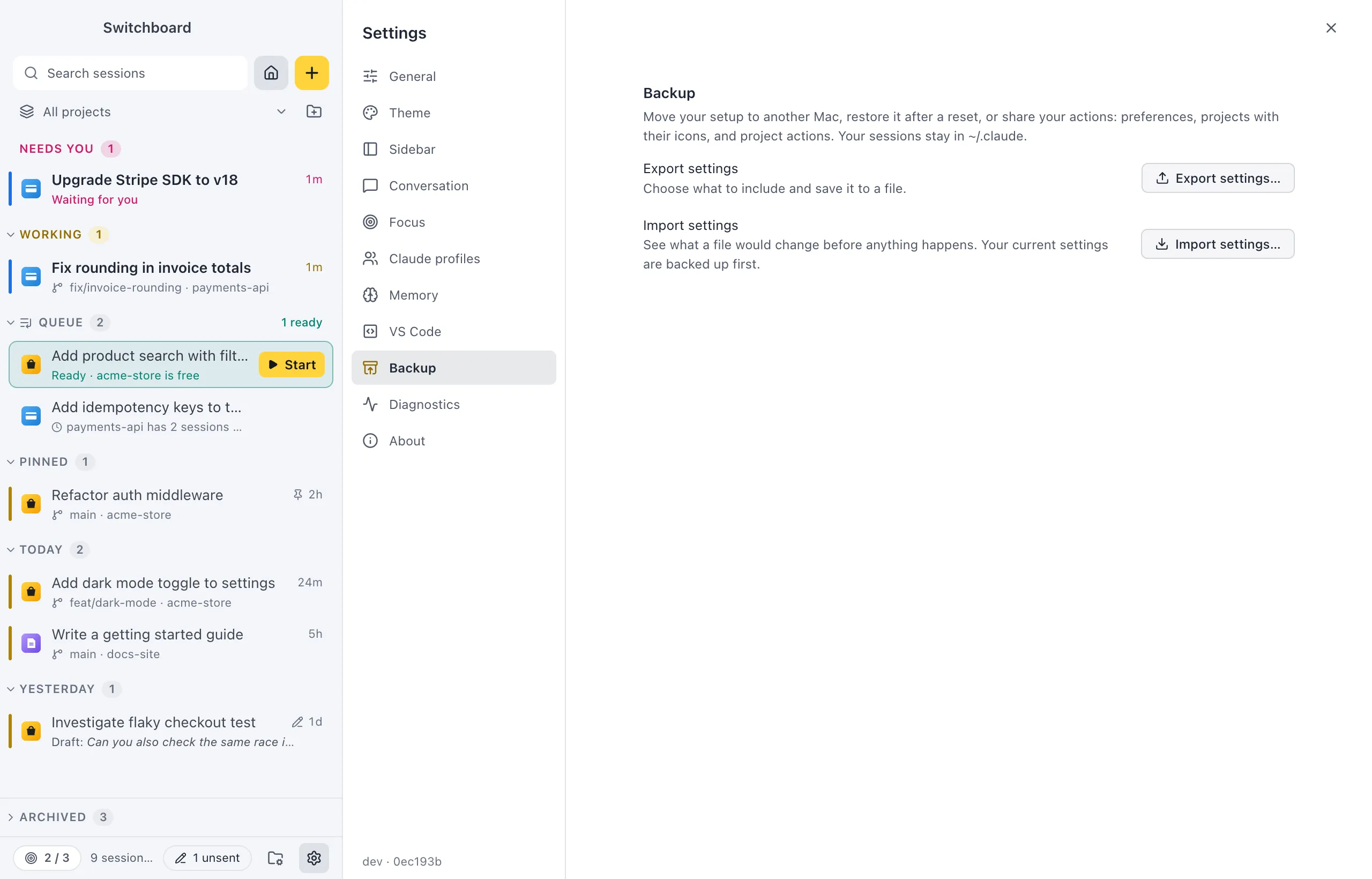
Open it
Section titled “Open it”- Press Command, CommaControl, Comma and choose Backup.
- Or run Export settings… or Import settings… in the command palette (Command, K or Command, Shift, PControl, K or Control, Shift, P).
Export your settings
Section titled “Export your settings”- Click Export settings….
- Tick what to include:
- Preferences: appearance and theme choice, sidebar, tool activity, startup and quitting, updates.
- Themes: themes you imported or duplicated. The built-in ones are always there.
- Projects: your projects in order, with their names, icons and defaults for new sessions.
- Project actions: global and per-project actions, with their shortcuts and worktree setup.
- App choices: default editor, New session defaults, Claude Code update checks.
- Pinned and archived sessions: off at first. Only useful on this computer, or when you copy
~/.claudetoo.
- Click Export… and choose where to save the file. It is named like
switchboard-settings-2026-10-11.json.
Import settings
Section titled “Import settings”- Click Import settings… and choose a settings file.
- Under Include, untick what you don’t want. Everything the file has starts ticked.
- Under When something is already set here, choose:
- Merge (the default): add what is missing and keep your own values.
- Replace: make projects, actions and preferences match the file. Sessions are only ever added.
- Check What changes. Each line says what happens to it: Add, Change, Remove, Keep yours or Skip. The footer sums it up, for example “3 to add, 1 to change, 2 unchanged”.
- Click Import (or Replace).
Nothing changes until you click that button.
Folders that aren’t on this computer
Section titled “Folders that aren’t on this computer”A project folder from the file that doesn’t exist here (because your user name is different, say) is listed under Folders as not found. Click Choose folder… to point it at the right folder on this computer; the preview updates. Leave it to skip that project and its actions. The undo button next to a new folder takes the choice back.
Move between a Mac and a Windows PC
Section titled “Move between a Mac and a Windows PC”A settings file works on both. Folders from the other platform never match a folder here (a Mac’s /Users/you/code/shop isn’t a folder on a PC), so every project shows as not found until you point it at its folder on the new computer, for example C:\Users\you\code\shop.
Action shortcuts move too. One set with ⌘ on a Mac uses Ctrl on Windows. One set on Windows keeps Ctrl on a Mac (⌃ there, not ⌘), so you may want to set it again. Commands in shell actions are copied as they are, so check that they work in the new computer’s shell (PowerShell on Windows, your login shell on a Mac). See Switchboard on Windows.
Shell actions need your approval
Section titled “Shell actions need your approval”Imported project actions that run a shell command ask for your approval the first time they run, even if you approved them on the other computer. A settings file can’t run a command you haven’t seen.
Undo an import
Section titled “Undo an import”Before it imports anything, Switchboard saves your current settings to the backups folder of its app data, ~/Library/Application Support/Switchboard/backups%APPDATA%\Switchboard\backups. When the import is done, it shows where that file is. To undo the import, import that file with Replace.
Settings
Section titled “Settings”Export and import are in Settings → Backup.