
Your first session
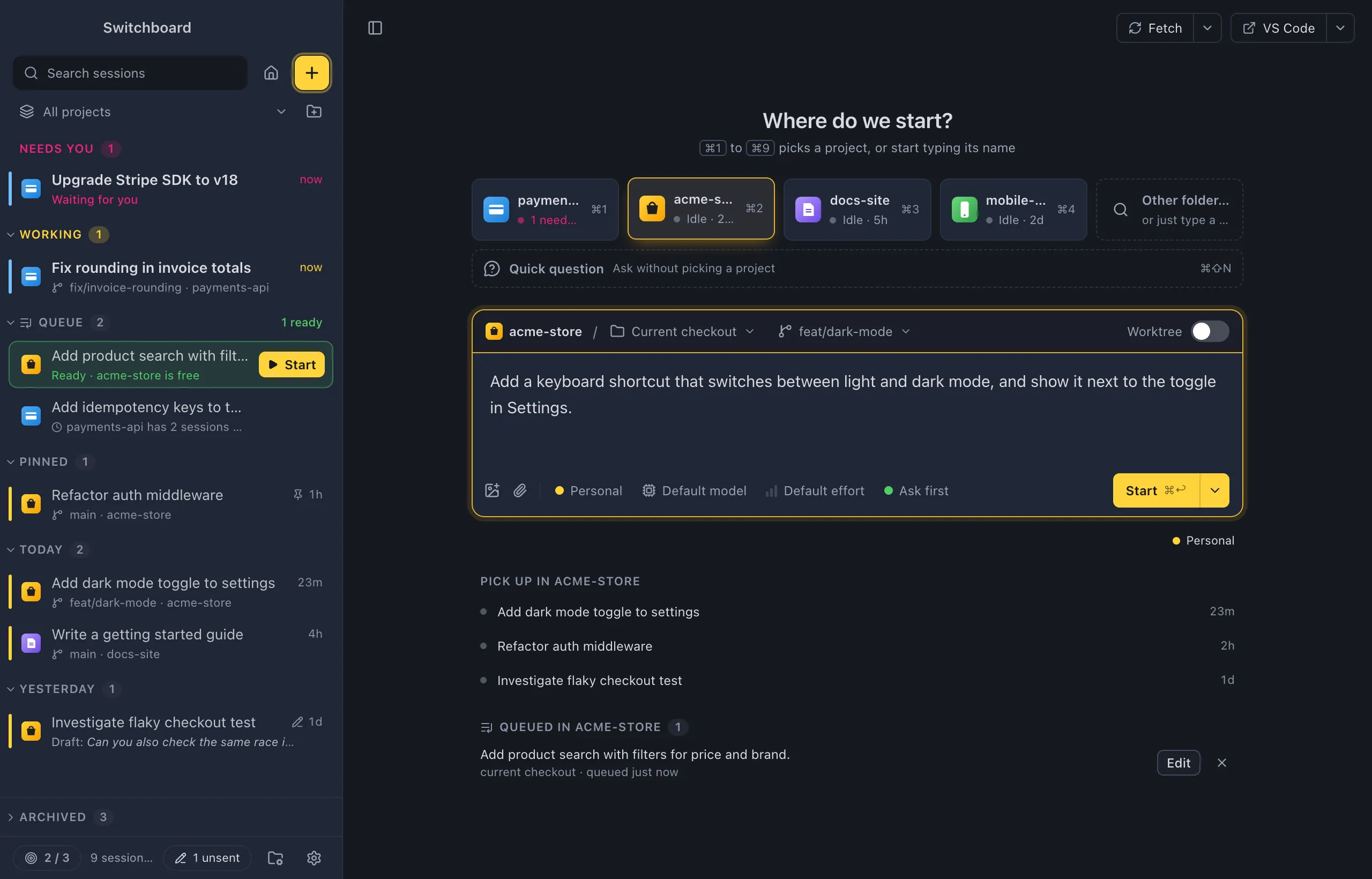
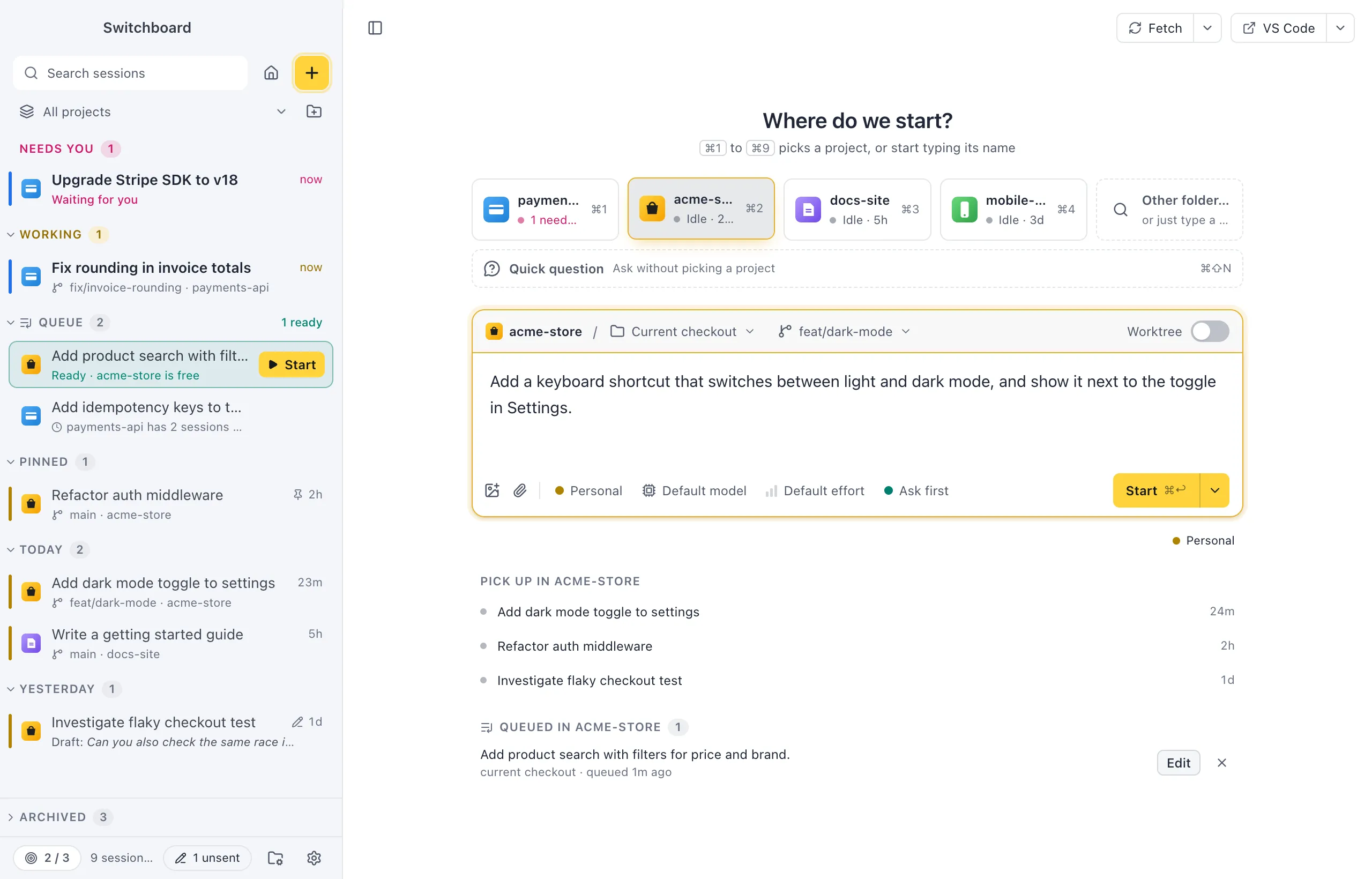
A session is one conversation with Claude Code in a folder. You start one from New session: pick a project, write what Claude should work on, and press Start. Switchboard runs your own claude with your login and settings.
Open it
Section titled “Open it”- Press Command, NControl, N.
- Click the yellow + button at the top of the sidebar, or New session on Home.
- Choose New session… in the command palette (Command, KControl, K) to pick a project and write the prompt without leaving the keyboard.
Start a session
Section titled “Start a session”- Pick a project. New session asks Where do we start? and shows your projects as tiles. Click one, press Command, 1 to Command, 9Control, 1 to Control, 9 for a recent one, or type in Filter projects, or type a path to find another folder.
- Choose where it runs. Current checkout works in your folder as it is. New worktree gives the session its own isolated copy on a new branch. See Worktrees.
- Write the prompt in the box that says What should Claude work on? You can paste or drop images, type
/for commands and skills, and@to mention a file. - Check the chips under the message box: the Claude profile (with more than one), the model, the effort and the permission mode. Click one to change it for this session. See Models and options.
- Start. Press Command, ReturnControl, Enter or click Start. The ▾ next to it has Add to queue (Command, Shift, ReturnControl, Shift, Enter) and Start in a new worktree.
The session opens straight away and Claude starts working. To ask something without picking a project, use a quick question (Command, Shift, NControl, Shift, N).
What happens next
Section titled “What happens next”While Claude works, the session sits under Working in the sidebar with a yellow rail and a spinner, and you see each step in the conversation as it happens. You don’t have to watch: open another session, or switch to another app.
- When Claude needs a decision, a permission, an answer to a question or a plan to review, the session moves to Needs you with a pink rail and a pulsing dot. Answer it in the card in the conversation. See Permissions and questions.
- When Claude finishes, the session moves out of Working. If you weren’t looking at it, it shows as finished and unread, in blue, until you open it.
- If something goes wrong, the session shows a red !.
| State | What it means |
|---|---|
| Needs you | Claude waits for a permission, a question or a plan |
| Working | Claude is working on it |
| Finished, unread | It finished and you haven’t read it yet |
| Failed | The last run stopped with an error |
All the states are on Session states.
Notifications and the badge
Section titled “Notifications and the badge”Switchboard sends a macOSWindows notification when a session needs you (“Claude wants to use Bash”, “Claude has a question”), when Claude finishes, and when a run fails. Click the notification to open the session. You don’t get one for the session you are looking at.
The Dock icon shows a badge with the number of sessions waiting for you, and bounces once when a session starts waiting while Switchboard is in the background.
Windows has no badge count. While sessions wait for you, a pink dot sits on Switchboard’s taskbar button (hover it to read how many). When a session starts waiting while Switchboard is in the background, the taskbar button flashes until you switch to the window.
Keep going
Section titled “Keep going”- Type in the message box under the conversation to send Claude the next message. See Working in a session.
- Open Changes (Command, Shift, DControl, Shift, D) to review what Claude changed. See Changes.
Settings
Section titled “Settings”Projects can have their own defaults for new sessions (model, effort, permission mode, worktree and branch) on the project’s Settings tab. Turn on a focus limit in Settings, Focus if you want Switchboard to say when you have enough sessions going.