
Project actions
Project actions are for the things you do over and over: commit, run the tests, start the dev server, publish. An action either runs a command in a terminal tab of the session, or asks Claude something, as if you had typed it. Run them from the pills above the message box, the ⋯ menu, the command palette or their own shortcut.
Where to find them
Section titled “Where to find them”- Above the message box of a session, as pills: the first three actions, then N more for the rest. In a narrow pane the pills show only their icon. With no actions yet, a dashed Add action pill opens the editor.
- In the session header’s ⋯ menu, under Project actions, with their shortcuts. Edit actions… (or Add an action… when there are none) is at the end.
- In the command palette (Command, KControl, K): Run: <name> for each action, Edit actions… and New action…. Type
!first to list only the session’s actions. - On the project page’s Actions tab, which lists every action for the project, with Edit actions… and New action….
Right-click a pill, or an action in N more, or press Shift, F10Shift, F10 on it, for Run, Edit… and Delete….
Add an action
Section titled “Add an action”- Open the editor: click Add action above the message box, choose Add an action… or Edit actions… in the ⋯ menu, run New action… in the palette, or click New action… on the project’s Actions tab.
- Pick a suggestion on the left, or fill in your own.
- Click Save.
The editor, Project actions, lists your actions on the left under Yours, shared ones under From .switchboard.json, and suggestions under Add from package.json. Click one to edit it, or New action to start a blank one.
Fields
Section titled “Fields”| Field | What it means |
|---|---|
| Name and icon | How it looks on its pill and in the menu. Up to 40 characters. |
| Run a command / Ask Claude | A command opens in a terminal tab of the session. It runs in your login shell, so your PATH, nvm and aliases work as in your own terminalPowerShell (PowerShell 7 when it is installed, else Windows PowerShell). A prompt is sent to Claude in the session, and can be a / command. |
| Command / Prompt | What it runs or sends. Insert a variable with the buttons under the field. |
| Saved for | This project, or All projects for actions you want everywhere. |
| Runs in | For a command: Session folder (its worktree, when it has one) or Project root. |
| Shortcut | Optional. Click Set, then press the keys. See Shortcuts. |
| Ask before running | Shows a confirmation with the command first. Useful for publish or deploy. |
| Run when a new worktree is created | For a command: runs before Claude starts in each new worktree, for setup such as installing dependencies. |
The footer shows the pill as it will look above the message box. Delete removes an action you are editing; its command is not run.
Suggestions
Section titled “Suggestions”When you add an action, Switchboard suggests some to start from:
- your
package.jsonscripts, run with npm, pnpm, yarn or bun, whichever the project uses, plus Install; - Commit (asks Claude to commit with a clear message), Push (
git push) and Create PR (gh pr create --web).
A project with many scripts shows the first ones; click N more scripts… for the rest. Suggestions you have already added are left out.
Run an action
Section titled “Run an action”Click its pill, pick it in the ⋯ menu, run Run: <name> in the palette, or press its shortcut.
- A command opens in a terminal tab below the session, and the terminal opens if it was closed. A strip above the terminal shows its status, command, how long it has run and where, with Restart and Stop. See Terminal.
- A prompt is sent to Claude in the session. It goes through the focus limit like a message you type.
With Ask before running on, a confirmation shows the command first; click Run.
Variables
Section titled “Variables”Commands and prompts can use these. They are filled in when the action runs:
| Variable | Value |
|---|---|
${cwd} |
The session’s folder |
${projectRoot} |
The project’s root folder |
${branch} |
The current branch |
${worktreeName} |
The worktree’s name, if the session has one |
${sessionId} |
The session’s ID |
${sessionTitle} |
The session’s title |
In commands, every value is quoted for the shell, so a branch name or a title can never run anything by accident.
On Windows, no quoting is safe for every program. An action doesn’t run when a value it uses holds &, |, <, >, ^, %, !, " or a line break, and the message says which variable and character. Leave that variable out of the action, or rename the branch or session.
Shortcuts
Section titled “Shortcuts”An action’s shortcut works while a session in the project is on screen.
It must include CommandWindows, ControlControl or OptionAlt. Keys that Switchboard uses itself can’t be taken: the editor says the keys are used by Switchboard, or which other action already uses them. In the terminal, only shortcuts with CommandWindows run actions, since ControlControl and OptionAlt keys belong to the shell.
It must include ControlControl or OptionAlt. Keys that Switchboard uses itself can’t be taken: the editor says the keys are used by Switchboard, or which other action already uses them. In the terminal, only shortcuts with Control, ShiftControl, Shift run actions, since other ControlControl and OptionAlt keys belong to the shell.
Action shortcuts are listed in the keyboard shortcuts sheet (Command, SlashControl, Slash) while a session in the project is open.
Run in every new worktree
Section titled “Run in every new worktree”Turn on Run when a new worktree is created for setup that each new worktree needs, such as npm install. When a session starts in a new worktree, Switchboard waits until Claude Code has created it, then runs these actions there one by one, each in its own terminal tab. Claude’s first message waits until they have finished.
A shared action that you haven’t approved yet is skipped. Run it once from the actions menu to approve it.
Share actions with your team
Section titled “Share actions with your team”Put a .switchboard.json file in the root of the repository and commit it. Everyone who uses Switchboard on that repository gets its actions.
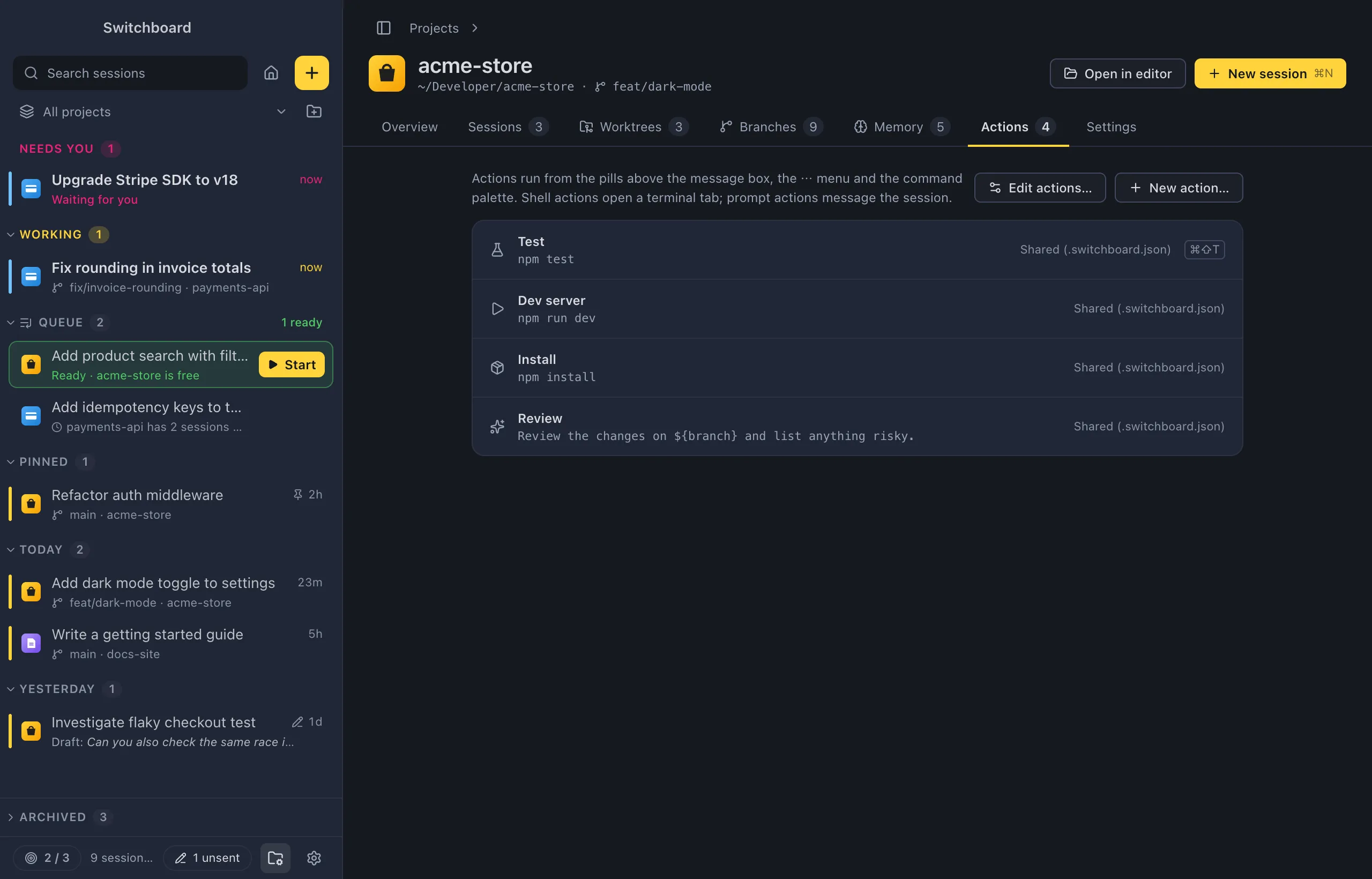
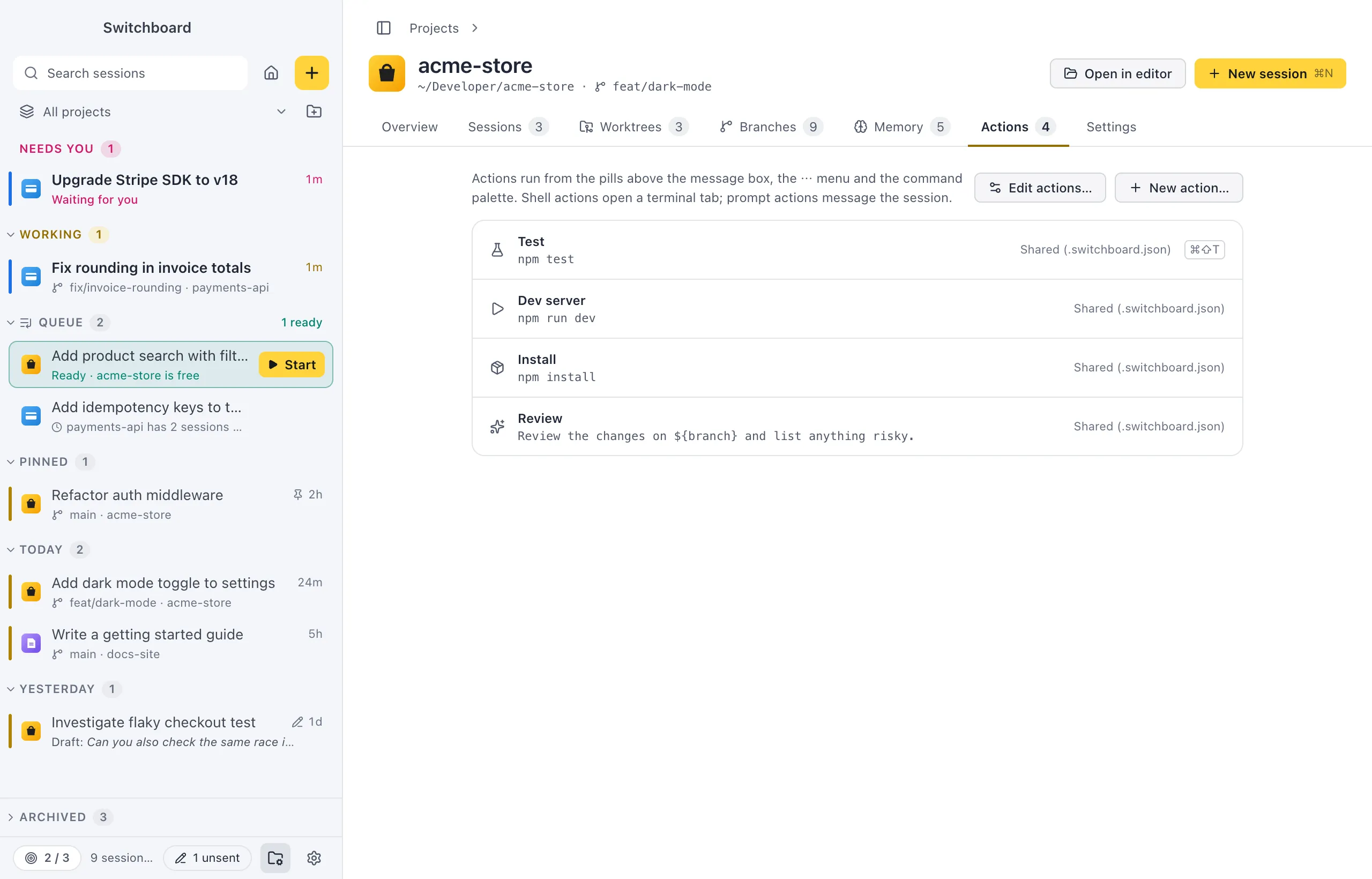
{ "actions": [ { "name": "Test", "icon": "flask", "command": "npm test" }, { "name": "Dev server", "icon": "play", "command": "npm run dev", "shortcut": "cmd+shift+d" }, { "name": "Install", "icon": "package", "command": "npm install", "runOnWorktreeCreate": true }, { "name": "Publish", "icon": "rocket", "command": "npm publish", "confirm": true, "cwd": "project-root" }, { "name": "Review", "icon": "sparkles", "type": "prompt", "command": "Review the changes on ${branch} and list anything risky." } ]}| Key | Default | Values |
|---|---|---|
name |
(required) | Up to 40 characters |
command |
(required) | The command, or the prompt for "type": "prompt" |
type |
"shell" |
"shell" or "prompt" |
icon |
"play" |
play, rocket, git-commit, git-pull-request, upload, flask, package, terminal, sparkles, wrench, globe, bug, check |
cwd |
"session" |
"session" or "project-root" |
confirm |
false |
Ask before running |
shortcut |
none | For example "cmd+shift+t". On Windows cmd means Ctrl, so a file shared between a Mac and Windows works on both. |
runOnWorktreeCreate |
false |
Run in every new worktree before Claude starts |
id |
from the name | Lowercase letters, digits and dashes |
Actions with the same id (by default, the same name) replace each other: your actions for this project win over shared ones, and shared ones win over your All projects actions.
Shared actions can’t be edited or deleted in the app. The editor shows them read-only, with Edit file to open .switchboard.json. Mistakes in the file are shown at the top of the editor and the Actions tab.
Approving shared actions
Section titled “Approving shared actions”A command from a repository could do anything. The first time you run a shared action, Switchboard shows the exact command and asks you to approve it with Approve and run. If someone changes the command later, you are asked again.
Actions that came in with Import settings… are approved the same way, once.
The Actions tab
Section titled “The Actions tab”The Actions tab on a project’s page lists every action that applies to the project: its icon, name, command, where it is saved (This project, Shared (.switchboard.json) or Every project) and its shortcut. Click one to edit it. Edit actions… opens the editor on the first action and New action… starts a new one. You don’t need a session open to manage actions here.
Settings
Section titled “Settings”Actions have no settings of their own. Actions saved for All projects are part of Export settings… and Import settings….