
Import from the Claude app
The Claude app keeps its own memory about you. Switchboard can bring it into Claude Code as memory files, from the app’s data export or from text you paste, and copy your Claude Code memories the other way, to paste in the app.
Open it
Section titled “Open it”All three are buttons at the top of Settings › Memory, in the Import menu next to Filter memory on a project’s Memory tab, and commands in the command palette (Command, KControl, K):
| Button | Palette command |
|---|---|
| Import from Claude export… | Import memory from Claude export… |
| Paste from Claude app… | Paste memory from Claude app… |
| Copy for Claude app… | Copy memory for Claude app… |
Import from Claude export
Section titled “Import from Claude export”- In the Claude app, go to Settings › Privacy › Export data, and download the export.
- Click Import from Claude export… and pick what you downloaded:
memories-000.zip(withprojects-000.zipfor project names), the unzipped export folder, or the manifest JSON. With the manifest, Switchboard looks for the zips next to it. - Check the preview, and change where each memory goes.
- Click Import N (Command, ReturnControl, Enter).
Only memories and projects are read. Your conversations are never opened.
Where memories go
Section titled “Where memories go”| In the export | Type | Goes to |
|---|---|---|
Who you are (profile.md) and your preferences (preferences.md) |
user |
Personal |
| People and topics | reference |
Personal |
| An area | project |
The project with that name, else Personal |
| A Claude project’s files | project |
A project you pick (skipped by default) |
Each memory keeps its name, description and aliases. Links to claude.ai conversations are dropped.
The preview
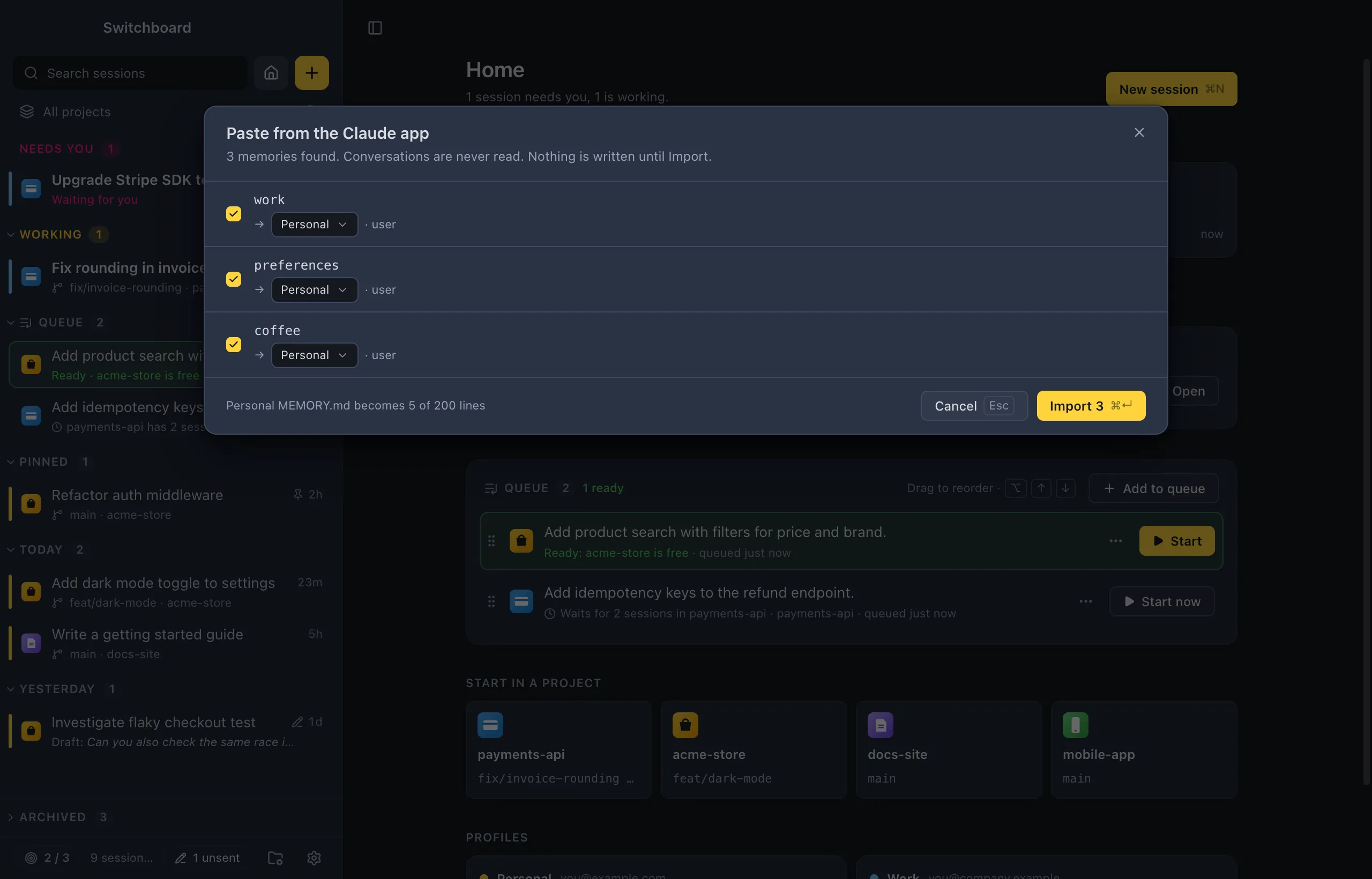
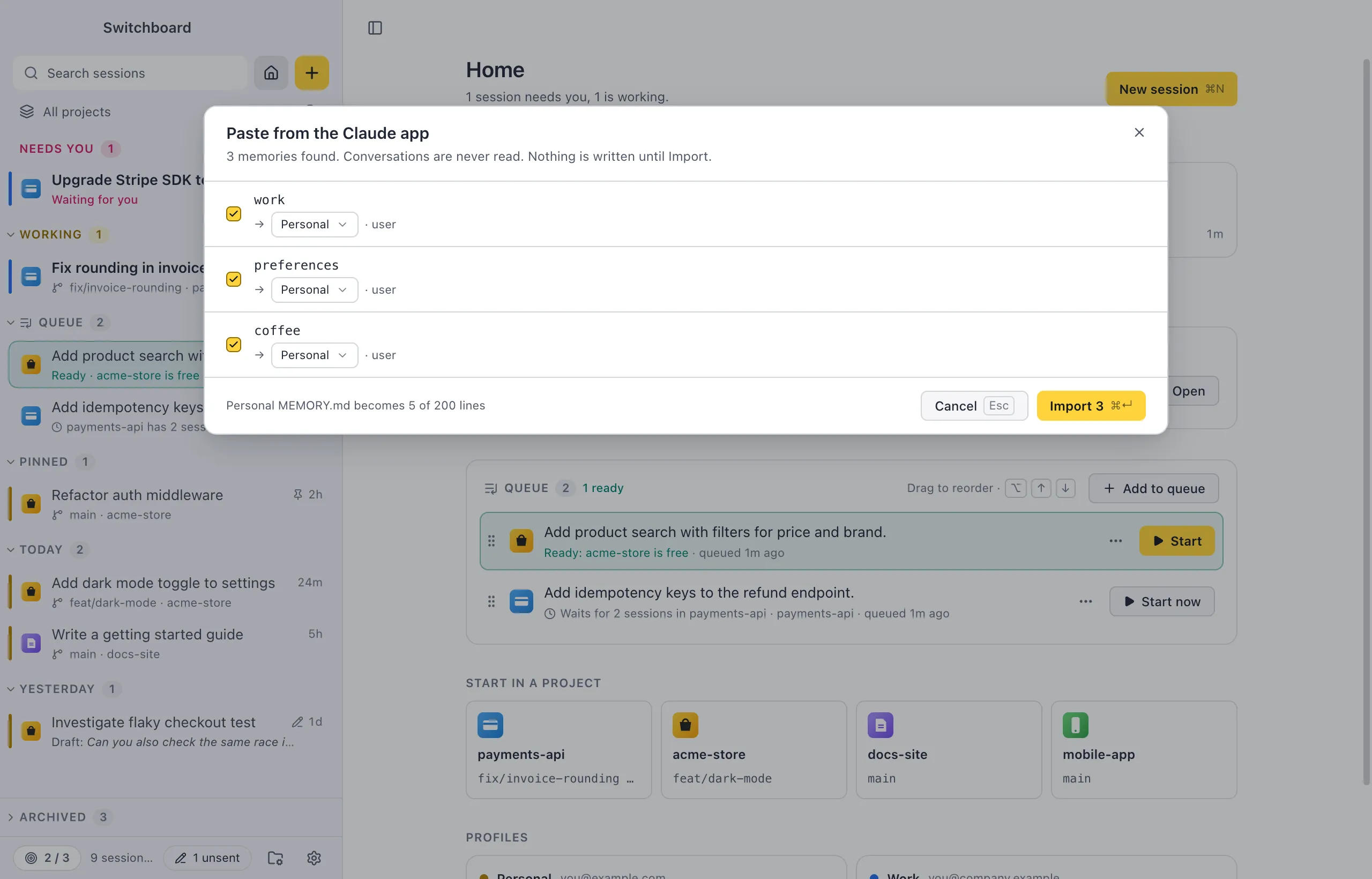
Section titled “The preview”The preview lists every memory with where it goes (Personal, one of your projects, or Skip). Untick the ones you don’t want. A row can be flagged:
- looks like a token: the text looks like a token, key or password. It starts unticked.
- duplicate of “name”: you have a memory like it already.
- no matching project: an area without a project of that name, so it goes to Personal.
- newer than yours, already imported or older than yours: you imported it before.
The footer says how full your personal MEMORY.md will be. Nothing is written until you click Import.
Importing a newer export later updates what you imported before instead of adding copies.
Paste from Claude app
Section titled “Paste from Claude app”When you don’t have an export at hand:
- Click Paste from Claude app….
- Click Copy next to the prompt, and send it in the Claude app. It asks the app to write out every memory it has of you as a list.
- Paste the app’s answer in the dialog and click Preview (Command, ReturnControl, Enter).
- Check the preview, as for an export, and click Import N.
The text is split into one memory per heading, else per bullet, else per paragraph. What you paste is only saved as files, never sent to Claude.
Copy for Claude app
Section titled “Copy for Claude app”Copy for Claude app… copies the memories you tick as one plain-text block, to paste in the app’s memory import (Settings › Memory in the app). Memories about you (user) and how you work (feedback) are ticked to start with. Click Copy N.
Settings
Section titled “Settings”The buttons live in Settings › Memory. Imported personal memories go to your personal memory folder.