
Git
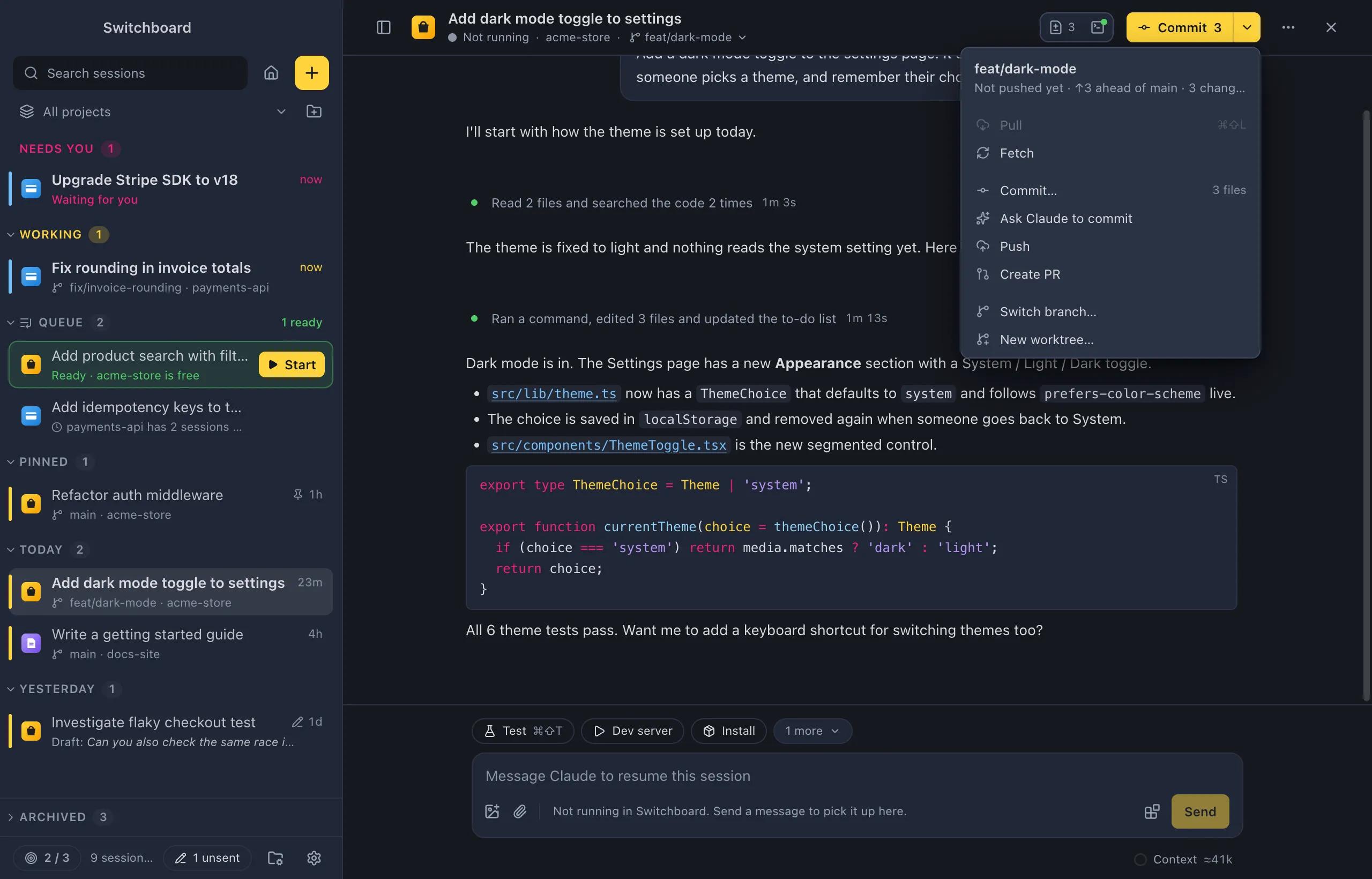
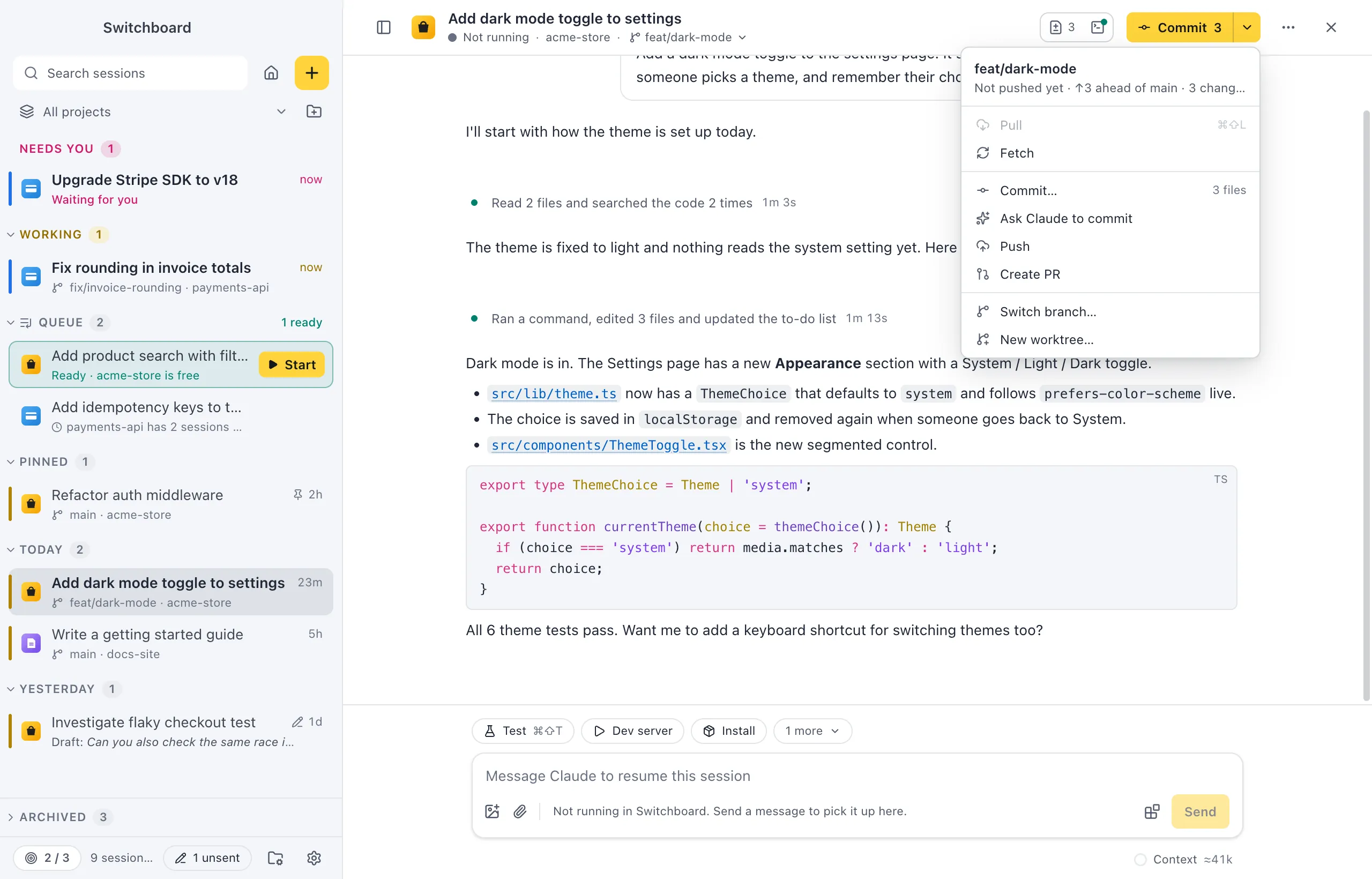
A session in a git repository shows its branch in the header, and a git button that offers the next step for the branch: pull, commit, push, open a pull request, or fetch. Its menu has every step, plus switching branch and starting a worktree. Git runs in a terminal tab, so you see its output.
Where to find it
Section titled “Where to find it”- The branch is in the session header, under the title. Click it to switch branches, or, in a worktree, to finish the worktree.
- The git button is in the session header, on the right. Its ▾ opens the git menu.
- The command palette (Command, KControl, K) has Commit…, Create pull request…, Sync with remote, Switch branch… and, in a worktree, Finish worktree….
- Command, Shift, LControl, Shift, L pulls while the branch is behind its upstream.
The branch in the header
Section titled “The branch in the header”The header shows the branch the session’s folder has checked out, read live from git. It stays right when you or Claude switch branches in a terminal. A detached HEAD shows as detached.
Switch branch
Section titled “Switch branch”Click the branch in the header, choose Switch branch… in the git menu, or run Switch branch… in the command palette. The menu lists the local branches, the current one first. With more than eight, type in Filter branches to find one.
Switching uses git switch:
- Uncommitted changes that don’t conflict come along to the new branch.
- When they would be overwritten, git refuses and you stay where you are, with git’s message in the menu. Nothing is ever stashed or thrown away.
- It waits while Claude is working in this folder. Stop Claude, or wait for it to finish, to switch.
- When other sessions work in the same folder, Switchboard asks first, since they see the new branch too.
A session in a worktree has its own checkout, so it can’t switch branches. Its branch button opens the worktree menu instead.
The git button
Section titled “The git button”The button’s face runs the step the branch needs next, in the order a branch usually goes through:
| Face | When |
|---|---|
| Pull ↓2 | The branch is behind its upstream. |
| Commit 3 | There are changed files. Claude writes the commit. |
| Push ↑1 | There are commits to push, or a new branch with commits to publish. |
| Create PR | A branch other than the base branch, or a worktree, has commits ahead of the base branch. |
| Fetch | Nothing else to do. Fetching shows whether the upstream moved on. |
The number is how many commits or files the step takes. When there is something to do, the button is yellow. Fetch is a quiet button. Hover the button to see what it will do, or why it can’t.
Fetch, pull and push run git in a terminal tab. A branch without an upstream is pushed with git push -u, which sets it.
The git menu
Section titled “The git menu”The ▾ next to the button opens the menu. At the top it shows the branch and where it stands: how far it is behind and ahead, and how many files changed. Then:
- Pull (Command, Shift, LControl, Shift, L) and Fetch;
- Commit…, with your own message;
- Ask Claude to commit;
- Push and Create PR;
- Switch branch…, or Merge or remove worktree… in a worktree;
- New worktree…
When the branch is behind its upstream, the menu says to pull before you push. A step that can’t run is greyed out.
Commit
Section titled “Commit”There are two ways to commit:
- Ask Claude to commit (also the button’s face, Commit N) sends Claude a message to commit the current changes with a clear, conventional commit message.
- Commit… opens a dialog for your own message. Click Commit or press Command, ReturnControl, Enter. It commits what is staged, or every change when nothing is staged. Git runs in a terminal tab, so you see the output of your commit hooks.
Stage files in the Changes panel. Commit… in the command palette opens the same dialog.
Create a pull request
Section titled “Create a pull request”Create PR pushes the branch, then opens GitHub’s pull request page with the GitHub CLI (gh pr create --fill --web). Install gh and sign in for this to work. It isn’t offered on the base branch, or while the branch is behind its upstream.
Create pull request… in the command palette does the same.
Sync with remote
Section titled “Sync with remote”Sync with remote in the command palette does the one step that brings the branch in line with its remote: it pulls when the upstream is ahead, otherwise pushes what hasn’t been pushed (or publishes a branch with commits), otherwise fetches.
While Claude works
Section titled “While Claude works”Pull, Commit… and Ask Claude to commit wait while Claude is working in the folder, so git doesn’t change files under it. Stop Claude (Escape) or wait for it to finish.
New worktree
Section titled “New worktree”New worktree… in the git menu opens New session on this project with a new worktree chosen, so the next session works on its own branch and folder.
Finish a worktree
Section titled “Finish a worktree”In a session that runs in a worktree, the branch in the header opens the worktree menu. Merge or remove worktree… in the git menu, and Finish worktree… in the command palette, open it too. It shows the worktree’s branch, how many commits it has ahead of and behind the base branch, and two choices.
Merge into the base branch
Section titled “Merge into the base branch”Merge into <base>… merges the worktree’s branch into the base branch in the main checkout, in a terminal tab, so you can see the result. The worktree stays; remove it afterwards. It is only offered when:
- the worktree has no uncommitted changes (a merge only takes commits);
- it has commits to merge;
- the main checkout is on the base branch;
- the main checkout has no uncommitted changes.
It also waits while a session is working in the main checkout.
Remove the worktree
Section titled “Remove the worktree”Remove worktree… deletes the worktree’s folder and stops this session in Switchboard. The conversation stays in your history.
Also delete the branch is on by default. When the branch has commits that aren’t in the base branch and aren’t pushed, the confirmation warns that deleting the branch loses them. Untick it to keep the branch.
A worktree with uncommitted changes can’t be removed: commit or revert them first.
Settings
Section titled “Settings”Git has no settings in Switchboard. It uses your own git configuration, credentials and environment (your login shell’s on a Mac, the one Windows gives apps on a PC), so ssh keys and credential helpers work as in your terminal.
On Windows, Switchboard needs Git for Windows. It runs git with core.longpaths on, so files whose full path is longer than 260 characters, common in deep worktree folders, still show in Changes. Steps that chain commands, such as Create PR (push, then gh pr create), work in Windows PowerShell 5.1 as well as PowerShell 7. A project’s default branch for new sessions is on its Settings tab.