
Pinned sessions
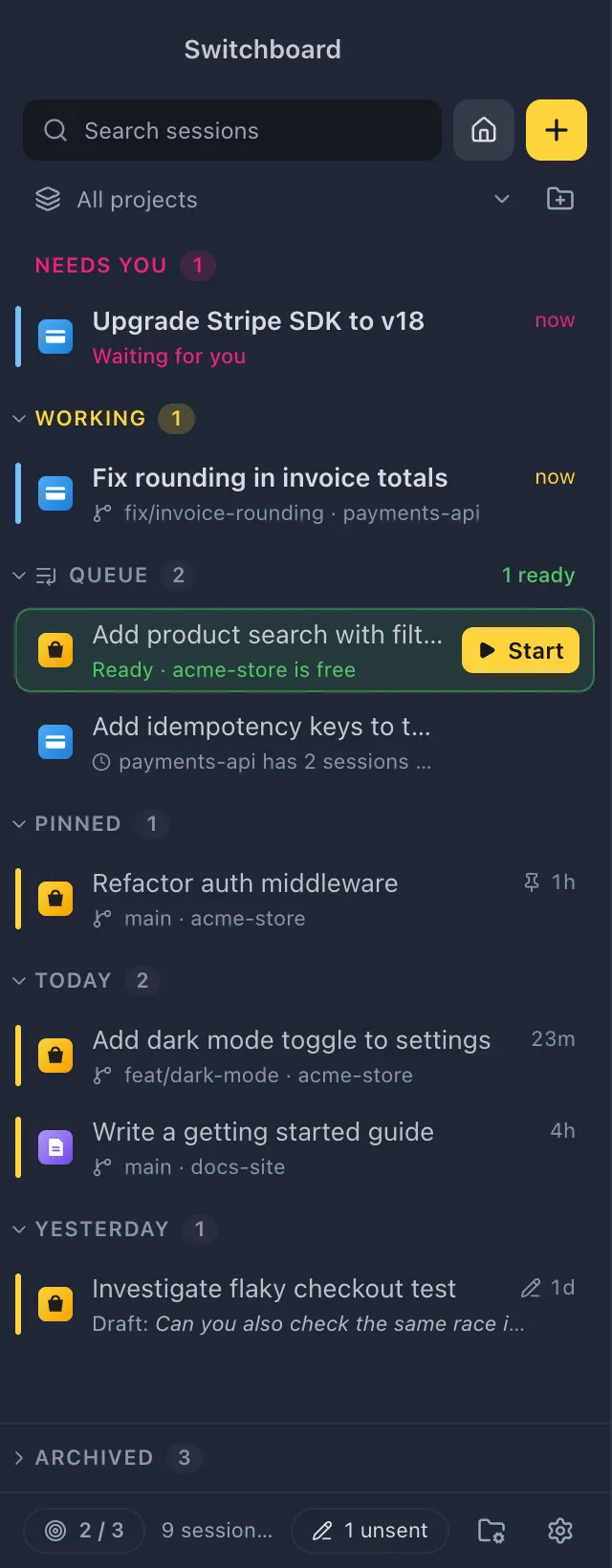
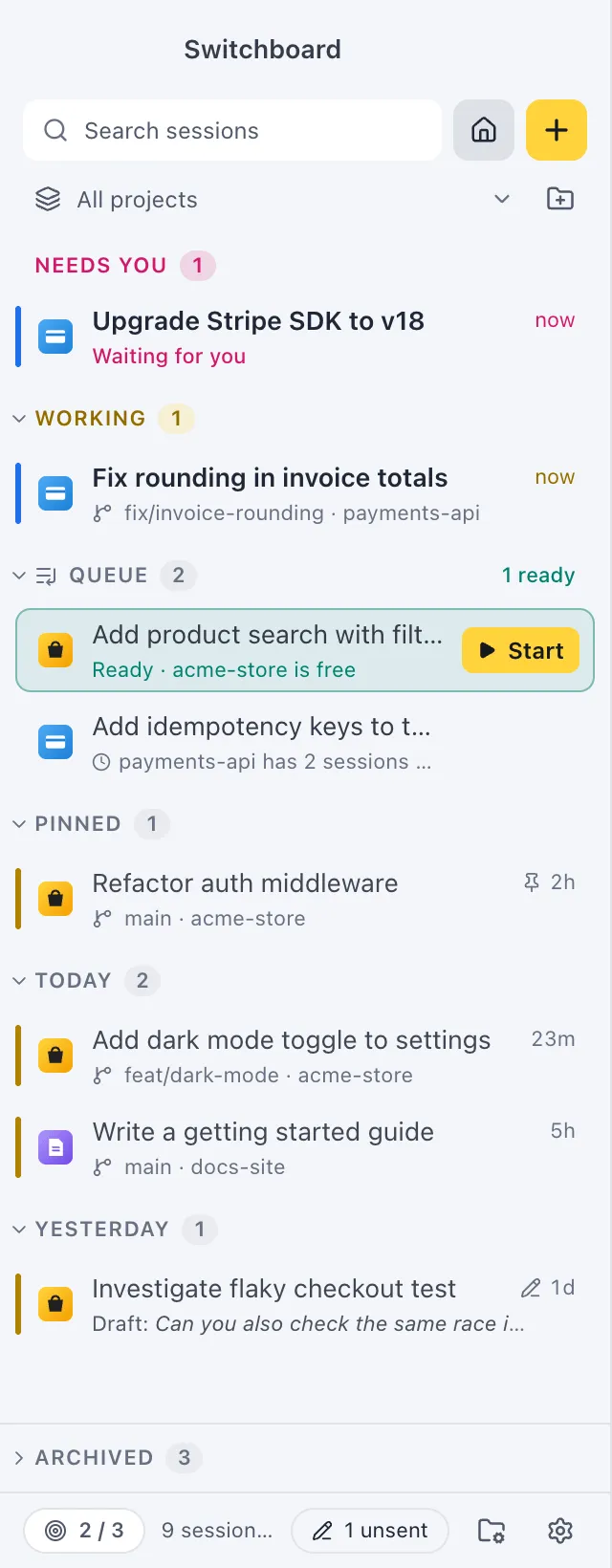
Pin a session you keep coming back to, and it stays in its own Pinned section near the top of the sidebar. A pinned session is never archived on its own, however long it stays quiet.
Open it
Section titled “Open it”The Pinned section is in the sidebar, below Needs you, Working and the Queue. In the minimal rail it is the group with the pin.
Pin a session
Section titled “Pin a session”- Right-click a session in the sidebar (or press Shift, F10Shift, F10 on it) and choose Pin.
- With a session open, choose Pin in the command palette (Command, KControl, K).
- Select several sessions with Command, clickControl, click and choose Pin in the bar at the bottom of the sidebar.
A pinned session shows a small pin next to its age. To unpin it, choose Unpin in the same places.
How pinned sessions behave
Section titled “How pinned sessions behave”- A pinned session that needs you or is working shows under Needs you or Working, at the top of that section. When it is done, it goes back to Pinned.
- Pinned sessions never move to Archived by themselves.
- Archiving a pinned session unpins it. See Archived sessions.
- Close the Pinned section from its header like any other section; the session you have open stays visible under it.
Settings
Section titled “Settings”Pinning has no settings. Pinned sessions are left out of a settings export unless you tick them in Settings, Backup.