
First launch
When Switchboard opens, you see the sidebar on the left and Home in the rest of the window. The first thing to do is add the projects you work in, the folders you start Claude Code sessions in.
Open it
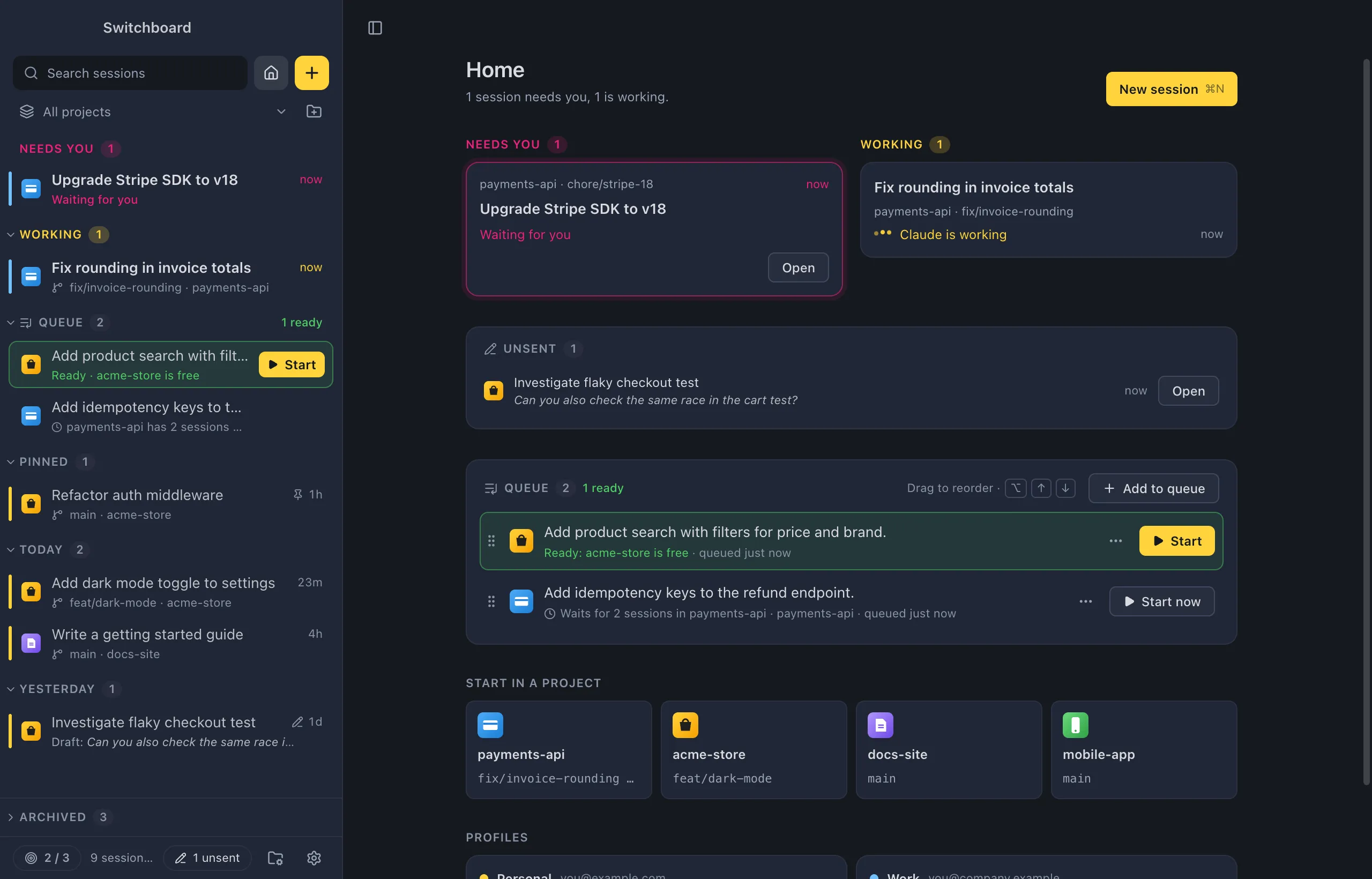
Section titled “Open it”Switchboard opens on Home. You can always go back there with Command, Shift, HControl, Shift, H, the house button at the top of the sidebar, or Home in the command palette.
What you see
Section titled “What you see”- The sidebar lists your sessions, grouped by what needs attention first: Needs you, Working, then Today, Yesterday and Earlier. At the top are a field to filter sessions, the Home button and the yellow + button for a new session. The footer counts your sessions and has buttons for Projects and Settings. See The sidebar.
- Home shows what needs you, what is working, your queue, a few projects to start in, and the plan usage of each Claude profile. See Home.
On Windows, the window has the usual Windows title bar. The menu bar (File, Edit, View, Window and Help) is hidden until you press Alt; most of what it has is also in the command palette. See Switchboard on Windows for everything else that differs.
Add your projects
Section titled “Add your projects”Until you add a project, Home says Add your first project and the sidebar shows an Add a project card.
- Click Add a project on Home, or Add project… in the sidebar.
- The Add project dialog lists the folders you have used Claude Code in, most recent first. Type to filter them by name or path.
- Click each folder you want to add. To add a folder Claude Code hasn’t been used in yet, choose Choose folder….
- Choose Done.
You can add more later with the folder button next to the project filter in the sidebar, Add project… in the command palette, or in the Projects view.
Your existing sessions
Section titled “Your existing sessions”By default the sidebar lists the sessions you start or continue in Switchboard. To also see the sessions you run in a terminal, in Claude desktop or in your editor, turn on Show sessions from other apps in Settings, Sidebar. The sidebar’s empty state has a Show sessions from other apps button for this too.
With it on, a session running in your terminal shows up live: you see when it is working and when it waits for you, and you get a notification when a terminal session is waiting. Click any session to read it, or type below it to continue it in Switchboard.
Settings
Section titled “Settings”- Settings, General: On startup picks what Switchboard shows when it opens: Home (the default), The last session or New session.
- Settings, Sidebar: the sidebar style, what collapsing it does, and Show sessions from other apps.
Next steps
Section titled “Next steps”Start Claude on one of your projects: Your first session.