
Share with the team
Some of what Claude remembers is really team knowledge, such as “tests need a running Postgres”. Share with the team… moves a memory into the project’s instructions, where everyone working on the project gets it. Copy to my memory… does the reverse.
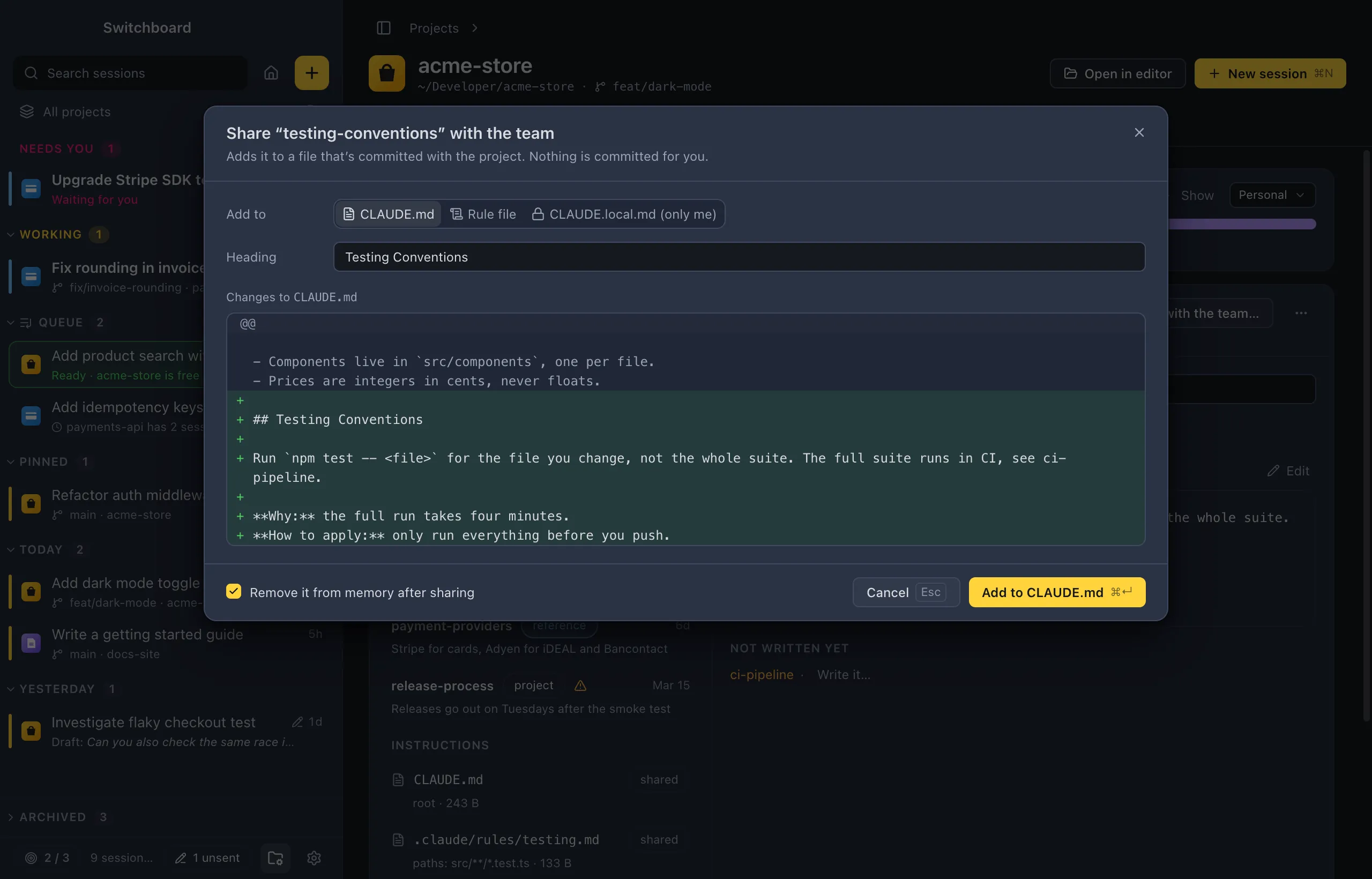
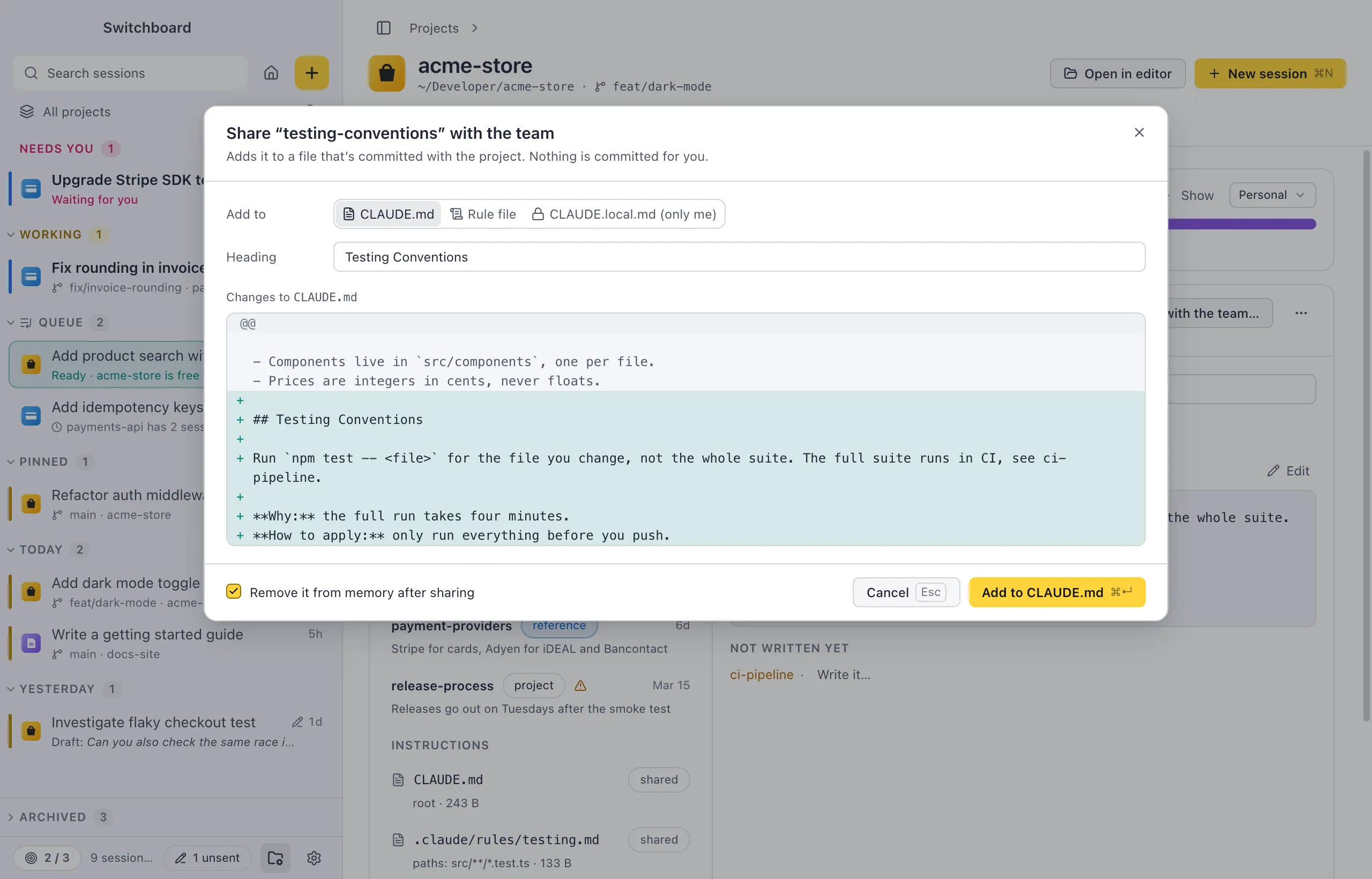
Open it
Section titled “Open it”- Select a memory on a project’s Memory tab and click Share with the team… in the editor’s header.
- Right-click a memory and choose Share with the team….
- Run Share memory with the team… in the command palette (Command, KControl, K), then pick one of the current project’s memories. It shows while a project’s page or one of its sessions is open.
Personal memories can’t be shared; move one to the project first.
Share a memory
Section titled “Share a memory”- In Add to, pick where it goes:
- CLAUDE.md: the project’s instructions, for everyone. Switchboard creates one at the root when there is none.
- Rule file: an existing rule in
.claude/rules/, or New rule…. A new rule needs a name and can apply Only for paths, such asapps/ui/**(separate patterns with commas). Claude Code then loads it only while it works on matching files. - CLAUDE.local.md (only me): your own instructions for this project, next to the shared ones, not committed.
- Edit the Heading. The memory is added at the end of the file as a section under that heading.
- Check the preview: it says whether it Creates the file or shows the Changes to it.
- Leave Remove it from memory after sharing ticked (it is, except for
CLAUDE.local.md) so Claude doesn’t load the same thing twice. The memory then moves to the TrashRecycle Bin. - Click the button, such as Add to CLAUDE.md (Command, ReturnControl, Enter).
Warnings
Section titled “Warnings”The dialog warns you before anything is written:
- The text looks like it holds a password, token or key. Tick I checked, it’s safe to share first.
- The file already has a section with that heading. Choose Replace that section or Add as a new section.
- The text is in the file already, so there is nothing to add.
- The file has uncommitted changes, and your addition goes on top of them.
- Git doesn’t ignore
CLAUDE.local.md, so it could be committed. Add CLAUDE.local.md to .gitignore fixes that.
After sharing
Section titled “After sharing”Switchboard never commits, stages or pushes anything. The change shows up in Changes like any other edit, for you to review and commit.
The toast afterwards has Show in Changes and Undo. Undo puts the file and the memory back as they were, until your next share or until you quit.
Copy to my memory
Section titled “Copy to my memory”The other way round: turn a section of an instruction file into a memory of your own.
- On the Memory tab, select an instruction file under Instructions and click Copy to my memory… (or right-click it and choose Copy a section to my memory…).
- Pick one of its sections (its
##or###headings). - Check the name, type and description. The preview shows the memory file and the line it adds to
MEMORY.md, and how fullMEMORY.mdgets. - Click Save to memory (Command, ReturnControl, Enter).
The instruction file itself isn’t changed.
Settings
Section titled “Settings”Sharing has no settings.