
Custom themes
A theme is one JSON file. You can import a theme someone shared, export any theme to start from, and edit your imported themes while Switchboard shows the result as you save.
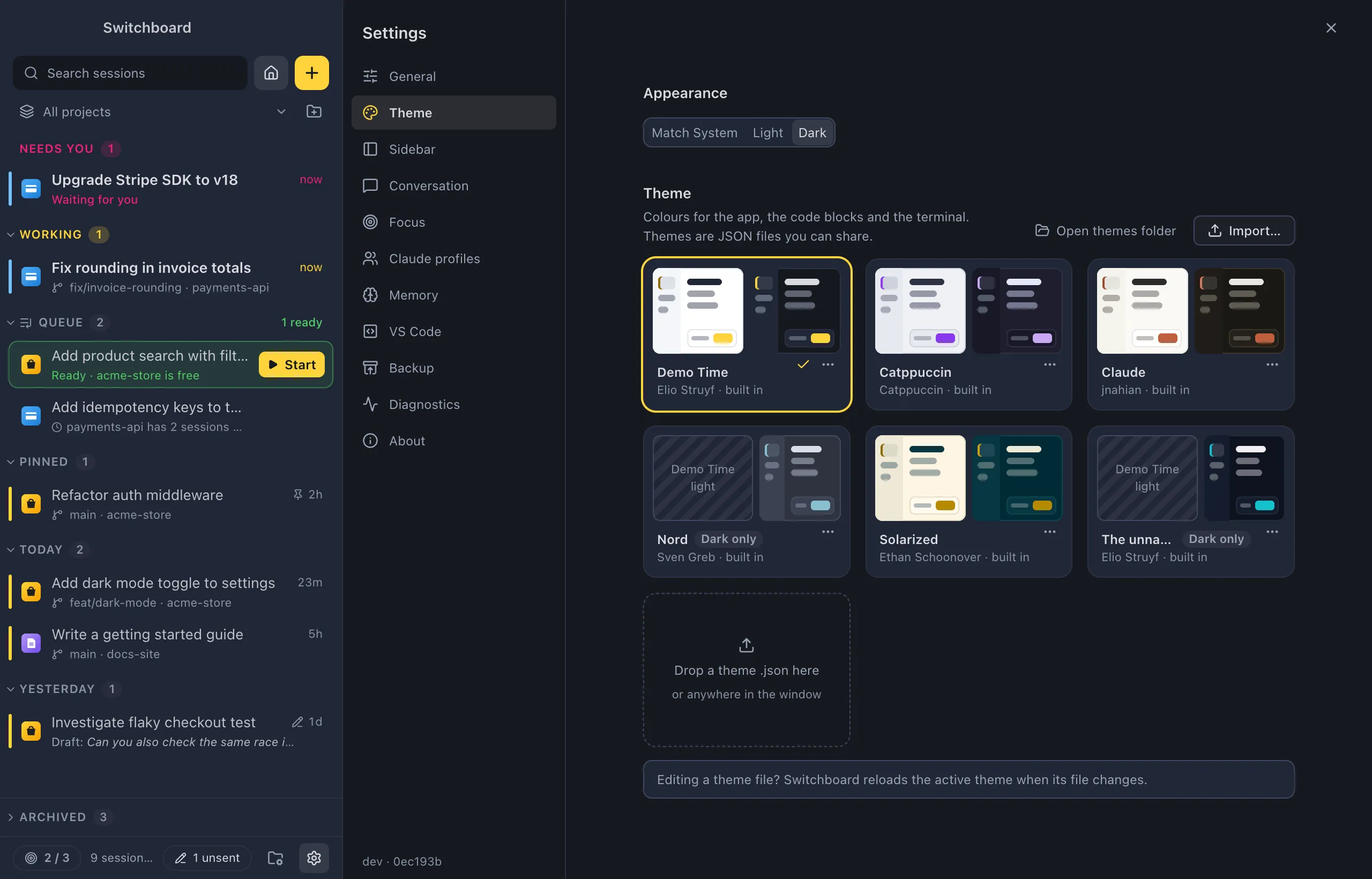
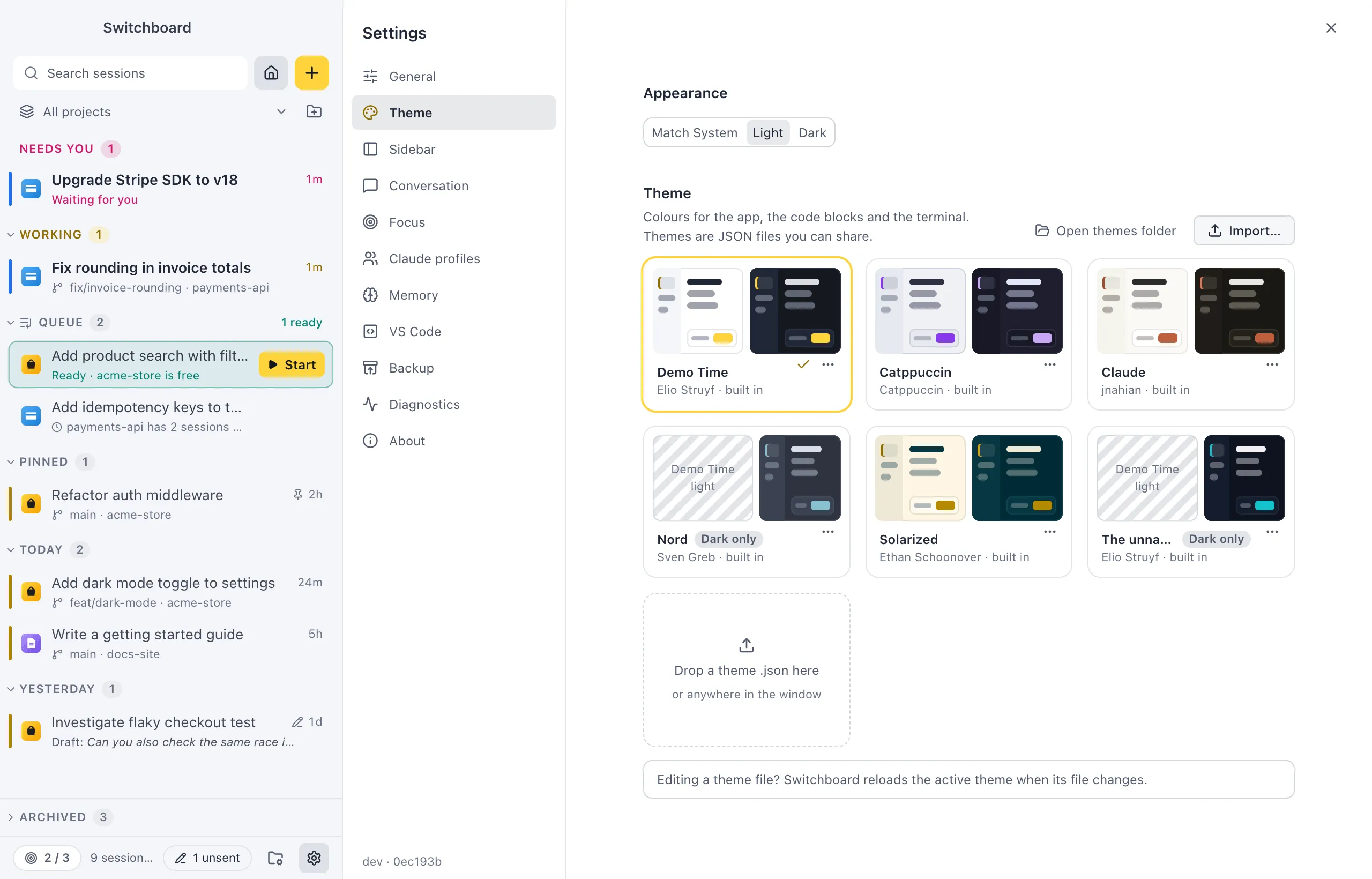
Open it
Section titled “Open it”- Press Command, CommaControl, Comma and choose Theme. Import… and Open themes folder are above the theme cards.
- In the command palette (Command, K or Command, Shift, PControl, K or Control, Shift, P): Import theme… and Export current theme….
- Drop a theme
.jsonfile anywhere on the window, outside a session’s message box.
Import a theme
Section titled “Import a theme”- Click Import… (or the dashed Drop a theme .json here card), run Import theme…, or drop the file on the window.
- Read the preview. Nothing is added yet. It shows:
- the theme in light and dark mode (a mode the file doesn’t have says it uses Demo Time);
- how many colours the file sets, and which ones are generated from its background and accent, with swatches;
- any text that is hard to read, with its contrast ratio. WCAG AA asks for more, but the theme still imports;
- unknown keys it ignores;
- its terminal colours and a code sample in its code colours.
- Click Add and use (Command, ReturnControl, Enter) to switch to it at once, or Add theme to keep it for later. Cancel (Escape) adds nothing.
If you already have a theme with that name, Switchboard asks whether to Replace it or Keep both (the copy gets a “2” after its name). A built-in theme’s name always keeps both.
If the file can’t be used, Can’t import this theme says what is wrong with it, and nothing is added.
Export, duplicate and remove
Section titled “Export, duplicate and remove”Every theme card has a ⋯ menu (or right-click the card):
- Export… saves the theme as
<name>.json. The file holds the background, the accent and only the colours that differ from what those two generate, so it stays short. Exporting Demo Time writes every colour. Export current theme… in the command palette exports the theme in use. - Duplicate adds a copy of any theme, built in or imported, as a new imported theme ready to edit.
- Show file shows an imported theme’s file in FinderFile Explorer.
- Remove moves an imported theme’s file to the TrashRecycle Bin, after you confirm with Move to TrashRecycle Bin. Removing the theme in use goes back to Demo Time. Built-in themes can’t be removed.
Edit a theme file
Section titled “Edit a theme file”Open themes folder shows where your imported themes are kept: ~/Library/Application Support/Switchboard/themes%APPDATA%\Switchboard\themes. Open a file there in your editor and save it: Switchboard applies the change to the theme in use at once.
If a change isn’t valid, Switchboard keeps the last version that worked and says what is wrong in Settings → Theme. Fix the file and save again.
Write your own theme
Section titled “Write your own theme”The smallest theme is a background (canvas) and an accent for one mode. Switchboard works out every other colour from those two, readable on that background:
{ "name": "Mint", "version": 1, "dark": { "canvas": "#0f1a17", "accent": "#3ddc97" }}This one only has a dark version. A theme can have only a light or only a dark version; the other mode then uses Demo Time.
The file
Section titled “The file”{ "$schema": "https://raw.githubusercontent.com/estruyf/switchboard/main/docs/switchboard-theme.schema.json", "name": "Solarized", // required, 1 to 48 characters "author": "Ethan Schoonover", // optional "version": 1, // required: the theme format, 1 "light": { "canvas": "…", "accent": "…", "colors": { … }, "syntax": … }, "dark": { "canvas": "…", "accent": "…", "colors": { … }, "terminal": { … }, "syntax": … }}lightanddark: at least one of them.canvasandaccent(optional): the background and the accent that every missing colour is generated from.colors(optional): any of the tokens below, by name. They win over what is generated.terminal: the terminal’s colours. Only read fromdark, because the terminal panel is always dark. See Code and terminal colours.syntax(optional): the colours of code. See Code and terminal colours.$schemagives you completion and checks while you type in editors such as VS Code. Exports always include it. The schema is switchboard-theme.schema.json.$commentholds notes and is ignored. Files may have//and/* */comments and trailing commas. Unknown keys are ignored, and the import lists them.
Colour values
Section titled “Colour values”Every value must be #rgb, #rrggbb or #rrggbbaa, rgb() or rgba(), hsl() or hsla(), or oklch(). Anything else (named colours such as red, url(), var(), color-mix()) refuses the whole file, with where the first problem is.
Tokens
Section titled “Tokens”| Token | Where it shows |
|---|---|
bg |
the conversation, the window behind everything, fields |
sidebar |
the sidebar and side panels |
card |
cards: your prompt, plans, permission and question cards, the message box |
popover |
menus, popovers, dialogs, toasts |
code-bg |
code blocks, tool output, diffs |
border |
lines between areas, card edges |
overlay-border |
edges of menus and dialogs, and of fields and buttons inside them |
overlay-shadow |
the shadow under menus and dialogs |
text |
text |
muted |
secondary text, quiet icons |
faint |
small hints, ages, placeholders |
link |
links and link-like buttons (Undo) |
selected |
the selected row |
focus-ring |
the outline around the focused control while you move with Tab |
scrim |
the backdrop behind dialogs |
ok |
running in the background, success, usage under 60% |
warn |
needs you: a permission or a question |
error |
failures, usage from 85% |
caution |
a level getting high: usage bars and the context ring from 60% |
unread |
finished and not read yet |
accent |
primary buttons and tints |
accent-ink |
the accent as text, icons, spinners and borders |
on-accent |
text on an accent fill |
diff-added, diff-removed |
the background of added and removed lines |
terminal-bg |
the terminal panel |
terminal-shadow |
the shadow the terminal panel casts |
profile-yellow, -blue, -green, -purple, -red, -orange, -gray |
the colours that tell Claude profiles apart |
The full reference, with Demo Time’s value for every token, how missing colours are generated and a longer example, is in Themes on GitHub.
Settings
Section titled “Settings”Theme files are managed in Settings → Theme. Settings → Backup can include the themes you imported or duplicated, so they move to another computer with the rest of your setup.