
Settings
Settings is where you choose how Switchboard looks and behaves: what it opens on, its theme, the sidebar, your Claude profiles, memory, backups and updates. Changes apply at once; there is nothing to save.
Open it
Section titled “Open it”- Press Command, CommaControl, Comma.
- Click the gear at the bottom of the sidebar (also there when the sidebar is a narrow rail).
- Choose Switchboard → Settings…File → Settings… in the menu bar. On Windows the menu bar shows when you press Alt.
- Run Settings in the command palette (Command, K or Command, Shift, PControl, K or Control, Shift, P). While Settings is open, the palette offers Settings: <section> for each other section, such as Settings: Theme.
Settings fills the main area, with its sections in a list on the left. The app’s sidebar stays next to it, so you still see what needs you. The version you run is at the bottom of the section list; click it for its release notes.
To close Settings, press Escape or click the × at the top right. You go back to the view you came from, as you left it. Escape doesn’t close Settings while a menu, a dropdown or a field you are typing in has it.
General
Section titled “General”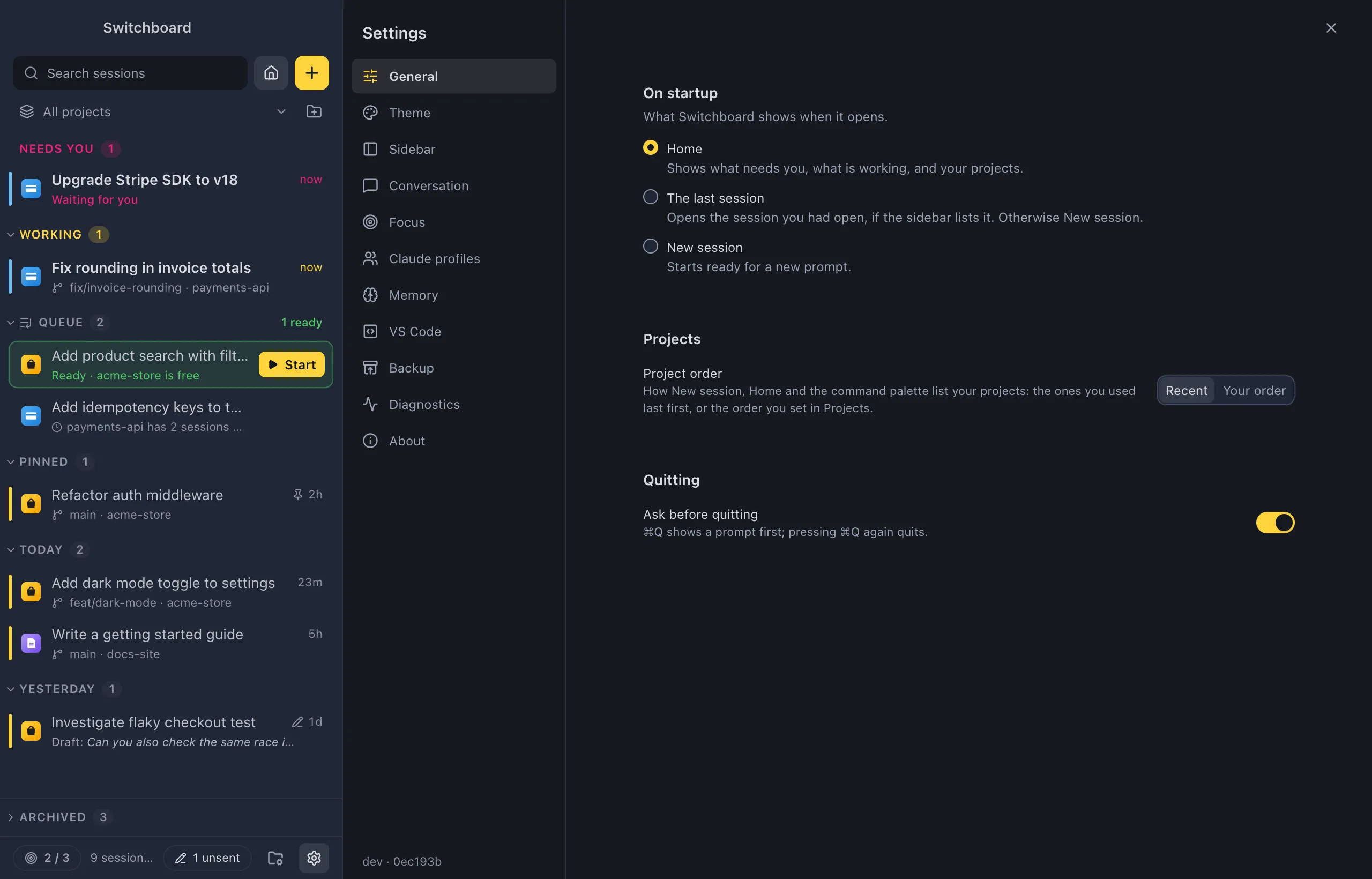
On startup
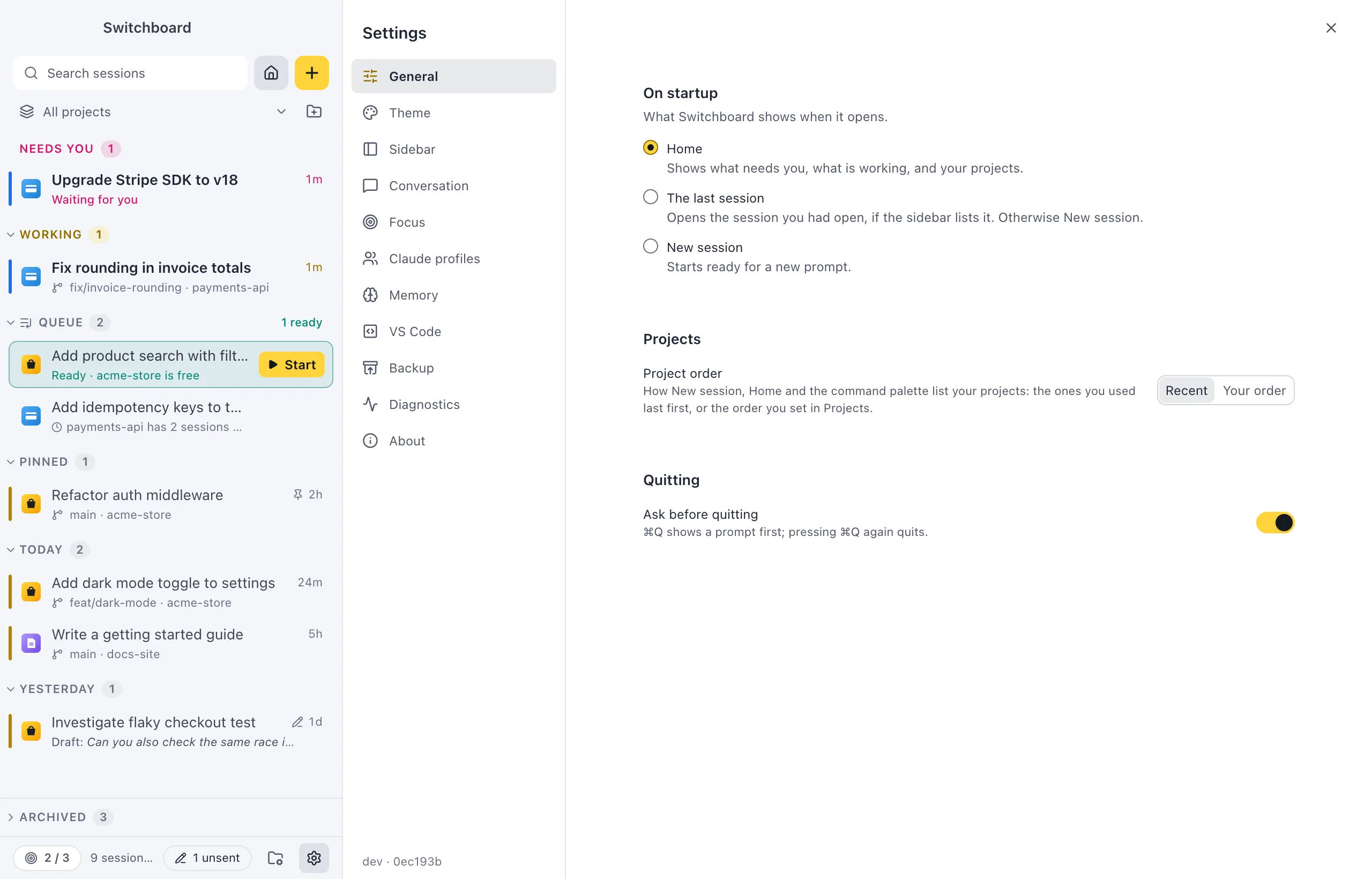
Section titled “On startup”What Switchboard shows when it opens:
- Home (the default): what needs you, what is working, and your projects. See Home.
- The last session: the session you had open, if the sidebar lists it. Otherwise New session.
- New session: ready for a new prompt.
Projects
Section titled “Projects”Project order sets how New session, Home and the command palette list your projects:
- Recent (the default): the ones you used last first.
- Your order: the order you set in the Projects view.
Quitting
Section titled “Quitting”Ask before quitting (on by default): Command, QControl, Q shows a prompt first, and pressing it again quits. Turn it off to quit with one press. On Windows, closing the window quits Switchboard, so it asks then too (but not while Windows shuts down or signs you out).
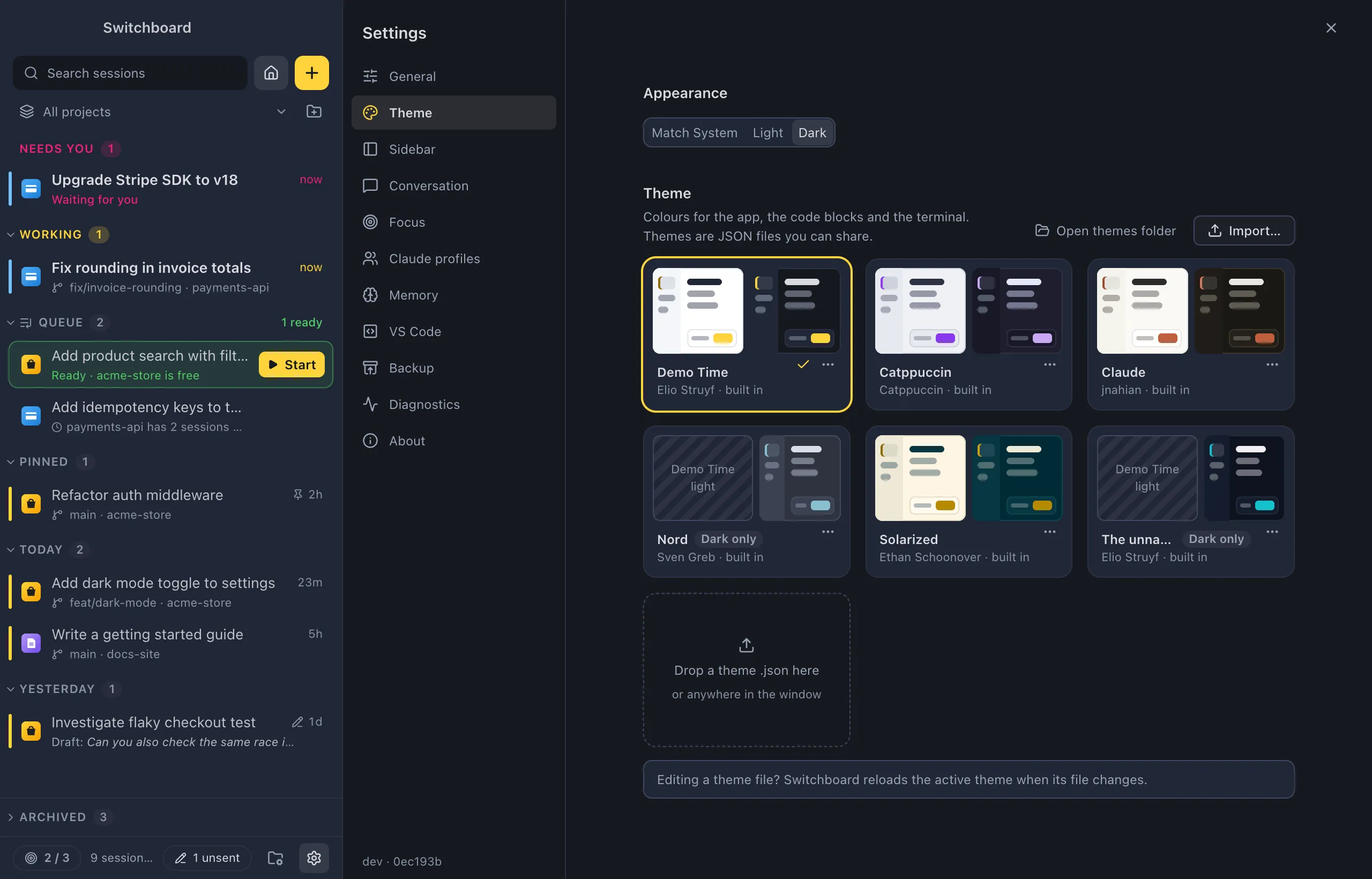
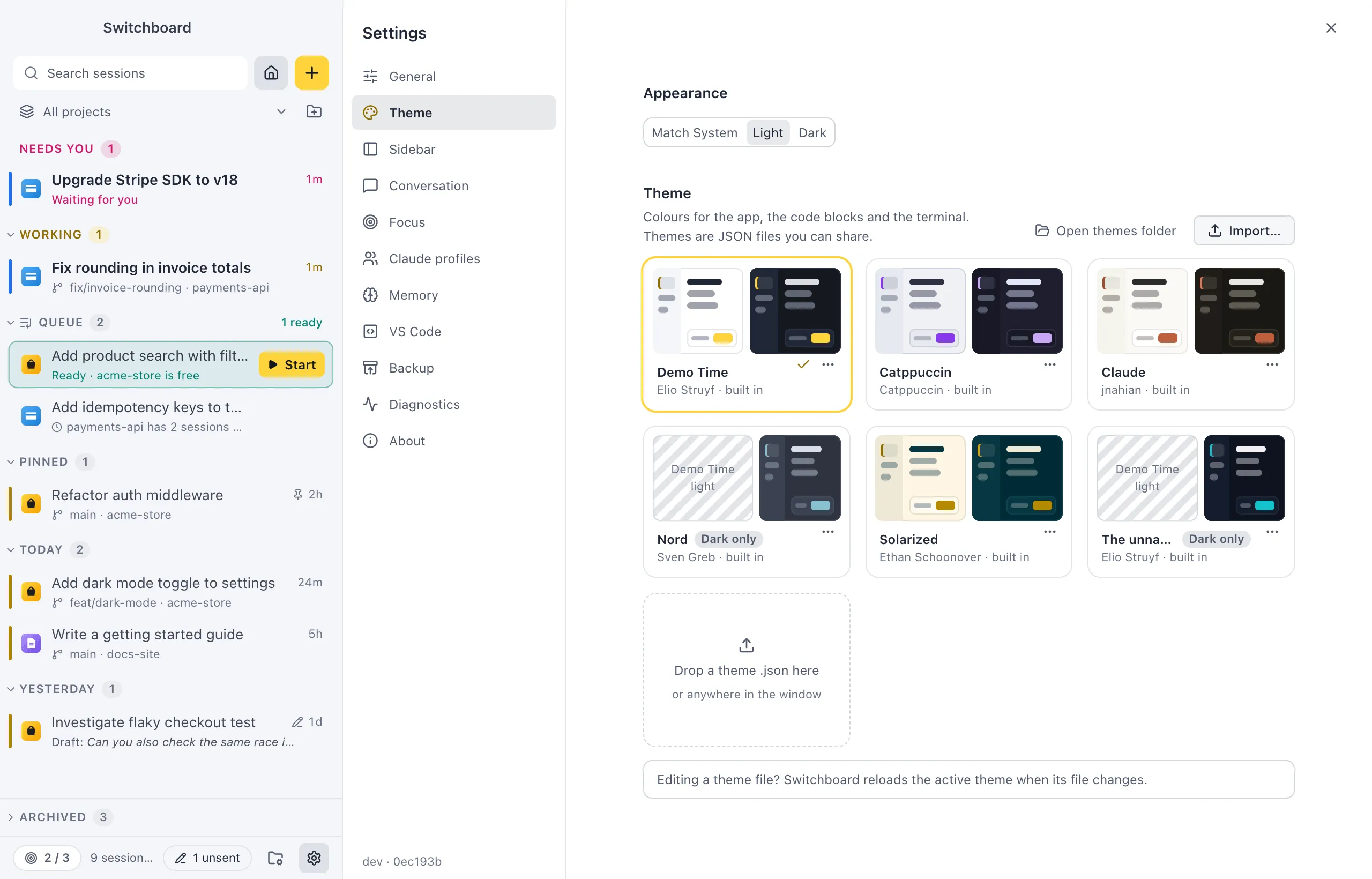
- Appearance: Match System (the default, follows macOSWindows), Light or Dark.
- Theme: a card for each theme. Click one to use it. Each card’s ⋯ menu has Export… and Duplicate, plus Show file and Remove for themes you imported.
- Open themes folder shows where imported themes are kept, and Import… (or the Drop a theme .json here card) adds a theme file.
See Built-in themes, Custom themes and Code and terminal colours.
Sidebar
Section titled “Sidebar”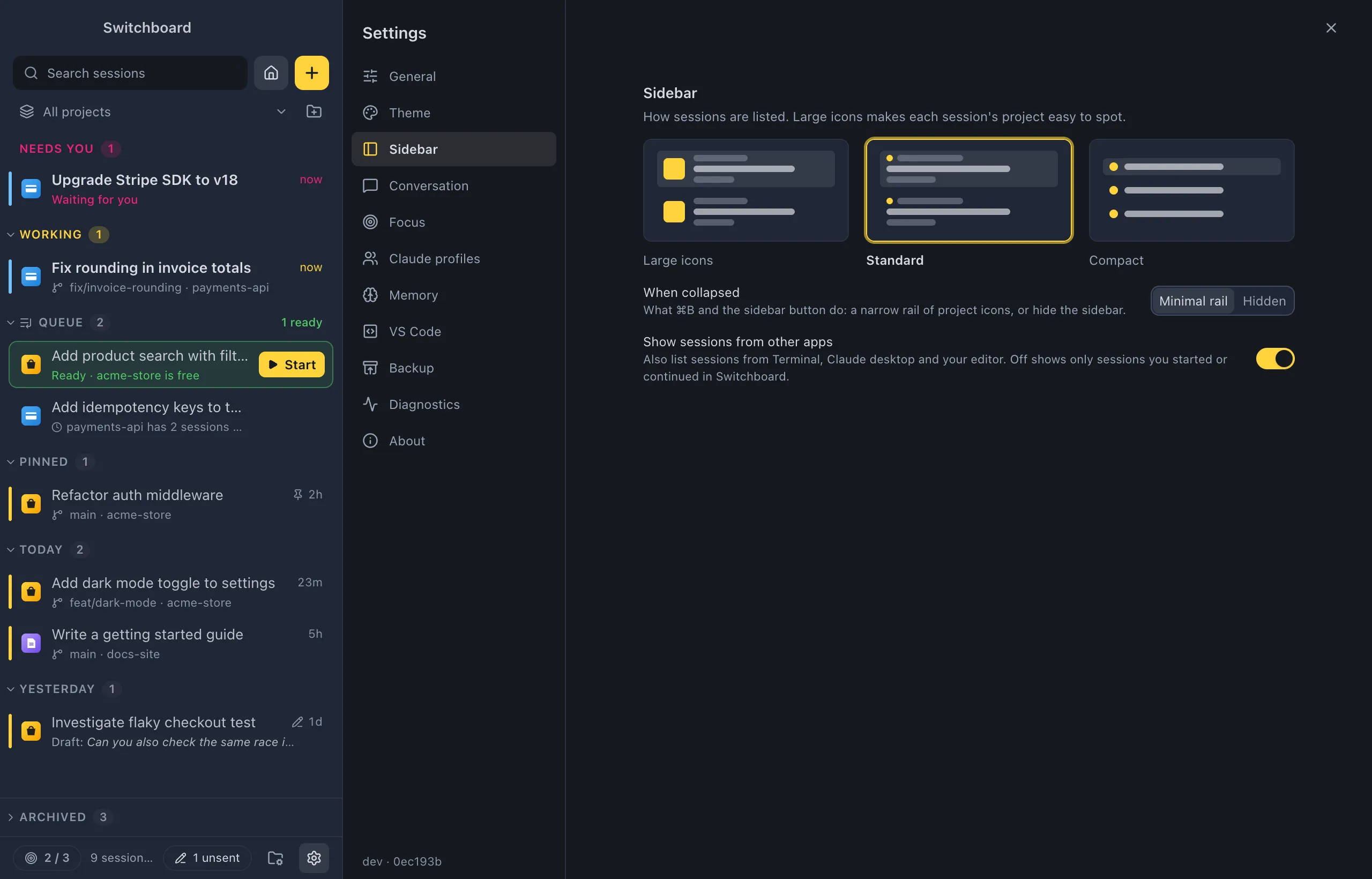
-
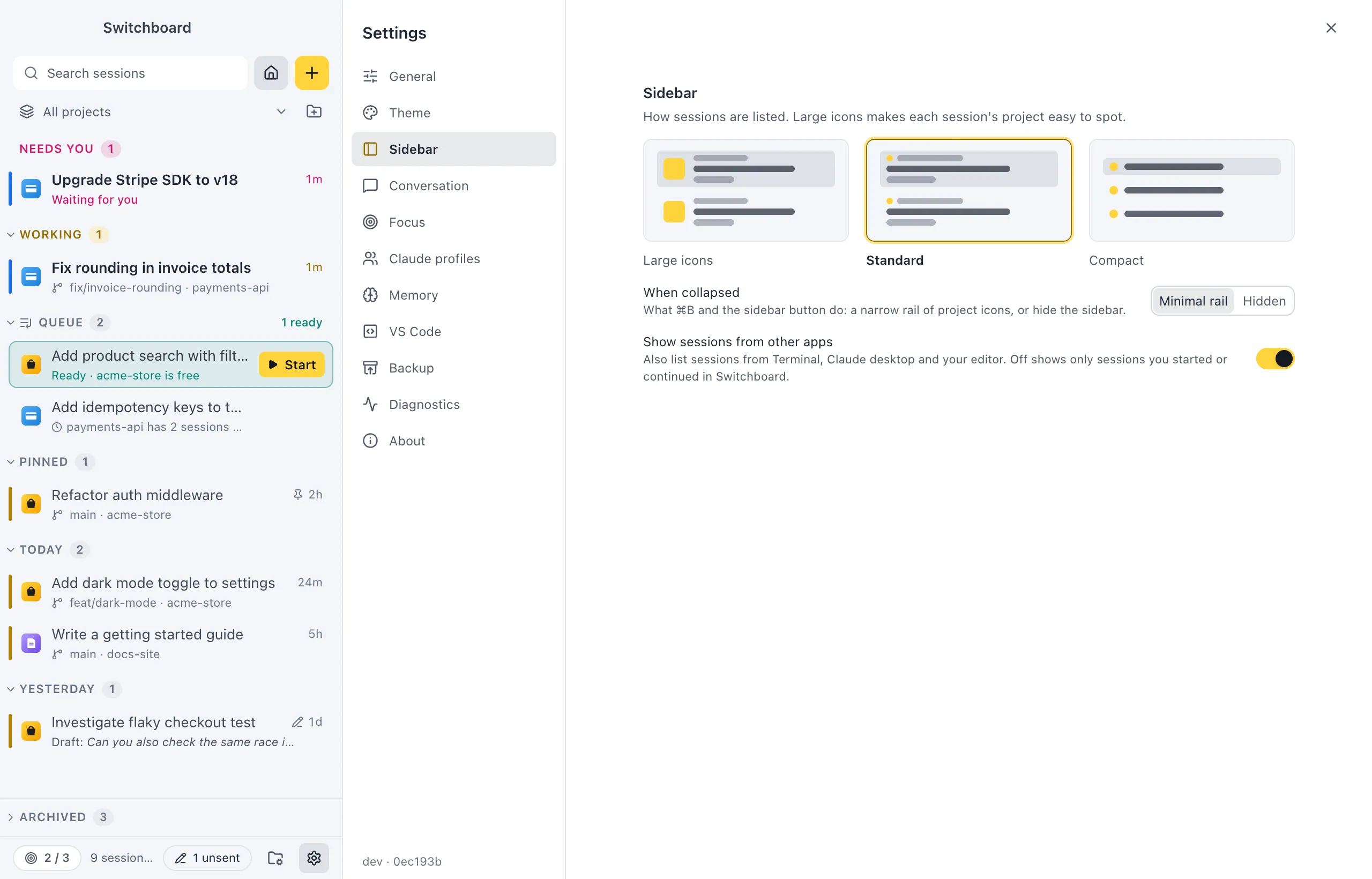
Sidebar style: how sessions are listed.
- Large icons: a big project icon on each row, so each session’s project is easy to spot.
- Standard (the default).
- Compact: one line per session.
The command palette has Sidebar: Large icons, Sidebar: Standard and Sidebar: Compact too.
-
When collapsed: what Command, BControl, B and the sidebar button do. Minimal rail (the default) shrinks the sidebar to a narrow rail of project icons; Hidden hides it.
-
Show sessions from other apps (off by default): also list sessions from your terminal, Claude desktop and your editor. Off shows only sessions you started or continued in Switchboard.
See Sidebar.
Conversation
Section titled “Conversation”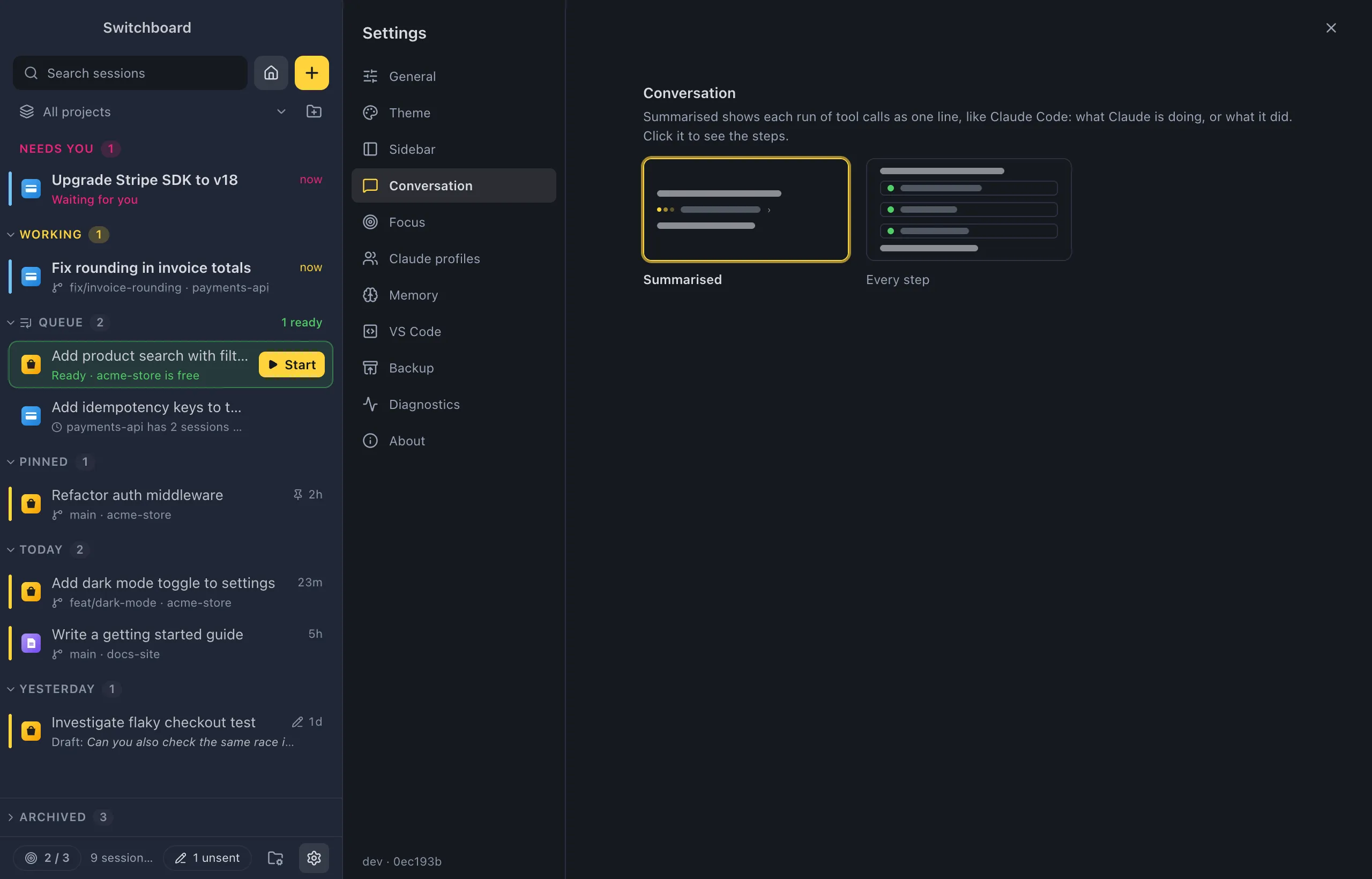
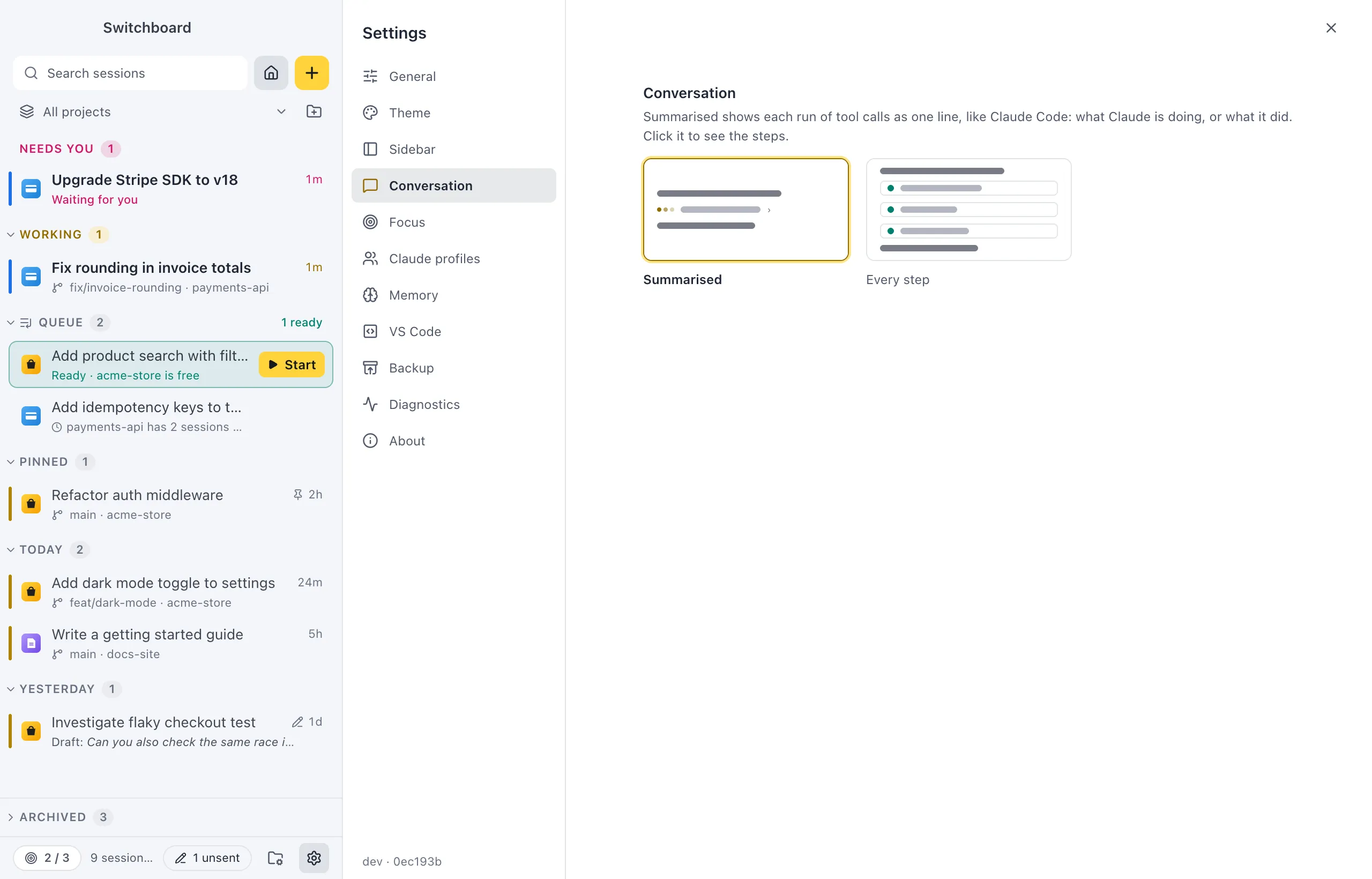
Tool activity sets how Claude’s tool calls show in the conversation:
- Summarised (the default): each run of tool calls is one line, like Claude Code: what Claude is doing, or what it did. Click it to see the steps.
- Every step: each tool call shows on its own.
See Conversation.
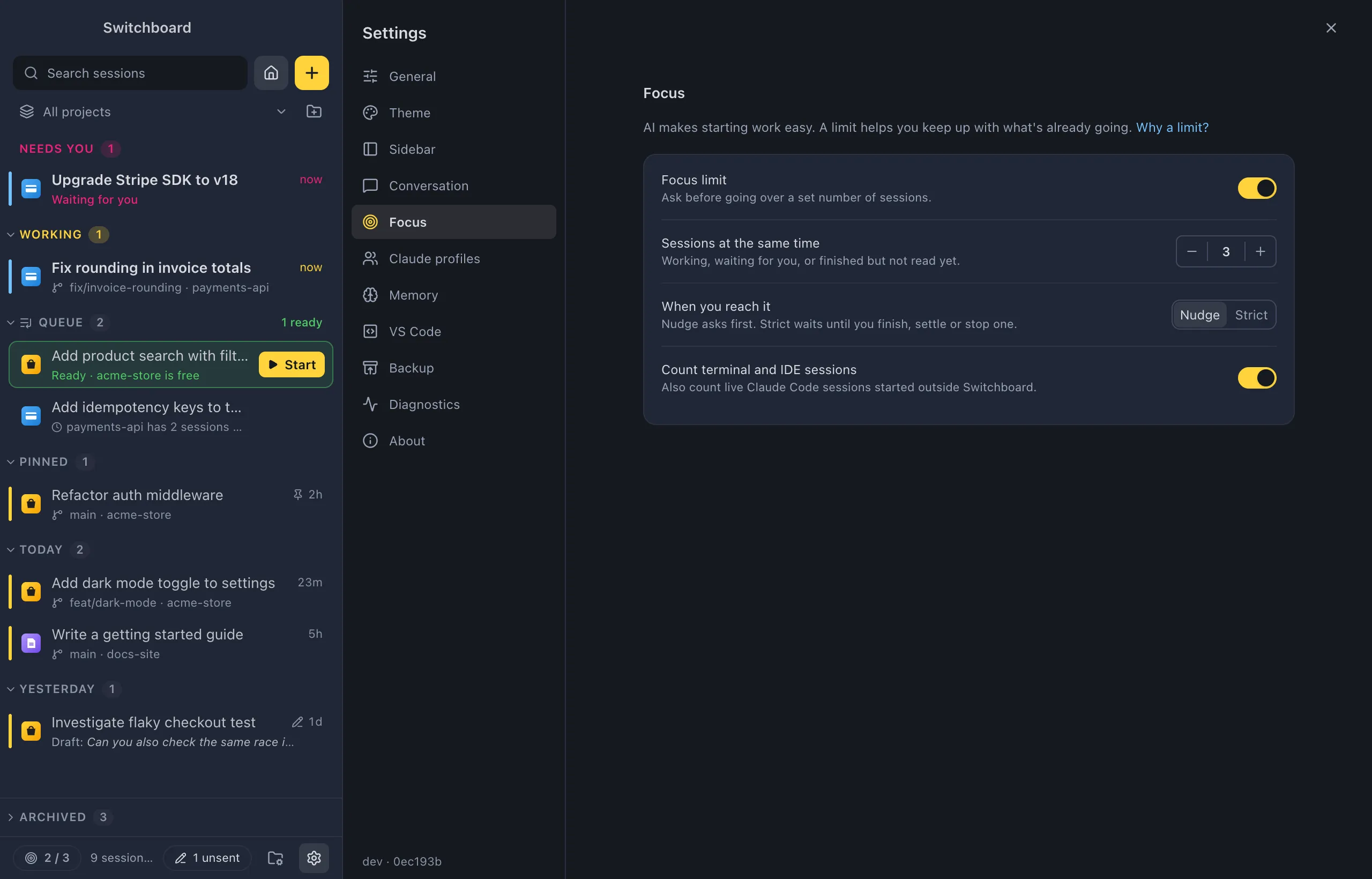
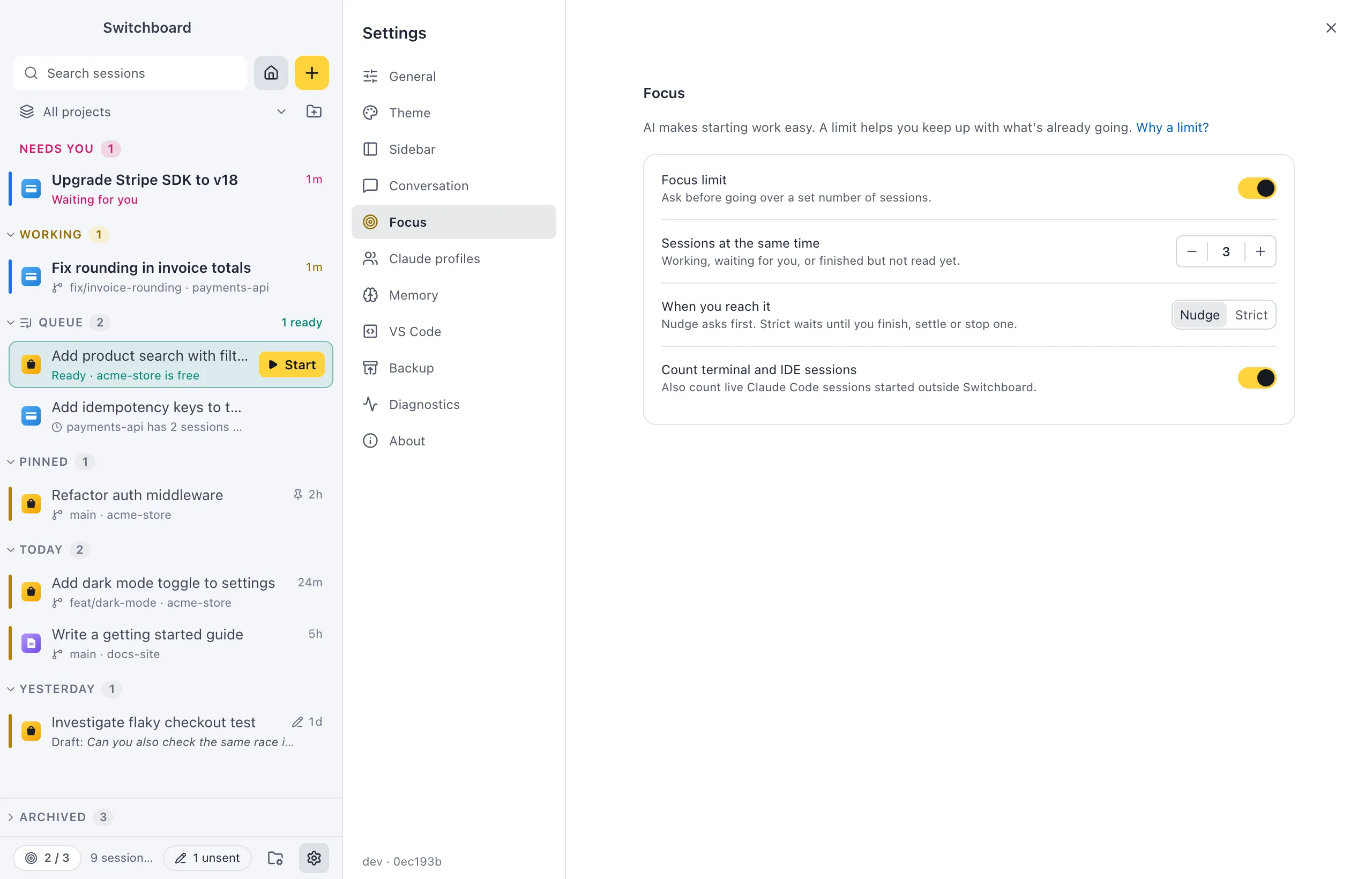
- Focus limit (off by default): ask before going over a set number of sessions. Why a limit? links to the article behind it.
With the limit on:
- Sessions at the same time: the limit, from 1 to 10 (3 to start with), set with − and +. A session counts while it is working, waiting for you, or finished but not read yet.
- When you reach it: Nudge (the default) asks first; Strict waits until you finish, settle or stop a session.
- Count terminal and IDE sessions (off by default): also count live Claude Code sessions started outside Switchboard.
The command palette has Focus limit: turn on, Focus limit: turn off and Focus limit: set limit…. See Focus limit.
Claude profiles
Section titled “Claude profiles”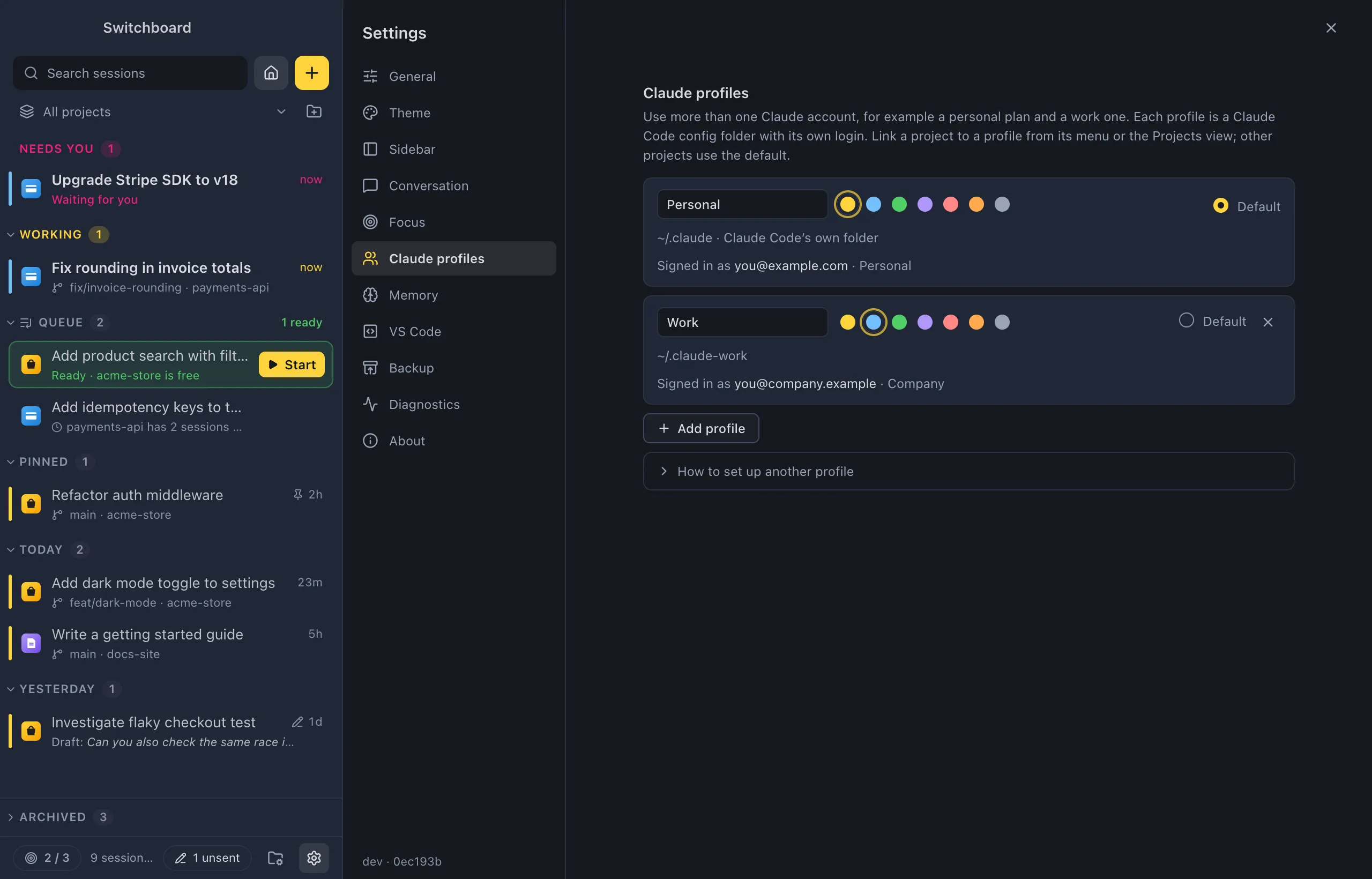
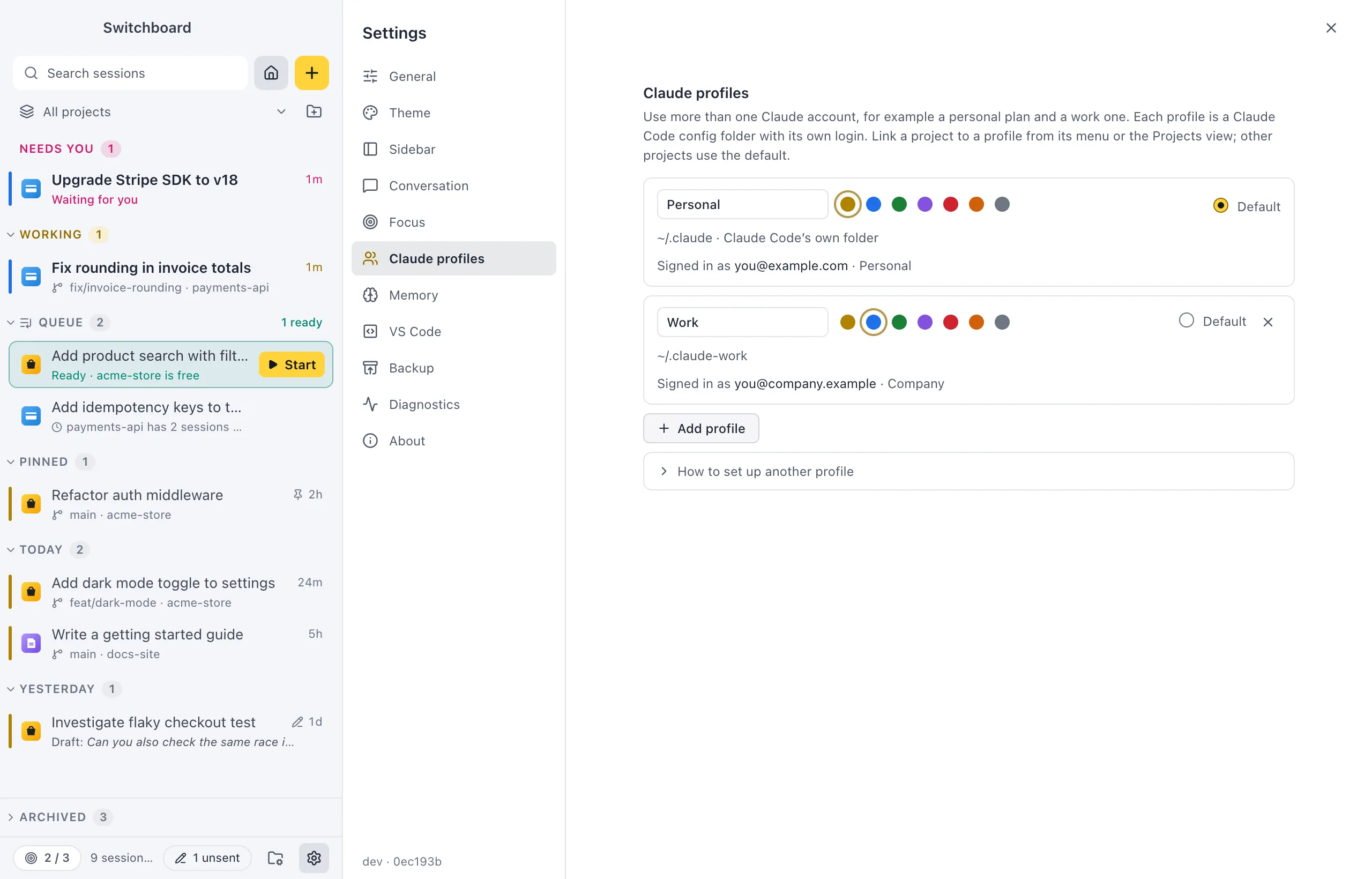
Use more than one Claude account, for example a personal plan and a work one. Each profile is a Claude Code config folder with its own login.
For each profile:
- Name and Colour (Yellow, Blue, Green, Purple, Red, Orange or Grey).
- Default: the profile that projects without a profile of their own use.
- Its config folder, and the account it is signed in with. A profile that isn’t signed in yet shows the command to run in a terminal, with a copy button. On Windows, see Sign in on Windows for the PowerShell form.
- × removes a profile from Switchboard. The folder, its login and its sessions stay on disk. The first profile, Claude Code’s own folder, can’t be removed.
Below the list:
- Add profile: a name, a colour and a Config folder (Choose… picks one). Then Add profile.
- How to set up another profile: the steps, from signing in to linking projects.
See Claude profiles.
Memory
Section titled “Memory”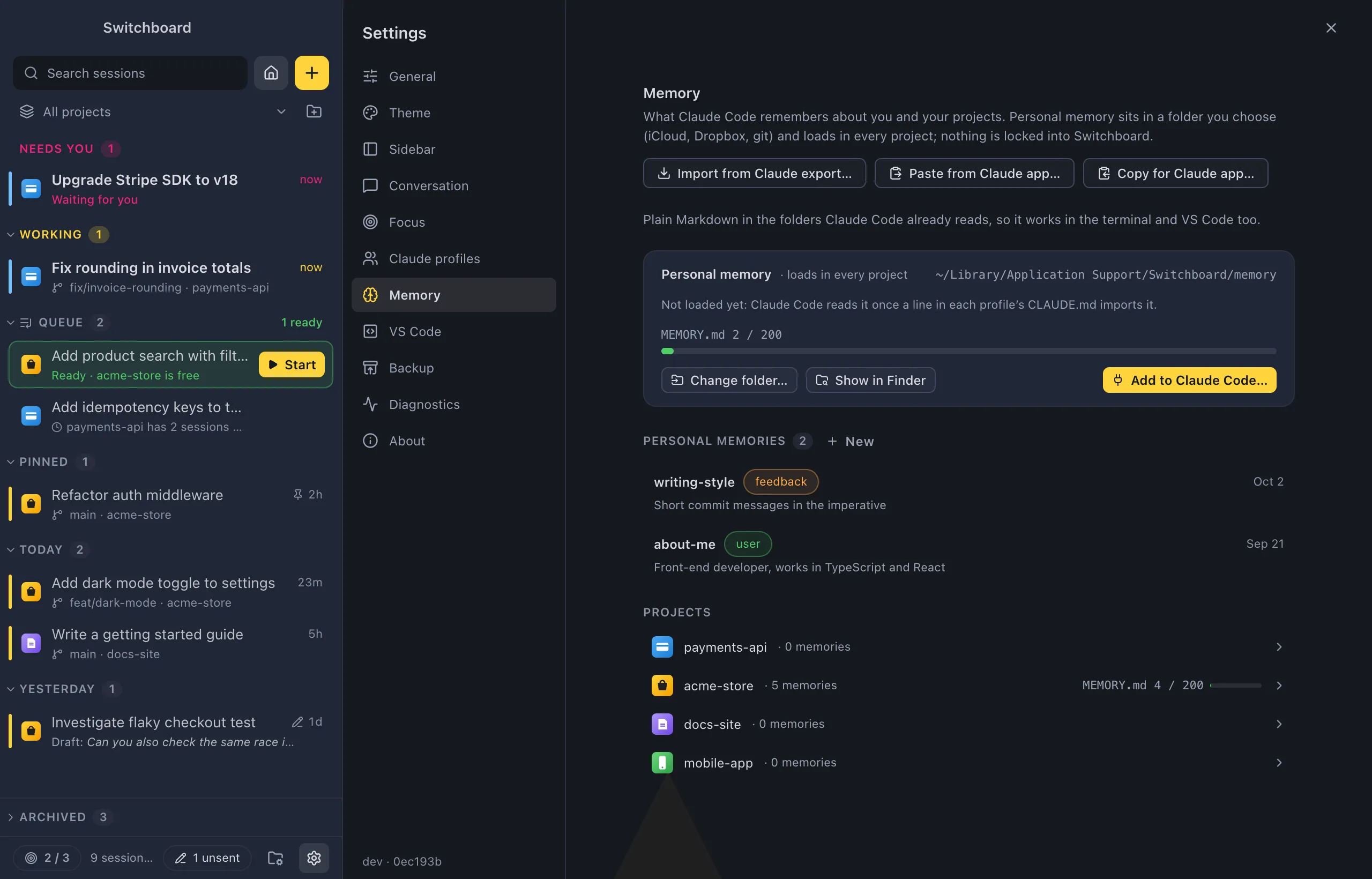
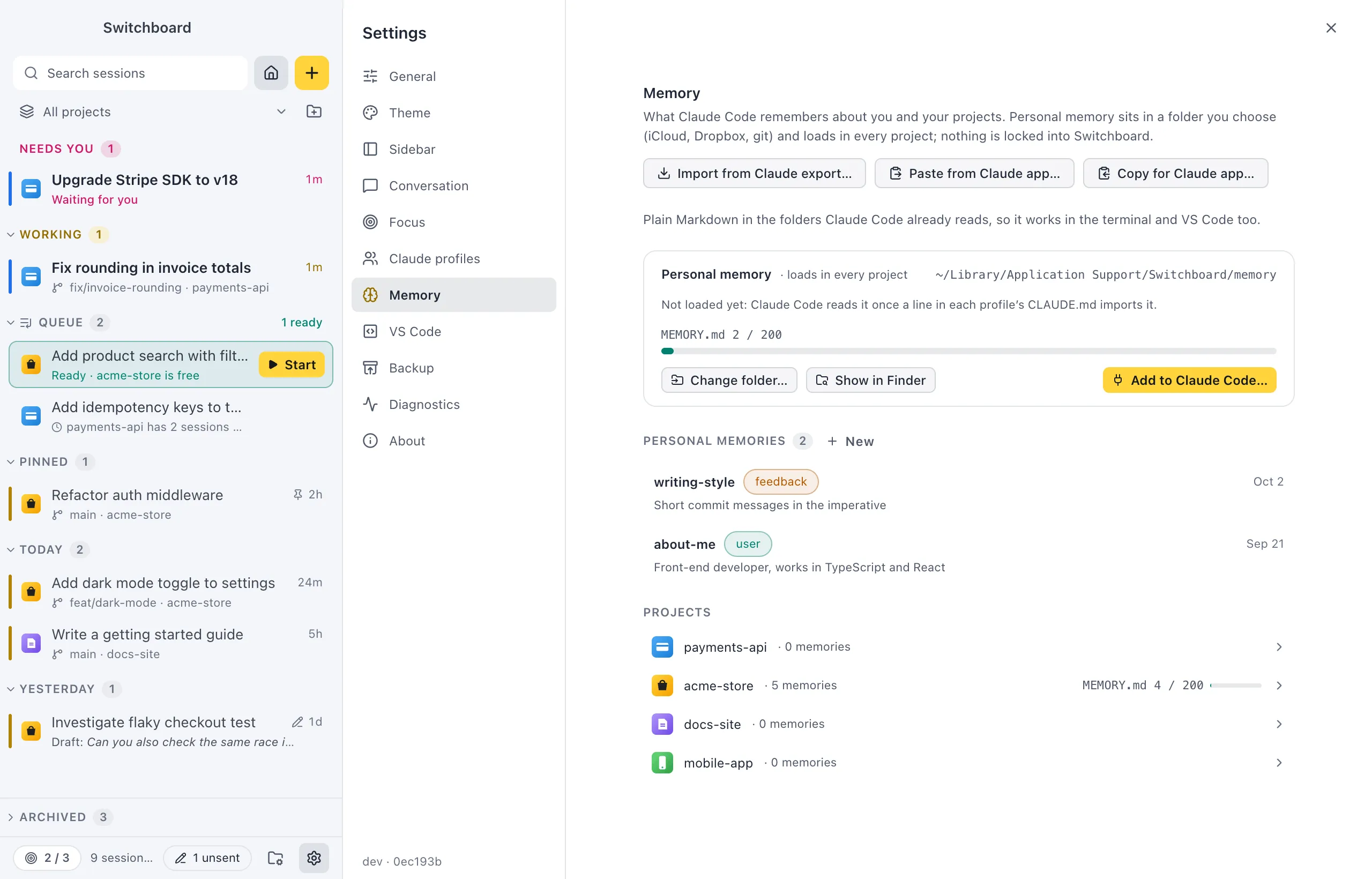
What Claude Code remembers about you and your projects. Everything stays plain Markdown in the folders Claude Code already reads. Also Memory settings… in the command palette.
- Import from Claude export…, Paste from Claude app… and Copy for Claude app…: bring the Claude app’s memory in, or copy yours out. See Import from the Claude app.
- Personal memory: the folder of memory that loads in every project, with a MEMORY.md meter. A notice says when the folder is synced. Change folder… picks another one, and Show in FinderFile Explorer opens it.
- Add to Claude Code… adds the one line to each profile’s
CLAUDE.mdthat loads your personal memory, after showing you the change. Once it’s there, Show the line shows it and Remove from Claude Code takes it out again. See Personal memory. - Personal memories: your personal memories, with New. Click one to edit it; Command, SControl, S saves. See Add and edit memory.
- Projects: every project with how many memories it has and its MEMORY.md meter. Click one to open its Memory tab.
See Claude Code memory.
VS Code
Section titled “VS Code”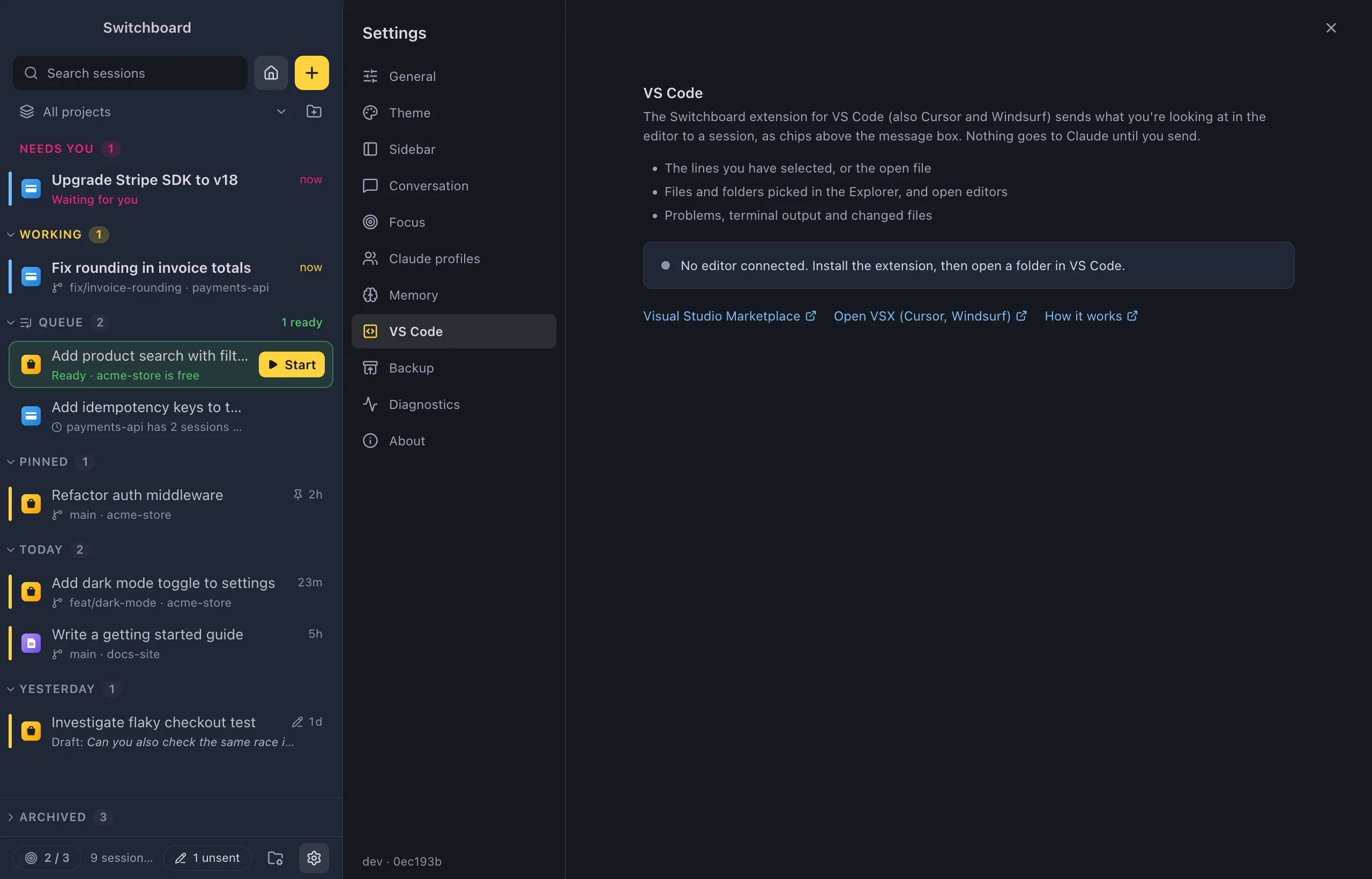
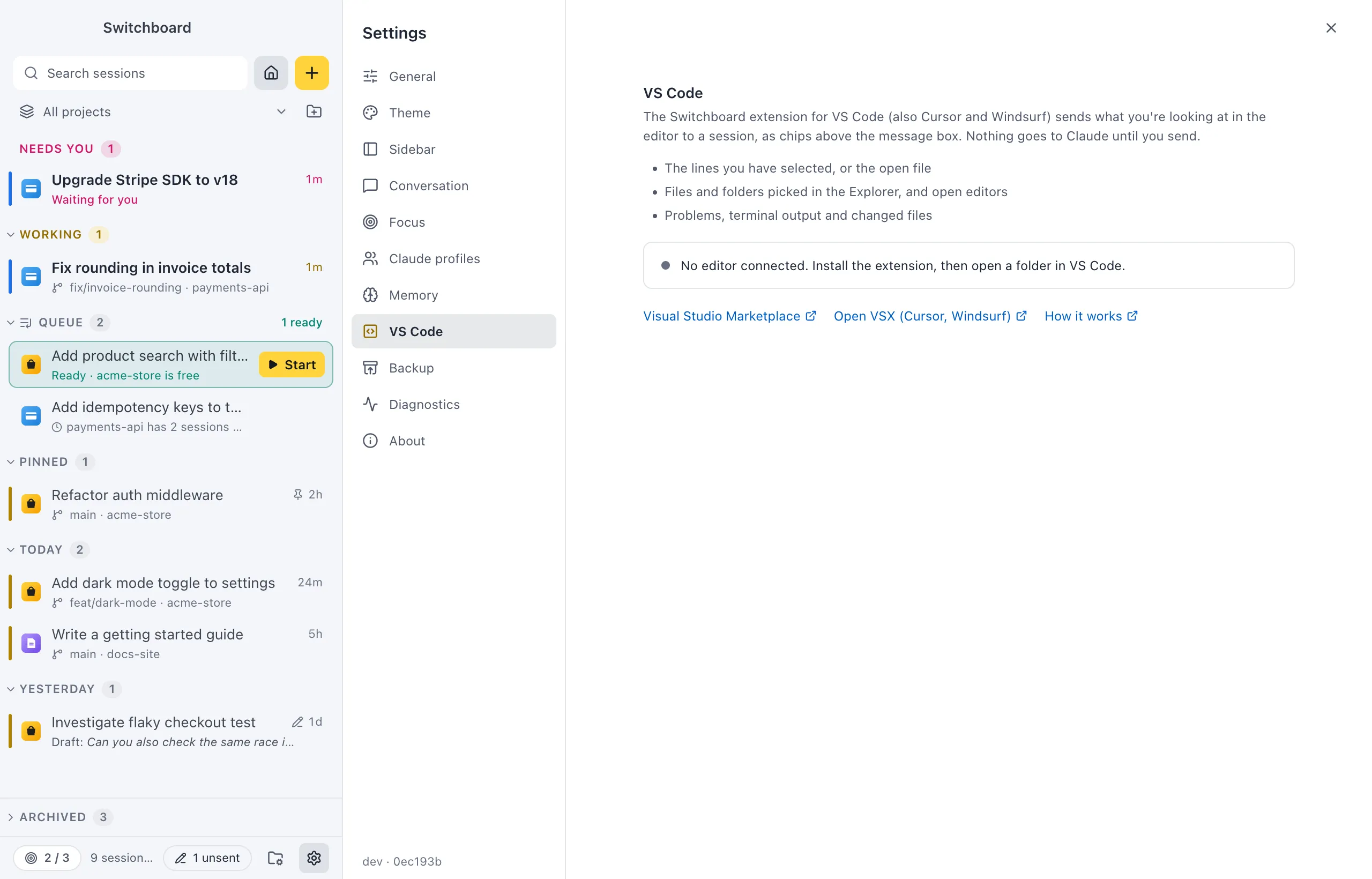
What the Switchboard extension for VS Code (also Cursor and Windsurf) sends to a session:
- The lines you have selected, or the open file.
- Files and folders picked in the Explorer, and open editors.
- Problems, terminal output and changed files.
A status line says whether an editor is connected right now (“Connected to 1 editor window”), or that no editor is connected yet. Links: Visual Studio Marketplace, Open VSX (Cursor, Windsurf) and How it works.
VS Code extension in the command palette opens this section. See VS Code companion.
Backup
Section titled “Backup”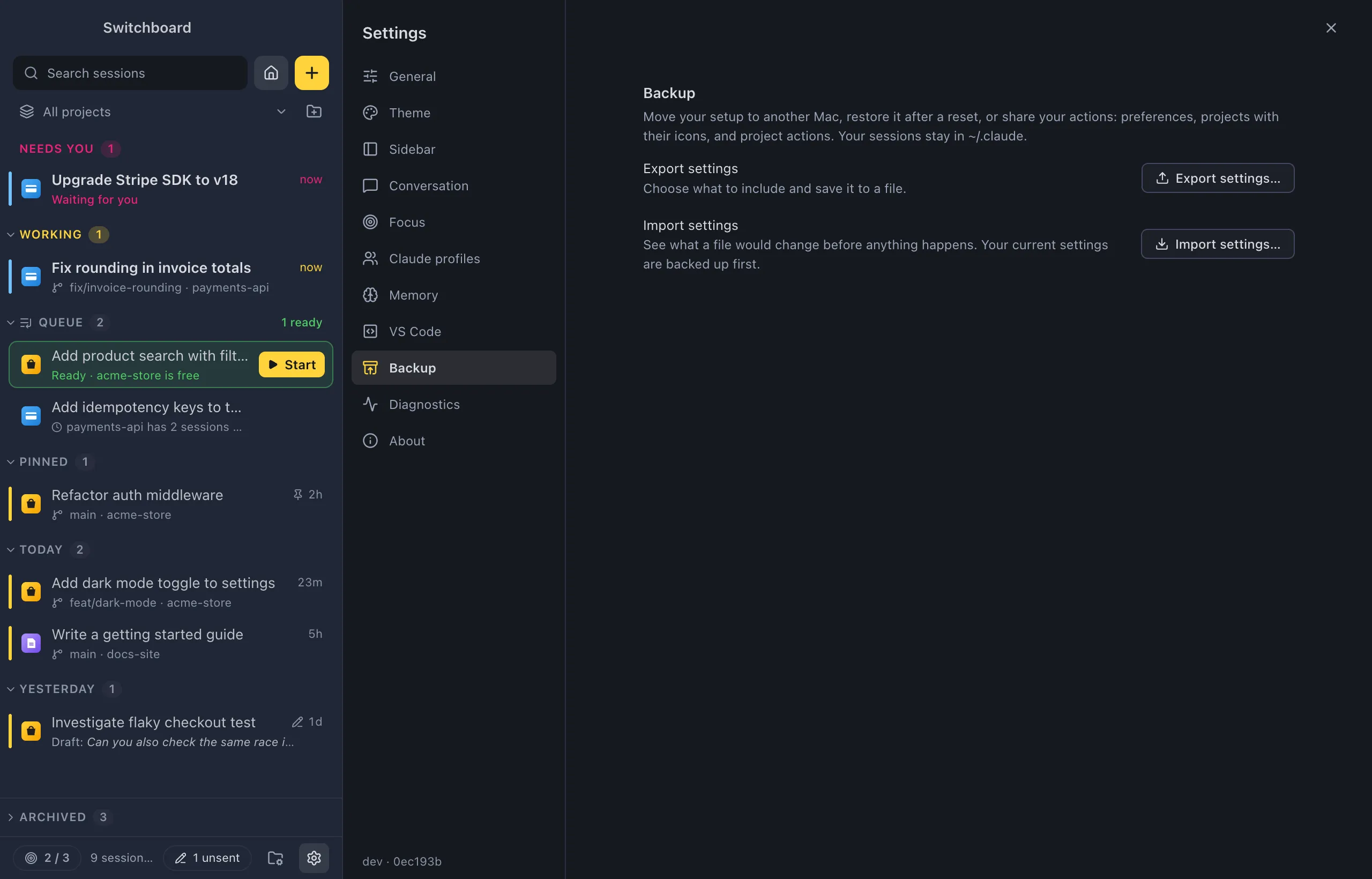
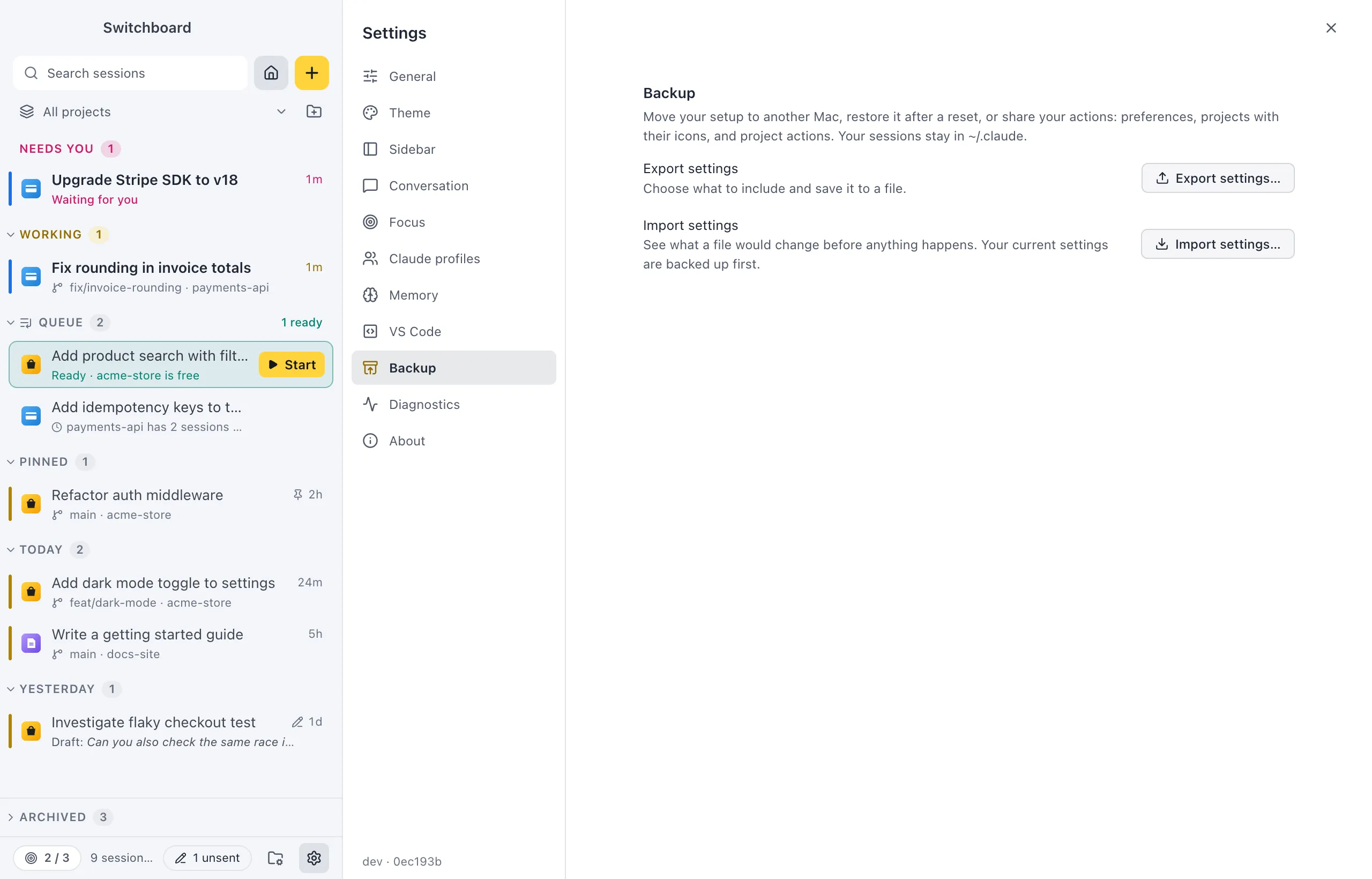
Move your setup to another computer (a Mac or a Windows PC, either way), restore it after a reset, or share your actions. Your sessions stay in Claude Code’s own folder (~/.claude).
- Export settings…: choose what to include and save it to a file.
- Import settings…: see what a file would change before anything happens. Your current settings are backed up first.
The command palette has Export settings… and Import settings…. See Back up and move your settings.
Diagnostics
Section titled “Diagnostics”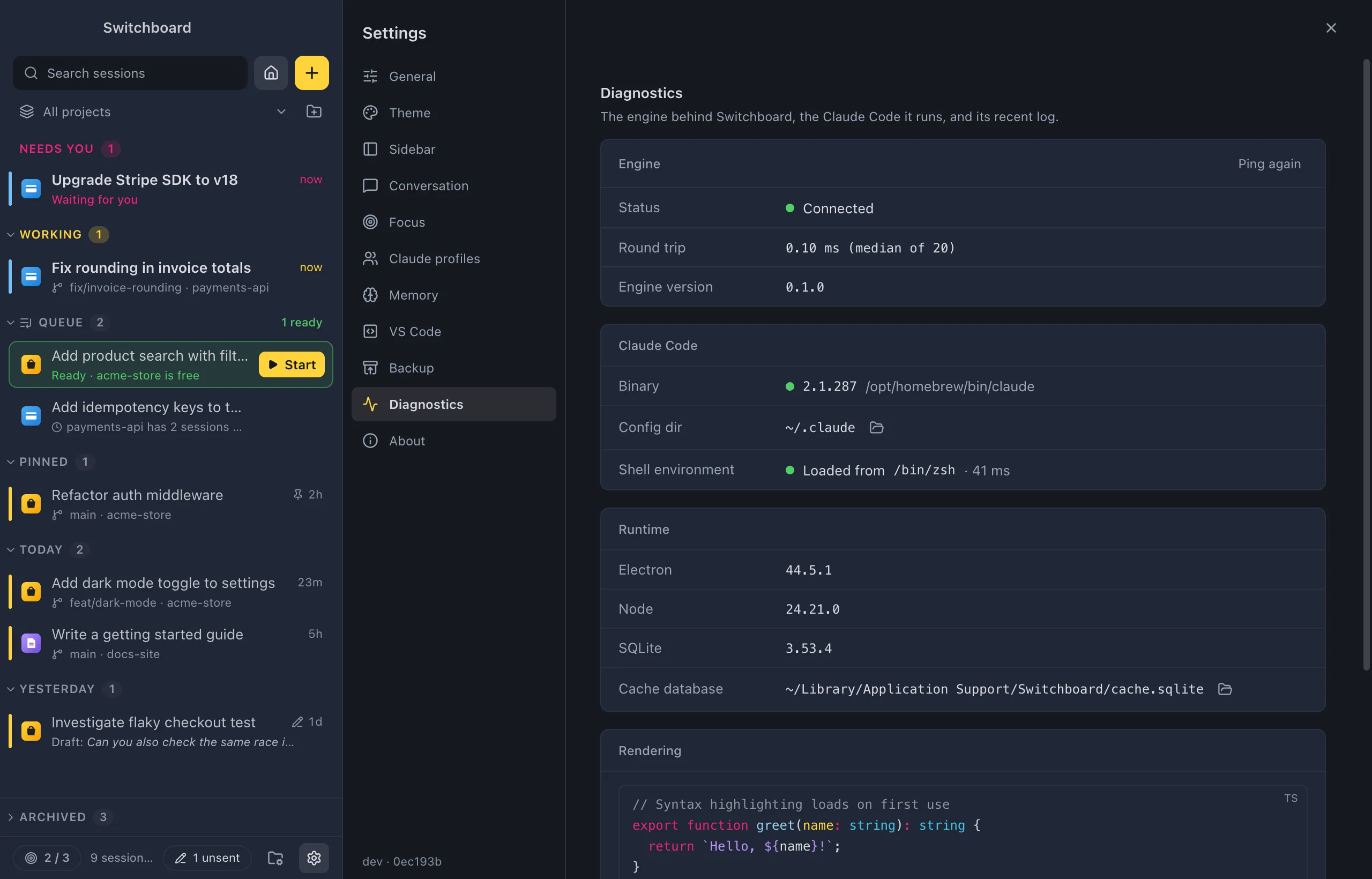
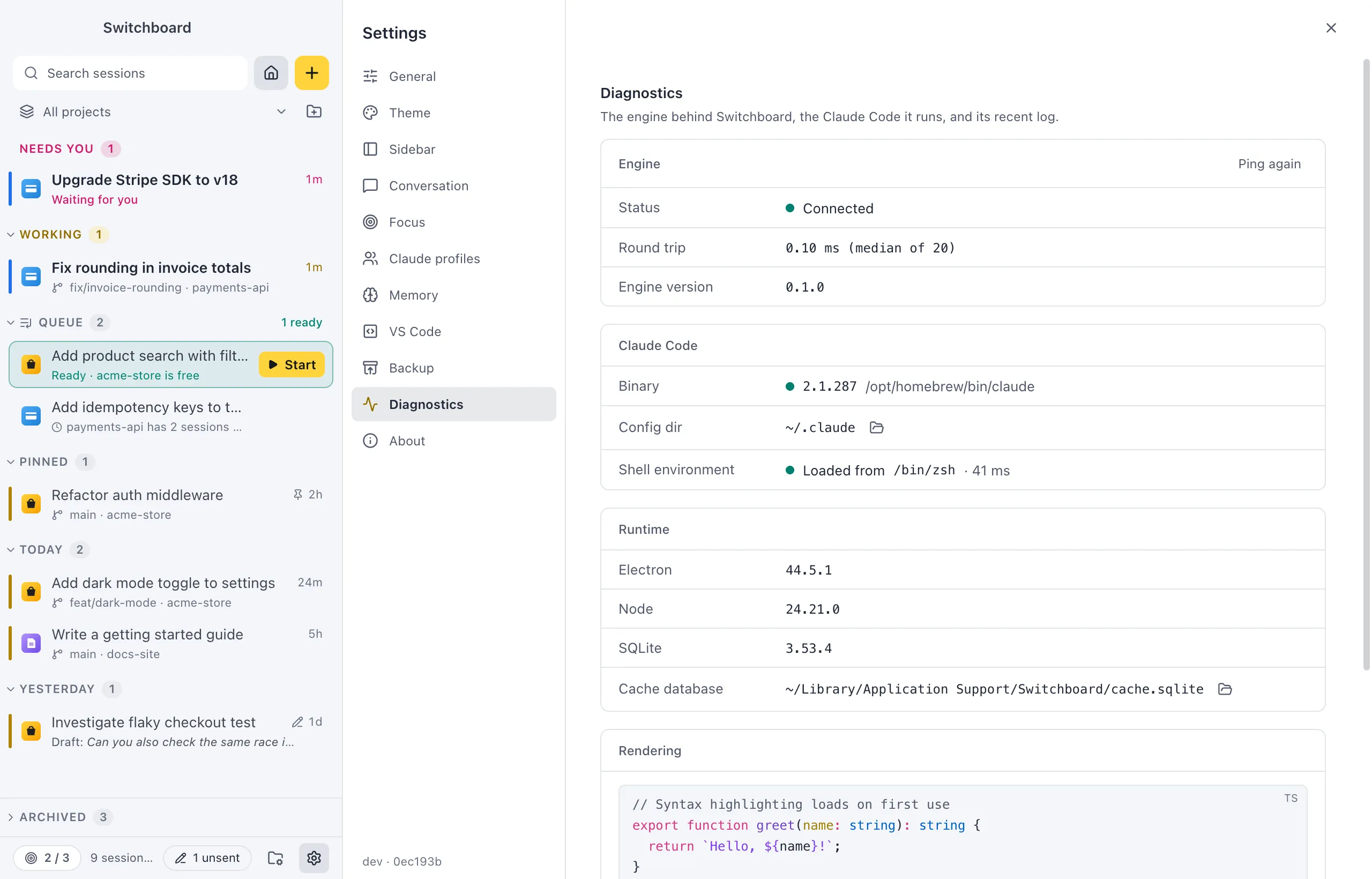
The engine behind Switchboard, the Claude Code it runs, and its recent log. Look here first when something doesn’t work.
- Engine: Status (Connected, and how often it reconnected), Round trip (with Ping again) and Engine version.
- Claude Code: Binary (the version and path of the
claudeit found, or that it wasn’t found on your PATH), Config dir (with a button to open it in FinderFile Explorer) and Shell environment. - Runtime: the Electron, Node and SQLite versions, and the Cache database (with a button to show it in FinderFile Explorer).
- Rendering: a code block and some Markdown in the theme in use.
- Engine log: the engine’s messages since this window connected.
Engine diagnostics in the command palette opens this section. See Troubleshooting.
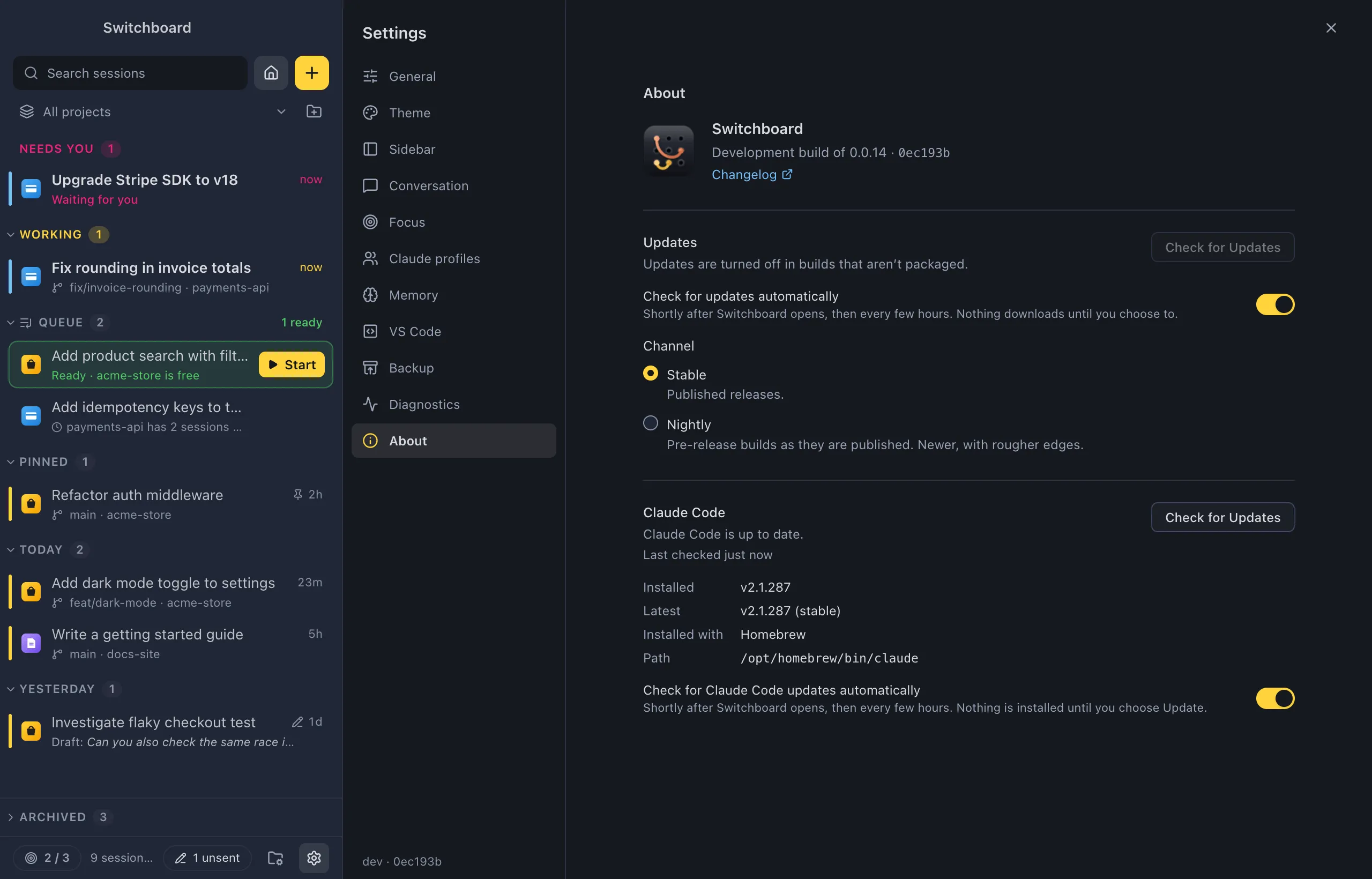
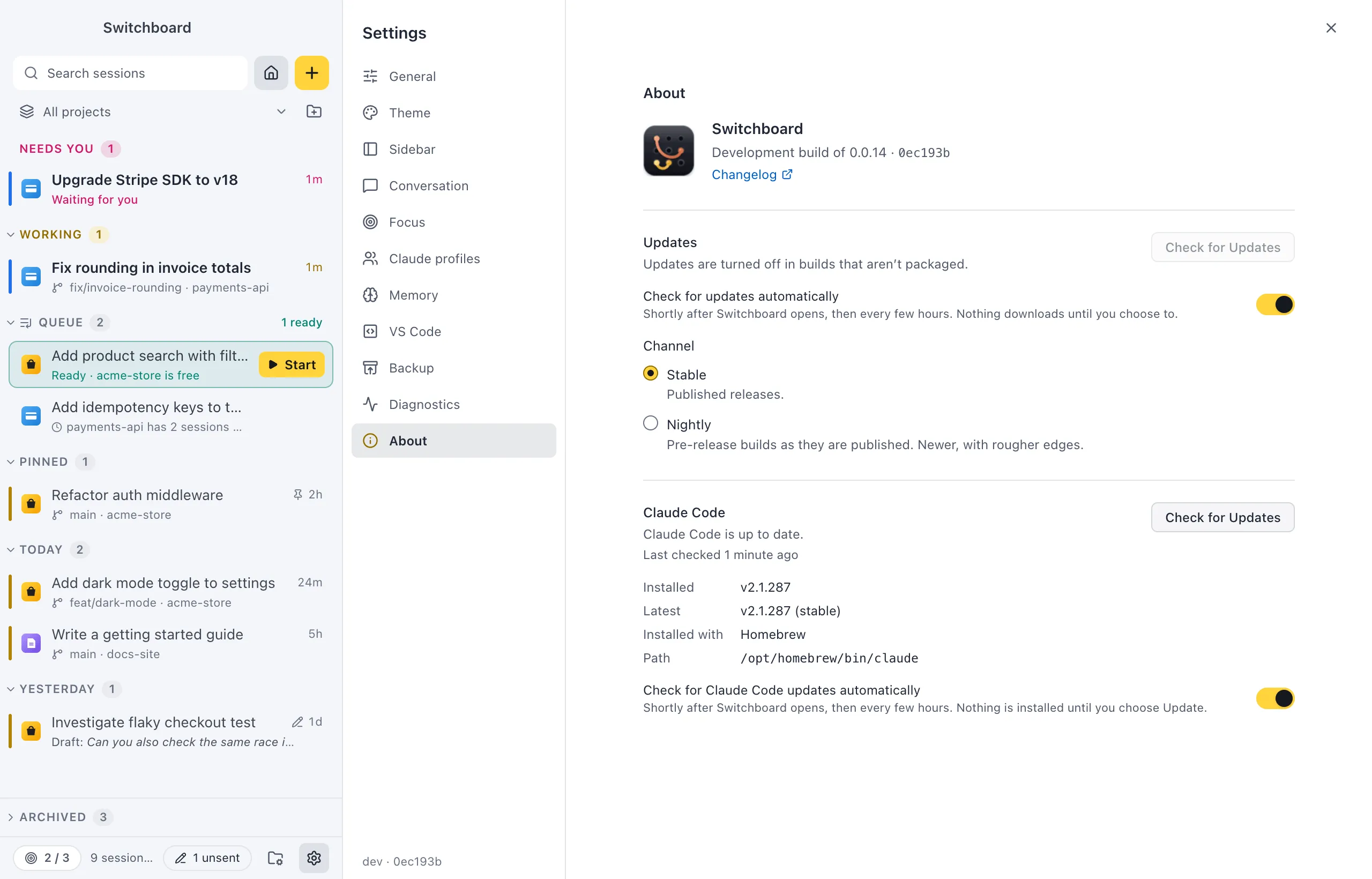
- The version you run, and the commit it was built from (handy for bug reports), with Release notes and Changelog links.
- Updates: whether Switchboard is up to date and when it last checked, with Check for Updates. When a new version is out: Download, then Restart to update, and what’s new in it.
- Check for updates automatically (on by default): shortly after Switchboard opens, then every few hours. Nothing downloads until you choose to.
- Channel: Stable (published releases, the default) or Nightly (pre-release builds as they are published).
- Claude Code: the Claude Code Switchboard runs, whether it is up to date, Installed, Latest, Installed with and Path, with Check for Updates and, when a newer version is out, Update to v….
- Check for Claude Code updates automatically (on by default).
See Updates.