
Claude profiles
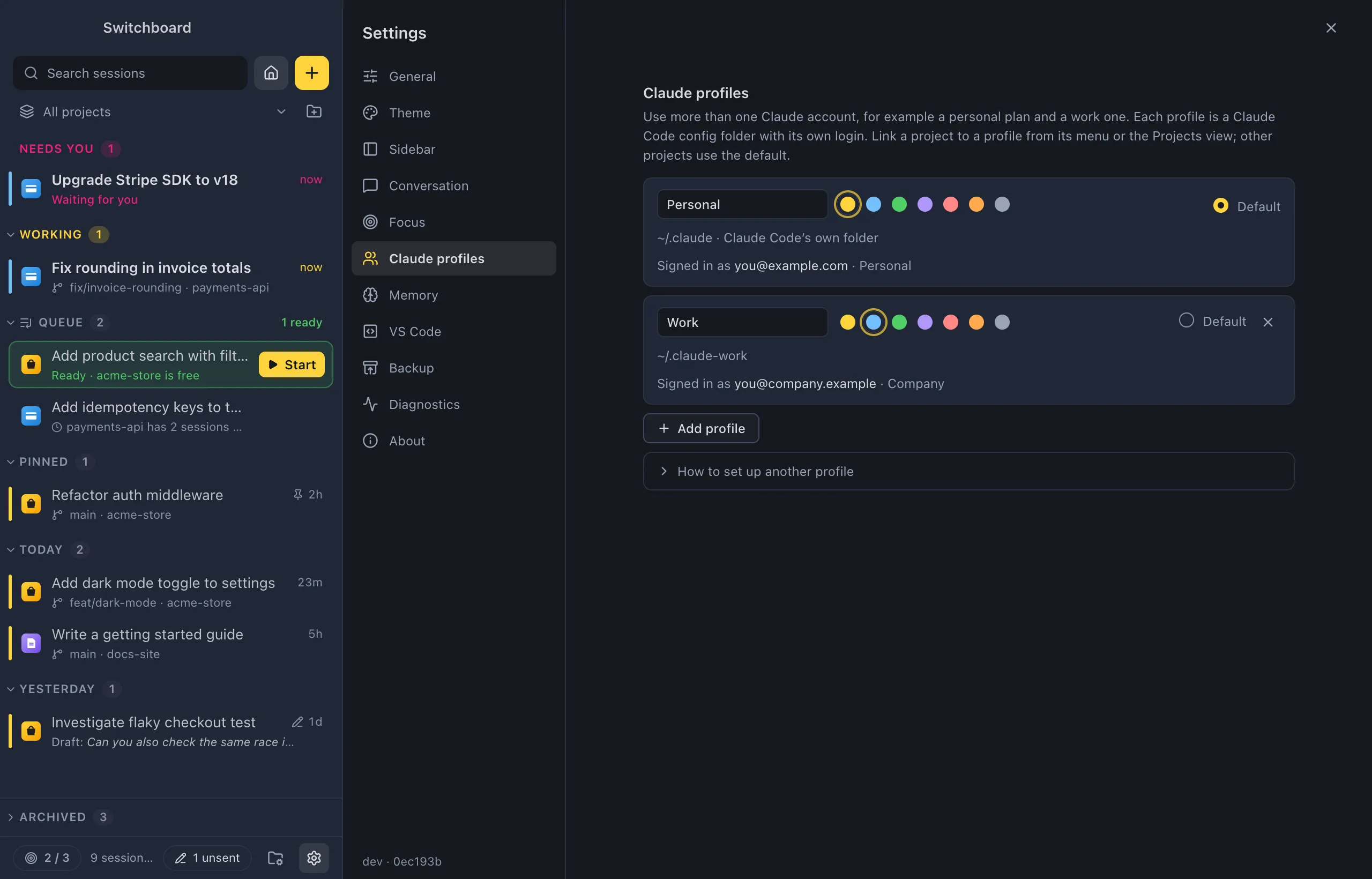
A Claude profile is one Claude Code config folder with its own login, settings, plugins and sessions. Add a profile for each account you use, and Switchboard lists all their sessions together, shows which account each one runs on, and keeps their usage apart.
Open it
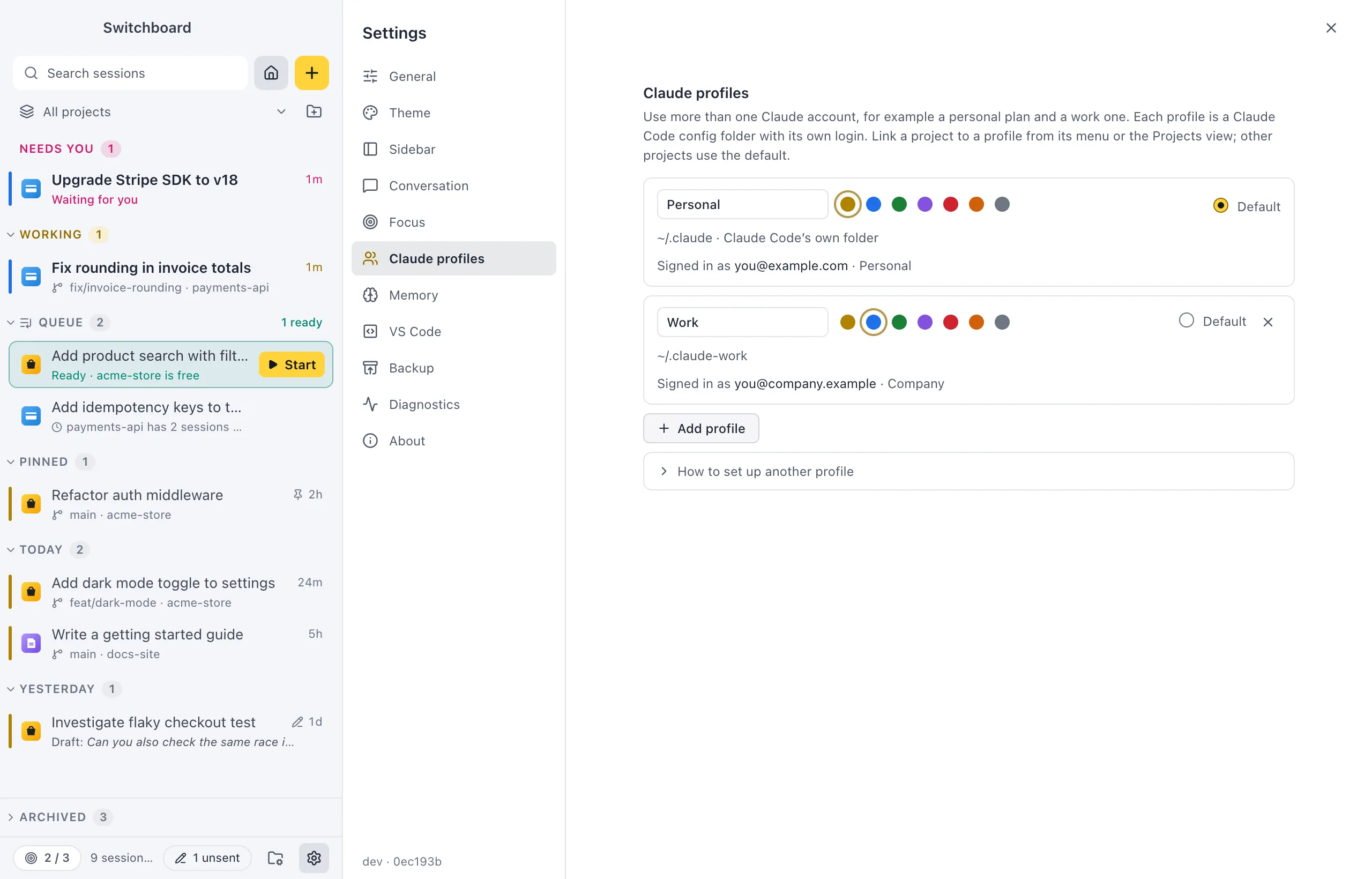
Section titled “Open it”- Press Command, CommaControl, Comma and choose Claude profiles.
- Or run Settings in the command palette (Command, K or Command, Shift, PControl, K or Control, Shift, P), then Settings: Claude profiles.
How profiles work
Section titled “How profiles work”Your first profile is Claude Code’s own folder, usually ~/.claude%USERPROFILE%\.claude. Every other profile is a folder of its own, such as ~/.claude-work%USERPROFILE%\.claude-work, the same folder you would point CLAUDE_CONFIG_DIR at in a terminal.
Switchboard never handles your login. You sign in with Claude Code itself, once per folder, and Switchboard runs Claude Code with that folder for the sessions of that profile.
Add a profile
Section titled “Add a profile”- Click Add profile.
- Give it a name and pick a colour.
- Check the Config folder. Switchboard suggests one in your home folder from the name (
.claude-workfor “Work”); type another path or click Choose…. A folder that doesn’t exist yet is created. To see the sessions of a folder you already use withCLAUDE_CONFIG_DIR, pick that folder. - Click Add profile.
Sign in
Section titled “Sign in”A profile that isn’t signed in yet says Not signed in yet and shows the command to run, with a copy button:
- Open TerminalPowerShell and run the command. On a Mac that is, for example,
CLAUDE_CONFIG_DIR=~/.claude-work claude. On Windows, see Sign in on Windows. - Type
/loginand sign in with the other account.
Once you’re signed in, the profile shows Signed in as with the account’s email (and its organisation, if it has one).
Sign in on Windows
Section titled “Sign in on Windows”Settings shows the sign-in command in the form a Mac terminal understands (CLAUDE_CONFIG_DIR=… claude), on Windows too. PowerShell doesn’t run that form. Set the variable first, then start Claude Code, using the folder Settings shows:
$env:CLAUDE_CONFIG_DIR = "$HOME\.claude-work"claudeThe variable stays set in that PowerShell window only. Close it when you’re done, so a later claude there doesn’t use the other account by mistake.
Choose the default profile
Section titled “Choose the default profile”Choose Default on a profile. Projects that don’t have a profile of their own use the default.
Link a project to a profile
Section titled “Link a project to a profile”With more than one profile, you can link a project to the account its sessions should use:
- On the project’s page, open the Settings tab and pick a Claude profile. See Project settings.
- Or open the project’s menu in the sidebar’s project list: Claude profile lists Default and each profile.
New sessions in that project use the linked profile. Other projects use the default.
Pick a profile for one session
Section titled “Pick a profile for one session”In New session, the profile chip under the message box shows the profile the folder uses. Click it to pick another account for this one session. A running session keeps its profile; to use another account, start a new session.
See which account a session uses
Section titled “See which account a session uses”With more than one profile:
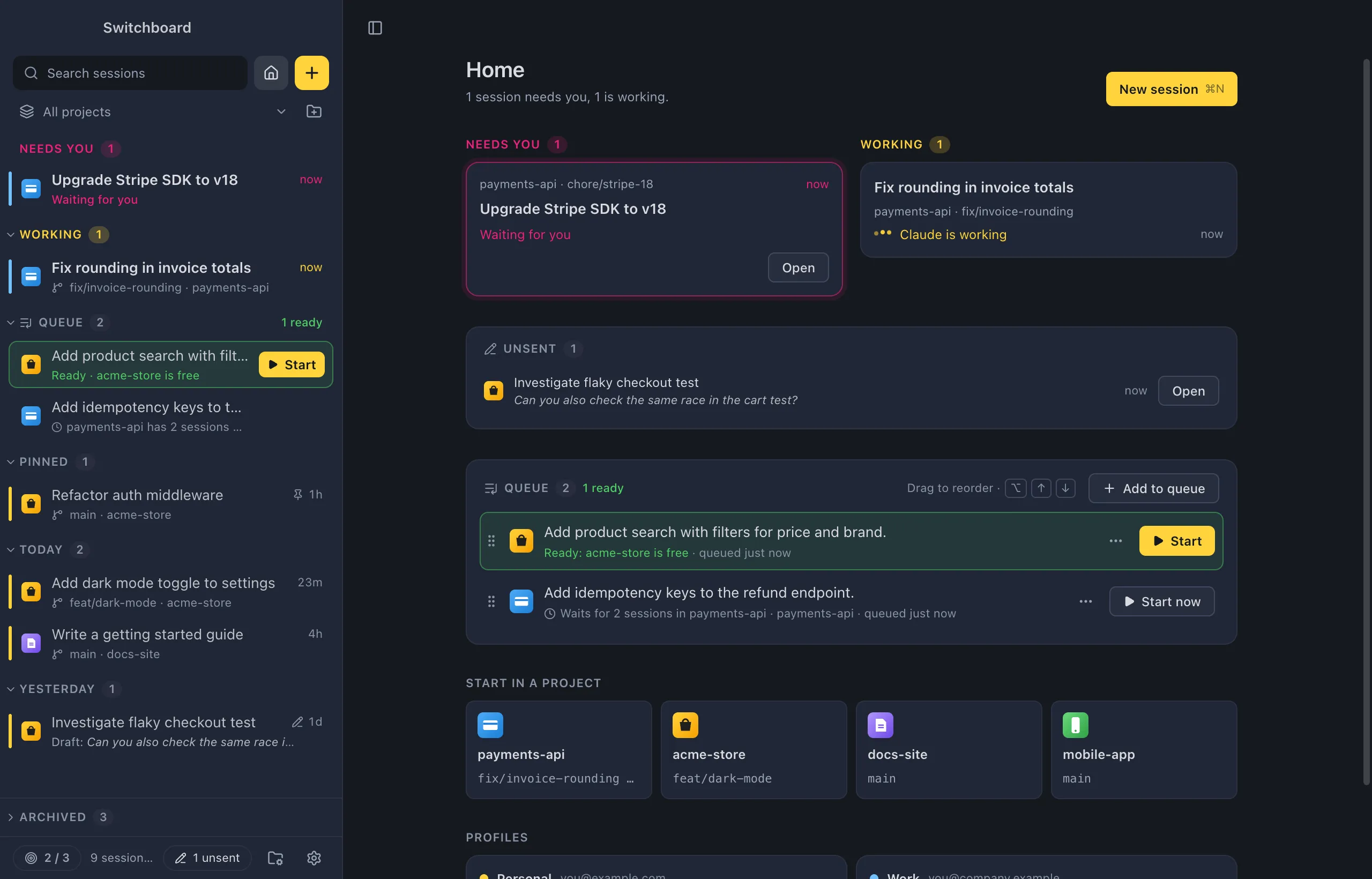
- The rail on each session row in the sidebar shows the profile’s colour, on every row. Hover a row to see the profile’s name.
- The usage band under the message box shows the limits of the session’s account.
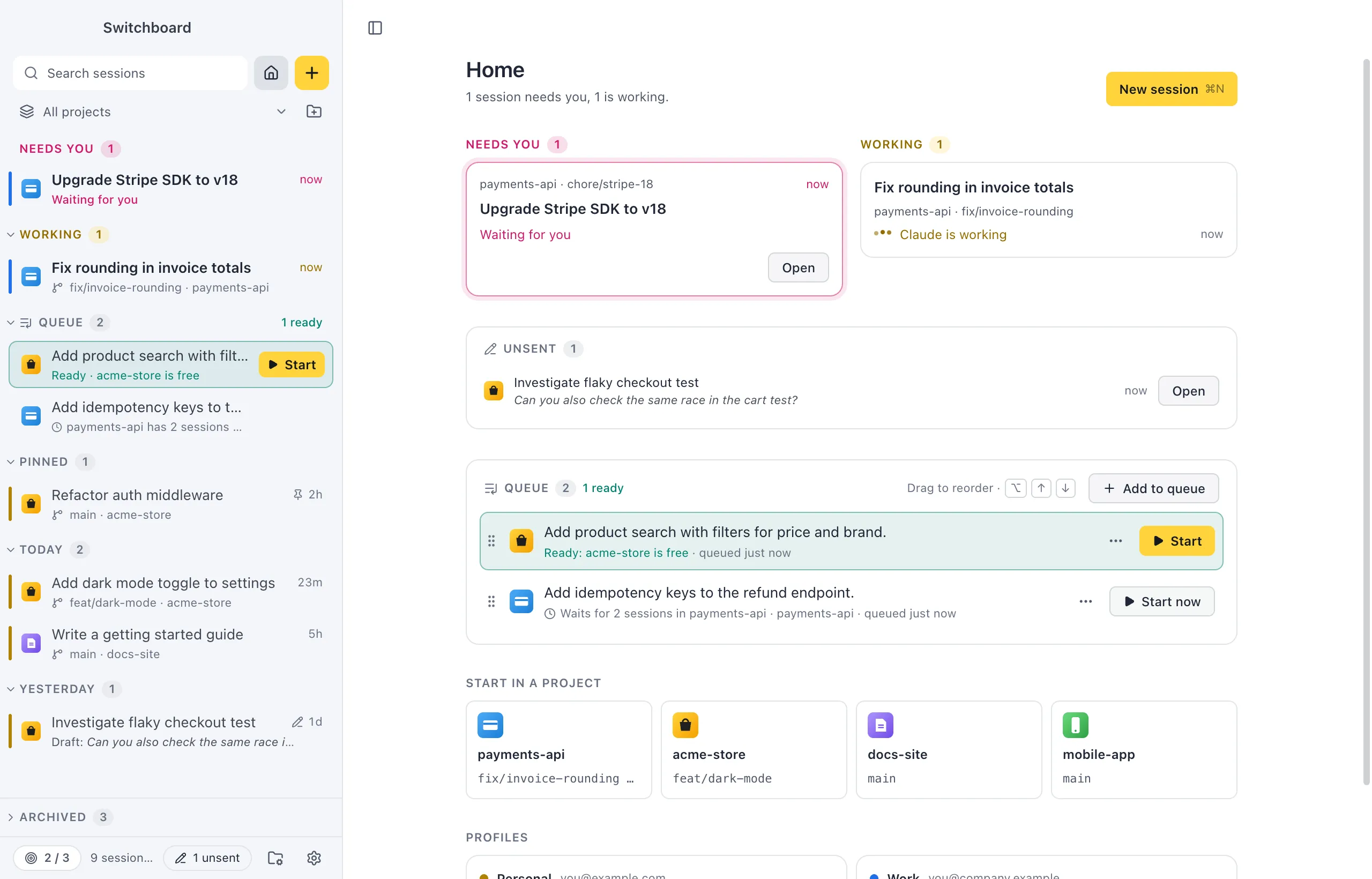
- Home has a Profiles section with a card per profile: its name, the account’s email, what its sessions are doing (“1 needs you · 2 working · 5 today”) and its plan usage, with when each limit resets.
Rename, recolour or remove a profile
Section titled “Rename, recolour or remove a profile”- Type a new name in the profile’s name field, and pick another colour from its swatches.
- × removes a profile from Switchboard after you confirm. Its sessions leave the sidebar and its projects use the default profile again. The folder, its login and its sessions stay on disk; add the folder again to get them back. Claude Code’s own folder can’t be removed.
A profile whose folder is gone says folder not found.
Settings
Section titled “Settings”Profiles are managed in Settings → Claude profiles. The link between a project and a profile is part of the project, in its Settings tab.