
Search
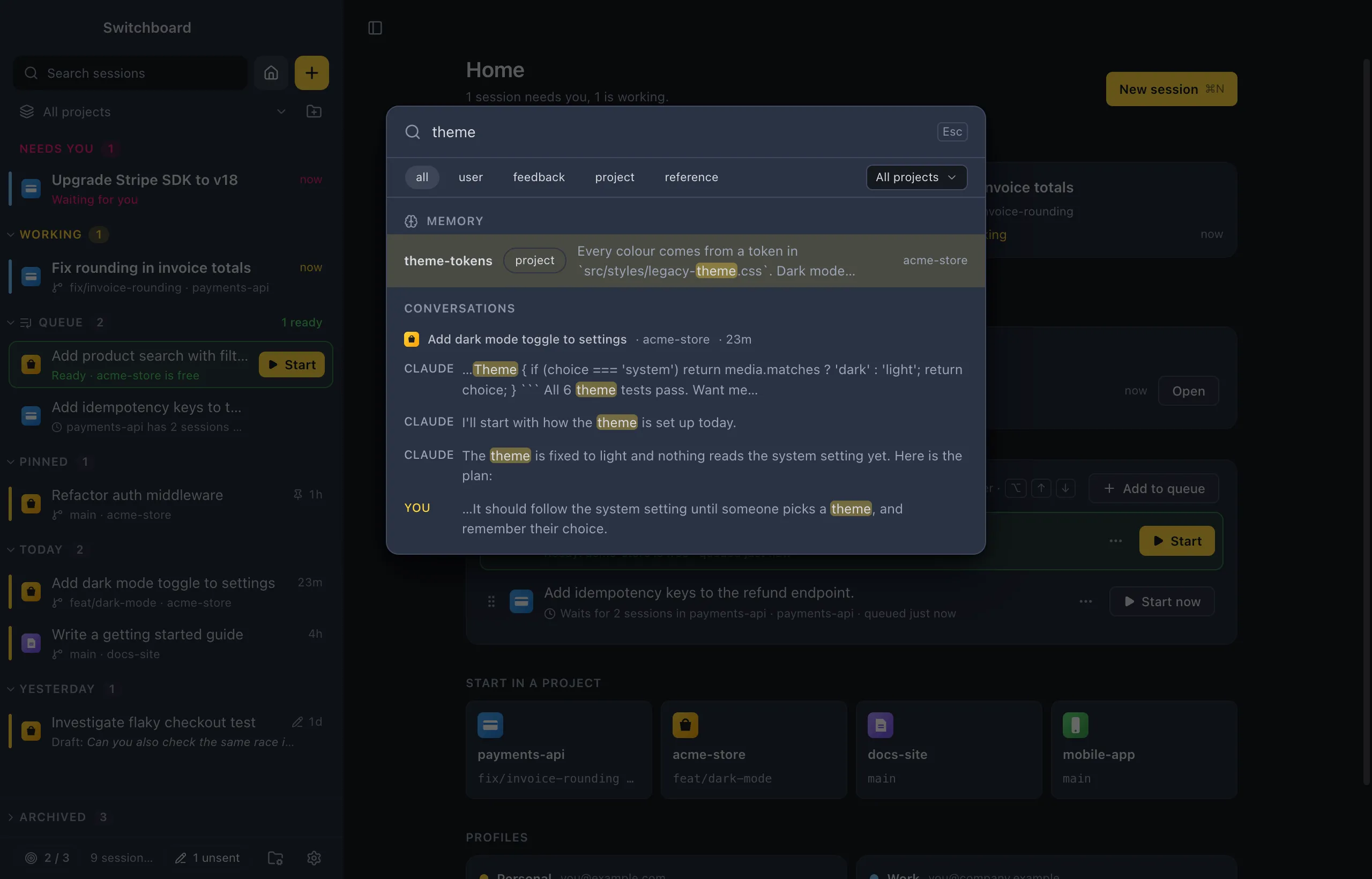
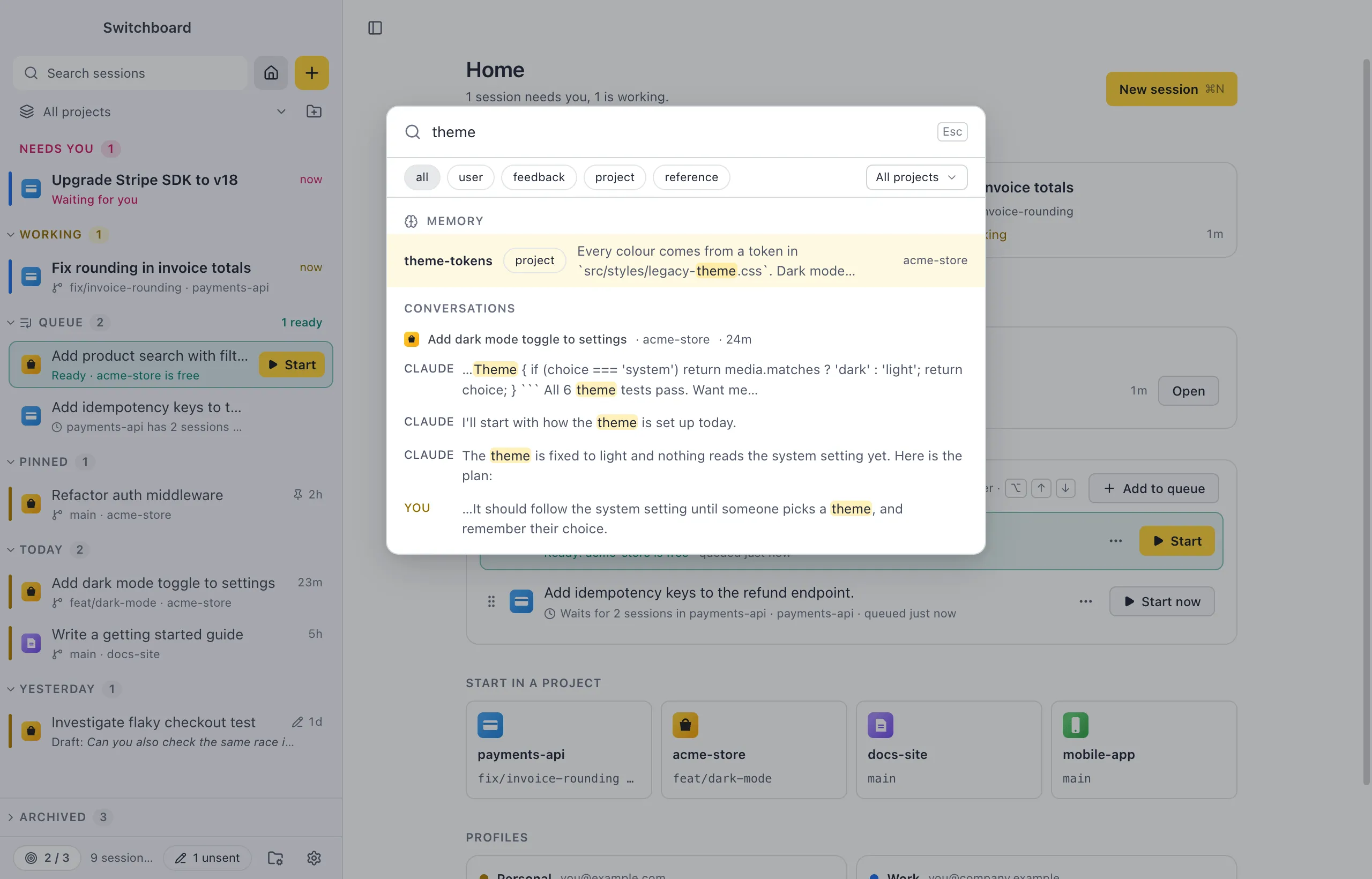
Switchboard has two searches: Search conversations looks through your prompts and Claude’s replies in every session, and Find in conversation highlights words in the session you are reading.
Open it
Section titled “Open it”- Search conversations: press Command, Shift, FControl, Shift, F, or choose Search conversations in the command palette.
- Find in conversation: press Command, FControl, F in a session.
Search every conversation
Section titled “Search every conversation”- Press Command, Shift, FControl, Shift, F and type what you are looking for.
- Results are grouped by session, with the session’s title, project and age. Each match is marked You (your prompt) or Claude (a reply), with the matching words highlighted. A session with more matches says “+N more”. Matching memories show first, in their own group above the conversations; Search memory… in the command palette searches memory only. See Search memory.
- Use Up Arrow or Down Arrow to move through the matches, and ReturnEnter (or a click) to open one. Switchboard opens the session and jumps straight to that message.
Esc closes the search. When Switchboard has just started, it may still be reading your sessions: the search says so (“Indexing 120 of 300 sessions”) and more results fill in as it goes.
The search covers the sessions the sidebar lists. With Show sessions from other apps off, it searches only the sessions you started or continued in Switchboard.
Find in a conversation
Section titled “Find in a conversation”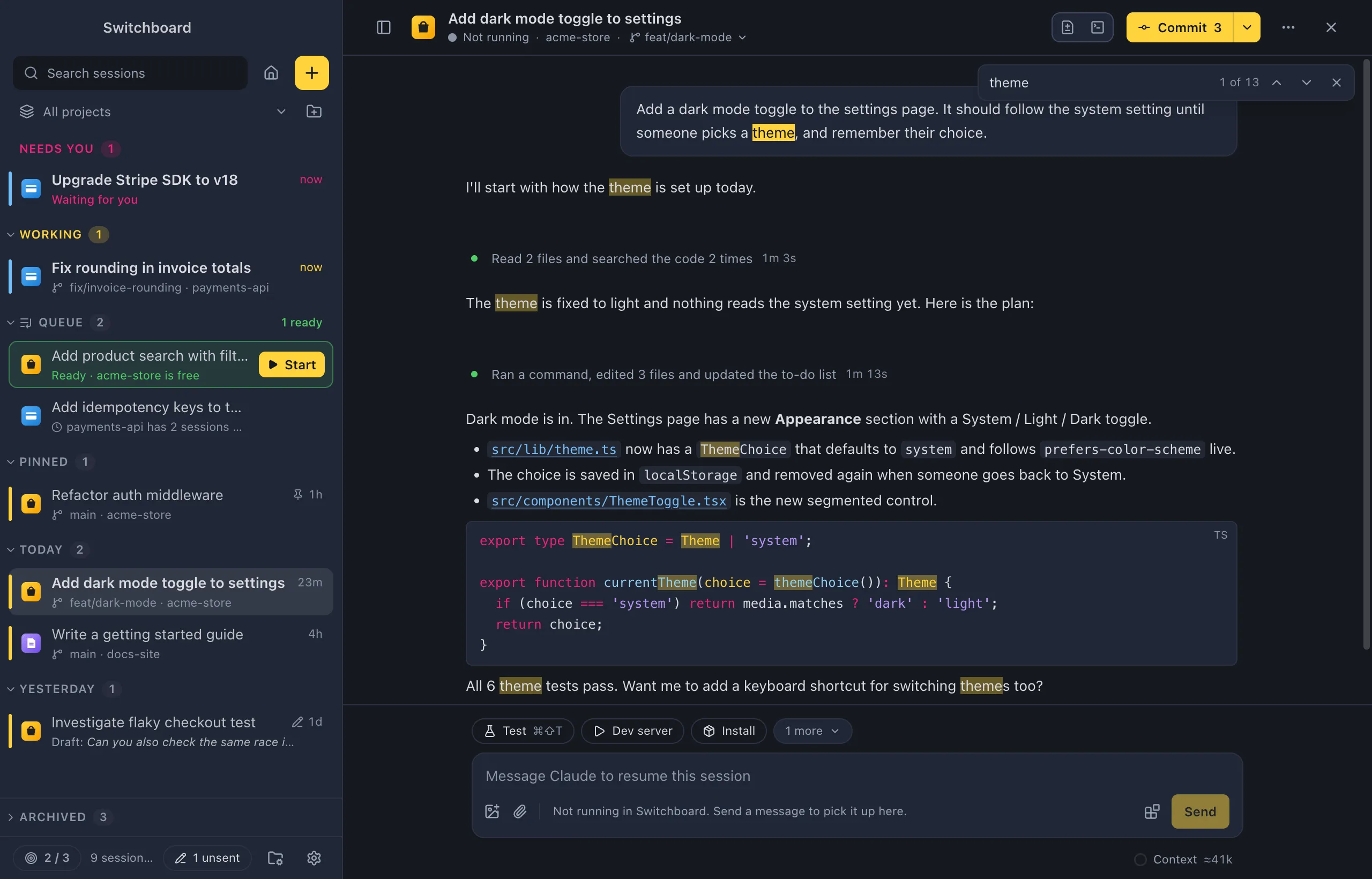
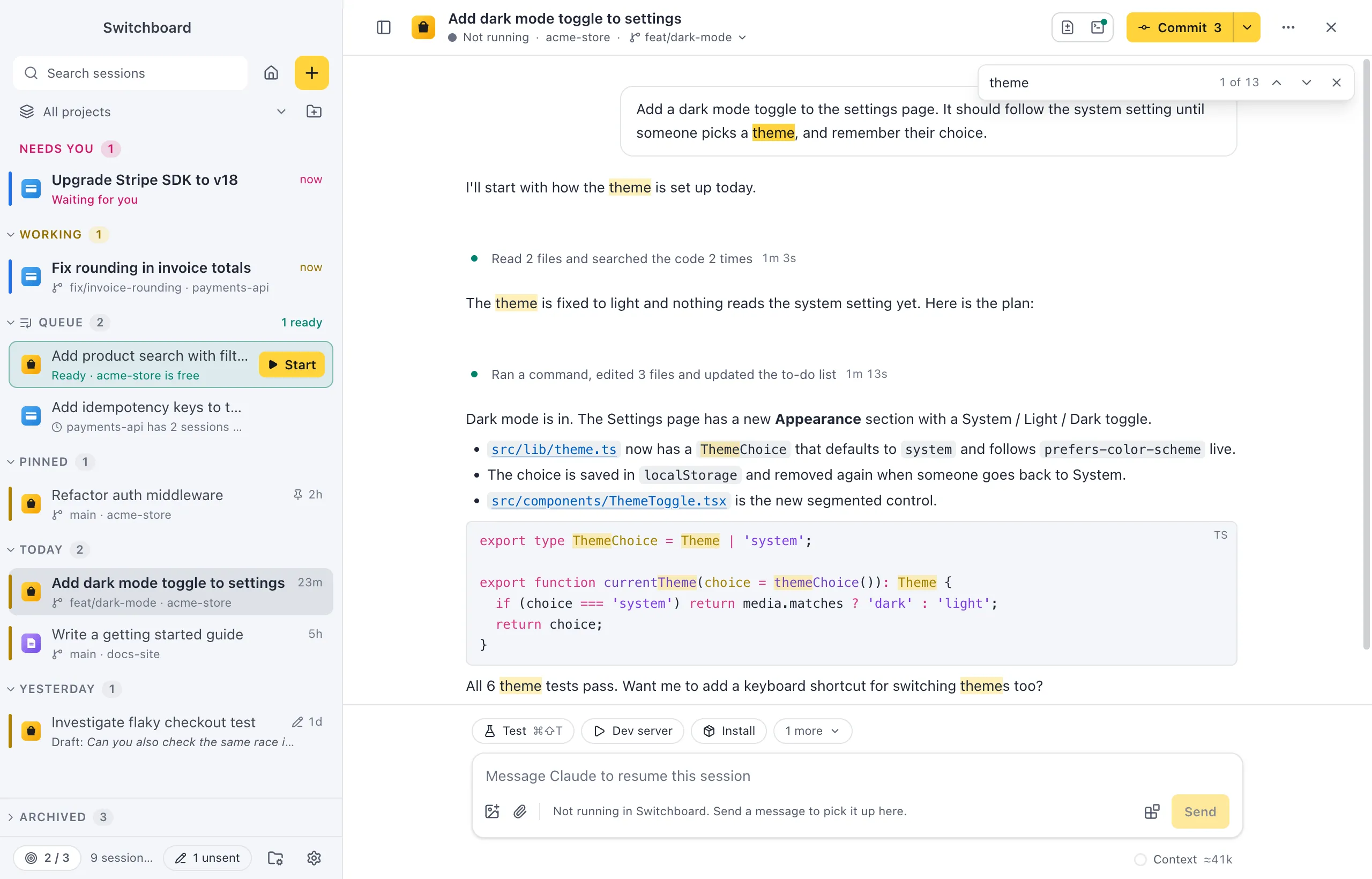
Press Command, FControl, F in a session and type. Every match in the conversation is highlighted, and the bar says where you are (“2 of 7”, or “No results”).
- Return or Command, GEnter or Control, G goes to the next match.
- Shift, Return or Command, Shift, GShift, Enter or Control, Shift, G goes to the previous match.
- Esc, or the ×, closes Find.
Settings
Section titled “Settings”Show sessions from other apps in Settings, Sidebar decides which sessions Search covers. Find has no settings.