
Add and edit memory
Claude Code writes memory on its own, but you can read and change every memory yourself, write new ones, and save a part of a conversation as a memory. Everything is written straight to the memory files, as Claude Code writes them.
![A memory open in the editor: its name and type at the top with Written in and the session's title, the Description field, the Type control, the text with a [[link]], and Linked from and Not written yet under it](/_astro/memory-editor-dark.CJjMRPjH_Z1dSIDI.webp)
![A memory open in the editor: its name and type at the top with Written in and the session's title, the Description field, the Type control, the text with a [[link]], and Linked from and Not written yet under it](/_astro/memory-editor-light.DWj2p6Q3_1IGErK.webp)
Open it
Section titled “Open it”- On a project’s Memory tab, click a memory in Project memory or Personal (all projects). It opens in the editor on the right.
- In Settings › Memory, click one of your Personal memories.
- From search, a Saved memory line in a conversation, or a session’s menu: each opens the memory in its editor.
Edit a memory
Section titled “Edit a memory”The editor’s header shows the memory’s name and type. When Claude wrote it during a session, it says Written in with the session’s title (click it to open the session), and how long ago it was changed.
- Description is the one line Claude sees in
MEMORY.md. - Type is
user,feedback,projectorreference. - The text is below. Click Edit (or double-click the text) to change it. Links like
[[other-memory]]open that memory.
Press Command, SControl, S or click Save to save. The footer says Unsaved changes or Saved. Other fields Claude Code keeps in the file stay as they are.
If Claude (or another app) saved the memory after you opened it, Switchboard asks before saving: Save mine replaces that version with yours. When you leave a memory with changes that aren’t saved, it asks whether to Discard them.
The memory’s menu
Section titled “The memory’s menu”Right-click a memory in the list, press Shift, F10Shift, F10, or use ⋯ in the editor:
| Item | What it does |
|---|---|
| Share with the team… | Adds it to the project’s instructions. See Share with the team. Not for personal memories. |
| Rename… | Changes its name, its file and its line in MEMORY.md together, and can update the links to it. |
| Move to Personal | Moves it to your personal memory, so it loads in every project. A personal memory has Move to <project> instead. |
| Copy to <profile> | Copies it to the project’s memory under another Claude profile. Shown with more than one profile. |
| Reveal in FinderFile Explorer | Shows the file in FinderFile Explorer. |
| Delete… | Moves the file to the TrashRecycle Bin and takes its line out of MEMORY.md, so Claude stops reading it. The toast has Undo. |
The editor’s footer has Reveal in FinderFile Explorer, Move to Personal and Delete… too.
Write a new memory
Section titled “Write a new memory”- Click New in the header of Project memory (or of Personal (all projects), or Personal memories in Settings).
- Give it a name: lowercase letters, digits and
-. It becomes the file name. - Pick a type, write the description (one line Claude sees in
MEMORY.md) and the text. - Click Save memory (Command, ReturnControl, Enter).
Switchboard writes the file and adds its line to MEMORY.md. Claude reads it like any memory it wrote itself.
Remember this
Section titled “Remember this”Save a part of a conversation as a memory, without asking Claude. It’s written straight to the memory folder with the session it came from. No Claude call, no tokens.
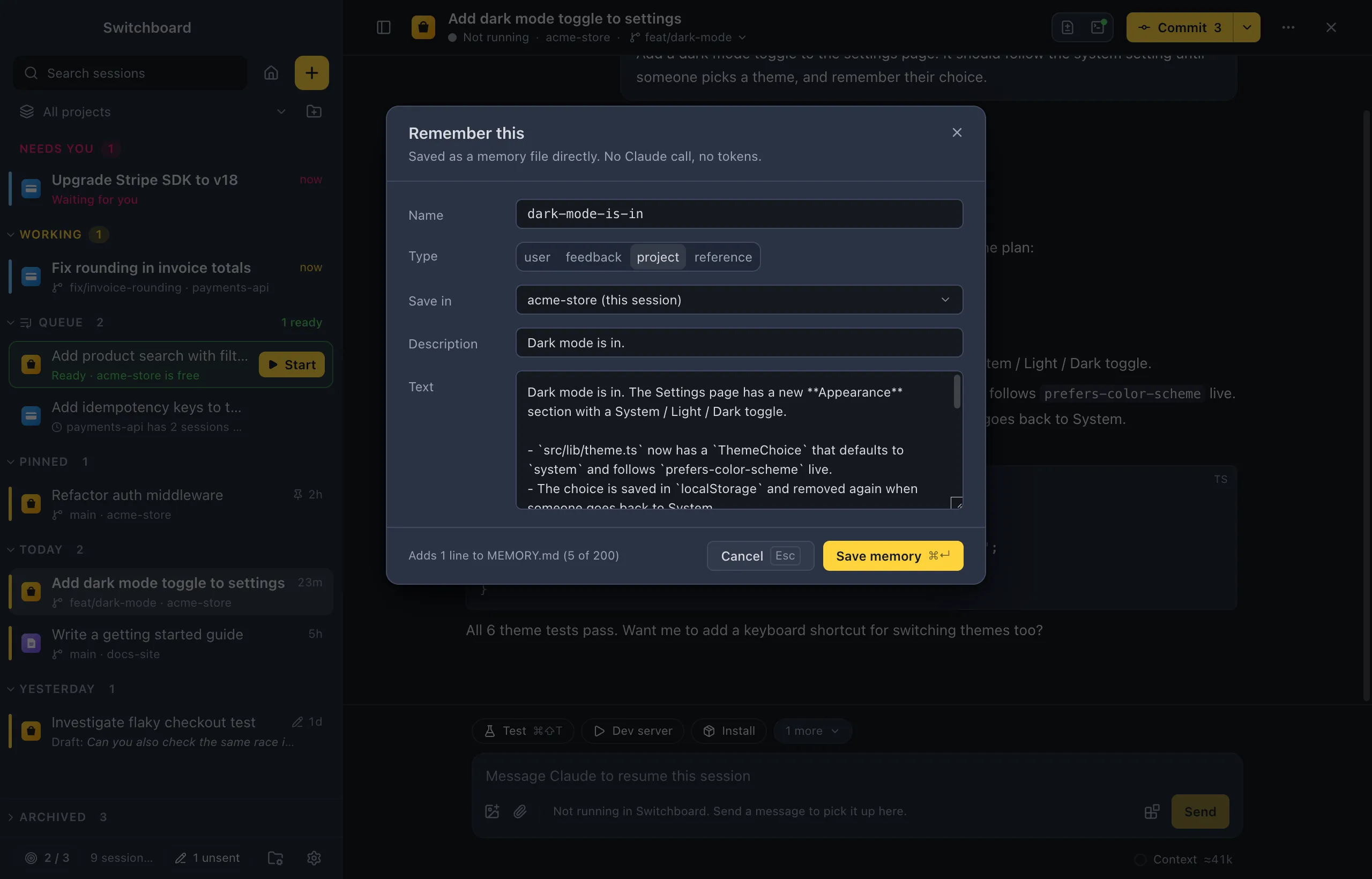
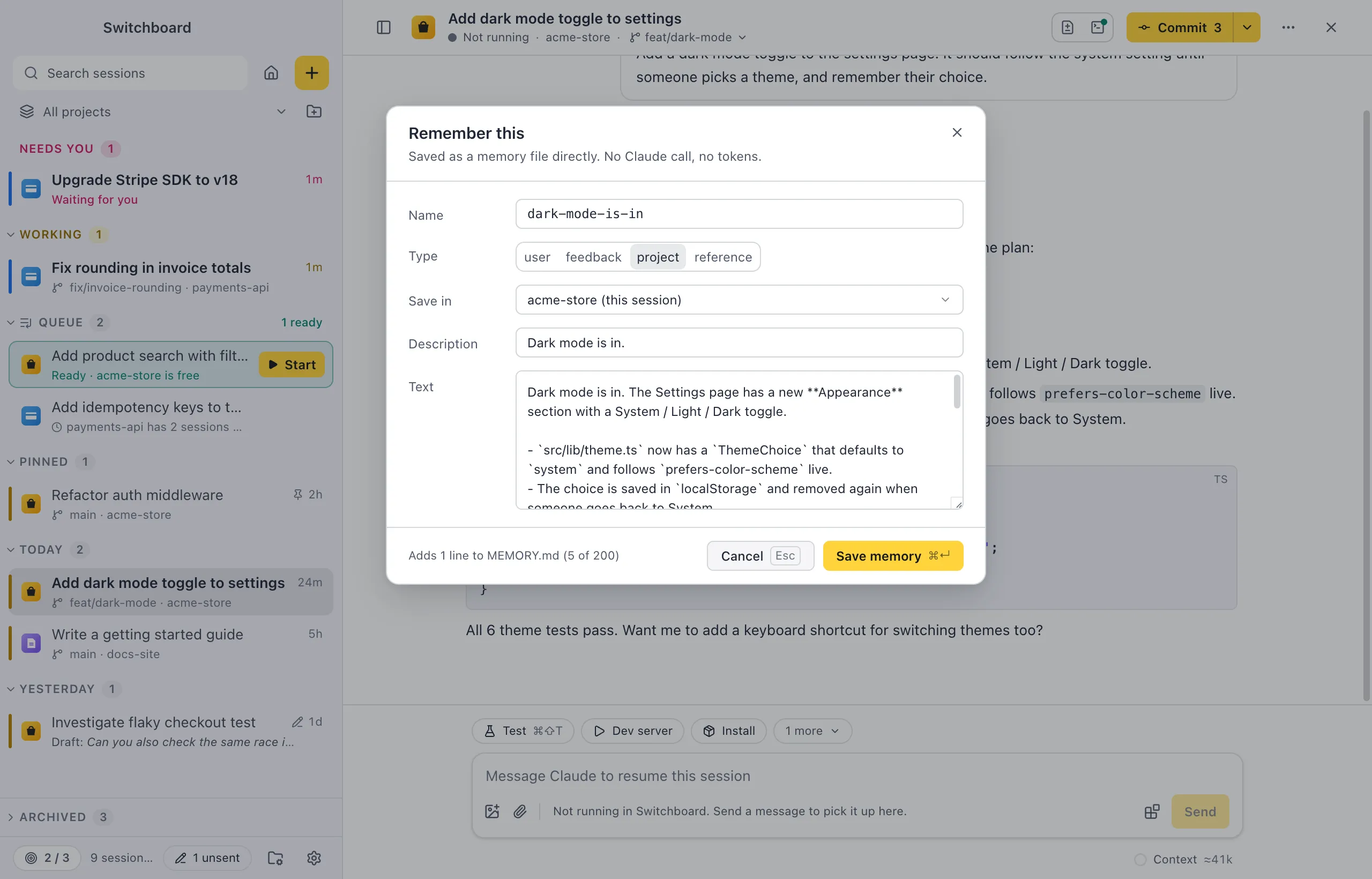
Start it in one of these ways:
- Select text in a message (yours or Claude’s) and click the Remember this button that shows over it.
- Right-click a message and choose Remember this… (for the selected text) or Remember this message….
- Click the brain button in a message’s hover toolbar.
- Run Remember this… in the command palette. It takes the text you selected in the conversation, else Claude’s last reply.
In the dialog, pick a name, a type, where it goes in Save in (this project, Personal (all projects) or another project) and a one-line description, then click Save memory (Command, ReturnControl, Enter). The toast has Open. When the text looks like a token, key or password, the dialog warns you; tick I checked, it’s fine to save first.
Memory in the conversation
Section titled “Memory in the conversation”When Claude saves a memory during a session, the conversation shows it as one line, Saved memory with the memory’s name and type (Personal for a personal one), instead of a file edit. Open shows it on the project’s Memory tab.
A session’s menu (right-click it in the sidebar, or ⋯ in its header) lists the memories it wrote under Memories from this session. Pick one to open it.
Edit instruction files
Section titled “Edit instruction files”Instruction files (CLAUDE.md, rules, CLAUDE.local.md, CLAUDE.md in subfolders and subagent memory) are on the same tab under Instructions. Click one, then Edit, and save with Command, SControl, S.
After you save a file that is committed with the project, a notice says Changed in git, with Show in Changes: the change waits in Changes for you to review and commit. Nothing is ever committed for you. If the file changed on disk after you opened it, Switchboard asks before saving: Save mine.
An instruction file’s menu (right-click or ⋯) has Copy a section to my memory…, Open in editor and Reveal in FinderFile Explorer. See Copy to my memory.
Settings
Section titled “Settings”Where new personal memories go is set in Settings › Memory. Nothing else changes the editor.