
Troubleshooting and FAQ
When something doesn’t work, Switchboard can tell you a lot about what it sees: the engine behind it, the Claude Code it found, and its recent log. This page covers the usual problems, where your data lives, and common questions.
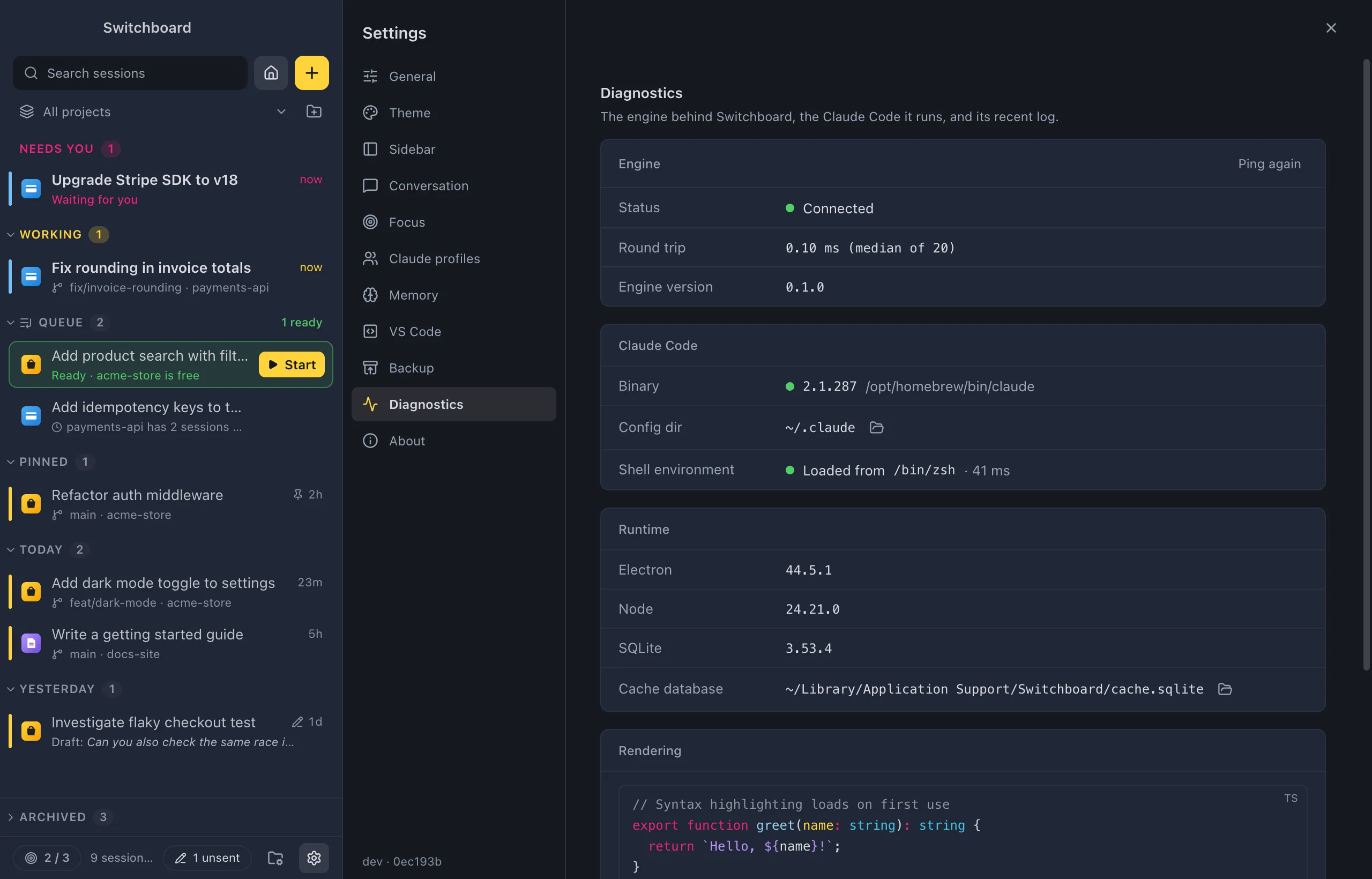
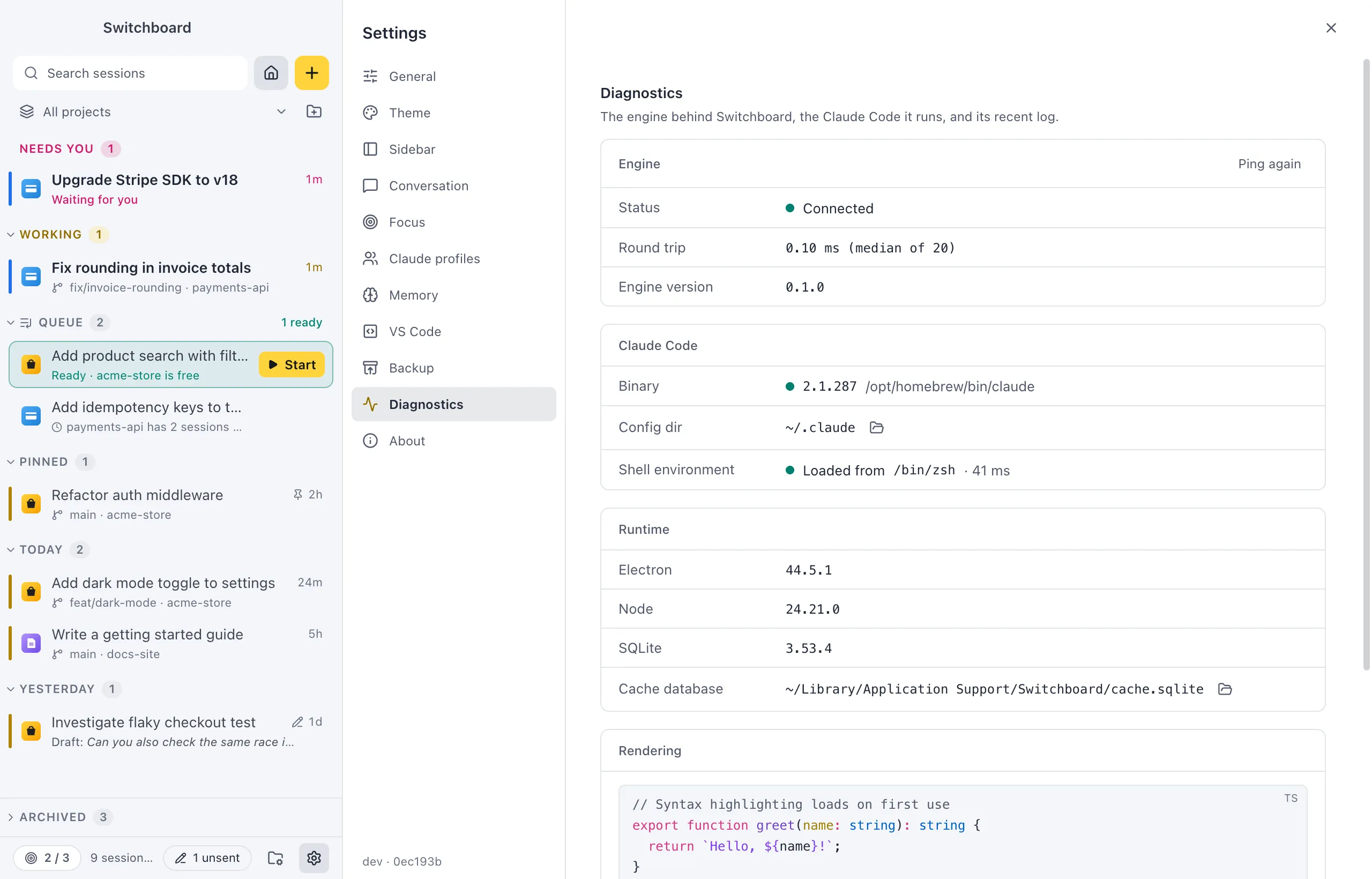
Where to find it
Section titled “Where to find it”- Settings → Diagnostics (Command, CommaControl, Comma, then Diagnostics), or Engine diagnostics in the command palette (Command, K or Command, Shift, PControl, K or Control, Shift, P).
- Check transcript… in the command palette, or under ⋯ in a session’s header, for one session.
- Settings → About for the version you run, and the commit it was built from. Add both to a bug report.
Check what Switchboard sees
Section titled “Check what Switchboard sees”Settings → Diagnostics shows:
- Engine: whether it is connected, how often it reconnected, and how fast it answers (Ping again measures again).
- Claude Code: the
claudeit found, with its version and path; the config folder it reads; and whether your shell environment was loaded (on Windows, the PowerShell that Switchboard uses). - Runtime: the Electron, Node and SQLite versions, and the cache database (a button shows it in FinderFile Explorer).
- Engine log: the engine’s recent messages. Warnings and errors stand out in colour.
A conversation looks wrong or empty
Section titled “A conversation looks wrong or empty”- Open the session and run Check transcript… (in the command palette or the session’s ⋯ menu).
- Read the conclusions at the top. Switchboard looks at the session’s transcript files in every profile’s folder and reads them the way Claude Code does.
- Click Copy details (Command, ReturnControl, Enter) to copy the whole report for a bug report. Check again runs it again.
macOS blocks the app
Section titled “macOS blocks the app”Releases are signed and notarised by Apple, so macOS opens them. A build you made yourself without a Developer ID certificate is unsigned: on another Mac, macOS blocks the first launch. Right-click the app and choose Open, or run:
xattr -dr com.apple.quarantine /Applications/Switchboard.appSee Building, signing and notarisation on GitHub.
Windows blocks the installer
Section titled “Windows blocks the installer”An installer that isn’t signed makes Windows SmartScreen say “Windows protected your PC”. Choose More info, then Run anyway. See Building and signing on GitHub.
If your organisation blocks apps that aren’t from the Microsoft Store or aren’t signed, ask whoever manages your PC.
Claude Code isn’t found
Section titled “Claude Code isn’t found”If Binary in Settings → Diagnostics says Not found on your PATH:
- Install Claude Code and sign in.
- Check that
clauderuns in Terminala new PowerShell window. - Quit and reopen Switchboard.
Switchboard finds claude through your login shell’s environment. Shell environment in Diagnostics says whether it loaded it, or fell back to the app’s own environment. If it fell back, check that your shell starts without errors.
On Windows, Switchboard uses the environment it gets from Windows when it starts, so it only sees a PATH change (such as a new Claude Code install) after you quit and reopen it. It looks for claude.exe on your PATH, then where each installer puts it:
- the native installer:
%USERPROFILE%\.local\bin\claude.exe; - npm: the
claude.exein the@anthropic-ai\claude-codepackage, next to npm’sclaude.cmd; - WinGet:
%LOCALAPPDATA%\Microsoft\WinGet\Links\claude.exe, or WinGet’sPackagesfolder for an install for every user.
If claude works in PowerShell but Switchboard doesn’t find it, check that the folder it is in is in your user or system PATH, not only added in your PowerShell profile.
Sessions from other apps don’t show
Section titled “Sessions from other apps don’t show”By default the sidebar only lists the sessions you started or continued in Switchboard. Turn on Show sessions from other apps in Settings → Sidebar to also see sessions from Terminal, Claude desktop and your editor.
Sessions that run with another Claude Code config folder (CLAUDE_CONFIG_DIR=…) only show once you add that folder as a Claude profile.
New skills or commands don’t show
Section titled “New skills or commands don’t show”Run Reload skills in the command palette. Switchboard reads your skill and command folders again, and running sessions pick up the change the next time they list them.
Windows: commands in the terminal or in actions
Section titled “Windows: commands in the terminal or in actions”- Chained commands. Switchboard runs the terminal and actions in PowerShell 7 (
pwsh) when it’s installed, and otherwise in Windows PowerShell 5.1. Windows PowerShell 5.1 has no&&: writea; if ($?) { b }in your own actions, or install PowerShell 7. The steps Switchboard runs itself, such as pushing and opening a pull request, already work in both. - Scripts. Switchboard starts PowerShell with the execution policy set to Bypass for that window only, so
npm,npxandpnpmrun there. A policy your organisation sets through Group Policy still wins. - An action won’t run because of a character. On Windows an action refuses to run when a value it fills in (a branch name, say) holds
&,|,<,>,^,%,!,"or a line break, and says which one: programs such as.cmdand.batfiles would read it as a command. Rename the branch, or leave that value out of the action. - Very long commands. A command of more than roughly 12,000 characters is too long for Windows and doesn’t start.
Windows: long paths
Section titled “Windows: long paths”Git for Windows leaves out files whose full path is longer than 260 characters unless it is told otherwise. Switchboard runs git with core.longpaths on, so those files show in Changes and worktrees work. Other tools you run in the terminal may still need long paths turned on in Windows, and git config --global core.longpaths true for your own git commands.
The engine restarted
Section titled “The engine restarted”The engine runs separately from the window. If it stops, Switchboard starts it again and the window reconnects on its own; buttons that need it say Connecting to the engine… in the meantime. Your sessions are kept. Settings → Diagnostics counts how often it reconnected.
Your data
Section titled “Your data”- Sessions stay where Claude Code keeps them: ~/.claude%USERPROFILE%\.claude, and the folder of each other Claude profile you add. Switchboard reads them and runs your own
claudeto do the work, so a session is the same in the terminal and in the app. - Switchboard’s own data is in ~/Library/Application Support/Switchboard%APPDATA%\Switchboard: preferences, imported themes, the
backupsfolder of settings backups, and a database (cache.sqlite) with your projects, project actions, pinned and archived sessions, and an index it builds from~/.claudefor the sidebar and search. - Deleting a session moves its files to the TrashRecycle Bin, so you can get it back from there. Reverting a new file in Changes and removing a theme go to the TrashRecycle Bin too.
Does Switchboard send my data anywhere?
Section titled “Does Switchboard send my data anywhere?”No. It asks GitHub whether there is a new Switchboard release (turn that off in Settings → About), and the npm registry which Claude Code version is the newest (turn that off there too). Your prompts and sessions only go where Claude Code sends them. The VS Code companion talks to Switchboard over a socket (a named pipe on Windows) on your computer only.
Does it need its own login?
Section titled “Does it need its own login?”No. Switchboard uses the Claude Code you already have, with your login, settings, commands and skills. It never handles your Claude login: you sign in with Claude Code itself. For more than one account, see Claude profiles.
Does it run on an Intel Mac?
Section titled “Does it run on an Intel Mac?”No. On a Mac, Switchboard is built for Apple Silicon, and needs macOS 13 (Ventura) or later.
Is there a Windows or Linux version?
Section titled “Is there a Windows or Linux version?”There is a Windows version, for Windows 10 and 11 on x64 and Arm64 PCs: see Install Switchboard and Switchboard on Windows. The Arm64 build hasn’t been tried on Arm hardware yet. There is no Linux version.
How do I uninstall it?
Section titled “How do I uninstall it?”- Quit Switchboard.
- Move Switchboard from Applications to the Trash. With Homebrew, run
brew uninstall --cask estruyf/tap/switchboardinstead. - To remove its data too, move
~/Library/Application Support/Switchboardto the Trash, or runbrew uninstall --zap --cask estruyf/tap/switchboard.
- Quit Switchboard.
- Open Windows Settings › Apps, find Switchboard and choose Uninstall. This also removes the
switchboard://link handler. - To remove its data too, delete
%APPDATA%\Switchboard.
Settings
Section titled “Settings”Settings → Diagnostics and Settings → About are the places to look first. For a bug report, include the version from About and what Check transcript… or the Engine log says.