
Answer Claude from your phone
Claude often works for minutes and then stops to ask before it runs a command. With Remote, the question comes to your phone and you answer it there. At the end of this guide your phone is paired, it gets a notification when a session needs you, and you can answer, send a prompt and start a session from it.
Turn on Remote
Section titled “Turn on Remote”Open Settings (Command, CommaControl, Comma) and choose Remote. Under Connection, click Change… to choose a tunnel, which gives your computer an address your phone can reach:
- Cloudflare quick tunnel needs
cloudflaredand no account. Its address changes each time it starts. - Tailscale needs Tailscale on your computer and your phone. It is the most private, and its address stays the same.
- ngrok and My own address are there too.
Install cloudflared with Homebrew: brew install cloudflared.
Install cloudflared with winget: winget install Cloudflare.cloudflared.
Click Turn on Remote and wait until the card says Running. See Remote.
Pair your phone
Section titled “Pair your phone”- Click Pair a device. Switchboard shows a QR code that works once, for two minutes.
- Scan it with your phone’s camera. The remote app opens and asks for a name for the phone.
- Tap Pair. Your phone and Switchboard each show a 6-digit code.
- Check that both codes are the same, then click Allow.
Add it to your home screen to open it like an app. On an iPhone, pair from the Home Screen app rather than from Safari: Remote explains how.
Turn on notifications
Section titled “Turn on notifications”After you pair, a card on the phone offers Turn on. Later, open Notifications in the ⋯ menu and turn Needs you and Finished on or off. Nothing comes while the app is open in front of you. On an iPhone, notifications only work from the Home Screen app.
At your desk, Switchboard’s own notifications and sounds are set in Notifications and sounds.
Answer a permission
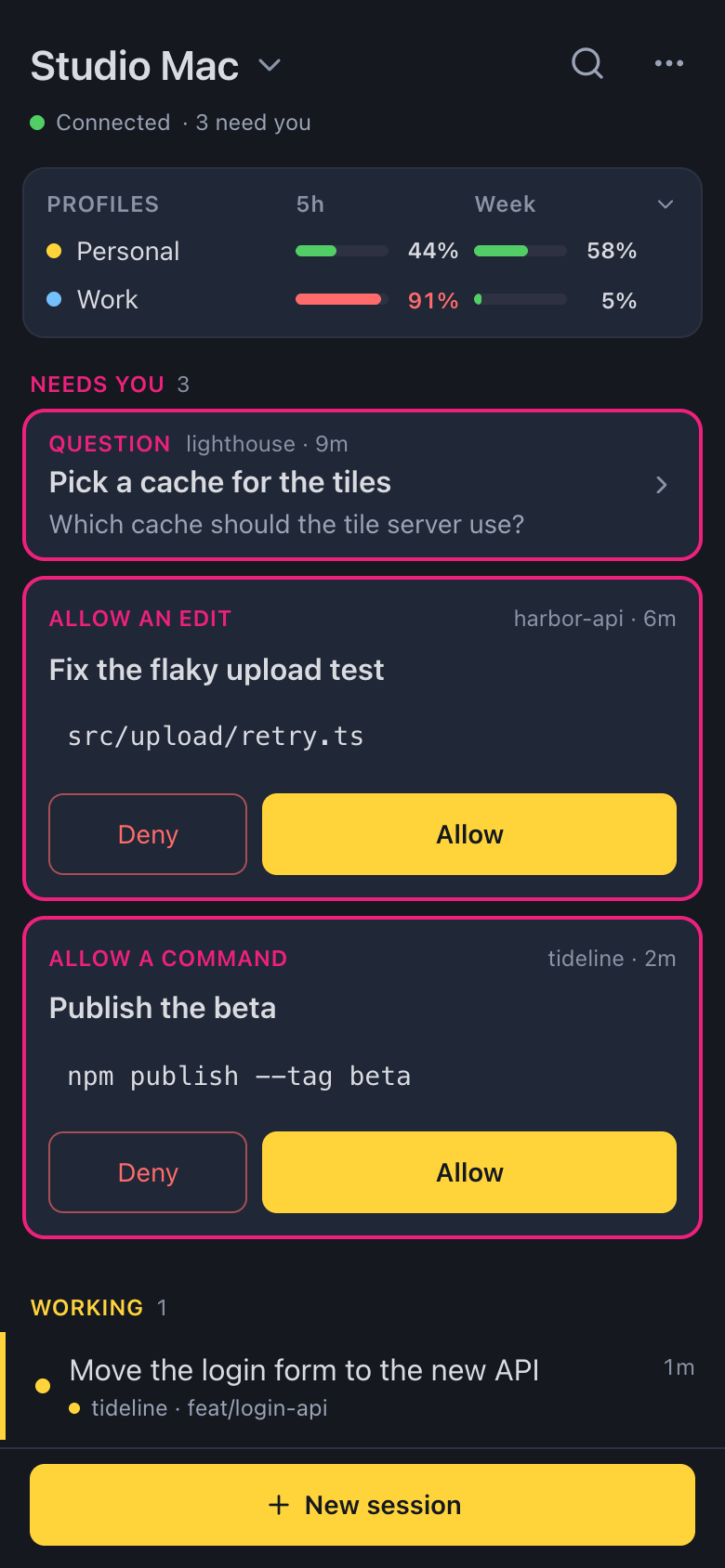
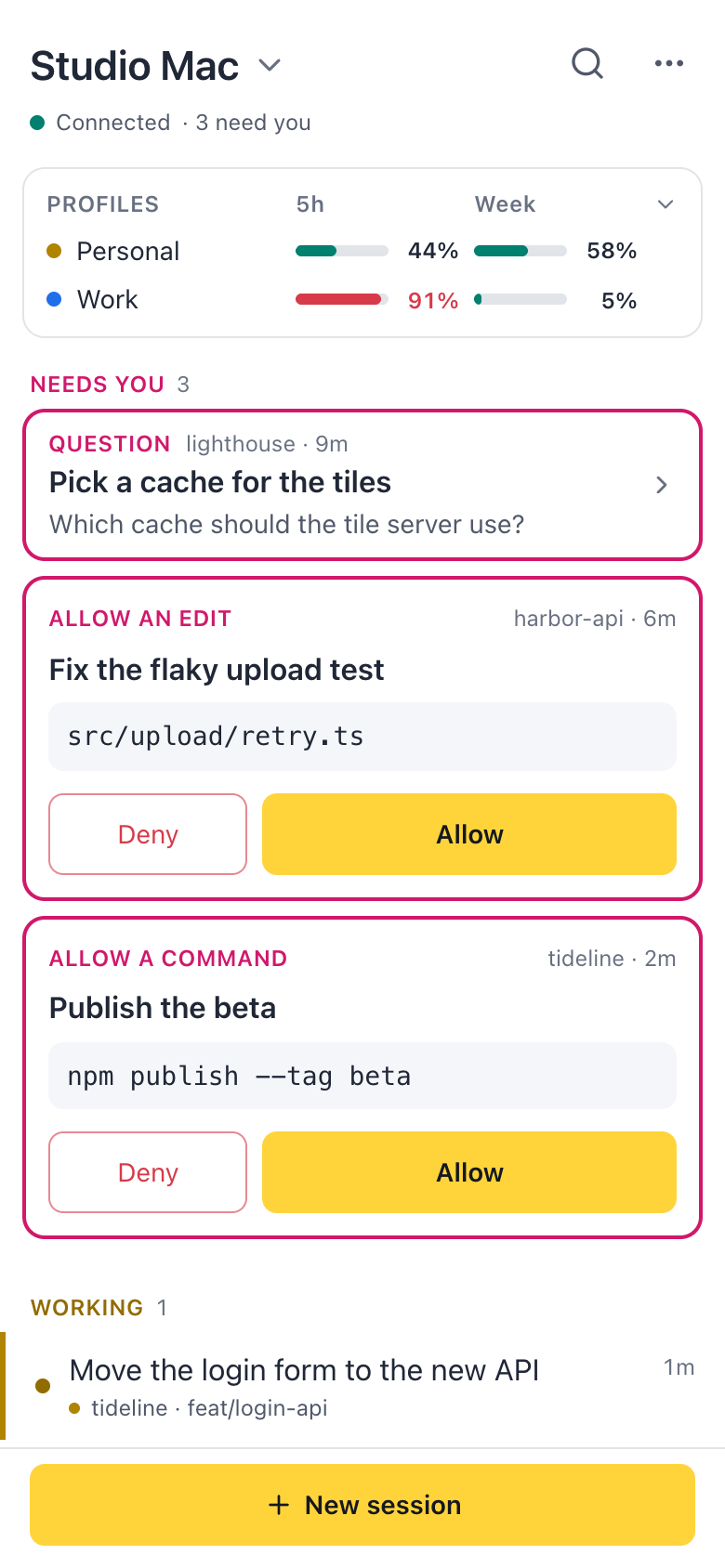
Section titled “Answer a permission”What Claude asks shows as cards with a pink frame on the first screen, the oldest first. A command, an edit or a fetch has Deny and Allow right on the card. A question or a plan is a short row: tap it to answer in the session.
Inside a session, the question stays above the message box, with Deny, Always allow when it’s offered, and Allow. To say no and tell Claude what to do instead, type it in the message box and send. If you already answered on your computer, the phone says Already answered. See Permissions and questions for what each answer does.
Send a prompt
Section titled “Send a prompt”Open a session and type in the message box. While Claude works, your message waits in Up next. A finished session starts with its catch-up. Changes on it shows what changed, and Commit there commits it; nothing is pushed. Swipe a session right to mark it as read, or left to archive it.
Start a session
Section titled “Start a session”Tap New session at the bottom of the screen. Pick a project from the tiles, then type what Claude should do. The chips under the box start from the project’s defaults: model, effort, mode, and This folder or New worktree. Tap Start session. While a session works in that project, Queue for later puts the prompt in Switchboard’s queue instead.
More than one computer
Section titled “More than one computer”Your phone can pair with several computers, such as a laptop and a desktop: tap the computer’s name at the top, then Pair another computer…. The sessions of all your computers are then in one list, and each says which computer it runs on, such as mystic. A chip for each computer at the top shows its status and how many of its sessions need you. In New session, Run on picks the computer a session starts on. See More than one computer.
Two computers can also pair with each other, so the sessions of one show in the sidebar of the other. See Other computers.
Related
Section titled “Related”- Remote on your phoneFollow your sessions from your phone, answer Claude when it needs you, and send prompts, wherever you are.
- Other computersNewFollow and steer the sessions of a paired computer from Switchboard on this one, in the same sidebar, and start new sessions there.
- Notifications and soundsTurn notifications and sounds on or off, each on its own, and pick a sound for each moment.
- Run several sessions at onceStart a few tasks side by side without them editing the same files, and always know which one needs you next.