
Use a work and a personal account
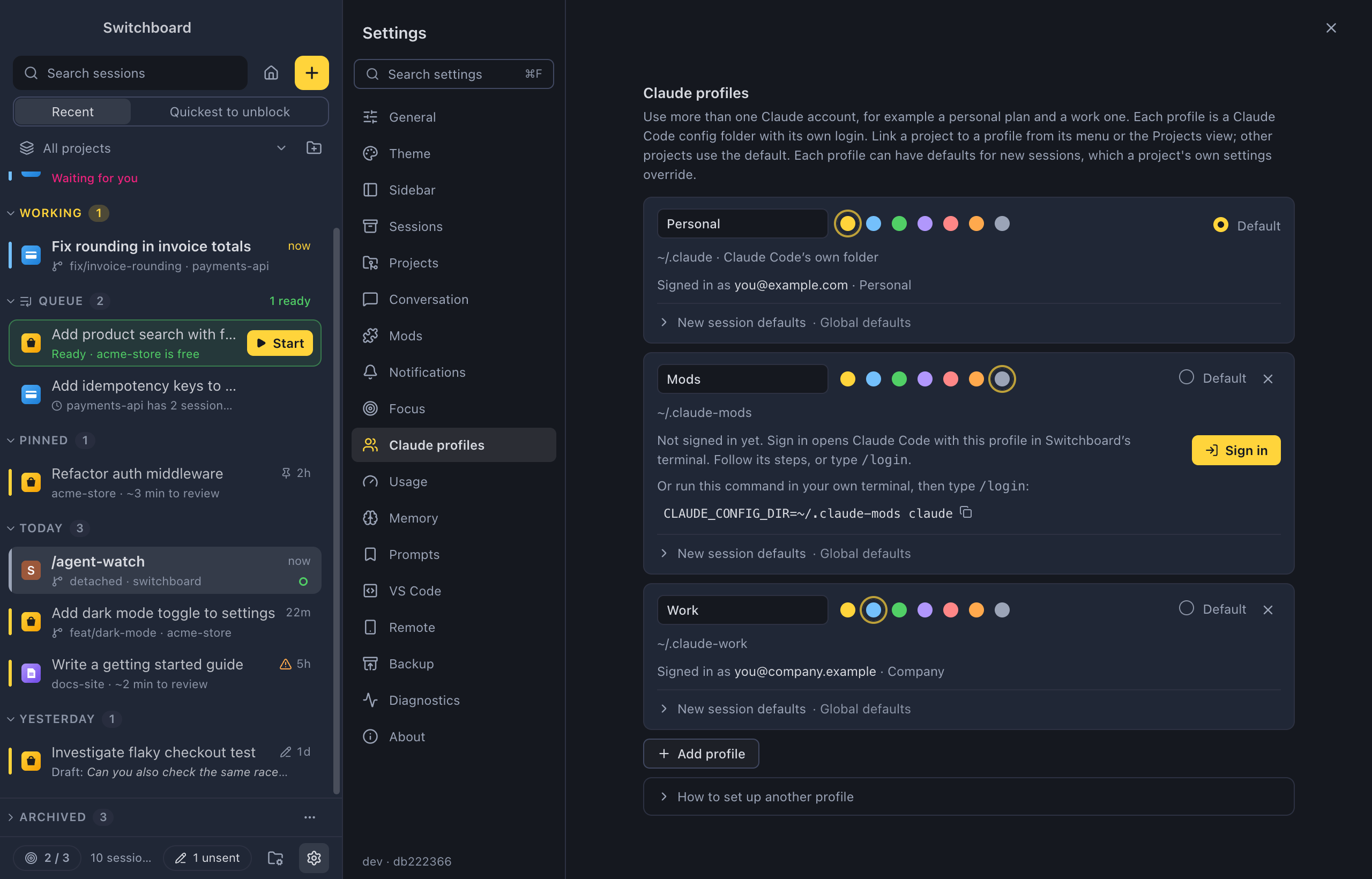
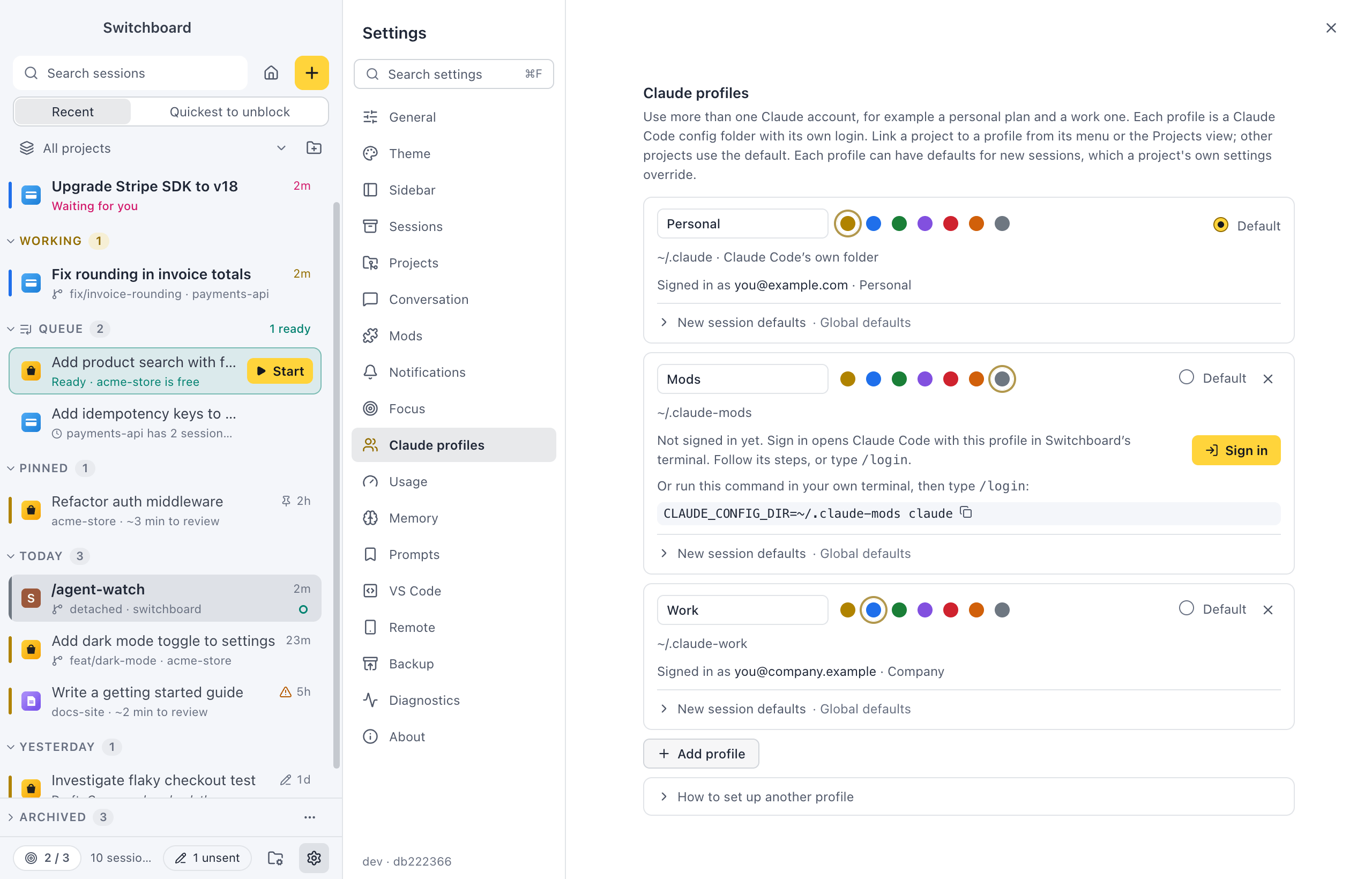
You have a Claude plan of your own and one from work. In a terminal you would switch CLAUDE_CONFIG_DIR by hand. In Switchboard each account is a Claude profile: link each project to its account once, and its sessions use the right one, with their usage kept apart.
Add the second profile
Section titled “Add the second profile”Your first profile is Claude Code’s own folder, usually ~/.claude%USERPROFILE%\.claude. Add one for the other account:
- Open Settings (Command, CommaControl, Comma) and choose Claude profiles.
- Click Add profile, give it a name such as “Work” and pick a colour.
- Check the Config folder. For “Work”, Switchboard suggests
.claude-workin your home folder. Leave Sign in now on and click Add profile. - Switchboard’s terminal opens next to Settings, with Claude Code running on the new folder. Follow its steps and sign in with the other account. If it doesn’t ask, type
/login.
Signing in later works too: the profile says Not signed in yet, with a Sign in button that does the same. It also shows a command to run in your own terminal instead. See Sign in.
The profile then says Signed in as with the account’s email. Switchboard never handles your login: Claude Code does. Choose Default on the profile most of your projects should use. See Claude profiles.
Link each project to its account
Section titled “Link each project to its account”On a project’s page, open the Settings tab and pick a Claude profile. Or open the project’s menu in the sidebar’s project list and choose one under Claude profile. New sessions in that project use it; projects without a link use the default. See Project settings.
Pick another account for one session
Section titled “Pick another account for one session”In New session, the first chip under the message box is the profile, with its colour dot and name. Click it to pick another account for this one session. The menu marks the project’s own profile “(project)” and the default “(default)”. A running session keeps its profile: to use another account, start a new session. See Model, effort and mode.
See which account a session uses
Section titled “See which account a session uses”With more than one profile, the rail on every row in the sidebar has the profile’s colour. Hover a row to see the profile’s name. The state then shows through the colour of the age, the bold title, the status icon and the section the session sits in. See Several Claude profiles.
Keep an eye on both plans
Section titled “Keep an eye on both plans”Home has a Profiles section with a card per profile: the account’s email, what its sessions are doing (“1 needs you · 2 working · 5 today”) and its plan usage, with when each limit resets. Click the usage to open the Usage view for that profile. Its profile menu switches between accounts, and Limits and Tokens show what is left and what used it.
The limits stay apart too. When one profile hits its usage limit, the queue holds new sessions for it until the reset, and sessions of the other profile go on as usual.
What it would cost
Section titled “What it would cost”The usage bars also show what your tokens would cost at API prices, such as 5h 38% ≈$4.10 · Week 52% ≈$61, and a session shows its own cost next to Context. Your plan isn’t billed per token, so this is only an estimate. Turn it off or pick the currency in Settings › Usage. See Estimated cost.
Give each account its own defaults
Section titled “Give each account its own defaults”Open New session defaults on a profile to set its Model, Permissions and Workspace, such as Opus and Plan mode for the work account. A new session takes each field from the project’s own defaults first, then from its profile, then from the choices you made last. See Defaults for new sessions.
Related
Section titled “Related”- UsageSee what is left of your plan, when it comes back, and which sessions, projects and models used your tokens.
- QueueKeep prompts to start later, in the order you want them, and see when each one is ready.
- Type the same thing lessTurn the prompts, commands and choices you repeat into saved prompts, buttons, links and defaults, so a new session takes a click or a key.