
Run several sessions at once
You have three things to do in one project: a bug, a small feature and a test cleanup. Claude can work on all three at once, as long as each one has its own checkout and you know which one to look at. At the end of this guide, each task runs in its own worktree, the ones that have to wait sit in the queue, and one key takes you to whatever needs you.
Give each task its own worktree
Section titled “Give each task its own worktree”- Open New session (Command, NControl, N) and pick the project.
- Flip the Worktree switch at the right of the route strip, or pick New worktree in the Where menu.
- Write the prompt and press Start (Command, ReturnControl, Enter).
- Do the same for the next task. Each new worktree gets a made-up name and a branch of its own.
Claude works in a copy under .claude/worktrees/, and your own checkout stays untouched. To start every session of a project this way, choose New worktree and press Save as project default in the Where menu. See Worktrees.
Queue what has to wait
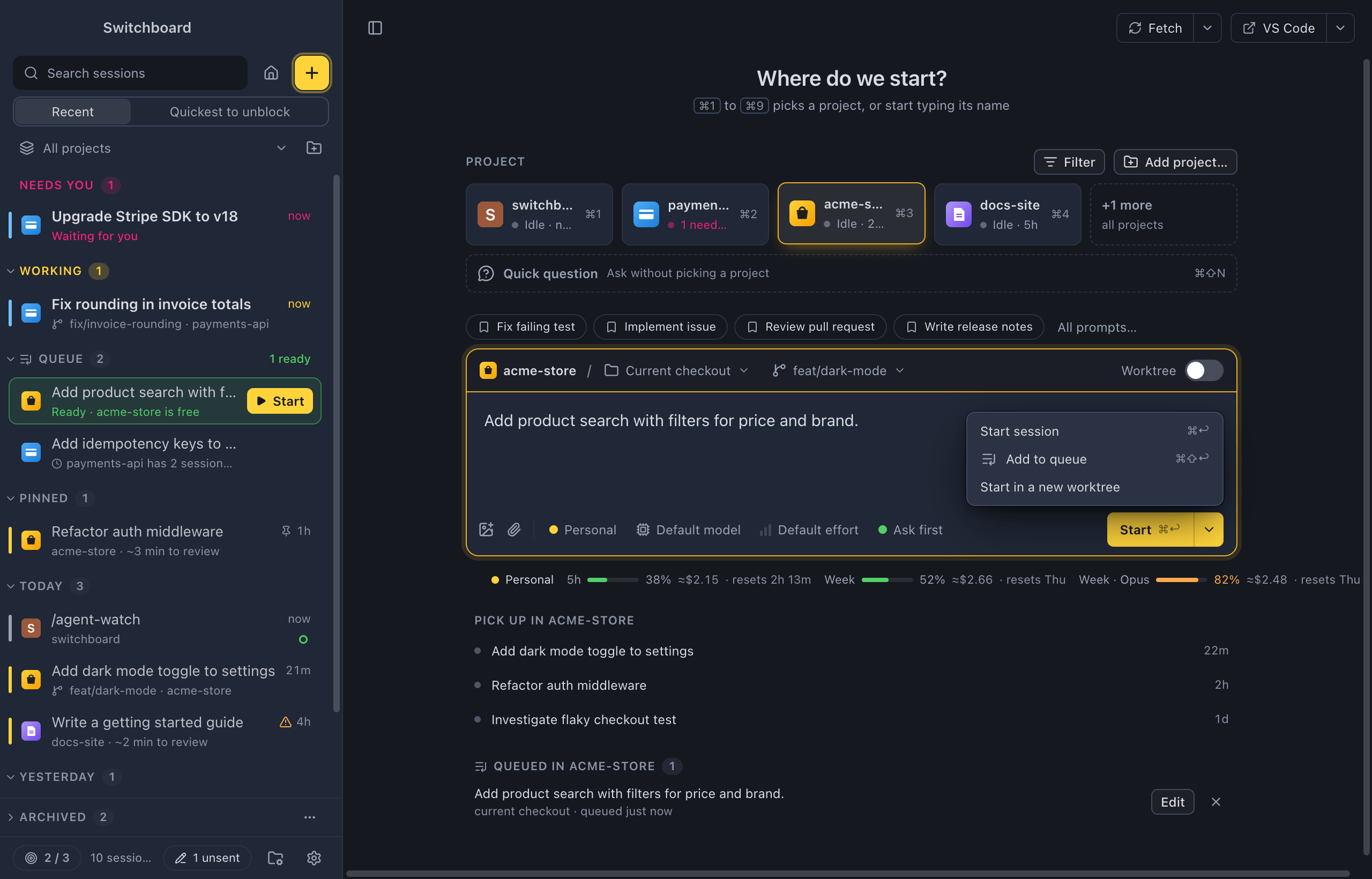
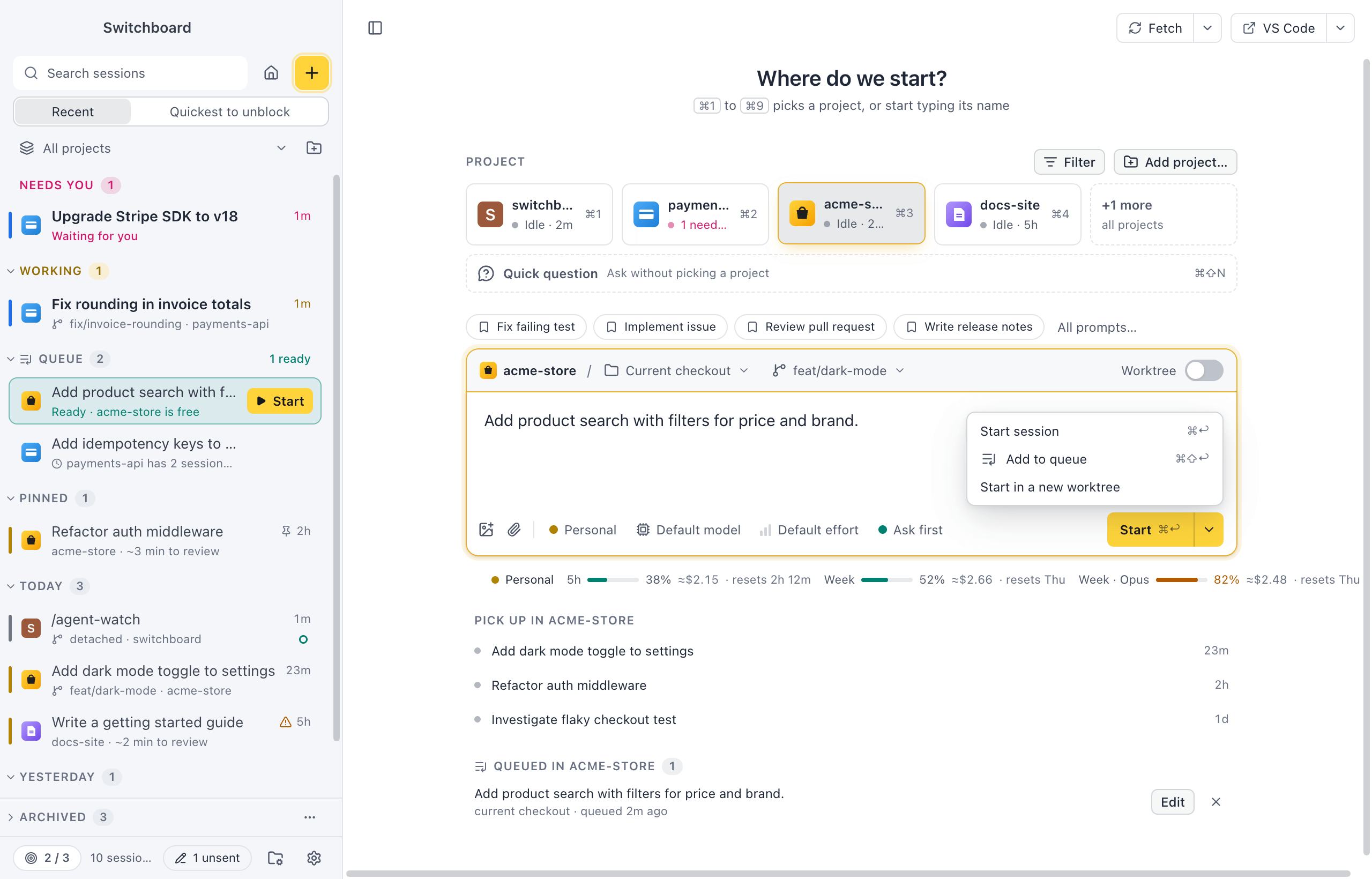
Section titled “Queue what has to wait”Some tasks have to wait for another one to finish. In New session, choose Add to queue in Start’s ▾ menu, or press Command, Shift, ReturnControl, Shift, Enter. The prompt is kept with its project and choices.
Wait for… sets when an item is ready: Any session in this project (the default), one session, The item above it, or Nothing (start it myself). The queue never starts anything by itself. A ready item gets a light green tint and a Start button, and a message such as “acme-store is free” offers Start it or Review first. See Queue.
Let the sidebar tell you
Section titled “Let the sidebar tell you”The sidebar puts Needs you at the top, then Working, then the Queue. A pink rail means Claude waits for a permission, a question or a plan; yellow means it is working; blue means it finished and you haven’t read it. See The sidebar and Session states.
You don’t have to watch it. A notification tells you when a session needs you, finishes or fails, and the Dock badge counts the sessions that wait for youa pink dot on the taskbar button says sessions wait for you. See Notifications and the badge.
Jump to the next one that needs you
Section titled “Jump to the next one that needs you”Press Command, Shift, UControl, Shift, U from anywhere. It goes to the sessions that wait for you first, then to finished ones you haven’t read, the quickest to review first, and wraps around. Answer, then press it again. Quickest to unblock at the top of the sidebar sorts the whole list the same way. See Quickest to unblock.
Keep two in view
Section titled “Keep two in view”To follow one session while you work in another, press Option, clickAlt, click on a session in the sidebar, or right-click it and choose Open beside. Keyboard shortcuts work on the active pane, the one with a yellow line along the top. See Split view.
For a second screen, press Command, Option, OControl, Alt, O or click Open in new window in the session’s header. That window shows the conversation, the message box and Claude’s questions. See Sessions in their own window.
Set a limit
Section titled “Set a limit”Turn on the Focus limit switch in Settings › Focus and pick Sessions at the same time (3 to start with). A session counts while it is working, needs you or is unread, and a counter at the bottom of the sidebar shows 2 / 3.
At the limit, Start asks first (“Start a 4th session?”) with Add to queue, Start anyway and Cancel. The new idea waits in the queue instead of in your head. See Focus limit.
Clean up when you’re done
Section titled “Clean up when you’re done”In a session that runs in a worktree, click worktree · <branch> in its header, or run Finish worktree…, then choose Merge into <base>… or Remove worktree….
For whatever is left, open the project’s Worktrees tab. It lists every worktree with its size on disk, suggests which ones can go, and removes several at once. Clean up worktrees in <project>… in the command palette goes straight to the confirmation. See Worktrees tab.
Related
Section titled “Related”- Review what Claude did, fastA session finished. See what it did, question it, check the diff and ship it in a few minutes, without scrolling through the conversation.
- HomeOne view of what needs you, what is working, your queue and your projects.
- Answer Claude from your phoneLeave your desk while Claude works, and allow, answer or prompt it from your phone when it needs you.